AgentOps Argus
Write, run and manage tests, from the desktop app to the web server.
This manual covers AgentOps Argus from start to finish: the desktop
app where you write and run tests, the argus command line
and MCP server, GitLab CI/CD, and argus-server with its web app, where
teams plan cycles, triage runs and decide whether a release can
ship.
It is based on the code on main (November 2026).
Screenshots come from the real desktop app and web app, taken on
Linux.
Where to start
| You want to | Read |
|---|---|
| Install the desktop app | 2. Installing and updating |
| Write your first test | 3. Projects, then 5. Writing tests |
| Test a desktop app or a mobile app | 6.21 desktop-app, 13.5 |
| Run tests in a pipeline | 16. Running in GitLab CI/CD |
| Set up the server for a team | 17. Setting up argus-server |
| Plan and run a test cycle | 18. Using the web app |
| Decide whether to ship | 20. Releases, gates and deployments |
| Look up a variable, file or key | 22. Reference |
What has been tested
Most of Argus has been tested on Linux, and many integrations only against fakes. Before you rely on the following, try them in your own setup:
- Windows: the desktop app is built and type-checked for Windows, but most screens were tested on Linux only. That includes the installer and updater, the terminal, headed runs, Stop and the browser recorder.
- Real systems: Duende and Entra sign-in, Jira, GitLab pipelines, QMetry import, Azure Blob storage and Key Vault, SendGrid and SES were tested against fakes. SQL Server has not been tested. Redis was tested against real Redis 7 and 8.
Chapters say where a feature is not built yet.
Reading it in Argus
The manual is built into both apps, so nobody has to find this folder:
- Web app: the Help button, User
manual in the account menu, or
F1open it athelp/on the server. - Desktop app: the book icon in the top bar, Read
the user manual on the welcome screen, Open the user
manual in the palette, or
F1open the app's own copy in your browser. It works offline.
The video tutorials are together on one page,
Video tutorials (under Welcome in the contents), in order: the
web app, then the desktop app. Each plays the next when it ends.
Chapters that a video covers link to it. Videos are MP4 files in
Cloudflare R2, played by the browser itself. The desktop app also
downloads each video in the background the first time you open the
manual (into <data>/manual/videos/), so after that
they play offline too; the installer stays the same size. The list of
videos is videos.json (bucket and
base_url, the bucket's public address); to add or replace
one, run
python3 build/videos.py upload <id> <file.mp4>
with CLOUDFLARE_ACCOUNT_ID and
CLOUDFLARE_API_TOKEN (Workers R2 Storage: Edit) set, then
rebuild the help page.
Video tutorials
9 short narrated videos of the real apps with the Northwind Shop sample project, one after another on one page: the web app first, then the desktop app.
Video tutorials
- 1A tour of the web app
- 2Desktop 1: Getting started
- 3Desktop 2: Building a test on the canvas
- 4Desktop 3: Passing data between steps
- 5Desktop 4: Connections and variables
- 6Desktop 5: Running tests and reading results
- 7Desktop 6: The assistant
- 8Desktop 7: Files, terminal and git
- 9Desktop 8: Automations, CI and the server
Every tutorial in order. Each one plays the next when it ends, so you can watch them straight through.
1A tour of the web app 1:35
 1:35
1:352Desktop 1: Getting started 1:34
 1:34
1:343Desktop 2: Building a test on the canvas 1:28
 1:28
1:284Desktop 3: Passing data between steps 1:21
 1:21
1:215Desktop 4: Connections and variables 1:20
 1:20
1:206Desktop 5: Running tests and reading results 1:11
 1:11
1:117Desktop 6: The assistant 0:59
 0:59
0:598Desktop 7: Files, terminal and git 0:53
 0:53
0:539Desktop 8: Automations, CI and the server 1:06
 1:06
1:06Getting started
Install the desktop app, open a project and find your way around.
Introduction
AgentOps Argus is a QA platform. You write tests as small YAML files, build and debug them on a visual canvas in the desktop app, run them on your own machine or headless in GitLab CI, and keep their results, test cases, cycles, requirements and defects in a web server that replaces QMetry. An AI assistant (Claude Code, Codex or Gemini CLI) works inside the desktop app and through an MCP server, so it can write, run and triage tests with you.
This manual covers every part of Argus as it is built today, from installing the desktop app to running the web server for a team.
1.1 The pieces
| Piece | What it is | Who uses it |
|---|---|---|
Desktop app (argus-desktop) |
The authoring and debugging tool: test explorer, flow canvas, YAML view, step inspector, local runs with live status, evidence, review of healed locators and screenshots, connections, assistant, file explorer, payload library, API explorer, repository view, terminal. | QA engineers, test authors |
CLI (argus) |
The same engine on the command line: validate,
check, run, plan,
report, connections, payloads,
automate, triggers, ci gitlab,
import, upgrade, review,
visual, sync, gate,
login, mcp, skill. |
Everyone, and every CI job |
MCP server (argus mcp) |
Argus as tools and prompts for AI coding CLIs: list, write, validate, run and triage tests, drive a real browser, desktop apps and mobile emulators, read Jira, manage cycles. | AI agents (and the desktop assistant) |
Runner images (argus:core,
argus:full) |
Docker images that run tests in GitLab CI. full adds
Robot Framework, Playwright, browsers, Node.js, Python and database
clients. |
CI pipelines |
Web server (argus-server) |
The system of record: projects, test cases, requirements, releases, plans, cycles, executions, runs, defects, reports, performance results, Jira and GitLab integration, roles and sign-in. Serves the web app. | Testers, leads, managers, admins |
The report (report.html) |
One self-contained HTML file per run, readable offline, from verdict down to the failing step's evidence. | Anyone a run is shared with |
All of them run the same engine (argus-runner), so a
test behaves the same on a laptop, in a pipeline and when the assistant
runs it.
1.2 How the pieces fit
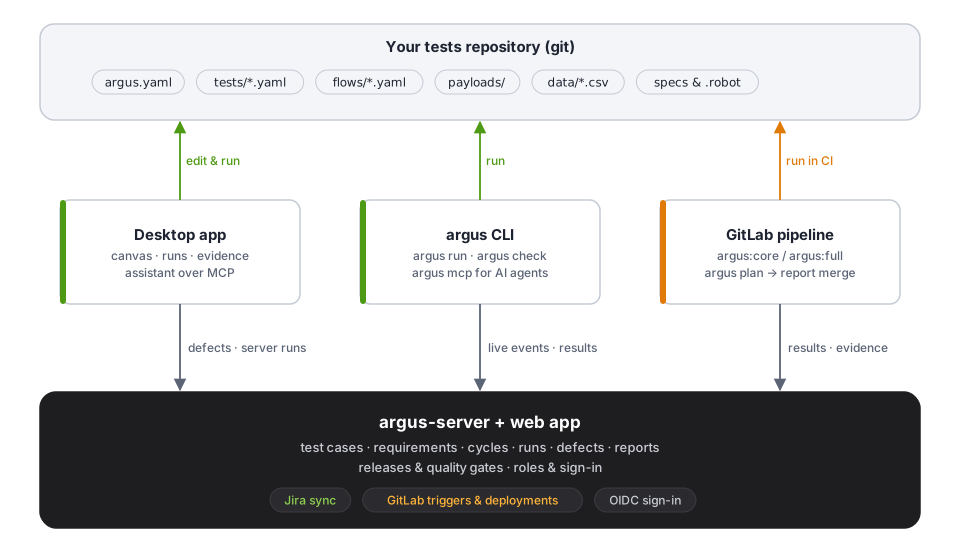
- The tests repository is the source of truth for
automation. Tests, flows, payloads, data files and
argus.yamllive in git. The desktop app and the assistant edit those files; nothing about a test's steps is hidden in a database. - The server is the source of truth for test
management. Manual test cases, cycles, executions,
requirements, releases and defects live in argus-server. Automated
results reach it from the CLI and from CI.
argus syncsends each test's flow to the server so the web app can draw it. - Secrets never live in YAML.
argus.yamlnames variables (${QA2_PASSWORD}), OS keychain items (${keychain:…}) or Azure Key Vault secrets (${keyvault:…}). On a desktop they come from local variables; in CI from masked CI/CD variables. Every secret is masked as••••••in every result, log, report and evidence file.
1.3 Words used in this manual
| Term | Meaning |
|---|---|
| Project folder / tests repository | The folder that holds argus.yaml and the tests. One
Argus project per repository is usual. |
| Test (test case) | One YAML file with an id (e.g. TC-1042), a
title and steps. kind: test is
the default. |
| Flow | A YAML file with kind: flow: reusable steps that tests
call with a sub-flow step or run first with
setup:. |
| Automation | A YAML file with kind: automation: the same steps doing
work (a sync, a digest) instead of checking it. It succeeds or fails
rather than passing. |
| Step | One action in a test: an HTTP call, a SQL query, a Kafka message, a
Playwright spec, a branch, a loop … Each has an id and a
type. |
| Environment | A named set of variables and connections in argus.yaml
(qa2, uat). Runs pick one with
--env or the desktop's environment menu. |
| Connection | Settings for something a step talks to (a database, a Redis cache, a
Kafka cluster, an SSH host, an AKS cluster, a mail service), named in
argus.yaml. |
| Payload | A reusable request body or message in the project's
payloads/ library, read as
{{payload.<name>}}. |
| Run | One execution of a set of tests. It writes
argus-results/ (output.json, junit.xml, report.html,
events, evidence). |
| Evidence | What a step leaves behind to look at: request and response, rows, logs, screenshots, videos, traces, files. |
| Cycle | In the web app: a planned round of testing (a sprint, a nightly) with executions assigned to testers. |
| Execution | One test case in one cycle, on one environment and platform, with its result. |
| Release | A version you ship, with a quality gate and go / no-go sign-off. |
1.4 What you need
| To … | You need |
|---|---|
| Author and run tests on a workstation | The desktop app (Windows installer, or built from source on Linux
and macOS). The argus CLI comes with it. |
Run playwright steps |
Node.js and @playwright/test in the project
(npm install,
npx playwright install chromium). The recorder writes the
package.json for you. |
Run robot steps |
Python and Robot Framework
(pip install robotframework). Connections → Tools on
this computer can install it. |
| Use the assistant | Claude Code, Codex or Gemini CLI on PATH (or named in
ARGUS_CLAUDE, ARGUS_CODEX,
ARGUS_GEMINI). |
| Run in CI | A GitLab project with a Docker runner (or a Windows shell runner)
and the argus:core / argus:full images in a
registry it can pull from. |
| Share results, manage cycles and defects | An argus-server (PostgreSQL 15 or later), reachable over HTTPS. |
1.5 How this manual is organised
The chapters follow the work: install, open a project, write tests, connect them to systems, run them, then share results and manage releases on the server. Each chapter is complete on its own and links to the others; the reference chapters at the end list every command, environment variable, file and keyboard shortcut.
Throughout the manual:
⌘means Ctrl on Windows and Linux, and Cmd on macOS.⇧is Shift,⌥is Alt / Option.- Paths such as
argus-results/are relative to the project folder. - Screenshots come from the real app, mostly in the dark theme; the
light theme (
⇧⌘L) looks the same in light colours.
Installing and updating
2.1 Windows: the one-line install
AgentOps Argus is installed the same way as AgentOps: one line in
PowerShell, from the update server at agentops.build.
irm https://agentops.build/argus/install.ps1 | iexThe script downloads
AgentOpsArgus-<version>-windows-x64-setup.exe into
C:\InternalApps\AgentOpsArgus, checks it against its
published .sha256 and opens the installer. The installer
needs no administrator rights and installs to
%LOCALAPPDATA%\Programs\AgentOpsArgus:
| Component | Notes |
|---|---|
| AgentOps Argus (required) | argus-desktop.exe (the app), argus.exe
(the CLI, which the assistant also runs as argus mcp),
argus-server.exe (with the web app built in) and the Robot
Framework listener. Start menu shortcuts and an uninstaller. |
| Add argus to PATH | Puts the install folder on your user PATH, so
argus works in any terminal. Untick it to keep
PATH as it is. |
| Argus skill for AI coding CLIs | Runs argus skill install --user, so Claude Code, Codex
and Gemini CLI know how Argus works (see chapter 13). Refreshed on every update,
removed by the uninstaller. |
| Desktop shortcut | Off by default. |
Install and uninstall ask you to close running copies from the install folder first.
Options for the script (environment variables, set before the
irm line):
| Variable | Effect |
|---|---|
ARGUS_INSTALL_SILENT=1 |
Install without the installer's pages. |
ARGUS_INSTALL_VERSION=0.1.42 |
Install that version instead of the newest. |
ARGUS_INSTALL_BASE_URL |
Another distribution point (an http(s) URL, a UNC path or a local folder). |
ARGUS_INSTALL_ROOT |
Where the installer is downloaded to (default
C:\InternalApps\AgentOpsArgus). |
ARGUS_INSTALL_NO_LAUNCH=1 |
Download and check only, don't open the installer. |
ARGUS_CA_CERTS |
Extra PEM CA files (;-separated) to trust for
HTTPS. |
irm | iex cannot pass parameters; to pass
-Silent use the scriptblock form:
& ([scriptblock]::Create((irm https://agentops.build/argus/install.ps1))) -SilentA portable ZIP with the same files is published next
to the installer: extract it anywhere and run
argus-desktop.exe.
2.2 Updates
The desktop app checks its update feed about 20 seconds after it starts and then every 6 hours. When a newer version is published it asks once per version:
- Download and install downloads the installer to the app's data folder, checks its SHA-256, quits the app and runs the installer silently. Setup closes whatever still runs from the install folder, installs and starts the new version.
- Later leaves an Update to x.y.z chip in the status bar.
The version chip at the right end of the status bar,
or Check for updates in the command palette (⌘K),
checks now.
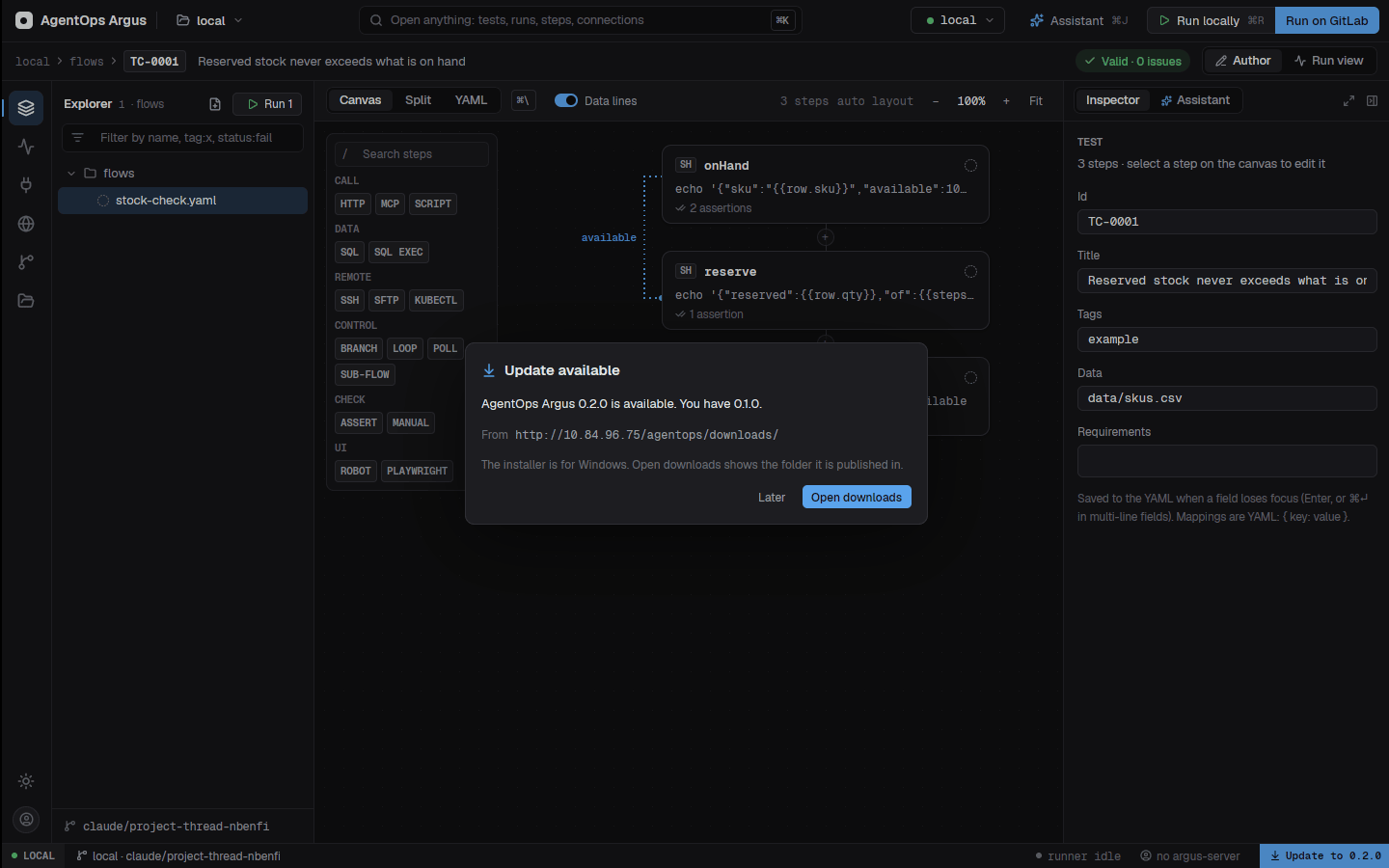
On Linux and macOS the dialog opens the download page instead of installing.
Behind Netskope or another TLS-inspecting proxy
Every connection the app and argus make (sign-in, the
Argus server, Jira, GitLab, updates, http steps, the API
explorer) goes over SChannel on Windows, so it trusts what your browser
and PowerShell trust (the Windows certificate store, where IT normally
places Netskope's CA). It also trusts every PEM file it finds in the
places AgentOps uses:
ARGUS_CA_CERTS(;-separated files),NODE_EXTRA_CA_CERTS,SSL_CERT_FILE~/.argus/certificates/*.pem~/.agentops/certificates/netskope.pem(AgentOps' Install Certificate writes it)certificates/netskope.pemnext to the app (the installer puts it there)
The install script retries a failed HTTPS download trusting the same files.
Proxies
Argus uses the proxy your browser uses. In order:
localhostand127.0.0.1always go direct.ARGUS_PROXY:directskips every proxy,systemuses only the Windows settings (ignoringHTTPS_PROXY), a URL (http://host:port, optionallyhttp://user:password@host:port) is the proxy to use.NO_PROXYhosts go direct; thenHTTPS_PROXY/HTTP_PROXY/ALL_PROXY.- On Windows, the system settings: the PAC script from Internet Options or WPAD auto-detect (evaluated like Edge does), else the manual proxy and its bypass list.
A proxy that wants a Windows (NTLM/Kerberos) sign-in is not
supported; put a user and password in ARGUS_PROXY, or ask
IT to let Argus through.
When a connection fails, the message says which part failed (DNS lookup, could not connect, TLS certificate not trusted, proxy failed, timed out), the system's own words for it, the route it took (direct or through proxy … and where that proxy came from), and what to do. For example:
TRACIntermodal sign-in: https://identity-qa.example.com/connect/deviceauthorization:
TLS certificate not trusted (Connection Failed: tls connection init failed: invalid
peer certificate: UnknownIssuer), going direct (no proxy set). This network may be
intercepting HTTPS (Netskope). Put its CA certificate in …
Where the feed comes from
| Setting | Effect |
|---|---|
ARGUS_UPDATE_URL at build time |
Baked into the executable. The GitLab release job leaves it unset, so builds follow agentops.build. |
| Otherwise | https://agentops.build/argus/latest.json |
ARGUS_UPDATE_URL at run time (environment, local
variable or desktop.json) |
Overrides both. off turns update checks off. |
ARGUS_UPDATE_TRACE=1 |
Prints why a quiet check found nothing. |
For an internal server the feed is the install script itself: the app
reads its $DefaultVersion = '…' line (it never runs the
script). Either way the installer must match its published SHA-256
before it runs.
2.3 Publishing a release (for maintainers)
Releases go to the update server (a Cloudflare Worker behind
https://agentops.build/argus, in
packaging/update-server/). On Windows, with the server's
admin token:
$env:ARGUS_RELEASE_TOKEN = '<ADMIN_TOKEN>'
scripts\publish-argus.ps1 -Sign -Release -Notes 'Data sets on steps'   # patch bump, signed build, upload, release
Every installed app, and every
irm https://agentops.build/argus/install.ps1 from then on,
gets the released version.
packaging/update-server/README.md covers deploying the
server and each step of a release.
To publish to an internal download server instead:
$env:VERSION = '0.1.42'; .\scripts\build-windows.ps1 -Package     # dist\AgentOpsArgus-0.1.42-windows-x64-setup.exe + portable.zip
.\packaging\windows\publish-internal.ps1 -Version 0.1.42 -Destination \\10.84.96.75\agentops\downloads
publish-internal.ps1 copies the installer, ZIP and
checksums to the served folder, then writes the install script with
$DefaultVersion stamped. The script goes last, so clients
only see a version once its installer is in place.
In GitLab,
packaging/gitlab/windows-release.gitlab-ci.yml (included
from the root .gitlab-ci.yml) builds on a Windows runner
tagged windows (ARGUS_WINDOWS_RUNNER_TAG) and
publishes to agentops.build: automatically for a vX.Y.Z
tag, by hand from a default-branch pipeline, or with
ARGUS_RELEASE=1. Set a masked
ARGUS_RELEASE_TOKEN (the server's admin token) and
ARGUS_SIGN=1 with the signing variables in the project's
CI/CD variables. A tag pipeline uploads and releases; any other pipeline
only uploads, unless ARGUS_PUBLISH_RELEASE=1. A release
needs a signed installer. Without a tag or VERSION, a
build's version is Cargo.toml's <major>.<minor>
with the pipeline number as the patch.
build-windows.ps1 |
Result |
|---|---|
| (no options) | argus-desktop.exe, argus.exe,
argus-server.exe in target\release\ |
-Configuration Debug |
The same in target\debug\ |
-Package |
Installer and portable ZIP in dist\, each with a
.sha256 |
-Sign |
The same, signed with Azure Trusted Signing
(AZURE_CODESIGNING_*); or set
WINDOWS_SIGN_THUMBPRINT / WINDOWS_SIGN_PFX
without -Sign |
-Sign -SkipBuild |
Sign and package the last build again |
It needs Windows x64, Rust with the MSVC toolchain, the Visual Studio
C++ Build Tools and NSIS 3.08 or later
(winget install NSIS.NSIS). The packages are built with a
static C runtime, so target machines need no Visual C++
redistributable.
2.4 Linux and macOS: building from source
The repository pins its Rust version in
rust-toolchain.toml. On Linux, GPUI needs the X11/Wayland
and font headers:
sudo apt-get install libxkbcommon-dev libxkbcommon-x11-dev libxcb1-dev \
  libfreetype-dev libfontconfig-dev libwayland-dev libvulkan-dev

cargo build --release -p argus-cli -p argus-desktop -p argus-server
./target/release/argus-desktop path/to/tests       # open a project folder at start
The desktop app and its UI crates are workspace members but not
default ones, so plain cargo build /
cargo test skip them; name them with -p or use
--all.
2.5 First start
Start AgentOps Argus from the Start menu (or
argus-desktop [folder]). The welcome screen lists your
recent projects and other ways to start:
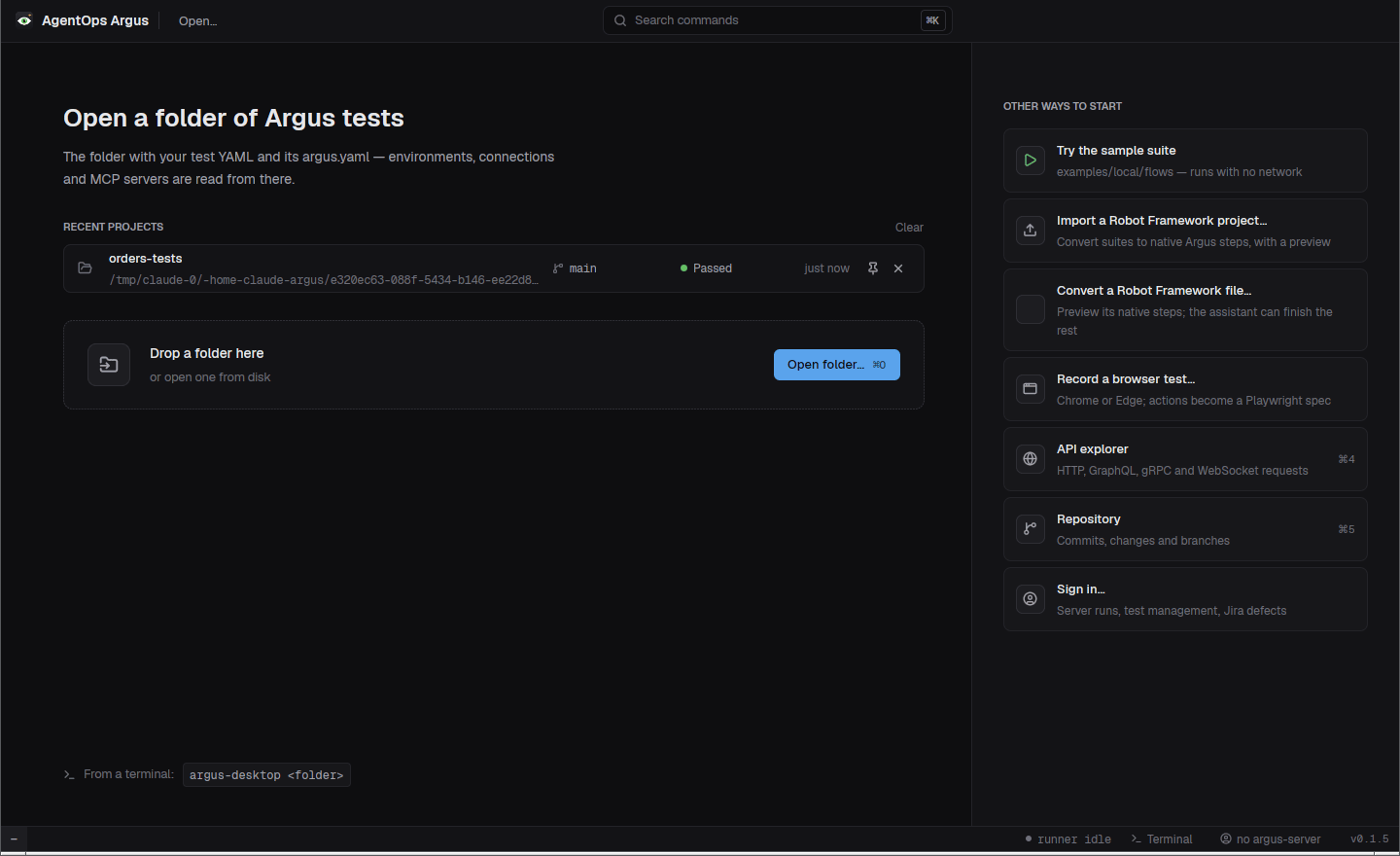
- Open folder… (
⌘O), or drop a folder on the window: open a folder of tests (the one withargus.yaml). See chapter 3. - Recent projects show their branch, last result and when they last ran. Pin a project to keep it on top (pinned ones survive Clear); remove one with its × button. Up to 12 unpinned projects are kept.
- Try the sample suite opens
examples/local, which runs with no network. - Import a Robot Framework project… and Import with the assistant… (see chapter 15).
- Record a browser test… (see chapter 5).
- API explorer (
⌘4) and Repository (⌘5) work without a project. - Sign in… connects the app to an argus-server (below).
2.6 Signing in to argus-server
The desktop app works fully without a server. Signing in adds server runs in the run view, defects filed in Argus (and Jira through it), and cycles for the assistant's test-management tools.
- Open the account menu (the person icon at the bottom of the rail) or Sign in to argus-server… in the palette.
- Set the server address under Argus-server → Change. It is
kept as the
ARGUS_URLlocal variable, which wins over anARGUS_URLenvironment variable. - Click Sign in. When the server has single sign-on (Duende IdentityServer, Entra ID or another OpenID Connect provider) the app shows a code and opens the provider's device page; enter the code there.
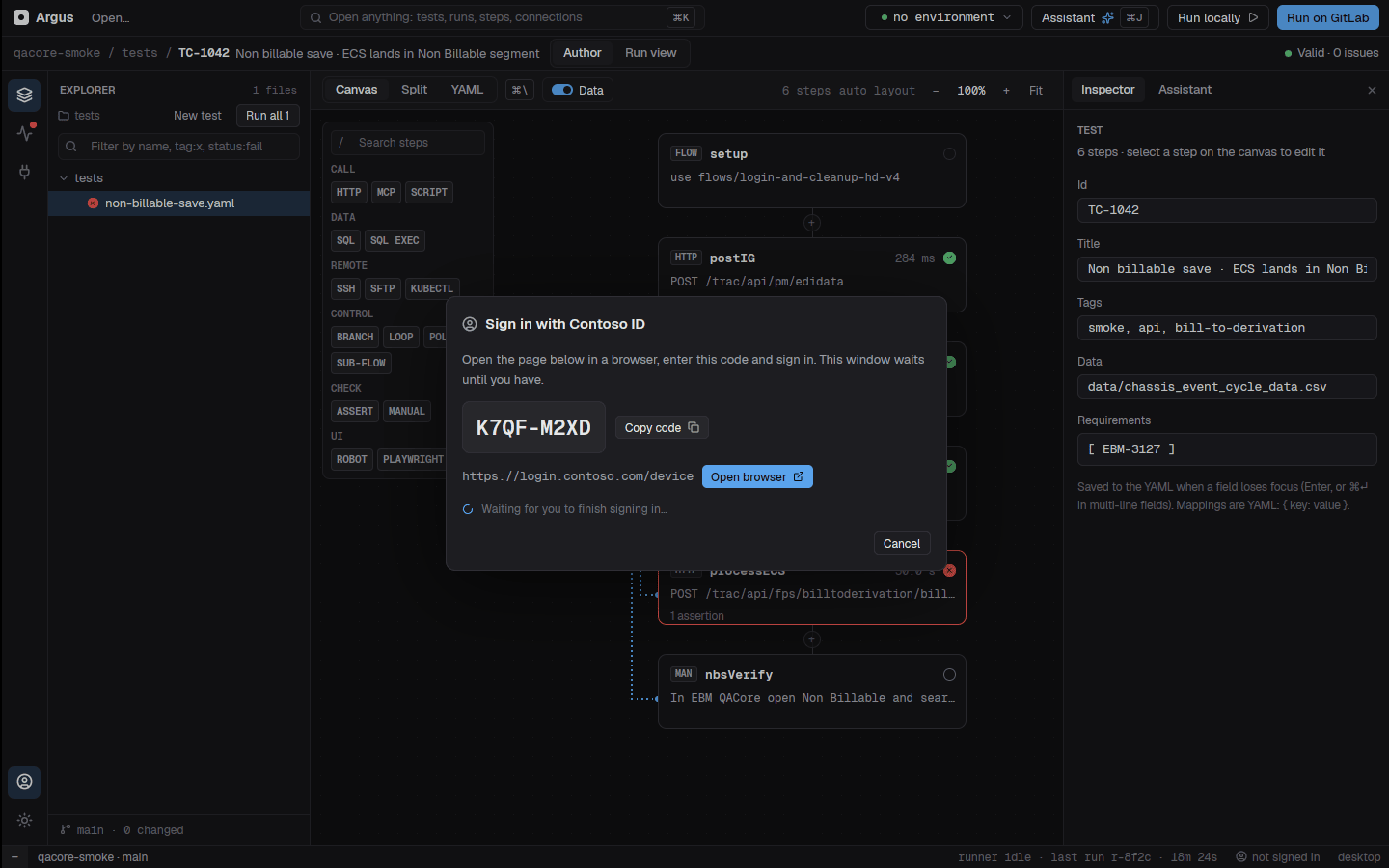
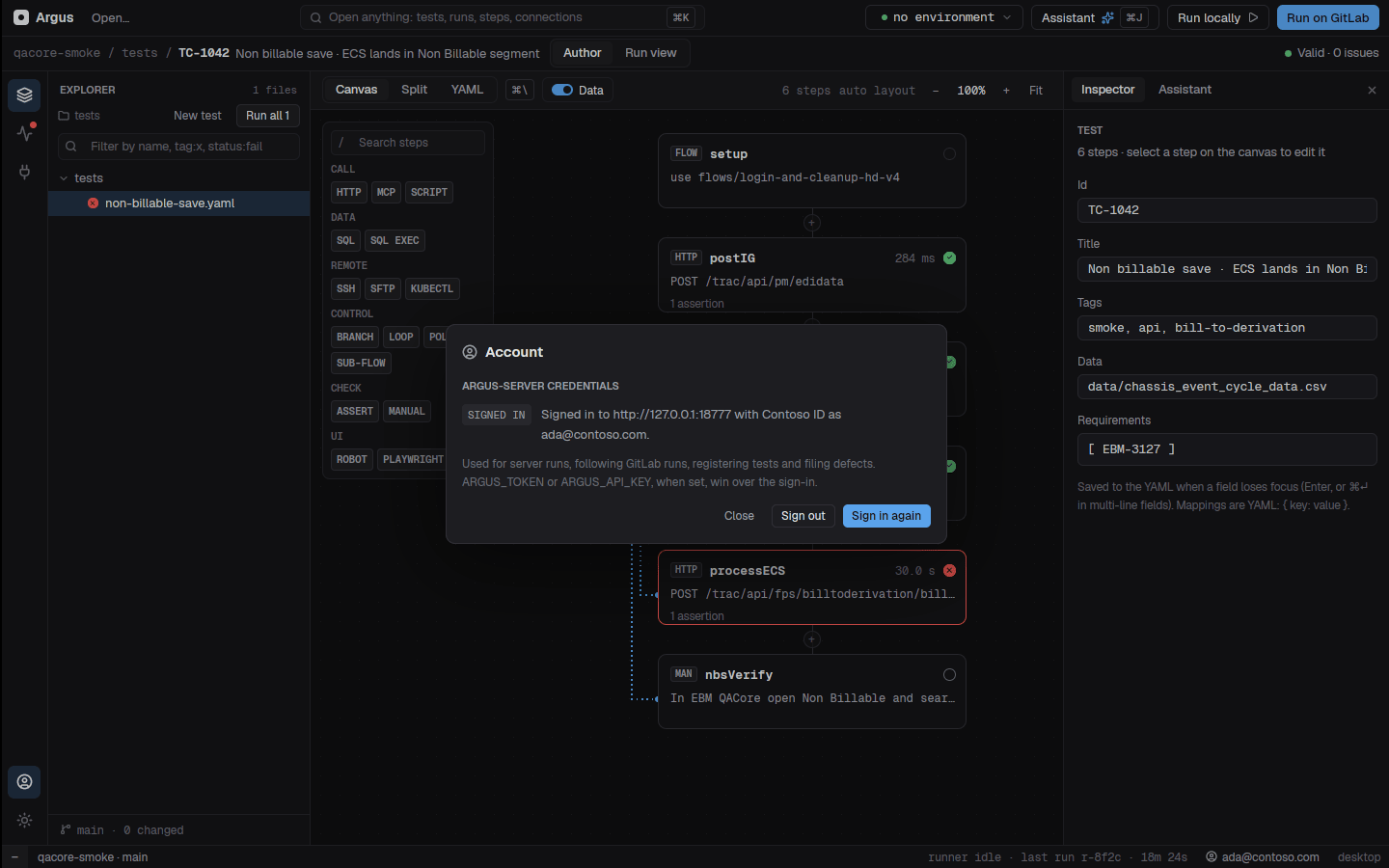
The refresh token is kept in the OS keychain (service
argus, account login:<server>), never in
a file. Without single sign-on, paste a personal token from the web
app's My tokens page; it is kept as the
ARGUS_TOKEN local variable.
Set ARGUS_PROJECT for the folder (Connections →
Variables → This project, or the palette's Set this
folder's Argus project…) so runs and defects land in the right
server project.
The CLI signs in the same way:
argus login --server https://argus.example.com    # shows a code for the provider's device page
argus logout --server https://argus.example.com
2.7 Where things are kept
| What | Where |
|---|---|
Desktop settings (desktop.json) |
~/.config/argus/desktop.json; on Windows
%USERPROFILE%\.config\argus\desktop.json;
$XDG_CONFIG_HOME/argus/desktop.json; or
ARGUS_DESKTOP_SETTINGS |
| Desktop data (assistant chats, API explorer, local variables, flow-card state) | The platform data folder (~/.local/share/argus on
Linux, %APPDATA%-based on Windows), or
ARGUS_DESKTOP_DATA |
| Secrets (connection passwords, local secret variables, sign-in tokens) | The OS keychain, service argus (Windows Credential
Manager, macOS Keychain, secret-tool on Linux) |
| Run results | argus-results/ in the project folder (never commit
it) |
| Run history | argus-results/history/ (newest 30 runs) |
2.8 Graphics and remote desktops
Without a GPU on Windows (the software adapter of many VMs) and in a
Remote Desktop session, the window draws in low-power mode, as AgentOps
does: at most 30 frames a second when a redraw is needed, no blurred
shadows, no decorative animations or blinking carets.
ARGUS_LOW_POWER=1 forces this mode on,
ARGUS_LOW_POWER=0 turns the frame limit off.
ARGUS_THEME=light starts in the light theme.
Projects, environments and variables
3.1 What a project is
An Argus project is a folder (usually a git repository) with an
argus.yaml at its root and test files below it. Everything
Argus needs to run a test is in that folder or named by it.
orders-tests/
├── argus.yaml                 # environments, connections, MCP servers, masking, timeout, workers
├── tests/
│   ├── orders/
│   │   ├── create-order.yaml        # kind: test (the default)
│   │   └── create-order.layout.json # canvas positions (written by the desktop app)
│   └── nightly-digest.yaml          # kind: automation
├── flows/
│   └── login.yaml             # kind: flow, called with sub-flow or setup:
├── payloads/
│   └── orders/create.json     # {{payload.orders/create}}
├── data/
│   └── skus.csv               # data: data/skus.csv
├── e2e/checkout.spec.ts       # Playwright specs a playwright step runs
├── robot/…                    # Robot suites a robot step runs
├── package.json               # @playwright/test, when you have UI tests
└── argus-results/             # written by runs — add it to .gitignore
Rules Argus follows when it looks for tests:
- Every
.yaml/.ymlfile that parses as a test, flow or automation is one. One test per file; file names in kebab-case. - The nearest
argus.yamlabove a test applies to it. - Hidden folders (
.robot,.git),node_modulesandargus-results/are skipped. - A folder holding a file named
.argusignoreis skipped, with everything in it. Migrated application copies get one, so their CI and compose YAML are never read as tests. payloads/besideargus.yamlis the payload library, not tests.
3.2 Opening a project in the desktop app
- Open folder… on the welcome screen,
⌘O, or drop a folder on the window. - From a terminal:
argus-desktop path/to/tests. - The folder menu (the folder name at the top left) switches projects and holds folder-wide commands: Set up GitLab CI/CD…, Migrate an application from another folder…, Upgrade this project to Argus in place….
Opening a folder parses it in the background; the previous project
stays usable until the new one is ready. The app watches the folder, so
tests that change on disk (a git pull, an edit in another
editor, the assistant) reload by themselves; the explorer's
Refresh button and Reload tests from disk in
the palette force it.
3.3 argus.yaml
timeout: 45s                     # default step timeout (else 30s)
workers: 4                       # tests at once for argus run (auto = one per CPU; else 1)

environments:
  qa2:
    vars:                        # read in tests as {{env.<name>}}
      api: https://qa2.example.com/api
      web: https://qa2.example.com
      user: qa-bot
      password: "${QA2_PASSWORD}"          # a process / CI / local variable
    connections:                 # only this environment (wins over shared ones)
      orders-db: { type: postgres, url: "${QA2_PG_URL}" }
    mcp:
      servers:
        orders: { type: http, url: https://orders-mcp.qa2.example.com/mcp, headers: { Authorization: "Bearer ${ORDERS_MCP_TOKEN}" } }
  uat:
    vars:
      api: https://uat.example.com/api
      web: https://uat.example.com

connections:                     # shared by every environment
  batch-host: { type: ssh, host: batch01.qa, user: qa, key: "${BATCH_SSH_KEY}" }

mcp:
  config: mcp.json               # an mcpServers file (Claude Code / Cursor format)
  servers:                       # or inline, same format; these win
    servicebus: { command: npx, args: [-y, "@acme/servicebus-mcp@1.4.2"] }

mask:
  fields: [ssn, card_number]     # JSON keys masked anywhere in results
  patterns: ['\b\d{3}-\d{2}-\d{4}\b']
allow: [QA_API_URL] # ${NAME}s that are not secret| Key | Meaning |
|---|---|
timeout |
Default step timeout for every test under this file (see 9.3); none for no limit. |
timeouts |
test and run time limits, limits per step
type (sql: 10m) and per folder
(folders: { tests/batch: { step: 5m } }). Environments can
set timeout and timeouts too. |
workers |
How many tests argus run runs at once
(auto = one per CPU). |
environments.<name>.vars |
Values tests read as {{env.<name>}}: base URLs,
users, feature switches. |
environments.<name>.connections |
Connections only that environment has. An environment's connection wins over a shared one of the same name. |
environments.<name>.mcp |
MCP servers only that environment has (config and/or
servers). |
connections |
Connections every environment shares (chapter 8). |
mcp |
MCP servers for mcp steps: a config file
and/or inline servers. |
mask |
Extra masking: JSON fields, regex
patterns, and allow for ${NAME}s
that are not secret. |
Unknown keys are errors, so a typo is caught by
argus validate instead of being ignored.
A test picks its environment with env: in the test,
--env on the command line (which wins), or the desktop's
environment menu in the top bar.
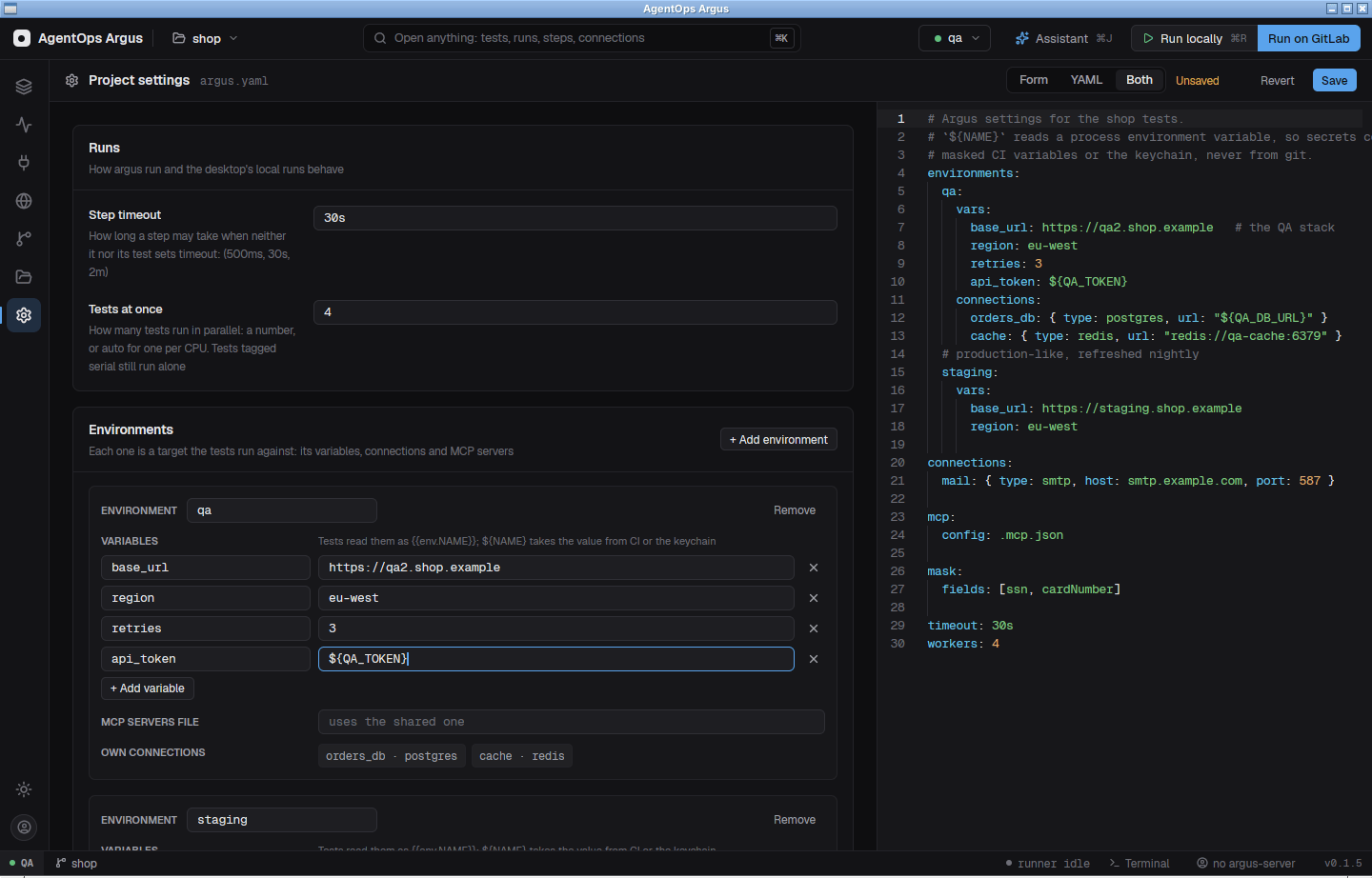
3.4 Project settings screen
The desktop's Project settings (the gear in the
rail, ⌘7) edits argus.yaml as a form and as
YAML, side by side or one at a time. Both views edit the same text: a
change in the form appears in the YAML at once, and YAML you type
refills the form as soon as it parses.
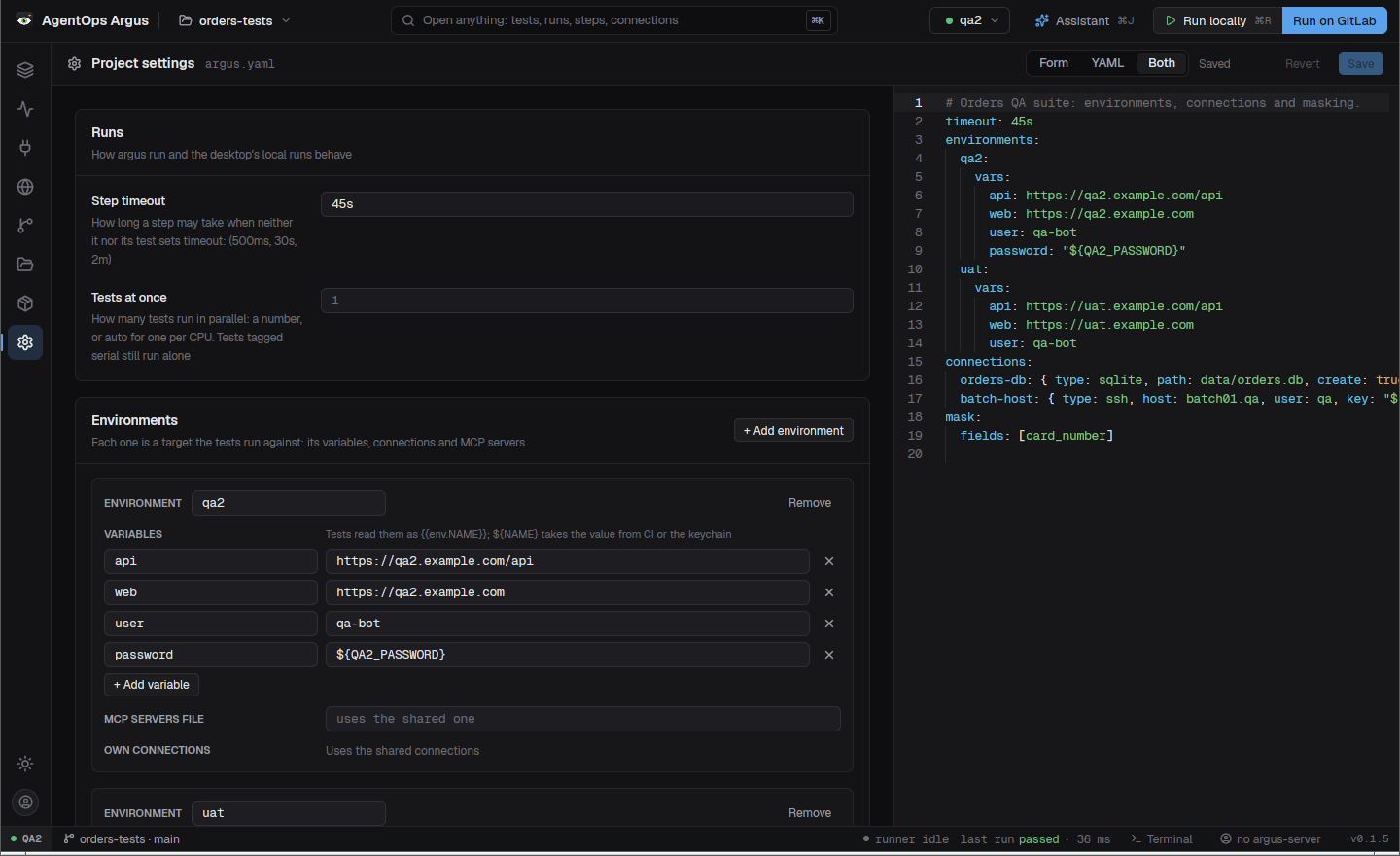
The form covers the default step timeout, workers, environments (add, rename, remove) with their variables and per-environment MCP file, the shared MCP file, and masking (fields, patterns and allowed names, one per line). Connections and inline MCP servers are listed there and edited on the Connections screen or in the YAML view.
Edits keep your comments, key order and formatting: only the keys you
changed are rewritten. Nothing is saved until Save
(⌘S); Revert reloads the file. If the file
changed on disk while you were editing, a banner offers Load the
file or Keep mine and save. Keys the runner would reject
are flagged before you save.
3.5 Values and secrets
Values in argus.yaml can read secrets from four places.
Write them as a whole value or inside a string:
| Syntax | Reads | Typical use |
|---|---|---|
${NAME} |
A process environment variable. On a desktop, a local variable (below); in GitLab, a masked CI/CD variable. | Passwords, tokens, URLs that differ per machine |
${keychain:<item>} |
The OS keychain, service argus (or
ARGUS_KEYCHAIN_SERVICE). Where there is no keychain (a CI
container), the variable ARGUS_SECRET_<ITEM>: upper
case, other characters as _.
${keychain:qa2.orders-db.password} →
ARGUS_SECRET_QA2_ORDERS_DB_PASSWORD. |
Secrets the Connections screen saves for you |
${keyvault:<name>} |
Azure Key Vault (AZURE_KEYVAULT_URL or
AZURE_KEYVAULT_NAME, with AZURE_TENANT_ID,
AZURE_CLIENT_ID, AZURE_CLIENT_SECRET;
AZURE_AUTHORITY_HOST for other clouds). |
Team secrets kept in Key Vault |
${switchyard:<item>} |
A secret Switchyard keeps in the OS keychain on this machine. | Reusing Switchyard's saved passwords locally (never in CI) |
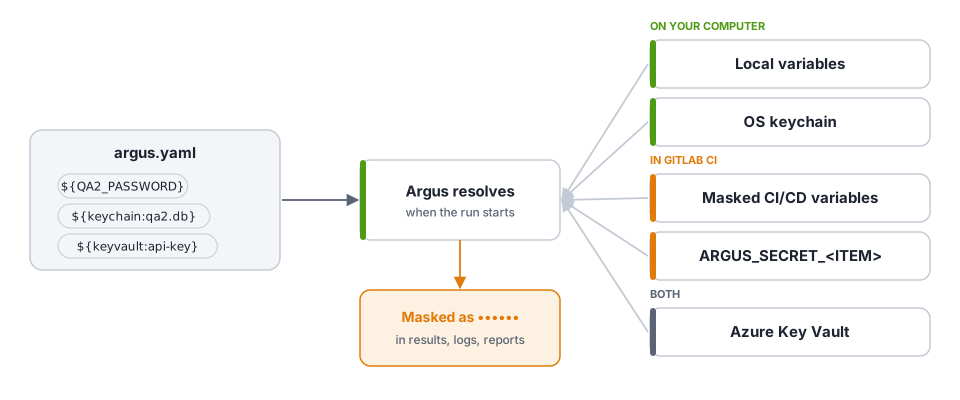
A missing secret's error names every place it looked.
{{env.NAME}}
without an environment
A test may read {{env.NAME}} for a name no
argus.yaml environment defines. Argus then reads the
variable NAME directly (a local variable on the desktop, a
CI/CD variable in a pipeline), masked unless mask.allow
lists it. This is how migrated applications get their settings and how a
project with no environments still reads a password.
3.6 Local variables (desktop)
In a pipeline, ${NAME} comes from the job's CI/CD
variables. On your workstation the same names are local
variables, set on the Connections screen's
Variables tab (or the palette's Set a local
environment variable…).
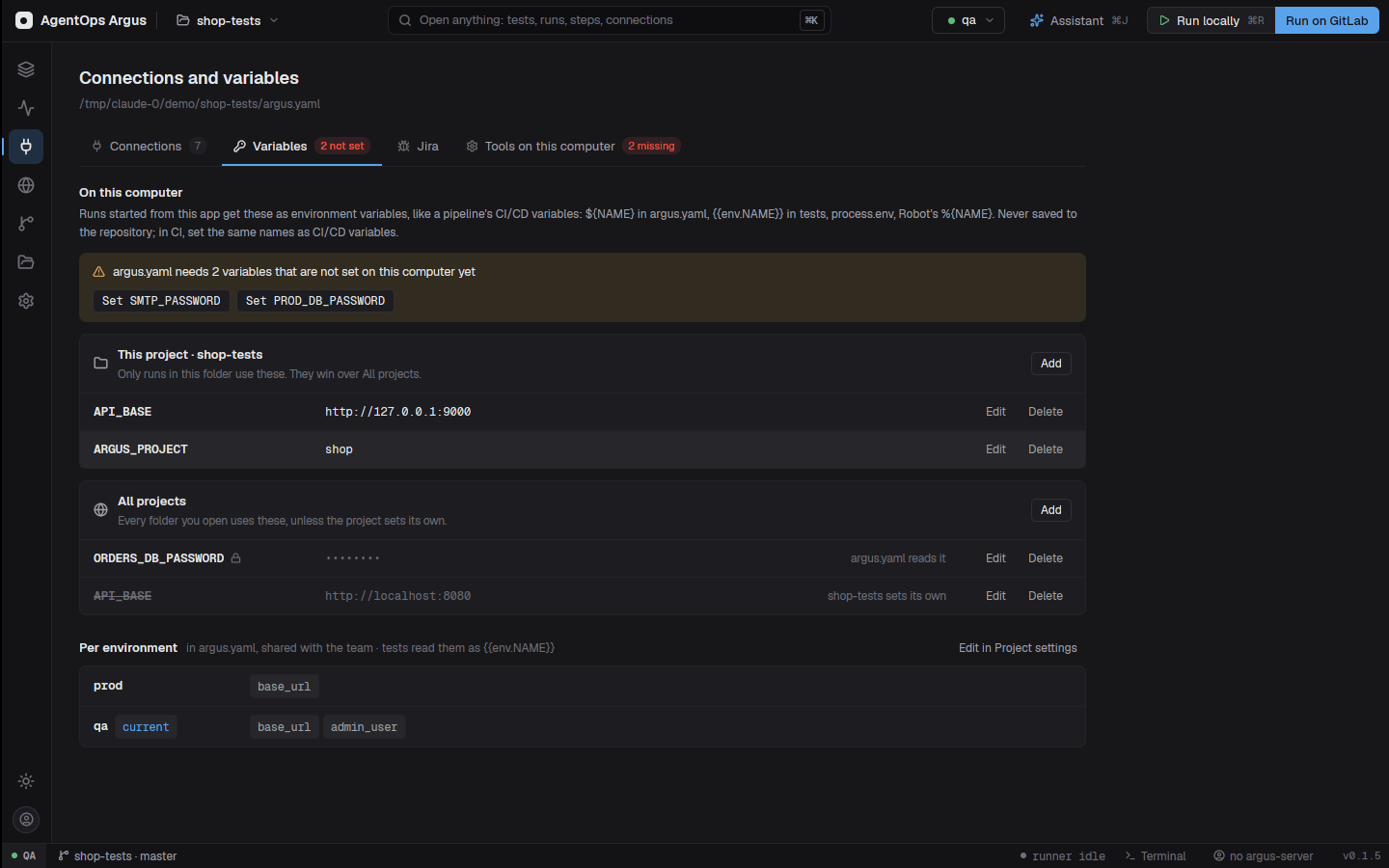
- Plain values are kept in
local-env.jsonin the desktop's data folder; secret values in the OS keychain aslocal-env.<NAME>. Neither is ever in the repository. - Every run started from the app sees them as environment variables:
${NAME}inargus.yaml,process.env.NAMEin Playwright,%{NAME}in Robot, scripts,{{env.NAME}}, and the assistant'sargus mcp. The app's terminal gets them too. - They win over a variable of the same name the app was started with.
- Secret ones are masked in results.
- The tab starts with a callout listing the
${NAME}sargus.yamlreads that nothing sets yet; click one to set it.
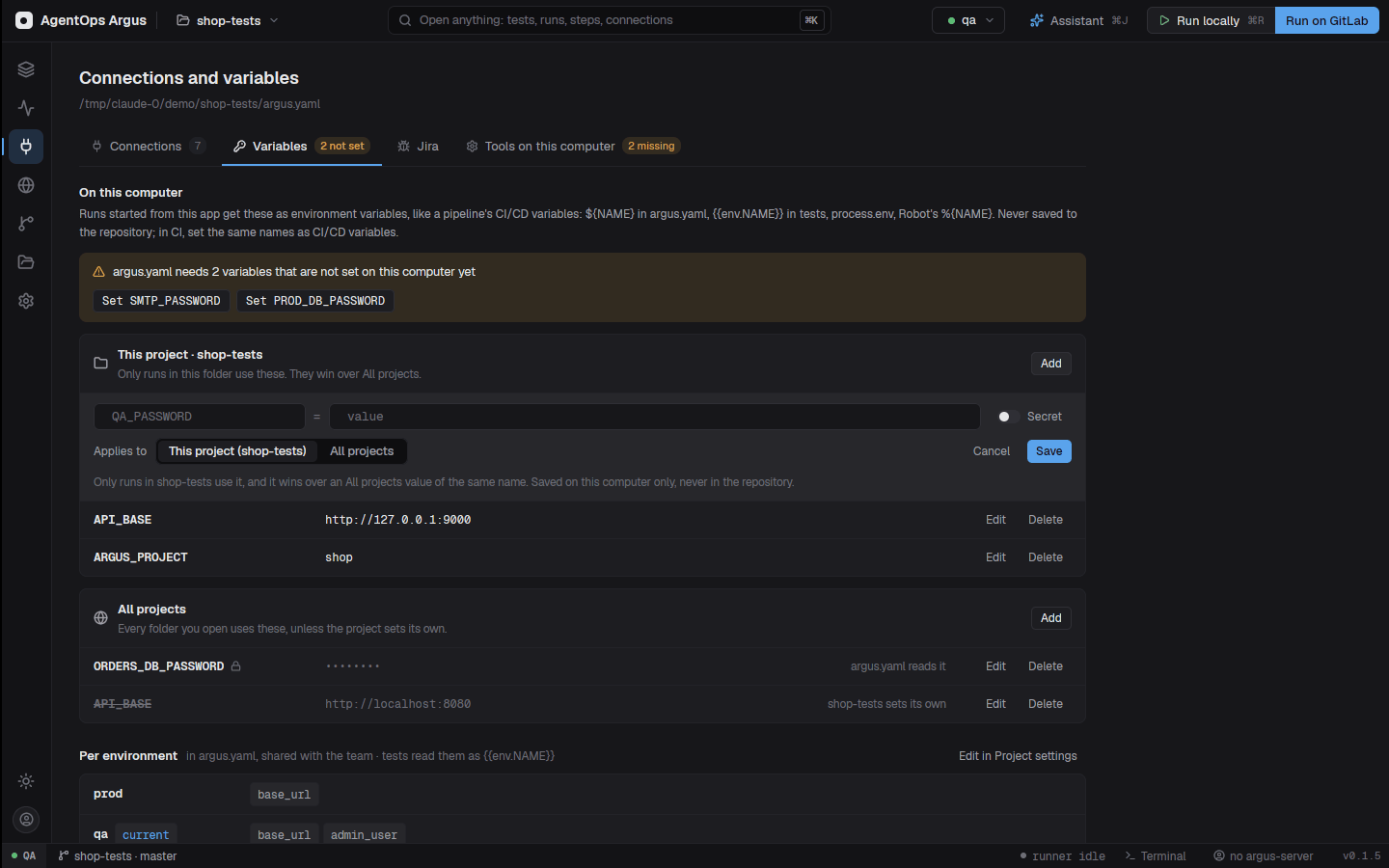
This project or All projects
Each variable applies to either All
projects or This project only (the open folder). In that
folder its own value wins over the one for all projects; the overridden
value is shown struck through. Other folders don't see it. A folder's
secrets are keychain items
local-env.<NAME>.<hash of the folder>.
ARGUS_PROJECT (the argus-server project key) and
GITLAB_PROJECT_ID start as This project variables,
since each tests repository has its own Argus project: use Set
ARGUS_PROJECT for this folder on the tab, or the palette's Set
this folder's Argus project….
The plain argus CLI outside the app reads only its
shell's environment; set the same names there (or in CI) for
command-line runs.
3.7 Masking
Secrets never reach output.json,
events.ndjson, junit.xml, the report or text
evidence. Argus replaces with ••••••:
- every value
argus.yamlreads through${...}(environment variables, connections, MCP servers), and secret local variables; - literal values under a connection's
password,key,token,secret,headersorenv, and an inlinekubeconfig; - each of those in its URL-encoded form too;
- any
user:pass@in a URL; - JSON fields named
password,secret,client_secret,api_keyorprivate_key; - tokens an HTTP step's
auth:signs in with; - whatever
mask.fieldsandmask.patternsadd.
Text evidence files up to 200 MB are masked (above 16 MB one line at
a time); a larger one is left as it is, with a warning in the run's
output. The report's Copy as cURL turns masked credential
headers into shell variables such as ${AUTHORIZATION}, so a
copied command never carries a secret.
3.8 Checking a project
argus validate tests/ --env qa2      # schema, references, and every environment/connection/MCP server named
argus check --env qa2                # reach each connection, MCP server and base URL
argus check --env qa2 --name orders-db
validate checks every test's schema, required fields per
step type, durations, every {{steps.x}} reference and
transform name, and that every environment, connection and MCP server a
test names exists. check goes further and connects:
SELECT 1 on databases, true over SSH, the
cluster version for AKS, MCP initialize and
tools/list, PING on Redis, and a GET on the environment's
http(s) variables. Both exit 2 on a problem.
In the desktop app the breadcrumb bar shows Valid · 0
issues for the open test (or the count, with the problems
listed), and the Connections screen's Test button runs
the same checks as argus check.
A tour of the desktop app
The window has five parts:
- Top bar: the folder menu, the command palette search, the environment menu, the assistant button and the run buttons.
- Rail (left edge): one button per screen.
- Main area: the explorer and canvas, or the screen the rail picked.
- Side panel (right): the step Inspector and the Assistant.
- Status bar (bottom): what is running, the terminal, the server and the version.
Watch the video: Desktop 1: Getting started 1:34
4.1 Top bar
| Control | What it does |
|---|---|
| AgentOps Argus / folder name | The folder menu: open another folder, recent projects, Set up GitLab CI/CD…, Migrate an application from another folder…, Migrate and convert to Argus flows…, Upgrade this project to Argus in place…. |
Open anything… (⌘K) |
The command palette: one search over tests, their steps, kept and server runs, connections and every command (4.4). |
Environment menu (● qa2 ▾) |
Picks the environment local runs use. Its Local runs
section sets the step timeout, the test time limit, Show the
browser (headed runs) and Tests at once. Options that
aren't the default show beside the name
(qa2 · headed · 2m). |
User manual (book icon, F1) |
Opens this manual in your browser. The app carries its own copy, so it works offline. |
Assistant (⌘J) |
Opens or hides the assistant in the side panel. |
Run locally (⌘R) |
Runs the open test (or folder) on this machine. While a run is live it becomes Stop. |
Run on GitLab (⇧⌘R) |
Starts the tests repository's GitLab pipeline for the open test or folder and follows it (chapter 16). |
Under the top bar, the breadcrumb bar shows where
the open test lives (local › flows › TC-0001), its title,
its validation state (Valid · 0 issues, or the
problems) and the Author / Run view switch.
4.2 The rail
| Button | Screen | Shortcut |
|---|---|---|
| Layers | Explorer: tests and the canvas (authoring) | ⌘1 |
| Pulse | Run view: results, history and evidence | ⌘2 |
| Plug | Connections: connections, variables, Jira, tools on this computer | ⌘3 |
| Globe | API explorer: HTTP, GraphQL, gRPC and WebSocket requests | ⌘4 |
| Branch | Repository: commit graph, changes, branches | ⌘5 |
| Folder | Files: the project tree and a code editor | ⌘6 |
| Eye | Review: healed locators and new or changed screenshots waiting for a decision, with a count (9.13) | |
| Gear | Project settings: argus.yaml as a form
and as YAML |
⌘7 |
| Package | Payloads: the payload library | ⌘8 |
| Sun / moon (bottom) | Toggle light and dark theme | ⇧⌘L |
| Person (bottom) | Account: argus-server address, sign in and out |
4.3 Explorer
The explorer lists the project's tests, flows and automations as a folder tree, each with its last result.
- Filter box: words match a file name, id, title or
tag;
tag:smokekeeps tests with that tag;status:failkeeps tests whose last result failed. Words combine:orders tag:smoke status:fail. - Collapse all / Expand all buttons beside the filter (handy with thousands of tests).
- New test (file-plus icon) creates a test in the selected folder from a template; New automation (lightning icon) creates an automation (chapter 11).
- Run N runs every test in the selected folder
(
⇧⌘↵). Folder runs leave automations out. - Refresh reloads the folder from disk.
- Marks:
autofor automations, a clock for anything with an enabled trigger. - Right-click a row: Move to…,
Rename… (
F2), Show in Files, Copy relative path, Delete…. - Drag a test or folder onto a folder to move it (5.8).
- Select a row and press Delete (or
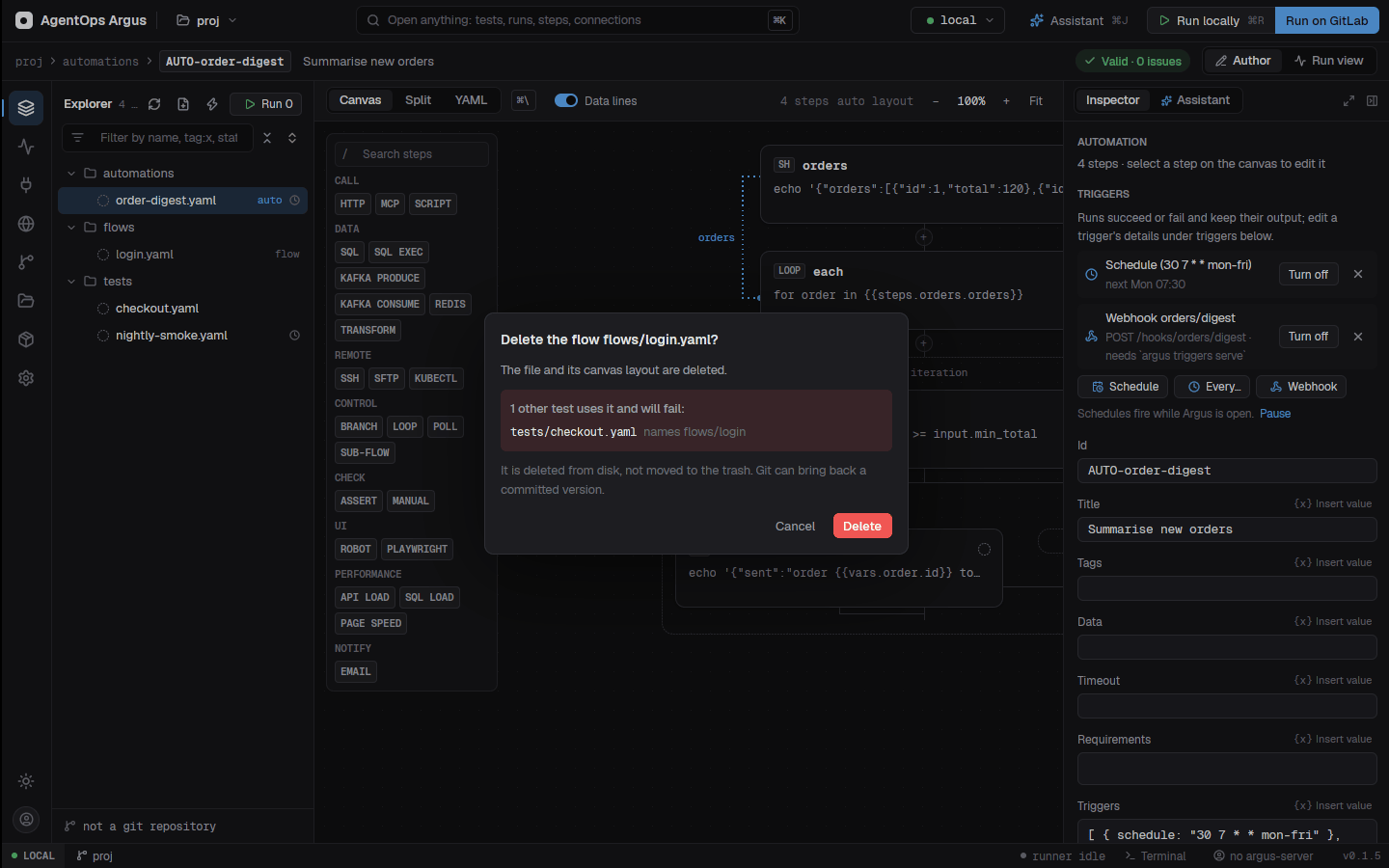
⌘⌫) to delete it, after a confirmation that lists the tests that use it.
The explorer, the side panel and the evidence drawer are
resizable: drag their edges. Sizes are saved.
⌥⌘B collapses or opens the side panel; its expand button
widens it over the canvas.
4.4 The command palette
(⌘K)
The palette searches everything the window can open: tests (by id or title), their steps, kept local runs and server runs, connections, and every command. Type a few letters and press Enter.
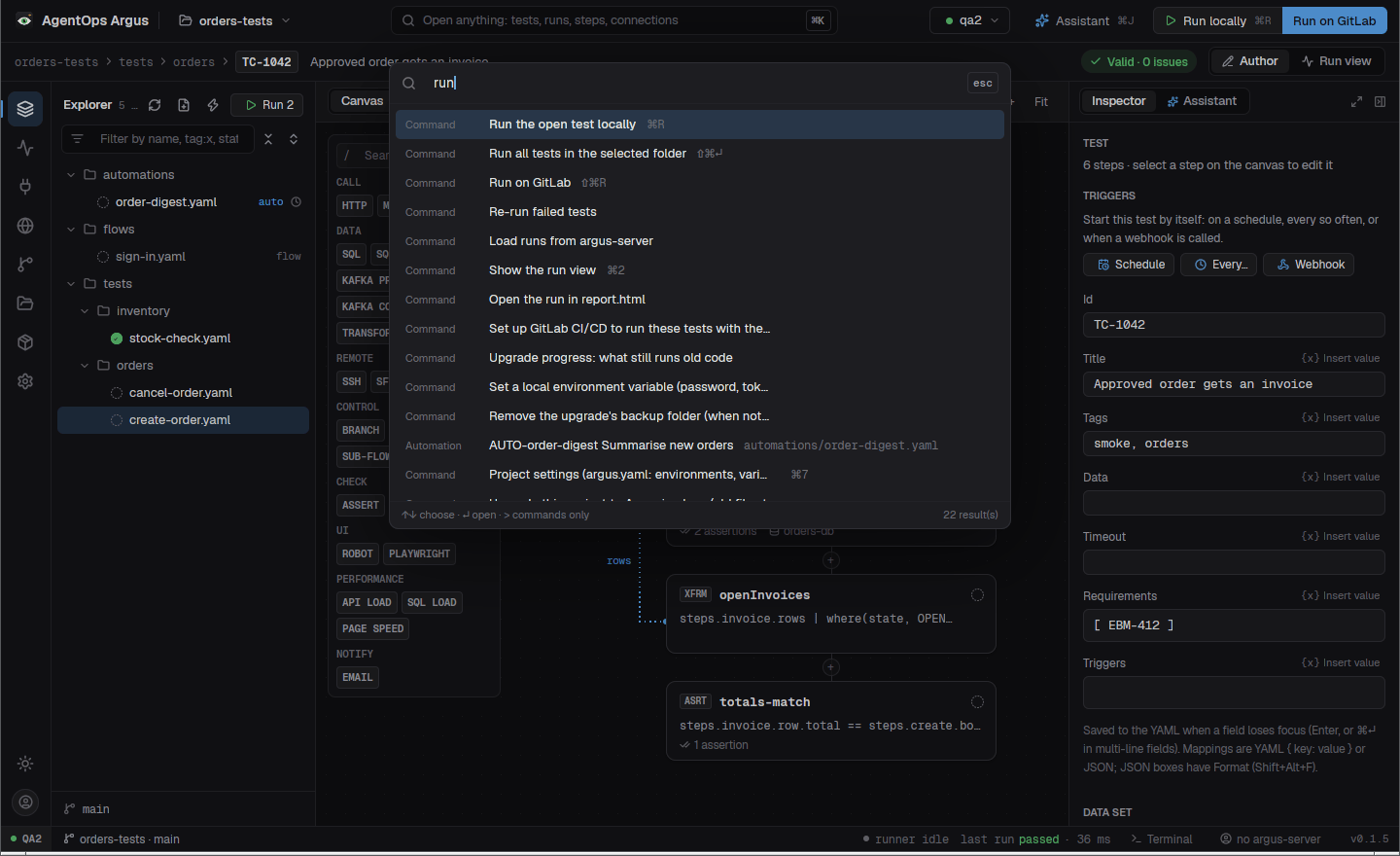
Some commands only live in the palette (or a menu), for example:
| Command | |
|---|---|
| Record a browser test (Chrome or Edge)… | 5.9 |
| Test the web app from the chat (ad-hoc UI test)… | 13.5 |
| Test a desktop app from the chat (computer use)…, Test a mobile app on an emulator from the chat… | 13.5 |
| Import a Robot Framework project…, Convert a Robot Framework file to Argus steps… | chapter 15 |
| Migrate an application…, Upgrade this project to Argus in place… | chapter 15 |
| Set up GitLab CI/CD… | 16.1 |
| Commit changed tests and open a merge request… | 5.12 |
| Re-run failed tests | 9.6 |
| Capture the screen as evidence…, Record a screen clip… | 9.10 |
| Collapse / Expand all flow cards on the canvas | 5.6 |
| Reset the canvas layout (auto layout) | |
| Set a local environment variable…, Set this folder's Argus project… | 3.6 |
| Connect Jira…, Put a Jira issue in the assistant chat… | chapter 19 |
| Load runs from argus-server, Sign in / Sign out of argus-server | 2.6 |
| Check for updates | 2.2 |
4.5 Side panel: Inspector and Assistant
The side panel has two tabs:
- Inspector: with no step selected, the test's settings (id, title, tags, data, timeout, requirements, triggers); with a step selected, that step's settings in tabs (Config, Data, Behavior, …) and a composer made for its type. See 5.4.
- Assistant: the AI chat (chapter 13).
The panel can be resized, expanded over the canvas, or collapsed to a strip.
4.6 Status bar
From left to right: the run state (LOCAL, or the GitLab
pipeline being followed), the project's folder and git branch,
runner idle or what is running, Terminal,
the argus-server you are signed in to (or no argus-server), and
the version chip (click it to check for updates).
4.7 Terminal
Ctrl+` opens a terminal under the workspace, full width.
Shells start in the open project folder with your local variables set,
so argus run, npx playwright test or
robot behave as runs from the app do. On Windows the shell
is PowerShell (pwsh.exe, else powershell.exe)
through ConPTY.
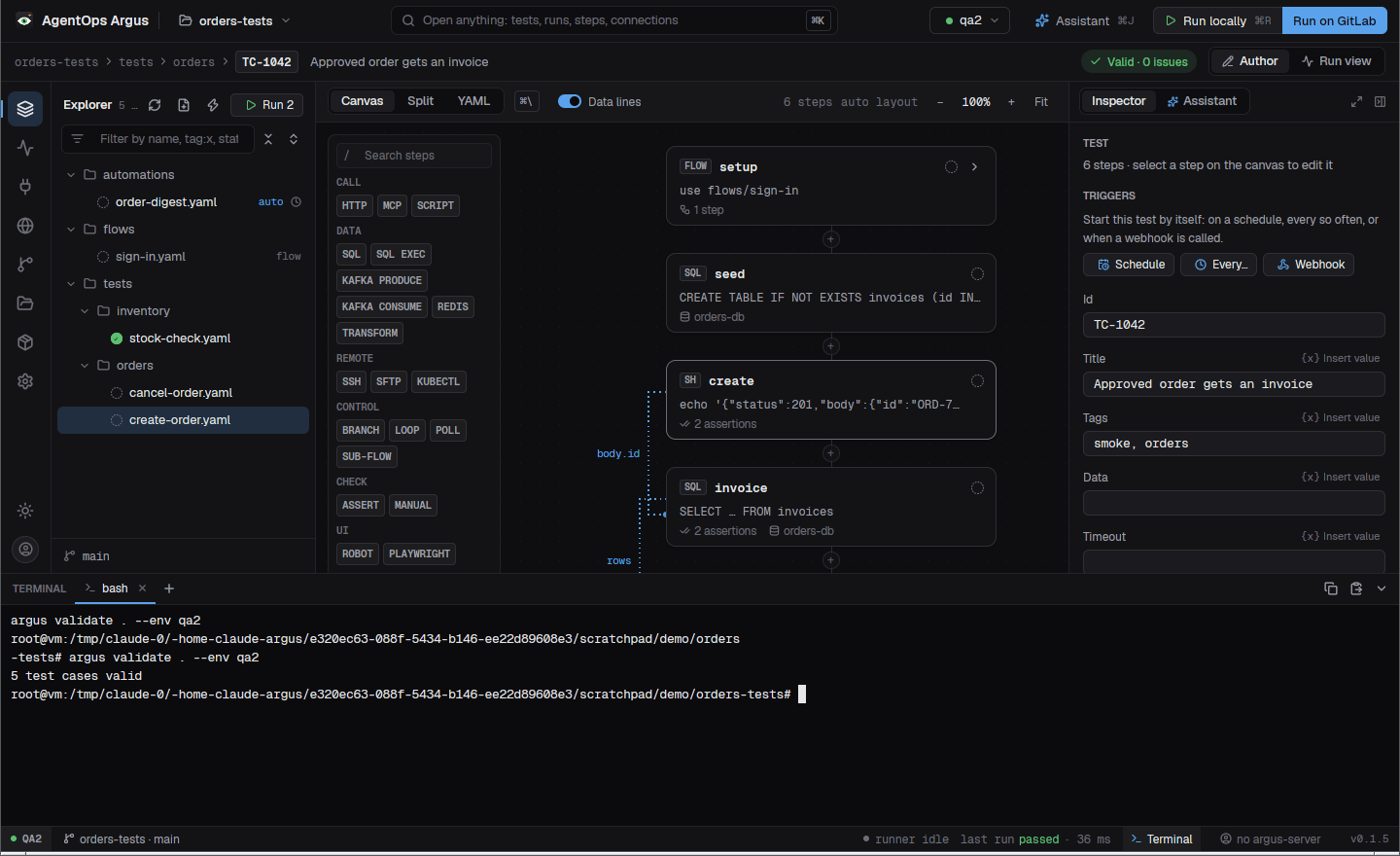
| Keys | |
|---|---|
Ctrl+` |
Open, focus or hide the terminal |
Ctrl+Shift+` |
New terminal tab |
Ctrl+Shift+C / Ctrl+Shift+V |
Copy / paste (⌘C / ⌘V on macOS; on Windows
Ctrl+C with a selection copies and Ctrl+V
pastes) |
| Right-click | Copy the selection, or paste |
exit |
Closes the tab |
Drag the panel's top edge to resize it; the height is saved.
Watch the video: Desktop 7: Files, terminal and git 0:53
4.8 Files
The Files screen (⌘6) shows the project
folder as a tree beside a code editor, like an IDE's project view. Use
it for Playwright specs, Robot suites, Python, data files, payloads and
anything else in the repository.
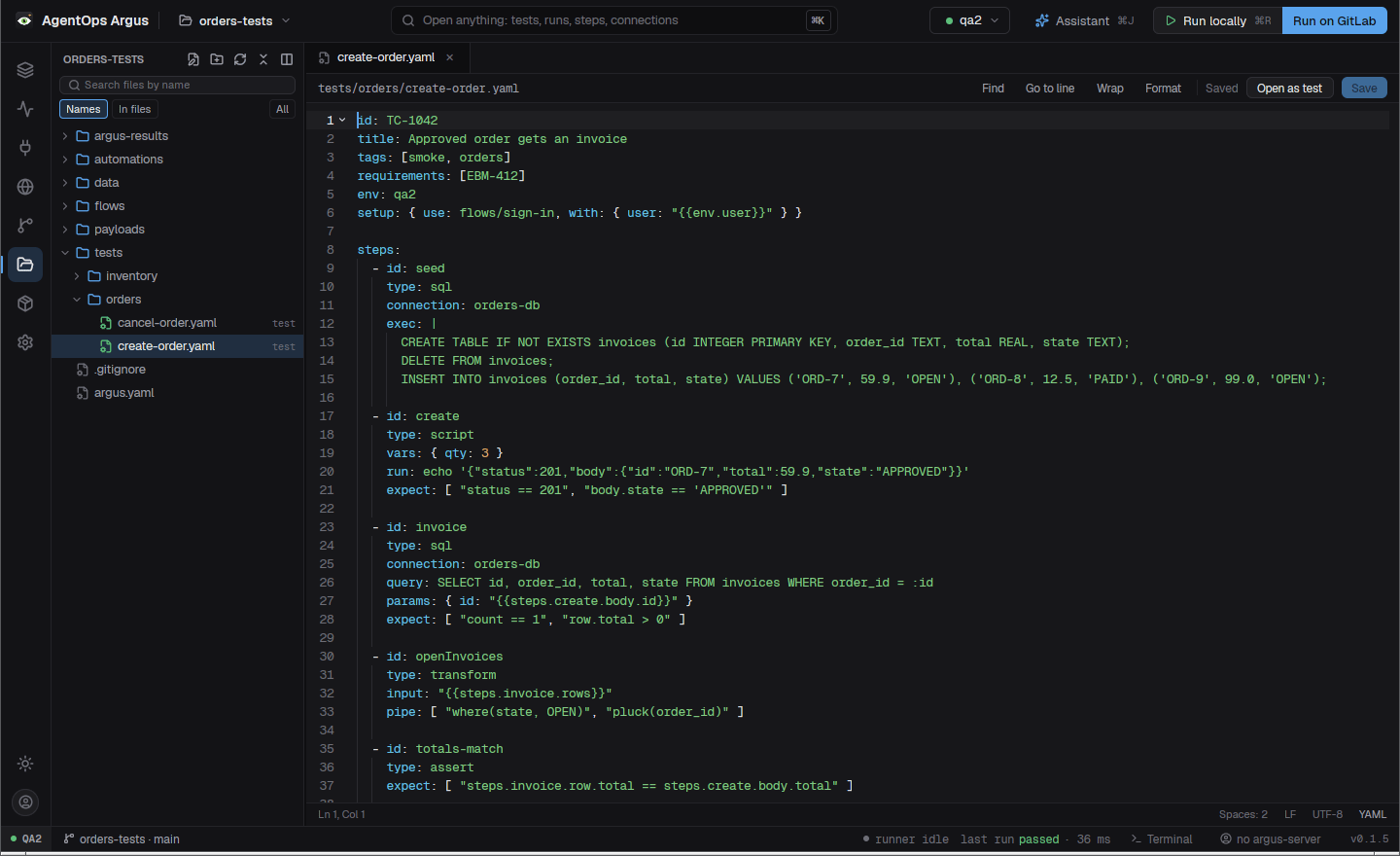
The tree
- Click a file to open it in an editor tab. Right-click for New
file, New folder, Rename (
F2), Delete, Cut / Copy / Paste / Duplicate, Move to…, Open preview, Open in browser, Open with default app, Convert to Argus steps… (Robot files), Convert to Playwright TypeScript (pytest files), git history, blame and changes, and … with the assistant. - Pick several rows with
Ctrl/Shift-click orShift+arrows; copy (⌘C), cut (⌘X) and paste (⌘V) work with your system's file manager too. Pasting an image from the clipboard saves it aspasted image <date>.png. - The search box finds files by name anywhere under
the folder (
ext:,type:andsize:filters work). In files (⇧⌘F) searches file contents, with globs to include or exclude and Replace all; Find in folder scopes it to one folder. Click a hit to open the file at the line. - Expand all opens up to 400 folders; Collapse all closes them.
- Git changes mark the rows. The tree updates by itself when files change (a folder watcher, not polling).
- Drag a file or folder onto a folder to move it; references in tests follow.
The editor
- Highlighting for YAML, JSON, TypeScript/JavaScript, Python, SQL, shell, Robot Framework and more; line numbers, indent guides, folding.
Ctrl+Ffind,Ctrl+H(⌘⇧Fon macOS) replace,Ctrl+Ggo to line,Alt+Zword wrap,Ctrl+Ssave,Ctrl+Wclose,Ctrl+Shift+Treopen.- Autocomplete (
Ctrl+Space): Robot sections, settings, BuiltIn and library keywords and your project's own keywords; the Playwright API in TypeScript; Python keywords; Argus YAML keys, step types,{{steps.<id>}}references and transforms after|. - Format document (
Shift+Alt+F, or the Format button): Prettier for TS/JS/JSON (fromnode_modules/.bin, thenPATH; Argus's own JSON formatter when Prettier is missing), Ruff then Black for Python, Robocopformatthen Robotidy for Robot. Connections → Tools on this computer can install them. - Open as test opens an Argus test in the test editor.
- CSV files, JSON lists and YAML lists under
data/have a Table view: edit cells (Tab / Shift+Tab, Enter moves down, Escape reverts), then save. - Previews: images (with Copy image), PDFs (rendered in the app), HTML and SVG (a Source / Preview switch). Text files over 5 MB open in a read-only big-file viewer (up to 1 GB), for logs.
- Tab right-click menu: close others / left / right / saved / all, reopen, save, copy path, show in tree.
Folder view opens a two-pane explorer (sizes, dates, preview) on the same folder.
4.9 API explorer
The API explorer (⌘4) is a full API
workbench (ported from Switchyard): projects, collections and
environments of HTTP, GraphQL, gRPC and WebSocket requests, with
scripts, tests, runs and import/export. Its data lives in the desktop's
data folder, not in the tests repository. {{vault.name}}
reads the OS keychain item name.
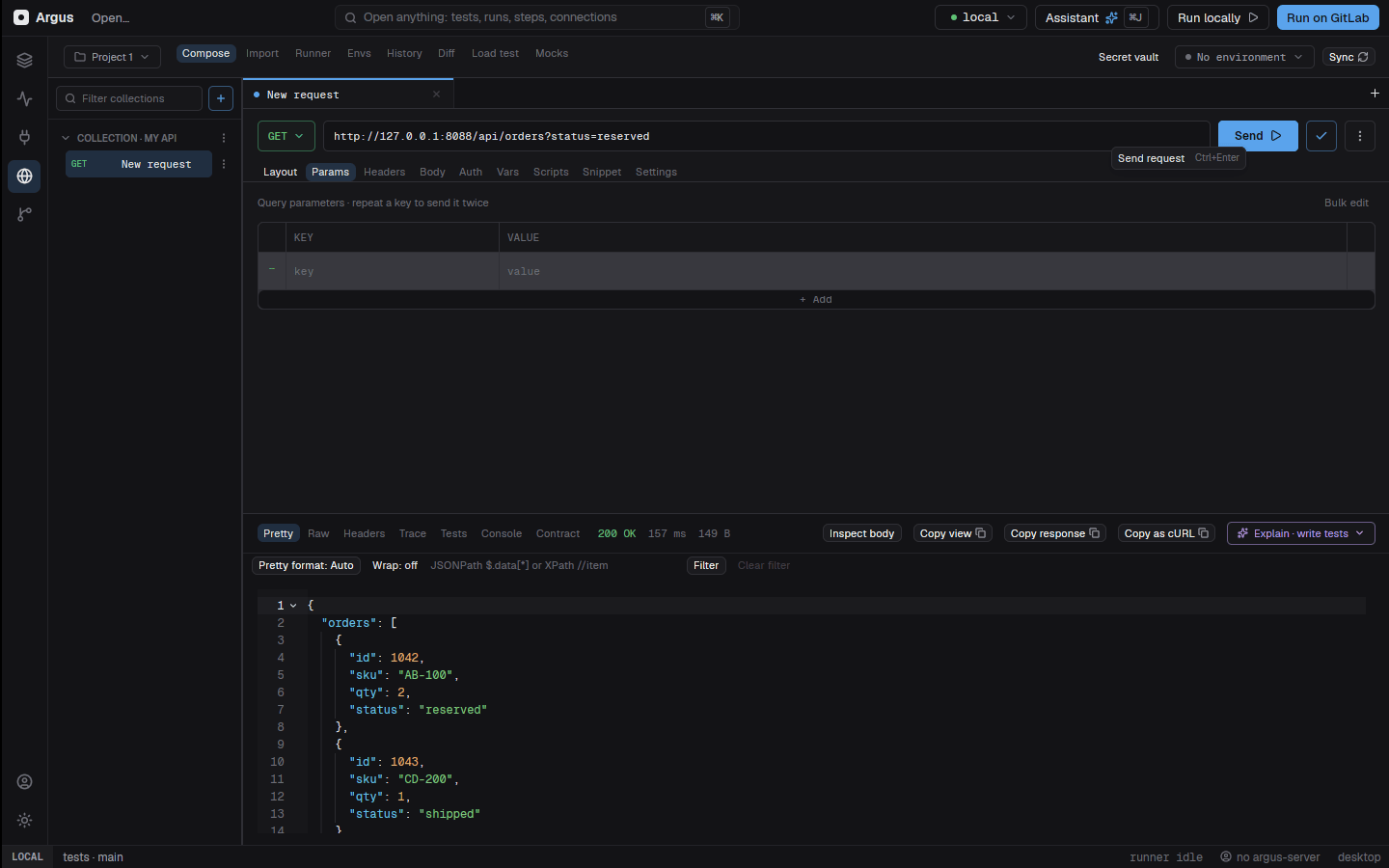
- Its AI buttons ask the assistant panel beside it.
- Requests the assistant writes in
```httpblocks get an Open in the API explorer button. - An HTTP step's composer can copy a saved request in with From API explorer… (6.1).
- Inside it,
⌘1–⌘8switch the explorer's own pages; use the rail or⌘Kto leave.
4.10 Repository
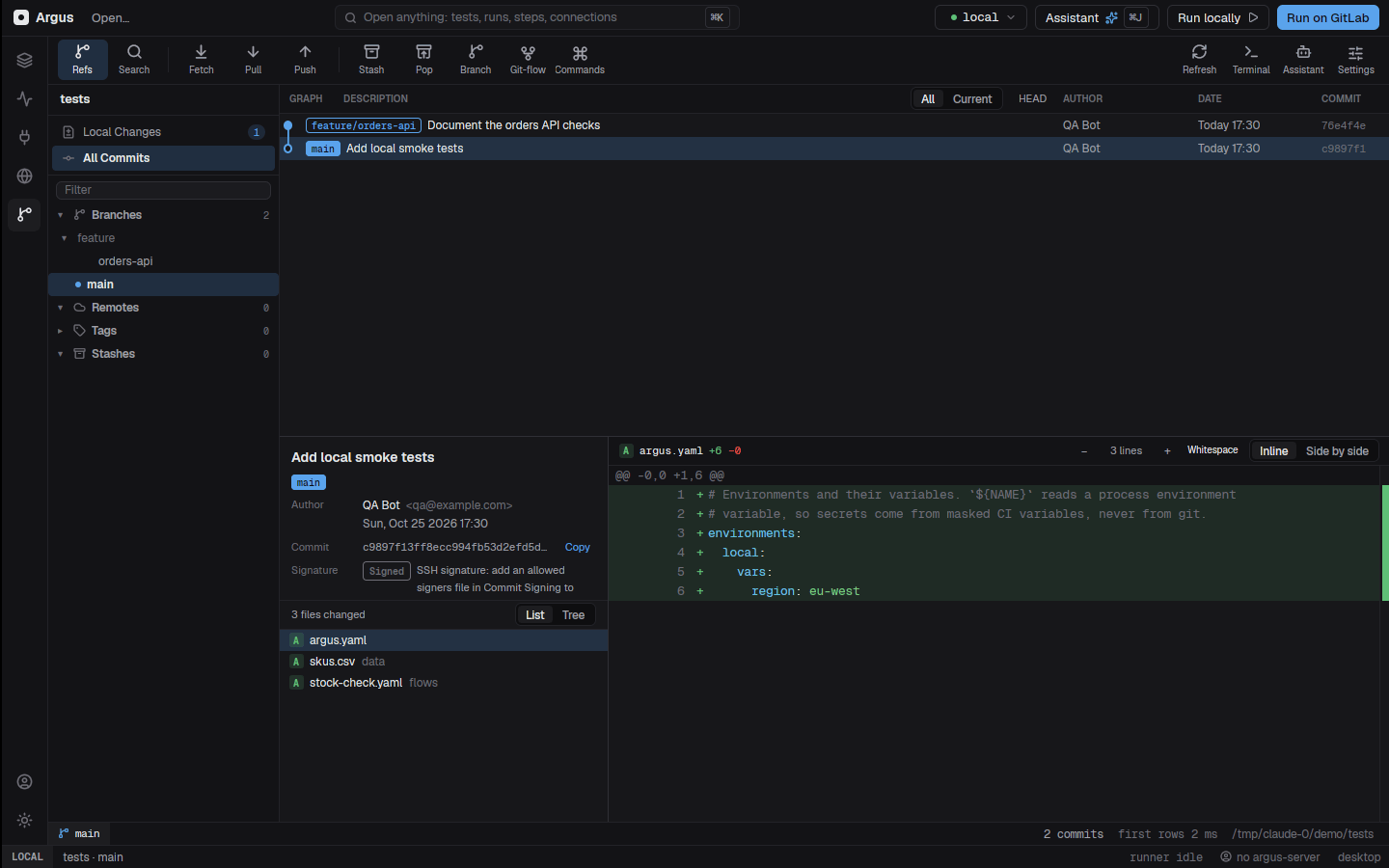
The Repository screen (⌘5) is a git
client for the open folder's repository: the commit graph, diffs, local
changes and staging, branches, tags, stashes, remotes, git-flow, bisect,
LFS, accounts (GitHub, GitLab, Azure DevOps) and pull requests, with its
own assistant. Events in .gitignored paths are ignored, so
a run writing argus-results/ doesn't make it busy.
4.11 Copying text
Text in the side panel, the run view, the evidence drawer, logs, the
Robot keyword tree, the YAML view, the assistant's replies and the
Connections screen can be selected with the mouse (drag, double-click a
word, triple-click a line) and copied with ⌘C, or with
right-click → Copy.
4.12 Keyboard shortcuts at a glance
| Keys | Action |
|---|---|
F1 |
This manual, in your browser |
⌘K |
Command palette |
⌘O |
Open a folder |
⌘1 … ⌘8 |
Explorer, Run view, Connections, API explorer, Repository, Files, Project settings, Payloads |
⌘J / ⇧⌘J |
Toggle assistant / new conversation |
⌥⌘B |
Collapse or open the side panel |
⇧⌘L |
Toggle light / dark theme |
⌘R |
Run the open test locally |
⇧⌘↵ |
Run all tests in the selected folder |
⇧⌘R |
Run on GitLab |
⌘↵ |
Run only the selected step |
⌘\ |
Cycle Canvas / Split / YAML |
/ |
Step palette (add a step) |
⌘Z / ⇧⌘Z (⌘Y) |
Undo / redo |
⌘A, ⌘C, ⌘V,
⌘D |
Select all, copy, paste, duplicate steps |
Delete / ⌘⌫ |
Delete the selected steps (canvas) or test (explorer) |
⌥↑ / ⌥↓ |
Move the selected step up / down |
⌘+ / ⌘- / ⌘0 /
⌘9 |
Zoom in / out / 100 % / fit |
J / K |
Next / previous failure (run view) |
Ctrl+` / Ctrl+Shift+` |
Terminal / new terminal |
Esc |
Close a menu, clear the selection |
The full list is in chapter 22.
4.13 Closing the window: Argus keeps running in the tray
Closing the window does not quit Argus. The window goes away and Argus keeps running behind its icon (the watcher's eye) in the tray, so the open project's schedules and intervals keep firing (11.4), runs in progress finish, and the assistant keeps working. The first time in a session a notification says AgentOps Argus is still running; click it to bring the window back.
The tray icon is in the Windows notification area (it may sit under
the ^ arrow at first; drag it onto the taskbar to keep it
in sight), the macOS menu bar, and on Linux any desktop that shows
status icons (KDE and most others; GNOME needs the AppIndicator
extension).
| On the tray icon | |
|---|---|
| Left click | Open the window again |
| Right click → Open AgentOps Argus | Open the window again |
| Right click → Pause all schedules | Stop schedules and intervals from starting runs (ticked while paused). The same switch as Pause in a test's Triggers section |
| Right click → Quit AgentOps Argus | Quit for real: schedules stop, and runs in progress are stopped with the app |
Only one Argus runs at a time. Starting it again (Start menu, desktop
shortcut, argus-desktop) while it sits in the tray shows
the window it already has instead of starting a second copy that would
fire the same schedules twice. argus-desktop <folder>
opens that folder there; argus-desktop --quit quits the
running Argus.
To make closing the window quit Argus as before, run Keep running
in the tray when the window is closed from the palette
(⌘K); run it again to turn it back on. It is kept as
keep_running in desktop.json
("off"), and ARGUS_KEEP_RUNNING=0 turns it off
for one start. With it off, every start is its own copy. The palette
also has Pause or resume all schedules in this app and Quit
AgentOps Argus.
Writing tests
Build tests on the canvas, choose the right steps, pass data between them and connect to your systems.
Writing tests: the canvas, YAML and the inspector
- 5.1Anatomy of a test
- 5.2Creating a test
- 5.3The canvas
- 5.4The inspector
- 5.5The YAML view
- 5.6Flows, sub-flows and setup
- 5.7Selecting, copying and pasting steps
- 5.8Moving, renaming and deleting tests
- 5.9Recording a browser test
- 5.10What the assistant changed
- 5.11Validation as you type
- 5.12Committing and merge requests
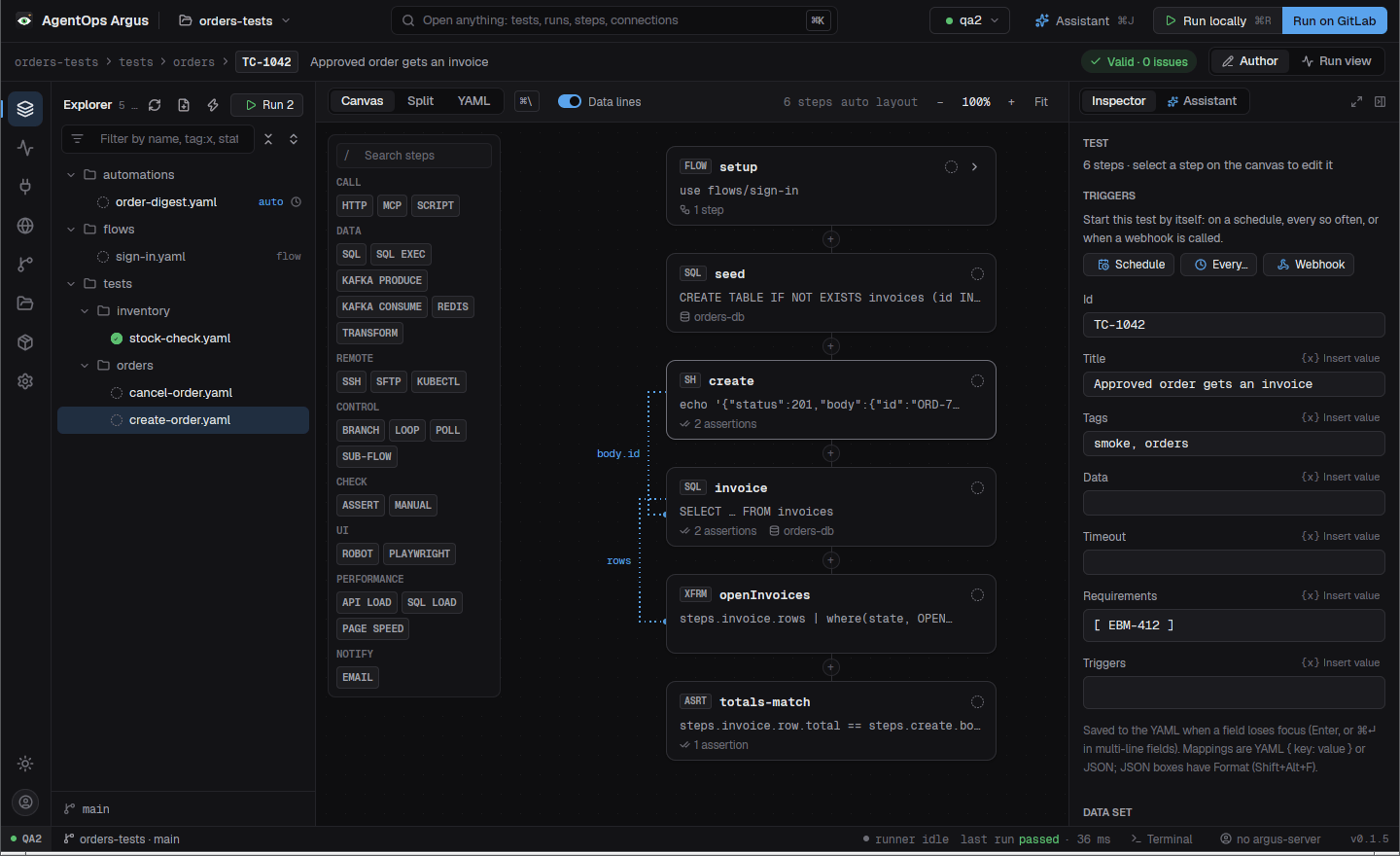
A test is one YAML file. The desktop app gives you three ways to edit it, all on the same text: the canvas (cards you click and drag), the YAML view (the file itself) and the inspector (a form for the selected step). Every change in one shows in the others at once, and edits keep your comments and formatting.
Watch the video: Desktop 2: Building a test on the canvas 1:28
5.1 Anatomy of a test
id: TC-1042                       # unique key: results, Jira links and argus-server use it
title: Approved order gets an invoice
tags: [smoke, orders]             # --tags smoke,!slow selects by them; `serial` = never in parallel
priority: high
requirements: [EBM-412]           # the stories this test proves
folder: orders                    # grouping in argus-server
env: qa2                          # default environment (--env wins)
timeout: 45s                      # default step timeout for this test
setup: { use: flows/login, with: { user: "{{env.user}}" } }   # a flow run first
data: data/orders.csv             # optional: run the whole test once per row

steps:
  - id: create
    type: http
    request:
      method: POST
      url: "{{env.api}}/orders"
      json: "{{payload.orders/create}}"
    expect: [ "status == 201", "body.id" ]

  - id: invoice
    type: sql
    connection: orders-db
    query: SELECT id, total FROM invoices WHERE order_id = :id
    params: { id: "{{steps.create.body.id}}" }
    retry: { until: "count == 1", every: 2s, max: 30s }

  - id: totals-match
    type: assert
expect: [ "steps.invoice.row.total == steps.create.body.total" ]| Top-level field | Meaning |
|---|---|
id |
Required. Unique key such as TC-1042. |
title |
Required. What the test proves. |
kind |
test (default), flow or
automation. |
steps |
Required, at least one. |
env |
Default environment. |
tags |
Labels for selecting tests. serial keeps a test from
running beside others. |
folder, priority |
Grouping and priority shown in argus-server. |
requirements |
Requirement keys the test covers ([EBM-412]), for
coverage and Jira. |
data |
A data file; the whole test runs once per row as
TC-1042[1], TC-1042[2] …, reading
{{row.<column>}}. |
setup |
{ use: flows/login, with: {...} }: a flow that runs
first, as the step setup. |
timeout |
Default timeout for each step of this test (2m,
none). |
timeouts |
test: the whole test's time limit; per step type,
sql: 10m, robot: none (9.3). |
triggers |
Schedules, intervals and webhooks (chapter 11). |
input, on-error, output |
Automations only (chapter 11). |
Every step has an id (unique in the whole test, nested
steps included) and a type, plus these optional fields:
| Step field | Meaning |
|---|---|
expect |
Assertions on the step's output (7.4). |
retry |
{ until: "status == 200", every: 2s, max: 30s } polls
until the condition holds; { times: 3, every: 5s } re-runs
while the step fails. |
timeout |
How long the step may take (none: no limit). On
loop, branch, poll-until and
sub-flow steps: the limit of each step inside. |
continue-on-failure |
true: a failure is recorded but later steps still
run. |
always |
true: runs even after an earlier step failed (teardown:
clean up data, sign out). |
vars |
Step-local values, read as {{vars.<name>}}. |
data |
The step's own data set: it runs once per row (7.6). |
tags, documentation |
Labels and prose. |
Every step type and its fields are in chapter 6.
5.2 Creating a test
- Explorer → New test (file-plus icon) creates
TC-<next>in the selected folder from a template and opens it. The palette has New test in the selected folder. - New automation (lightning icon) does the same for an automation.
- Record a browser test (5.9) writes a test from what you do in a browser.
- Ask the assistant: "write a test that creates an order and checks the invoice" (chapter 13).
- Write the YAML in any editor; the app picks the file up from disk.
5.3 The canvas
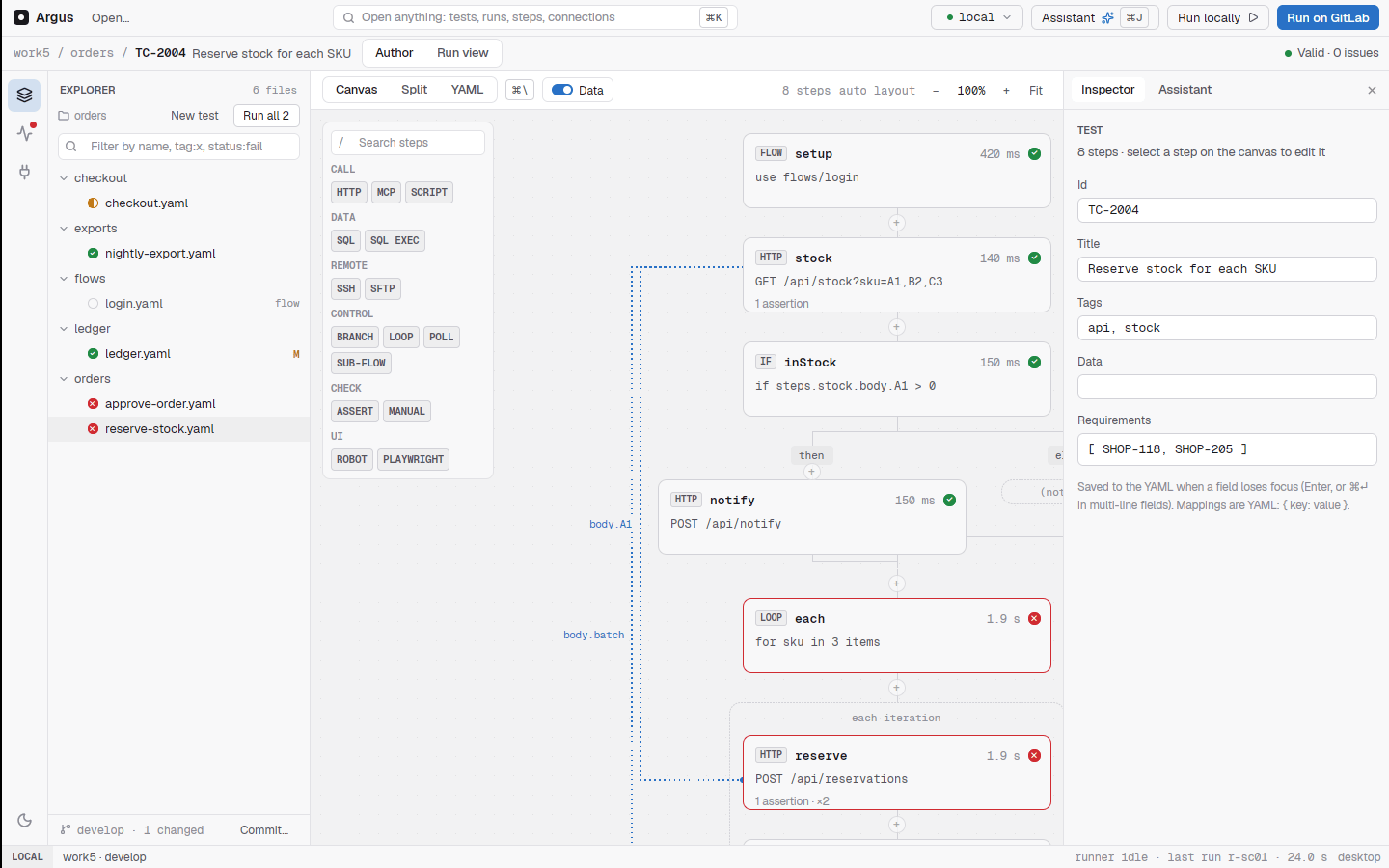
The canvas draws the test as a flow of cards, top to bottom. Each
card shows the step's type badge (HTTP, SQL,
SH, ASRT …), its id, a one-line summary
(POST /orders, the query, the command) and its assertions.
During and after a run, each card shows its status: running (with
elapsed time and the current action), passed, failed, skipped.
Views. The switch above the canvas picks
Canvas, Split (canvas and YAML side by
side) or YAML. ⌘\ cycles them. In Split
view, drag the divider to give either side more room; double-click it to
reset. The width is saved.
Data lines. With Data lines on, dotted
lines connect each step to the steps whose data it reads
({{steps.onHand.available}}), labelled with the field. It
shows at a glance where each value comes from.
Navigating.
| Drag on empty canvas, or scroll | Pan |
⌘+scroll, ⌘+ / ⌘- |
Zoom |
⌘0 |
100 % |
⌘9 or Fit |
Fit the whole flow |
| Drag a card | Move it (positions are saved in
<test>.layout.json beside the test) |
| auto layout | Arrange the cards again (palette: Reset the canvas layout) |
⌥↑ / ⌥↓ |
Move the selected step earlier / later in the test |
Adding steps. Press / (or click the
+ between two cards) to open the step
palette, then type to filter or click a chip. Steps are
grouped:
| Group | Chips |
|---|---|
| CALL | HTTP, MCP, SCRIPT |
| DATA | SQL, SQL EXEC, KAFKA PRODUCE, KAFKA CONSUME, REDIS, TRANSFORM |
| REMOTE | SSH, SFTP, KUBECTL |
| CONTROL | BRANCH, LOOP, POLL, SUB-FLOW |
| CHECK | ASSERT, MANUAL |
| UI | ROBOT, PLAYWRIGHT, DESKTOP APP, MOBILE APP |
| PERFORMANCE | API LOAD, SQL LOAD, PAGE SPEED |
| NOTIFY |
The new step starts from a working template with a fresh id
(call, query, …) and is selected so you can
fill it in.
Control flow is drawn as structure: a
branch splits into then and else lanes, a
loop is a container of its steps, poll-until
wraps the step it polls, and sub-flow / setup
cards fold their flow's steps (5.6).
5.4 The inspector
Select a card to edit it in the side panel's Inspector. With no step selected, the inspector shows the test's settings: id, title, tags, data, timeout, requirements and the Triggers section.
A step's settings are split into tabs:
| Tab | Contents |
|---|---|
| Config | The step's own fields, as a composer built for its type: the HTTP request builder with Send, the SQL editor with Run query, the Kafka produce/consume composer with Try it, the Redis composer, the email composer with Send test, the load and page-speed composers, and plain fields for the rest. |
| Assertions | The step's expect list: add, edit and remove checks;
after a run each shows its actual value. |
| Data | Where this step's values come from, every earlier step's result to pick from, the payload library, and the step's data set (chapter 7). |
| Behavior | timeout, retry,
continue-on-failure, always,
tags, documentation. |
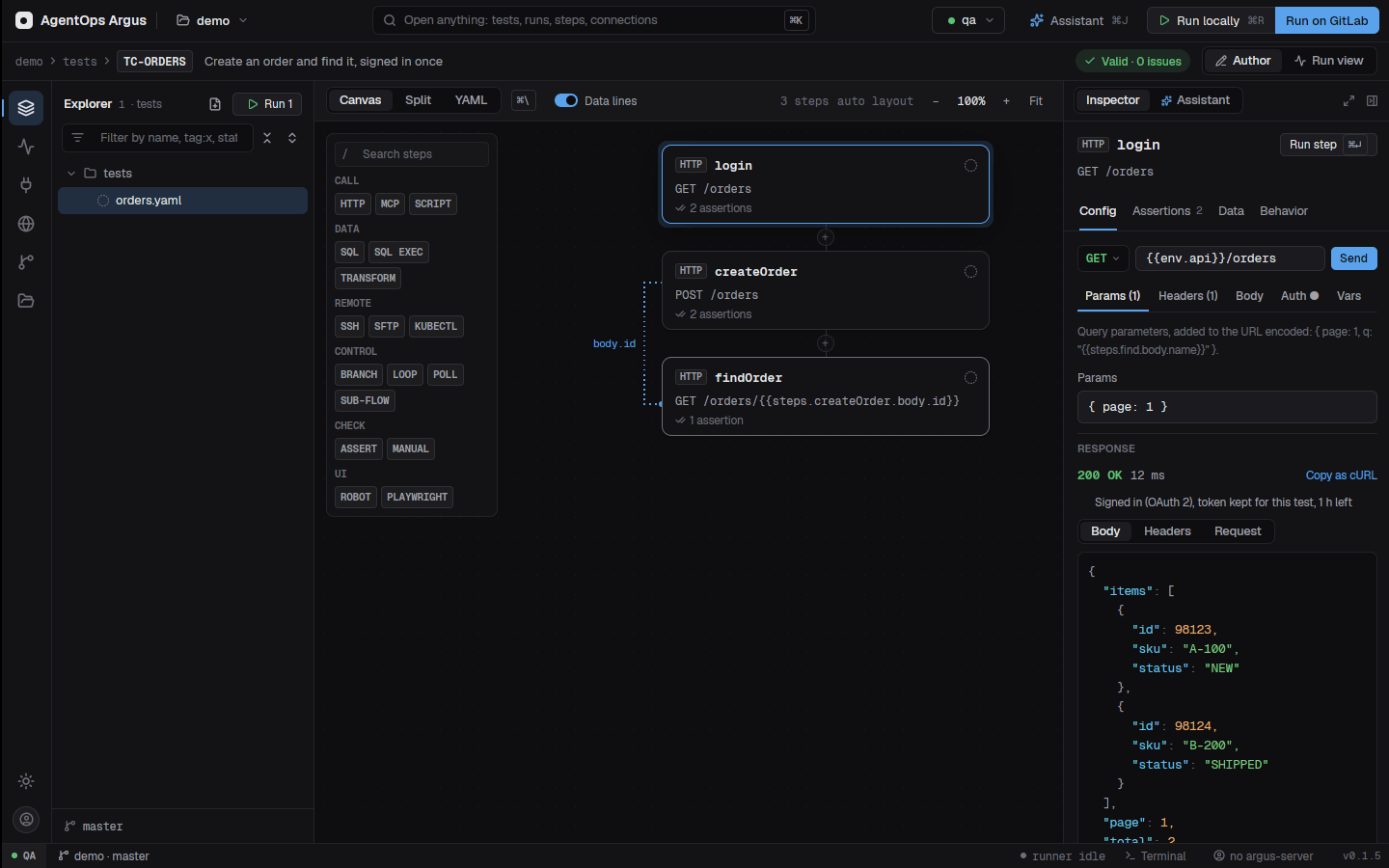
Fields save to the YAML when they lose focus (Enter, or
⌘↵ in multi-line fields). Mappings are YAML
({ key: value }); fields that hold JSON (an HTTP
json body, Kafka values, Redis set values, MCP args) are a
JSON editor with a Valid / Not valid bar (click it to
jump to the problem), Format and
Compact, and Shift+Alt+F.
A step's connection field lists the connections of the right type.
Every field that takes a value has {x} Insert value,
and a lens under it shows where each {{...}} comes from and
what it was on the last run (7.7).
Renaming a step. Every step's Config tab starts with
its id, the name on its card (the HTTP composer shows it
above the URL bar). Type a new one and press Enter: the test's
references to the step follow ({{steps.<id>...}} in
any field, expect checks,
auth: { use: <id> }), and so does the card's place on
the canvas. An id another step already has, or one with spaces or dots,
is refused.
⌘Z undoes and ⇧⌘Z / ⌘Y redoes
any change, from the canvas, the inspector or the YAML view.
5.5 The YAML view
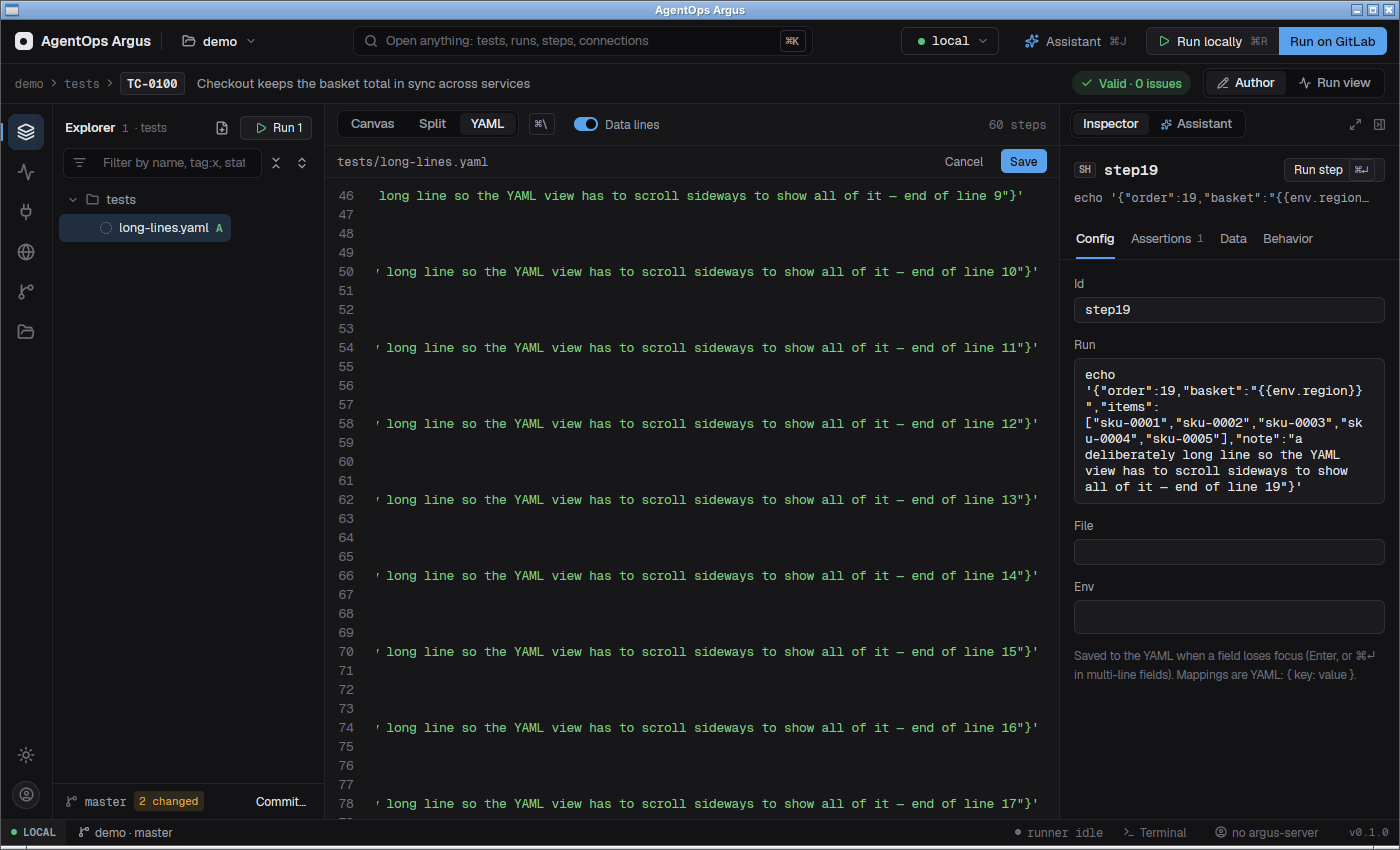
The YAML view shows the file with line numbers that stay put while it scrolls sideways. Click Edit YAML to edit it in a code editor (no soft wrap, highlighting, line numbers). The canvas and inspector follow as soon as the text parses; problems show in the breadcrumb bar's validation chip.
5.6 Flows, sub-flows and setup
A flow is a reusable piece of a test: signing in,
creating a customer, cleaning up. It is a file with
kind: flow:
# flows/login.yaml
kind: flow
id: FLOW-LOGIN
title: Sign in and return a token
steps:
  - id: token
    type: http
    request:
      method: POST
      url: "{{env.api}}/auth/token"
      json: { user: "{{vars.user}}", password: "{{vars.password}}" }
    expect: [ "status == 200", "body.token" ]
Use it in a test as a step, or as the test's setup:
setup: { use: flows/login, with: { user: "{{env.user}}", password: "{{env.password}}" } }
steps:
  - id: login
    type: sub-flow
    use: flows/login                 # .yaml optional; from the argus.yaml folder or beside the test
    with: { user: "{{env.user}}", password: "{{env.password}}" }
  - id: me
    type: http
    request:
      url: "{{env.api}}/me"
headers: { Authorization: "Bearer {{steps.login.token.body.token}}" }- The flow sees
env, the datarowand itswithvalues as{{vars.*}}, not the caller's steps. - The caller reads the flow's steps as
{{steps.<sub-flow id>.<inner id>…}}. - Flows may nest (not recursively).
- A flow only runs through a test;
argus runnever runs it on its own.
On the canvas, sub-flow and setup cards
start folded: they show "N steps", and while running
the elapsed time and the inner step running. Click the chevron to open
the card and see the flow's steps (read-only, live during a run,
clickable to see each step's result in the drawer). The palette has
Collapse / Expand all flow cards on the canvas. Which cards are
open is kept on your machine, not in the repository.
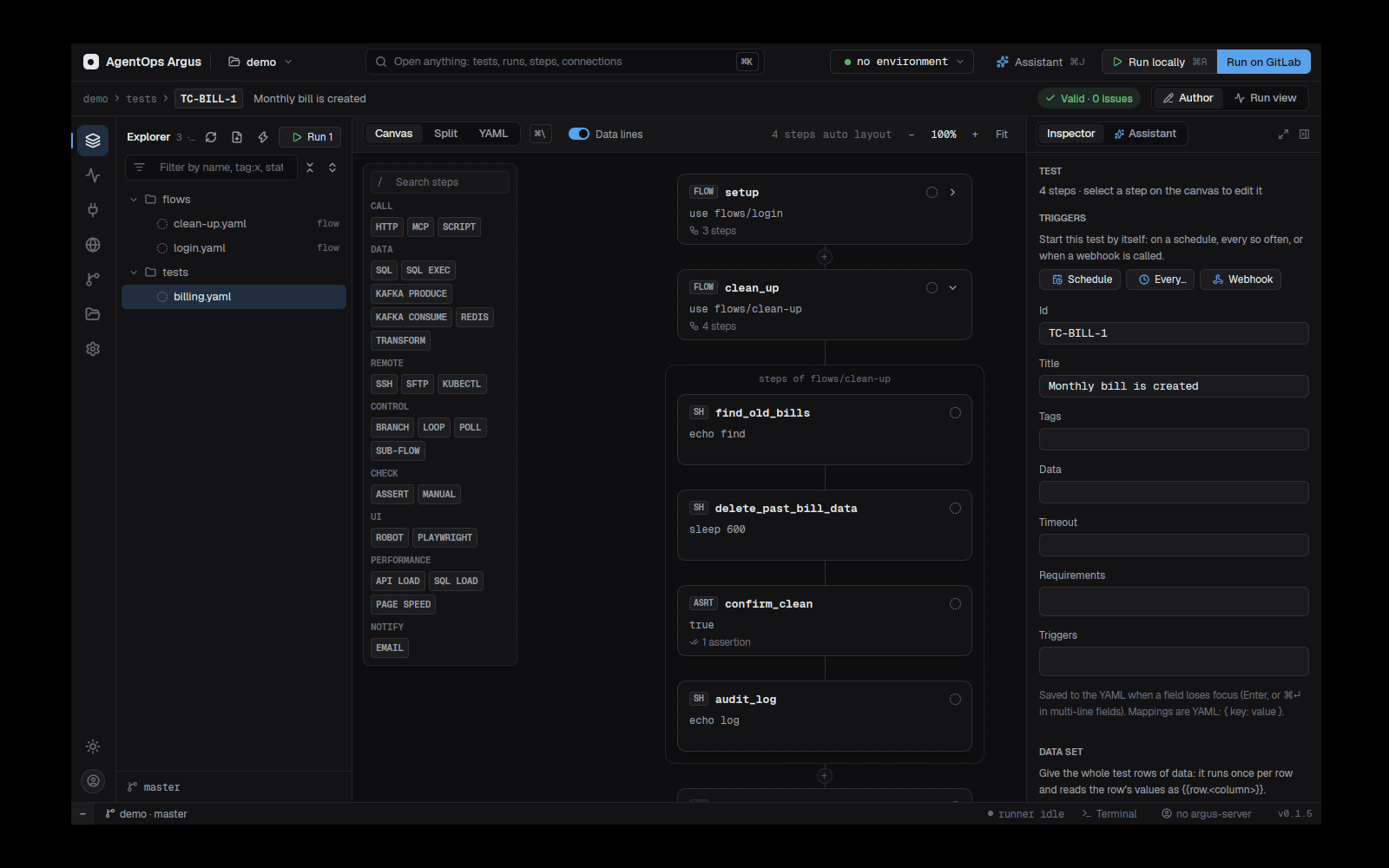
5.7 Selecting, copying and pasting steps
| Keys / action | |
|---|---|
⌘A |
Select all steps |
Shift / ⌘-click |
Add or remove a card from the selection |
Shift / ⌘-drag on empty canvas |
Selection box (a plain drag pans) |
| Drag a selected card | Move the whole group |
Shift+arrows |
Nudge the selection |
⌘D |
Duplicate (new ids end in _copy) |
Delete / ⌘⌫ |
Delete the selected steps |
Esc |
Clear the selection |
⌘C / ⌘V |
Copy / paste steps, also between tests |
A bar at the bottom of the canvas shows how many steps are picked, with Copy, Duplicate, Auto layout, Delete and Clear. Right-click a card for Copy / Paste / Duplicate / Delete; right-click empty canvas to paste at the end.
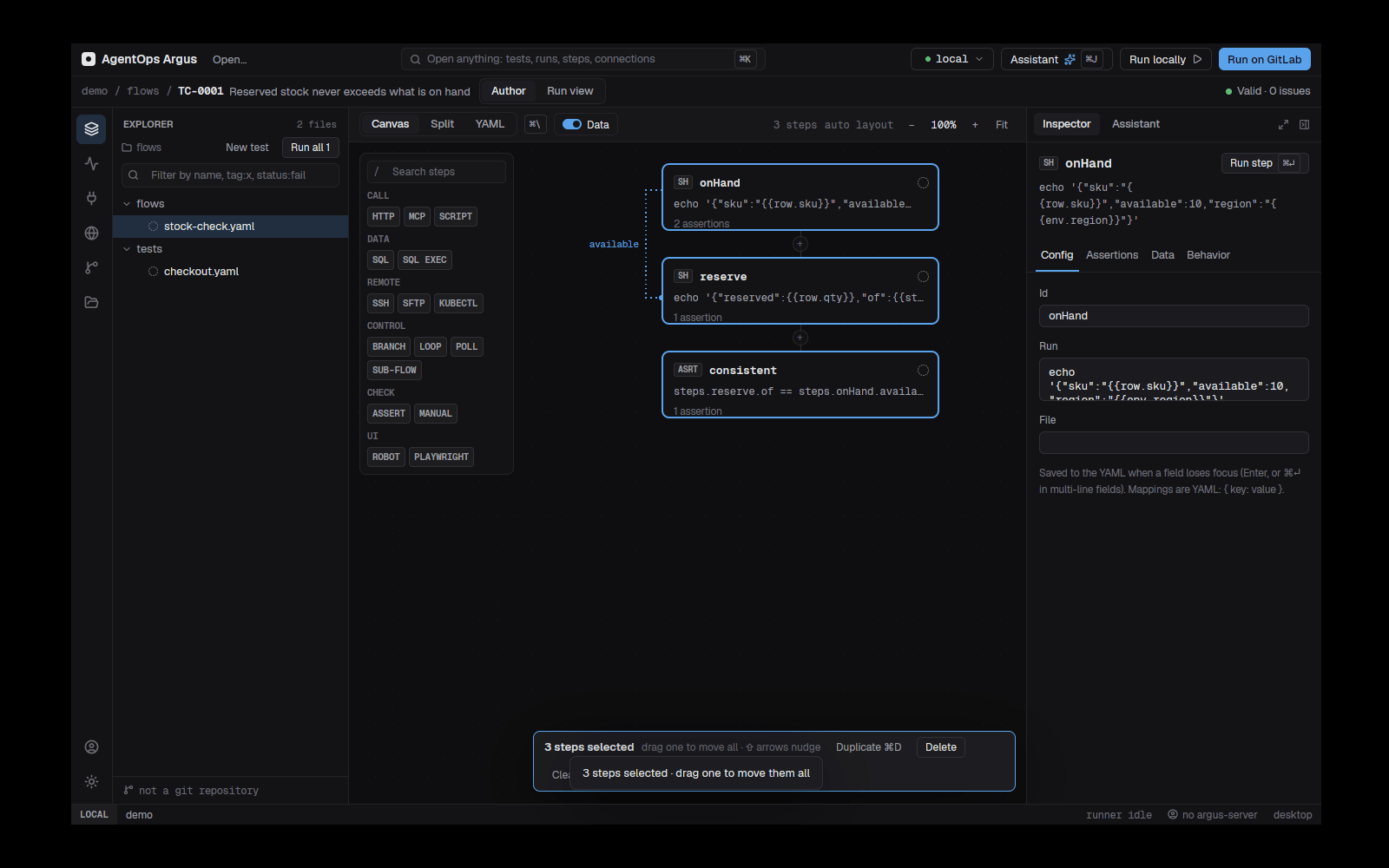
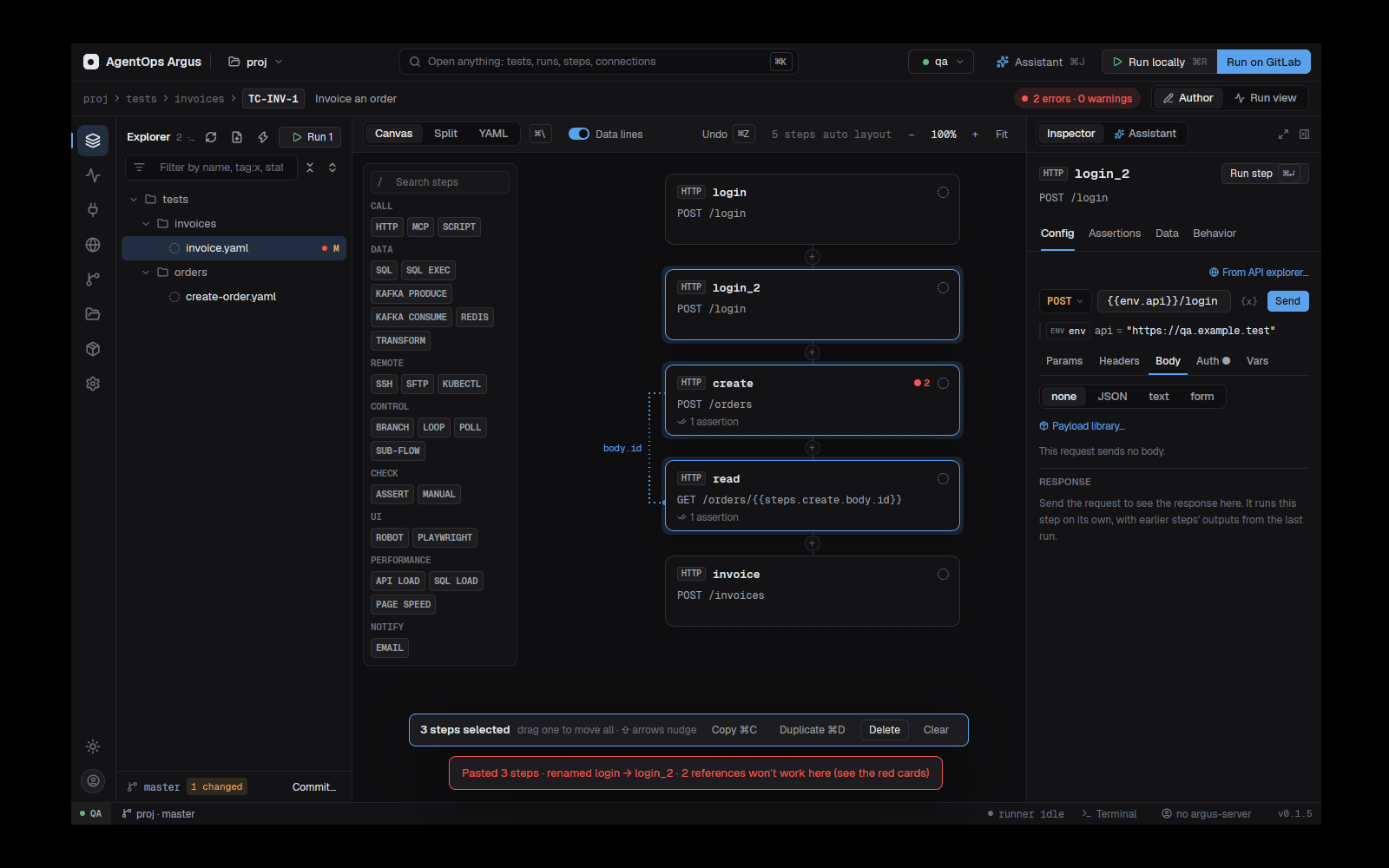
Pasting into another test puts the steps after the selected step (or at the end), in one undoable change:
- Ids that already exist get
_2,_3…, and references between the pasted steps ({{steps.<old>…}},expectpaths,auth: { use: … }) follow. - File references (
use:,data:, specs, scripts, payload files) are rewritten for the new folder. - References to steps the target test doesn't have are listed in a toast, and those cards show red until you fix them.
The clipboard holds plain YAML (a list of steps), so you can also paste steps from a text editor, or copy them out into one.
5.8 Moving, renaming and deleting tests
Move a test, flow or folder by dragging it in the
explorer onto a folder (onto a test: into its folder; below the rows: to
the top), or right-click → Move to… and pick a folder
or type a new one (flows/shared). The Files tree moves any
file the same way.
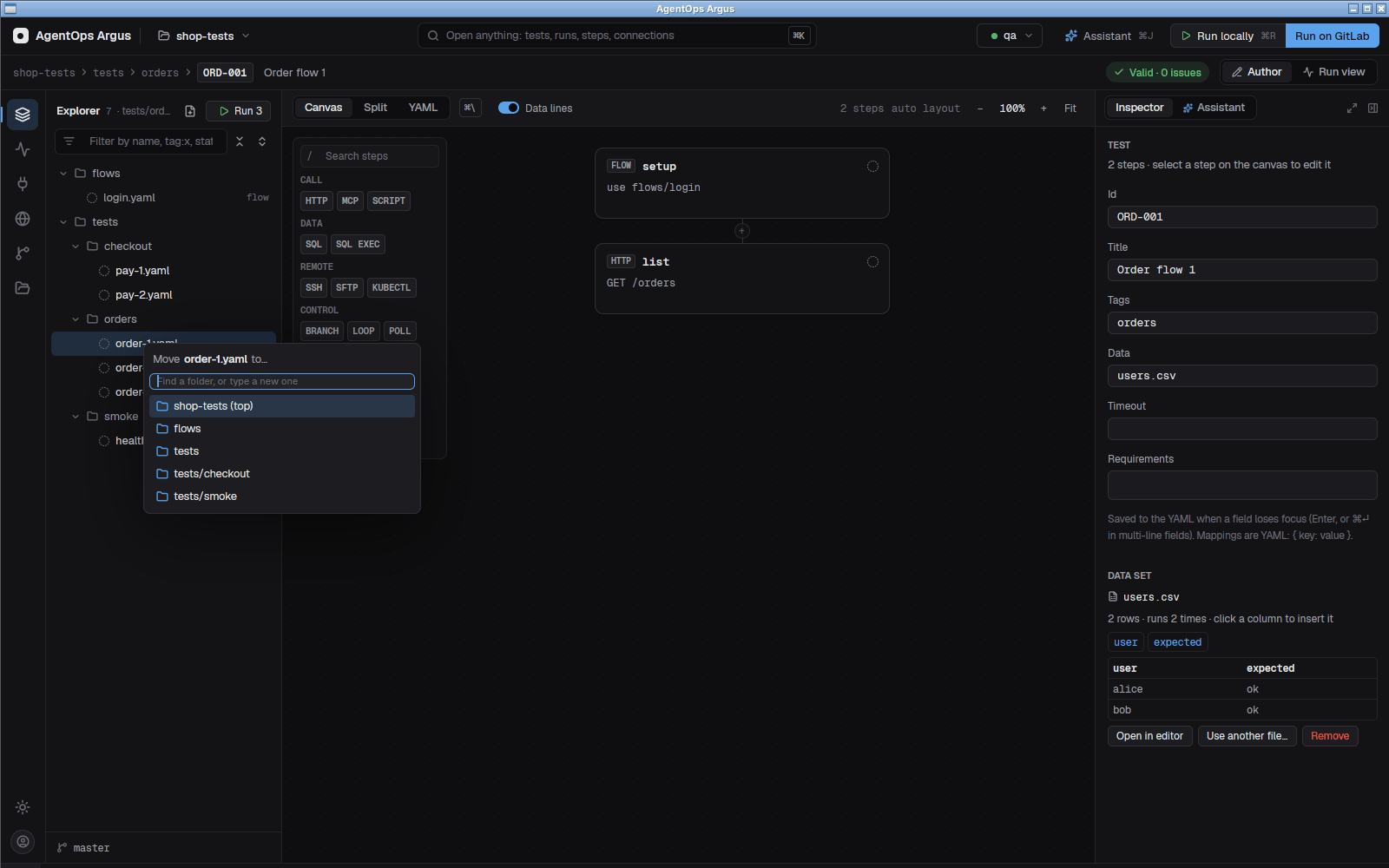
References that would break are rewritten: use: flows,
data: files and the files steps name (scripts, specs,
suites, payloads) in the moved tests and in every test that reads a
moved file. The canvas layout moves with its test, and the open test and
editor tabs follow. Commands inside run: text,
argus.yaml, CI paths and Robot/Playwright imports are not
rewritten.
Rename a test, flow or folder with right-click →
Rename… or F2 on the selected explorer
row. The name turns into a text box; type the new name and press Enter
(Esc keeps the old one). Typing a name without .yaml keeps
the extension. The same references are rewritten as for a move, the
canvas layout file is renamed with its test, and the open test and
editor tabs follow. Renaming in the Files tree (F2)
rewrites them too. Renaming is refused while a run is live, or when the
folder already has that name.
Delete with right-click → Delete…
or the Delete key on a selected explorer row. The confirmation lists the
tests that use what you are deleting (a flow other tests call, a data
file); the test's .layout.json goes with it. Deleting is
refused while a run is live.
5.9 Recording a browser test
Record a browser test… (palette, or the welcome screen) opens Chrome or Edge on an address, in its own window and a throwaway profile. Use the application; each click, typing, checkbox, select and key is recorded as you go, shown with the Playwright locator it will use (also on hover, in the page).
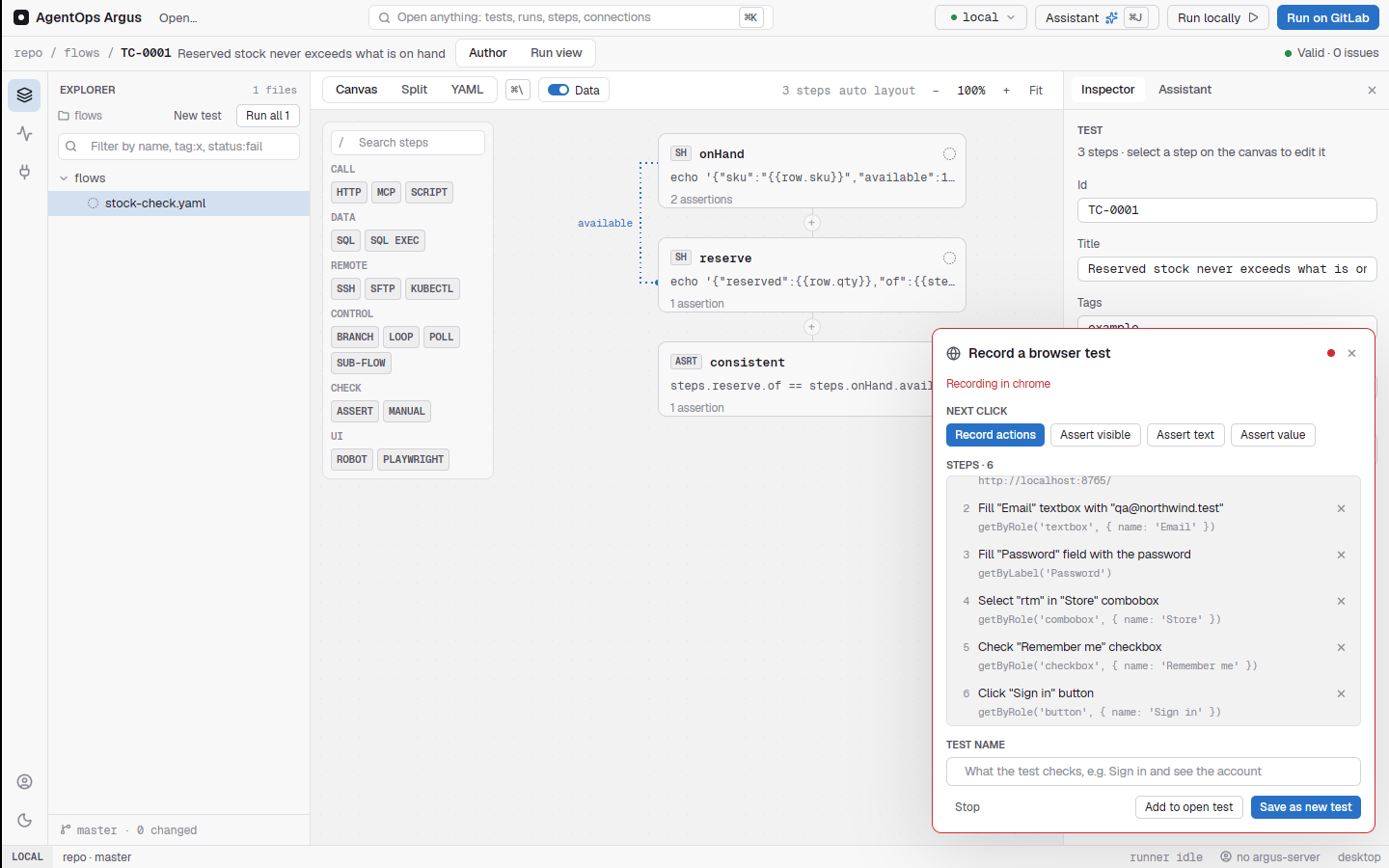
- Assert visible, Assert text and
Assert value make your next click a check instead of an
action. Visual check adds a screenshot checkpoint
(
snapshot(page, 'checkpoint 1')) that later runs compare with its baseline (see 9.13). - Each recorded element also keeps up to four backup
locators and a fingerprint (its role, name,
label, text, id, test id, classes). The spec calls
heal(page, …)for it, so a run can still find the element after a UI change and propose the new locator for review. - Typing becomes one
fill; navigations the page caused itself are not recorded; pop-ups follow the click that opened them. - Passwords are never written down: the spec reads
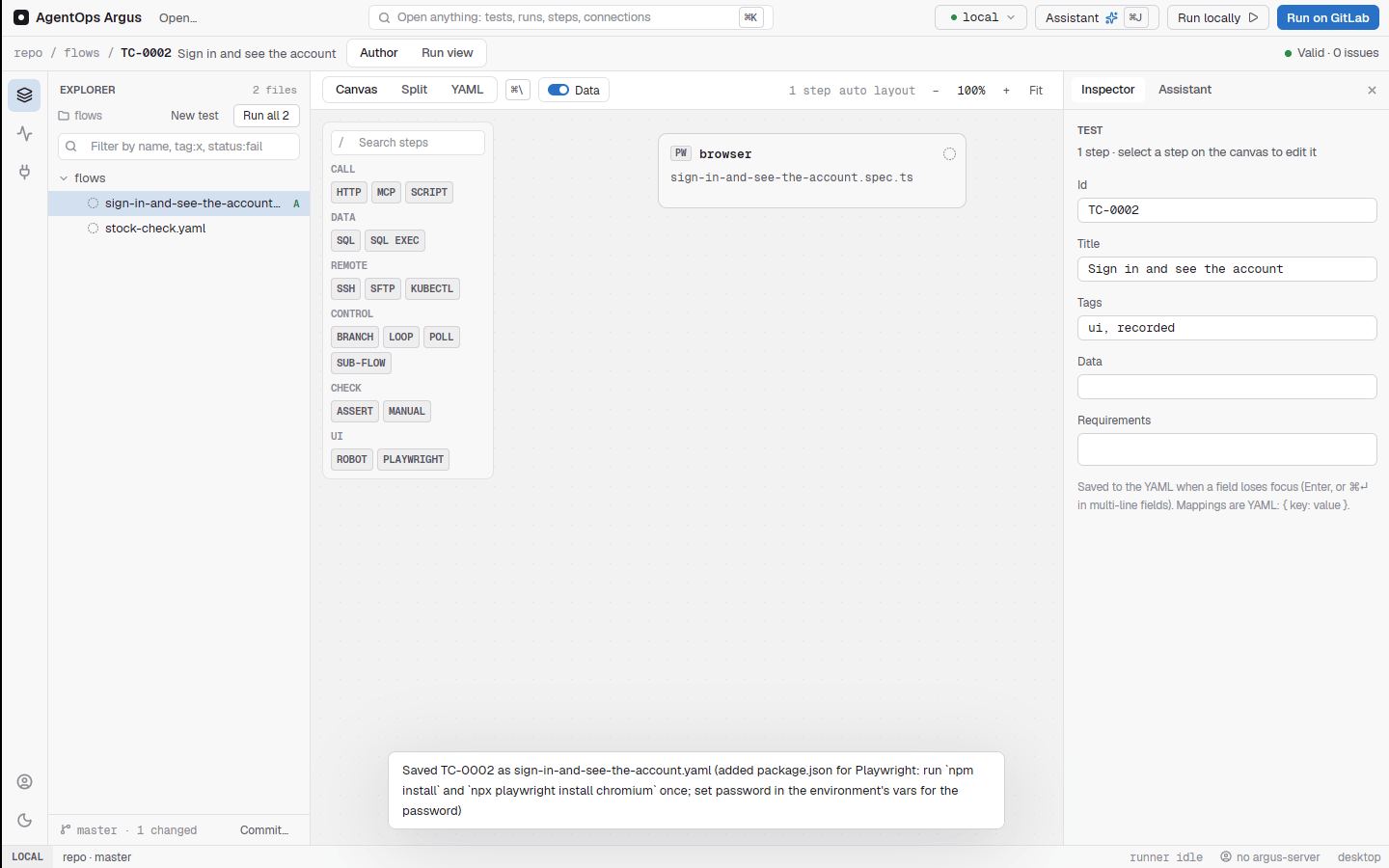
ARGUS_PASSWORD, which the step maps to the environment'spasswordvar. - Save as new test writes a Playwright spec with one
test.stepper action (so the run view and report list each action as a step) and an Argus test with aplaywrightstep. Add to open test appends the step to the open test. - Without a
package.jsonnaming@playwright/test, one is written at the tests folder's root; runnpm installandnpx playwright install chromiumonce.
ARGUS_BROWSER picks the browser program; otherwise
Chrome, Edge, Chromium, then Playwright's own Chromium are looked
for.
5.10 What the assistant changed
When the assistant edits the open test, a banner Changed by the assistant marks new and changed cards with Undo and Keep. Each assistant reply also lists the files it changed, with a diff and Undo per file or for the whole reply (chapter 13).
5.11 Validation as you type
The breadcrumb chip shows Valid · 0 issues or the
number of problems; click it to list them. Cards with a problem show
red. Validation covers the schema, required fields per type, durations,
{{steps.x}} references (unknown steps, later steps),
unknown transforms, :name SQL parameters with no value,
missing payloads and unknown connections or MCP servers for the selected
environment. argus validate runs the same checks on the
command line.
5.12 Committing and merge requests
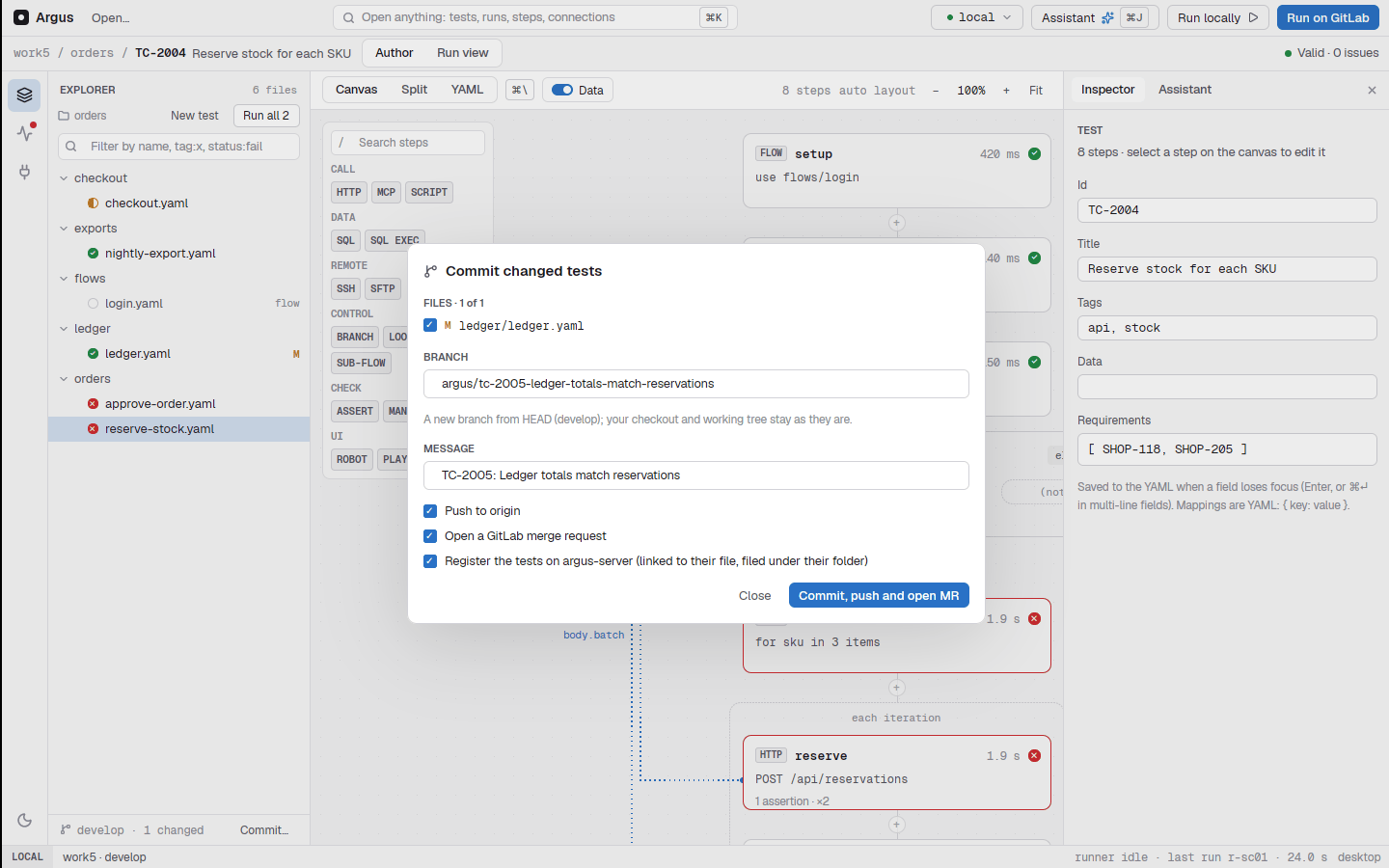
Commit changed tests and open a merge request… (palette, or
the Repository screen for full git) puts the changed test files on a
branch, pushes it and opens a GitLab merge request. It needs
GITLAB_URL, GITLAB_TOKEN (api scope) and
GITLAB_PROJECT_ID (else the origin remote's
project path) as local variables. A branch other than the checked-out
one is committed through a private index, so your checkout and other
edits stay as they are. GITLAB_TARGET_BRANCH overrides the
target (else the project's default branch).
Step reference
Argus has 23 step types. This chapter lists each one: what it does,
its YAML, its output (what later steps read as
{{steps.<id>.…}} and what its own expect
reads as bare paths), and what the desktop's inspector offers for
it.
| Group | Types |
|---|---|
| Call | http, mcp, script |
| Data | sql, kafka, redis, transform |
| Remote | ssh, sftp, kubectl |
| Control | branch, loop, poll-until, sub-flow |
| Check | assert, manual |
| UI | playwright, robot |
| Apps | desktop-app, mobile-app |
| Performance | load, page-perf |
| Notify | email |
Two rules hold for every type:
- A step fails when it fails to run or any
expectfails. An infrastructure error (an unreachable host, a refused sign-in, a missing program such asrobotornpx) is reported separately from a test failure, and makesargus runexit2rather than1. - Secret-looking values (credential headers,
passwords, tokens, anything from
${...}) are masked in the step's output and evidence.
6.1 http
Calls an HTTP API.
- id: create
  type: http
  request:
    method: POST                 # default GET
    url: "{{env.api}}/orders"    # required
    headers: { X-Request-Id: "{{now}}" }
    query: { page: 1 }           # added to the URL, encoded
    json: { sku: A1, qty: 2 }    # or json: "{{payload.orders/create}}", or json: "@payloads/order.json"
    # body: "raw text"           # instead of json
    # form: { a: 1 }             # instead of json: application/x-www-form-urlencoded
    auth: { type: bearer, token: "{{env.API_TOKEN}}" }
  expect: [ "status == 201", "body.id" ]
Output: status, headers
(lower-case names), body (parsed JSON, otherwise text), and
auth when the request signs in.
Signing in:
request.auth
Keep credentials in {{env.NAME}} (a local or CI
variable), never literal.
auth: { type: bearer, token: "{{env.API_TOKEN}}" }
auth: { type: basic, username: ann, password: "{{env.API_PASSWORD}}" }
auth: { type: api-key, name: X-Api-Key, value: "{{env.API_KEY}}", in: header }   # or in: query
auth:                            # OAuth 2 token endpoint (Duende, Entra, Keycloak…)
  type: oauth2
  grant: client-credentials      # or password (add username, password)
  token-url: "{{env.idp}}/connect/token"
  client-id: argus
  client-secret: "{{env.CLIENT_SECRET}}"
  scope: orders.read
  params: { audience: orders }   # optional extra form fields
auth:                            # call a sign-in endpoint first
  type: login
  request: { method: POST, url: "{{env.api}}/auth/login", json: { user: "{{env.API_USER}}", password: "{{env.API_PASSWORD}}" } }
  token: body.access_token       # where the token is in its { status, headers, body }
  # cookie: SESSION              # instead of token: send the session cookie it sets
  header: Authorization          # default; scheme: Bearer (default; "" sends the token alone)
  expires-in: 30m                # optional; else the response's expires_in
auth: { use: login }             # sign in like step `login` did (reuses its token)
oauth2 and login tokens are kept
for the rest of the test: a later step with the same auth, or
auth: { use: <step id> }, sends the kept token
without signing in again, until it expires or the API answers 401 (then
it signs in once more and resends). cache: false signs in
every time. The auth output says type,
from (given, sign-in or
kept), via, expires_in and
renewed, never the token.
In the desktop
The HTTP step's Config tab is a request builder like the API
explorer's: the step's id (its name on the canvas; renaming
it updates the steps that read it), a method menu and URL bar with
Send, and tabs for Params, Headers,
Body, Auth and Vars.
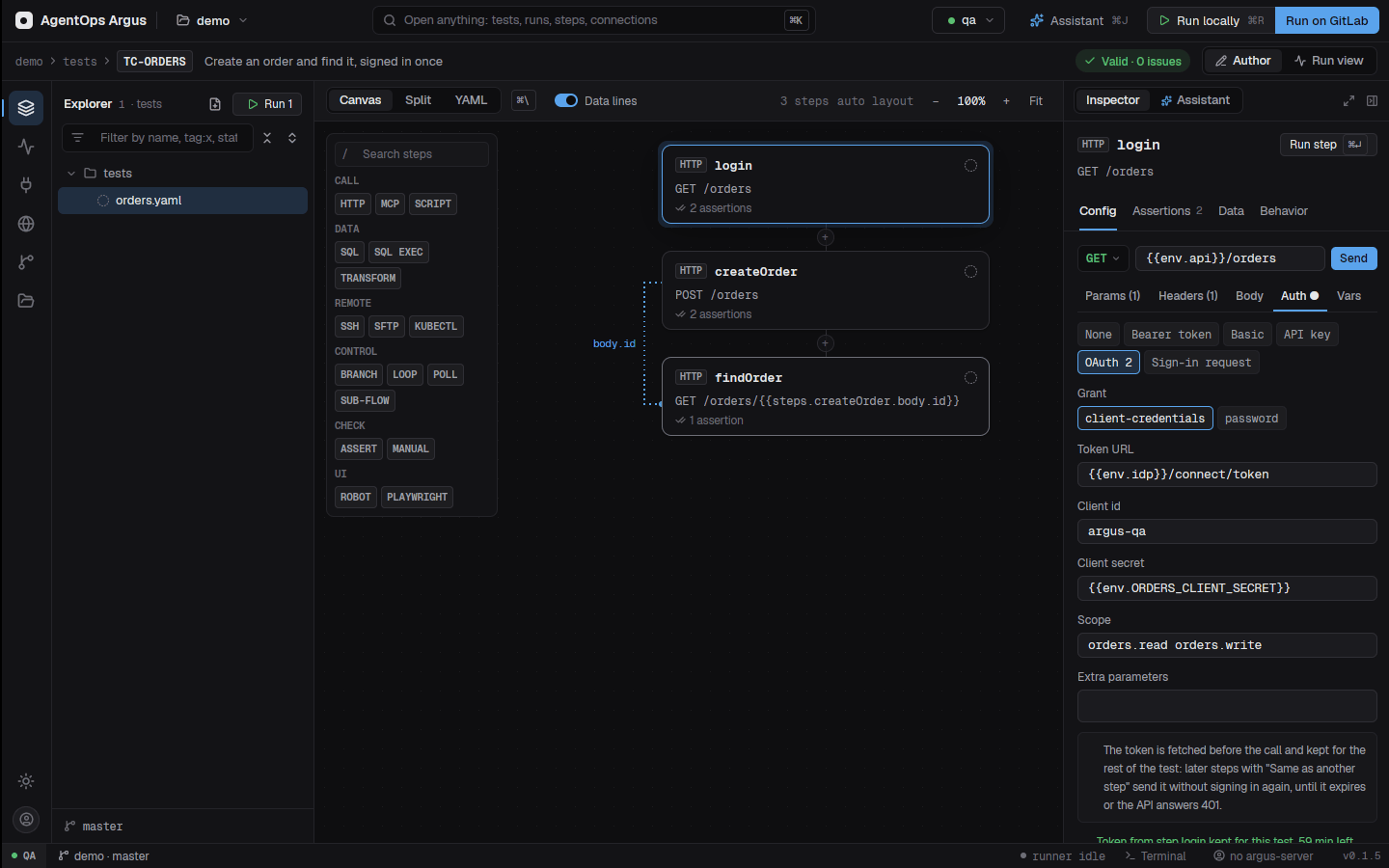
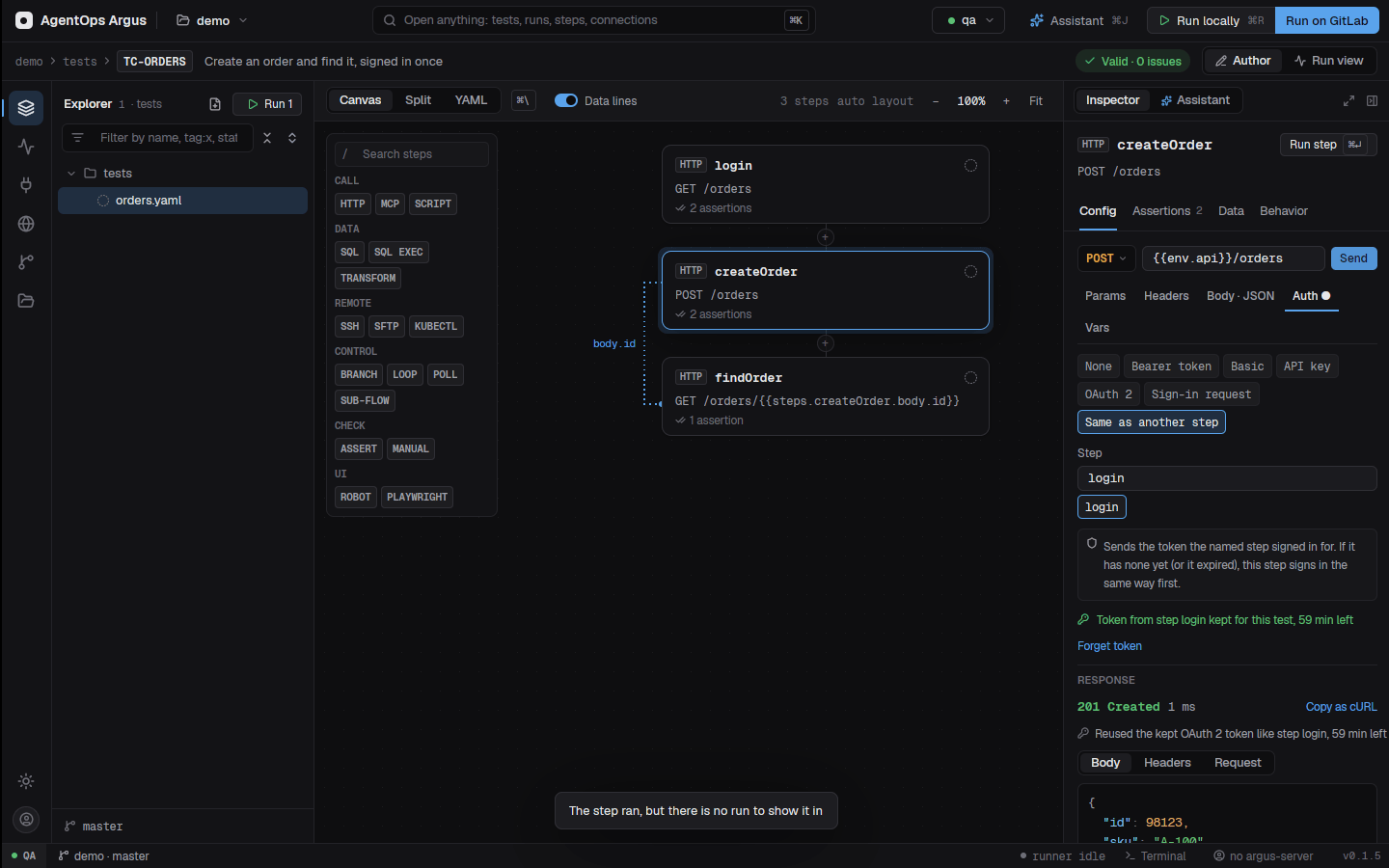
- Send runs just this step and shows the response (Body, Headers, Request, Copy as cURL), even in a test that has never run.
- The Auth tab picks the type with chips. Keep it in
the OS keychain turns a secret you typed into a local variable
and writes
{{env.NAME}}instead. A kept token shows on a line with Forget token. - The Body tab has a Payload library… list (7.8).
- From API explorer… lists the API explorer's saved
requests and copies one in:
{{x}}becomes{{env.x}}, and secrets become{{env.<STEP>_<FIELD>}}for you to set as local variables.
6.2 mcp
Calls a tool on an MCP server defined in argus.yaml
(mcp:) or an mcpServers file (8.6).
- id: order
  type: mcp
  server: orders
  tool: get_order
  args: { id: "{{steps.create.body.id}}" }
  expect: [ "result.status == 'shipped'" ]
Output: result (the tool's
structuredContent, else its text parsed as JSON),
text, is_error. A tool answering
isError fails the step; a server that can't start or be
reached is an infrastructure error. A stdio server is started on first
use and shared by every later step in the run; its stderr during the
step is kept as evidence (<server>.stderr.log,
masked).
6.3 script
Runs a script in the test's folder.
- id: token
  type: script
  lang: python                   # sh (default), bash, python, node, pwsh
  run: |
    import json, os
    print(json.dumps({"token": os.environ["SEED"]}))
  env: { SEED: "{{env.seed}}" }
  # file: tools/make_token.py    # instead of run; args: [..] for both
Output: stdout parsed as JSON when it is an object
or list (so {{steps.token.token}}), otherwise
stdout, stderr and exit_code. A
non-zero exit fails the step. Interpreters: python3
(ARGUS_PYTHON), node
(ARGUS_NODE), bash, pwsh,
sh. Scripts get at least 10 minutes unless a limit is set
for them (step, test, folder, timeouts.script;
none for no limit). Files written to
$ARGUS_EVIDENCE_DIR become evidence
(pytest --output "$ARGUS_EVIDENCE_DIR").
6.4 sql
Queries or changes a database: PostgreSQL, SQL Server, Oracle or SQLite, each through its own native driver (no ODBC, no MCP server).
- id: invoice
  type: sql
  connection: orders-db          # a postgres, sqlserver, oracle or sqlite connection
  query: SELECT id, total FROM invoices WHERE order_id = :id
  params: { id: "{{steps.create.body.id}}" }
  expect: [ "count == 1", "row.total > 0" ]

- id: cleanup
  type: sql
  connection: orders-db
  exec: |
    DELETE FROM invoices WHERE order_id = :id;
    DELETE FROM orders WHERE id = :id;
  params: { id: "{{steps.create.body.id}}" }
  always: true
query: |
Returns rows (a list of objects), count,
columns (names, also when nothing matched) and
row (the first row, or null). |
exec: |
One or more statements; returns rows_affected. Oracle
scripts split at ; and / lines like SQL*Plus
(PL/SQL blocks kept whole), then commit. |
params: |
Every :name placeholder needs a value; they are bound
as typed parameters. Validation names any that are missing. |
Oracle names unquoted columns in upper case (row.TOTAL),
or alias them (total AS "total"). Oracle needs Instant
Client at run time (in the argus:full image; elsewhere
ORACLE_CLIENT_LIB or the connection's
client_lib_dir). Stop and the step's
timeout cancel a running statement on the server (Postgres cancel,
Oracle break, SQL Server dropped connection, SQLite interrupt), and the
drawer shows progress lines while it waits.
In the desktop
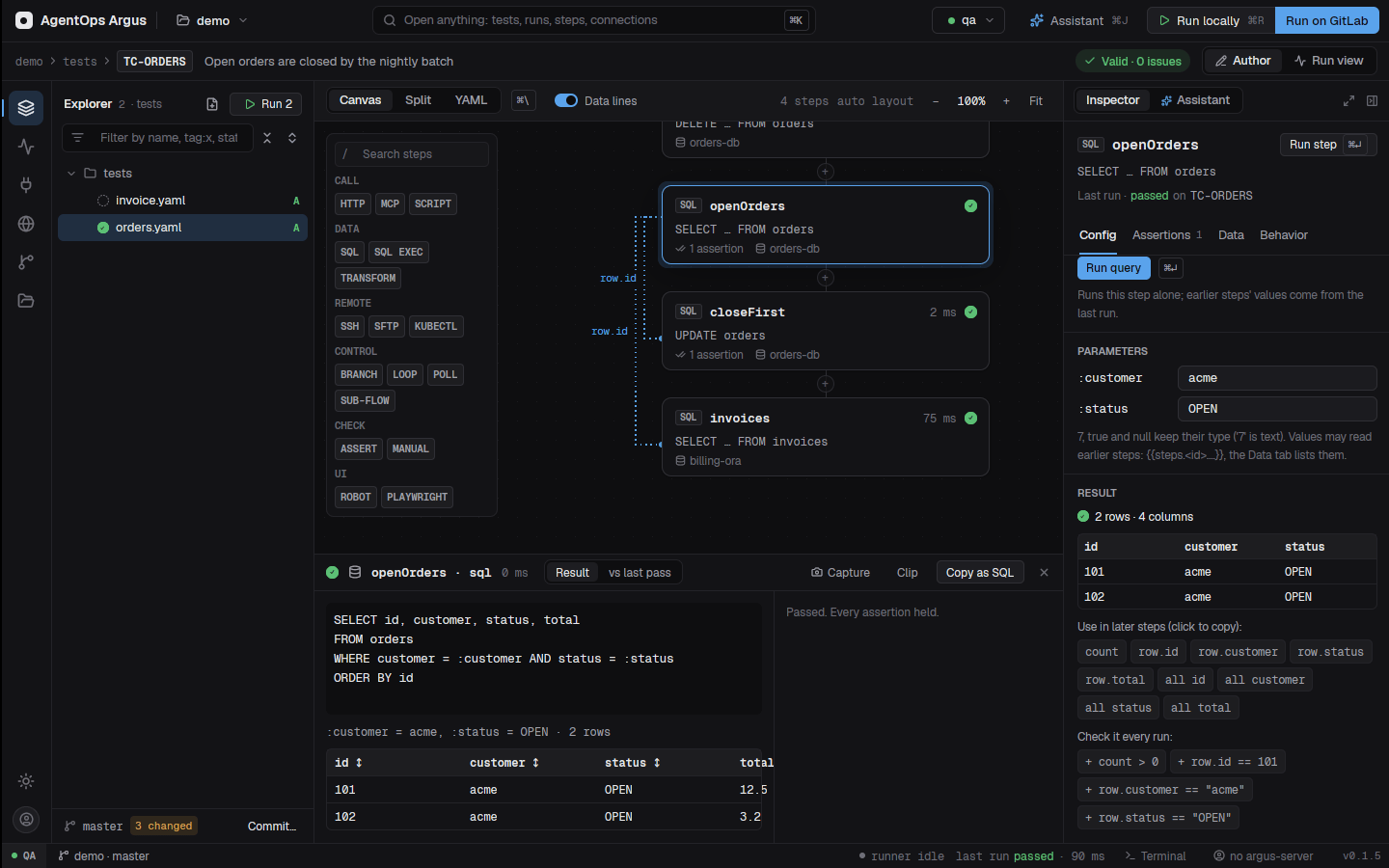
- DATABASE: the connections of SQL types, each with a badge and Test, and buttons to create a PostgreSQL, SQL Server, Oracle or SQLite connection.
- STATEMENT: a Query / Execute switch,
starter statements per engine and a SQL editor; Run
query or
⌘↵runs the step alone. - PARAMETERS: a row per
:name, flagging missing and unused ones. - RESULT: a grid of the rows, with chips that copy a
reference (
{{steps.invoice.row.total}}) or add a check (count == 1).
6.5 kafka
Produces or consumes Kafka messages. One action per step, on a
kafka connection. Argus never joins a consumer
group or commits offsets, so reading never takes messages away
from the application's consumers.
- id: publish
  type: kafka
  connection: events
  produce:
    topic: orders.created
    key: "{{steps.create.body.id}}"          # partition = hash of the key, as the Java client
    value: { orderId: "{{steps.create.body.id}}", status: NEW }   # or "{{payload.events/order-created}}"
    headers: { type: OrderCreated }
    # partition: 2, timestamp: "2026-10-29T08:00:00Z", compression: gzip|snappy|lz4|zstd
    # format: json|text|base64|avro (+ schema: a registry subject, an id, a .avsc file or the schema)
    # messages: [ { key, value, headers }, ... ]   # several at once
  expect: [ "count == 1" ]

- id: shipped
  type: kafka
  connection: events
  consume:
    topic: orders.shipped
    from: -5m                     # earliest | latest | an offset | 2026-10-29 08:00 (UTC) | RFC 3339 | -15m / 2h ago
    until: "value.orderId == steps.create.body.id"   # stop at the first message that matches
    wait: 30s                     # listen this long; `end` = only what the topic holds now
    max: 10                       # at most this many messages (default 100)
    where: [ "headers.type == 'OrderShipped'", "value.total > 0" ]
    # key: ORD-1, headers: { type: X }, partition: 0, offset: 1234, last: 5, to: 2026-10-29 09:00
    # format / key-format: auto | json | text | avro | base64
  expect: [ "matched.value.status == 'SHIPPED'" ]
Produce output: count,
partition, offset, offsets,
timestamp, messages. Consume
output: messages (each with
partition, offset, timestamp,
key, value (parsed JSON or decoded Avro),
headers, schema_id), count,
read (before filters), first,
last, matched (the until
message), stopped (max, until,
end, wait or to),
next_offsets, problems.
An until that never matches within wait
fails the step as a timeout. To check that nothing
arrives: wait: 10s and
expect: [ "count == 0" ]. Avro and JSON Schema values are
decoded through a Confluent schema registry
(schema-registry on the connection); local schemas are
registered under <topic>-value.
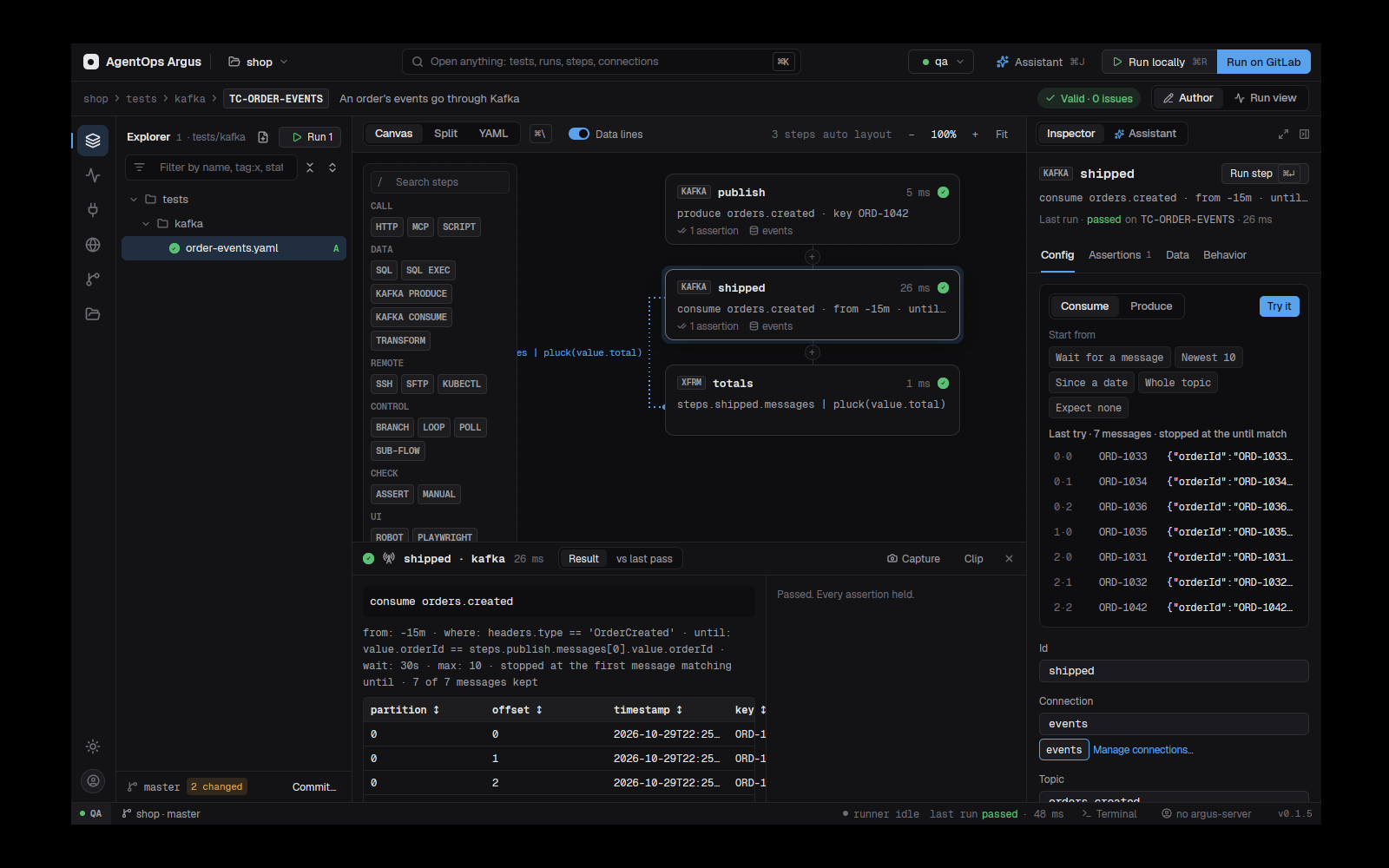
In the desktop
The Config tab starts with a Consume / Produce switch, Start from recipes (newest 10, last 5 minutes, from a date, wait for a match), topic chips read from the cluster, Try it (runs the step alone) and a preview of the last try.
6.6 redis
Reads and checks what an application cached, and prepares cache data for a test.
- id: cart
  type: redis
  connection: cache
  get: "cart:{{steps.login.body.user_id}}"
expect: [ found, "ttl > 0", "value.items[0].sku == 'A1'" ]| Action | Output |
|---|---|
get: <key> |
{ key, found, type, ttl, ttl_ms, length, value }.
ttl is seconds left, -1 when it never expires,
null when the key doesn't exist (a missing key doesn't fail the step:
check found). value: a string (JSON text
parsed; decode: json or text), a hash as an
object (field: / fields: read part of it), a
list or set as an array, a sorted set as [{member, score}],
a stream as [{id, fields}], a RedisJSON document
(path: $.lines[0]). Large collections stop at
max (1000). |
keys: "session:*" |
keys (sorted), count,
truncated, through SCAN (never KEYS), over every master of
a cluster; key-type: hash keeps one type;
values: true reads each into items. |
set: <key> + value |
as: string (default), hash,
list, set, zset or
json; ttl: 10m; field: sets one
hash field. Collections are replaced in one transaction. →
{ key, set, ttl } |
delete: <key> (or a list) |
Entries with *, ? or [ are
patterns. → { deleted, keys } |
command: "XREVRANGE events + - COUNT 10" |
Anything else. → { value } |
db: 2 overrides the connection's database. An error
reply (WRONGTYPE, NOPERM) fails the step; an unreachable server or
refused sign-in is infrastructure.
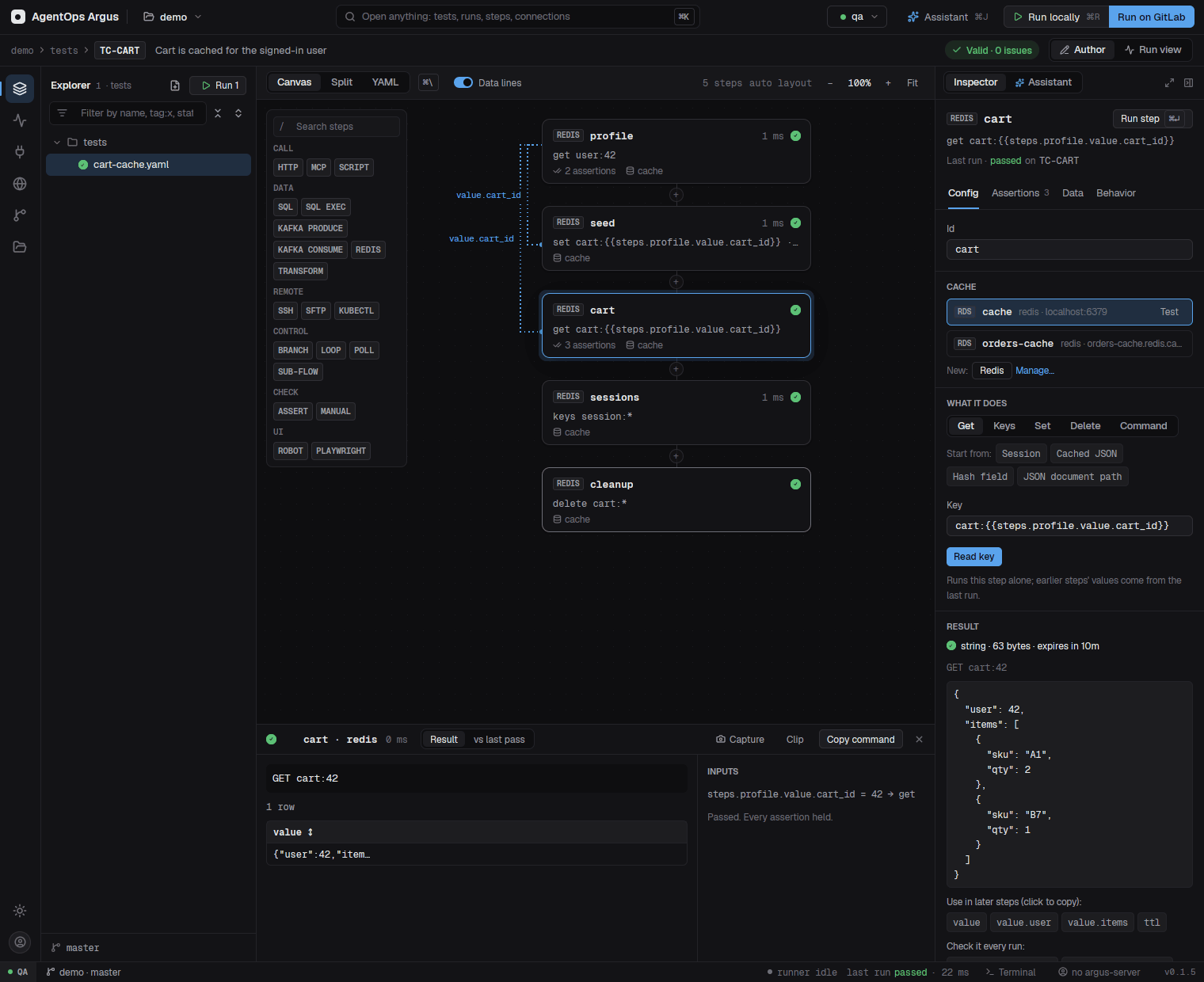
The composer has a CACHE picker, a Get / Keys / Set / Delete / Command switch with recipes, Run, the RESULT as pretty JSON or a table with "use" and "check" chips, and an OPTIONS section.
6.7 transform
Reshapes earlier steps' data for later ones, without calling anything. The reshaped data shows on the canvas and in the report.
- id: openIds
  type: transform
  input: "{{steps.query.rows}}"
  pipe: [ "where(state, OPEN)", "pluck(id)" ]       # or one text: "where(state, OPEN) | pluck(id)"
  set:
    csv: "{{steps.query.rows | pluck(id) | join(',')}}"
  expect: [ "value.length >= 1" ]
Output: value (the input after
pipe) and each set name:
{{steps.openIds.value}},
{{steps.openIds.csv}}. The transforms are listed in 7.3.
6.8 ssh
Runs a command on a host through the system's OpenSSH client, so your
agent, ~/.ssh/config, jump hosts and keys work as they do
in a terminal.
- id: batch
  type: ssh
  connection: batch-host
  command: /opt/batch/run.sh --date {{now}}
  expect: [ "exit_code == 0", "stdout contains 'done'" ]
Output: stdout, stderr,
exit_code, and json when stdout is JSON. A
non-zero exit fails the step unless an expect checks
exit_code. Host-key questions are always answered
no; see 8.3 for host keys in
CI.
6.9 sftp
Copies files to and from a host.
- id: upload
  type: sftp
  connection: batch-host
  put: { local: data/in.csv, remote: /inbox/in.csv }      # or a list
- id: download
  type: sftp
  connection: batch-host
  get: { remote: /outbox/out.csv }                        # without local: kept as evidence
Output: transferred (direction, local,
remote and bytes per file). The report previews downloaded text
files.
6.10 kubectl
Runs your own kubectl against an AKS or Kubernetes
connection. One action per step:
- { id: pods, type: kubectl, connection: qa2-aks, get: pods, selector: app=orders }
- { id: logs, type: kubectl, connection: qa2-aks, logs: deployment/orders, tail: 200, since: 10m }
- { id: env, type: kubectl, connection: qa2-aks, exec: "printenv FEATURE_X", pod: orders-7d9f }
- { id: rolled, type: kubectl, connection: qa2-aks, rollout: deployment/orders, timeout: 5m }
- { id: any, type: kubectl, connection: qa2-aks, args: [get, configmap, orders, -o, json] }
get returns json, items and
count; every action returns stdout,
stderr and exit_code. namespace
overrides the connection's; container picks one for
logs and exec. rollout waits for
rollout status within the step's timeout.
kubectl (and az / kubelogin when
the connection uses them) must be on PATH.
6.11 branch
Runs one list of steps or another.
- id: if-invoiced
  type: branch
  if: "steps.order.body.state == 'INVOICED'"
  then: [ { id: fetch-invoice, type: http, request: { url: "{{env.api}}/invoices/{{steps.order.body.id}}" } } ]
  else: [ { id: no-invoice, type: assert, expect: [ "steps.order.body.total == 0" ] } ]
Output: taken (then or
else). The canvas and report draw then and
else lanes; the lane not taken shows as not run.
6.12 loop
Runs its steps once per item of a list.
- id: each-sku
  type: loop
  over: "{{steps.catalog.body.skus}}"   # or a literal list
  as: sku                               # default item; also vars.index
  steps:
    - id: stock
      type: http
      request: { url: "{{env.api}}/stock/{{vars.sku}}" }
      expect: [ "status == 200" ]
Output: a list with one object per iteration, keyed
by the inner step ids: {{steps.each-sku[0].stock.body}}.
The canvas draws a container; the run view and report show one section
per iteration and open on the one that failed.
6.13 poll-until
Repeats one step until its output matches.
- id: wait-shipped
  type: poll-until
  until: "body.state == 'SHIPPED'"     # against the inner step's output
  every: 5s                            # default 2s
  max: 2m                              # default 30s
  step: { id: status, type: http, request: { url: "{{env.api}}/orders/{{steps.create.body.id}}" } }
Output: the inner step's last output. For a single
step, retry: does the same with less nesting; use
poll-until when the polled step should show as its own
card.
6.14 sub-flow
Runs a flow file (5.6).
- id: login
  type: sub-flow
  use: flows/login
  with: { user: "{{env.user}}", password: "{{env.password}}" }
Output: the flow's step outputs by id:
{{steps.login.token.body.token}}.
6.15 assert
Checks values from earlier steps without calling anything.
- id: totals-match
  type: assert
  expect: [ "steps.invoice.rows[0].total == steps.create.body.total" ]
6.16 manual
A step a person does: the test stops there as pending until a tester records the result.
- id: verify-letter
  type: manual
  action: Open the PDF letter sent to the customer
  expected: The letter shows the new total and the order number
Both action and expected are required.
Record the result in the web app's execution player, or resume on the
command line (9.9).
6.17 playwright
Runs a Playwright spec (TypeScript/JavaScript, or Python with pytest).
- id: checkout
  type: playwright
  spec: e2e/checkout.spec.ts     # relative to the test file (or to cwd)
  cwd: ../web-app                # optional: where to run npx playwright test
  grep: "(^|\\s)pays with a card(\\s@\\S+)*$"   # optional: one test by title
  project: chromium              # optional; config: playwright.config.ts; args: [..]
  env: { ARGUS_PASSWORD: "{{env.password}}", BASE_URL: "{{env.web}}" }
Each test.step becomes a sub-step in the run view;
screenshots, videos and traces become evidence. Output:
status, passed, failed,
flaky, tests (title, ok, error …) and
values: what the spec hands back to later steps as
argus:value annotations:
test.info().annotations.push({ type: 'argus:value', description: JSON.stringify({ orderNo }) });read as {{steps.checkout.values.orderNo}}. The step's
timeout is Playwright's test timeout. While it runs, the card shows the
current action and elapsed time, and the drawer streams Playwright's
output.
Python (pytest-playwright). A spec that is a
.py file or pytest node id (or runner: pytest)
runs python -m pytest (the nearest .venv /
venv, else ARGUS_PYTHON;
ARGUS_PYTEST overrides the command), with each test as a
sub-step:
- id: login
  type: playwright
  cwd: ../web-tests
  spec: tests/test_login.py::TestLogin::test_ok
  screenshot: only-on-failure    # default; on | off
  video: retain-on-failure       # optional: on | off | retain-on-failure
  trace: retain-on-failure       # optional
grep becomes -k and project
becomes --browser. A limit set for the step (its
timeout:, the test's, its folder's, or
timeouts.pytest / timeouts.playwright) stops
the whole pytest run; the run-wide step timeout does not. For a per-test
limit use pytest-timeout through args.
Headed runs. argus run --headed,
ARGUS_HEADED=1 or the desktop's Show the browser
runs specs with --headed; on Windows the browser is brought
in front of the app.
6.18 robot
Runs one Robot Framework test.
- id: login-page
  type: robot
  suite: .robot/ui/login.robot   # default .
  test: Login page opens         # required: the Robot test name
  variables: { BASE_URL: "{{env.web}}" }   # --variable NAME:value
  env: { TEST_ENV: qa }          # environment for the suite (%{NAME})
Each keyword becomes a sub-step carrying Robot's whole keyword tree
(nested keywords, FOR and WHILE iterations, IF/ELSE, TRY/EXCEPT, setup
and teardown, with arguments, messages, status and time);
log.html and screenshots are evidence.
Output: status, passed,
failed, tests.
Argus finds Robot on PATH, in Python's Scripts folders,
or as python -m robot for each Python it finds
(ARGUS_ROBOT overrides). If it is missing, the step says
Robot Framework is not installed and the desktop offers
Install Robot Framework. Headed runs pass
${HEADLESS} = False and ${HEADED} = True and
(Robot Framework 7+) force Browser library and SeleniumLibrary browsers
visible.
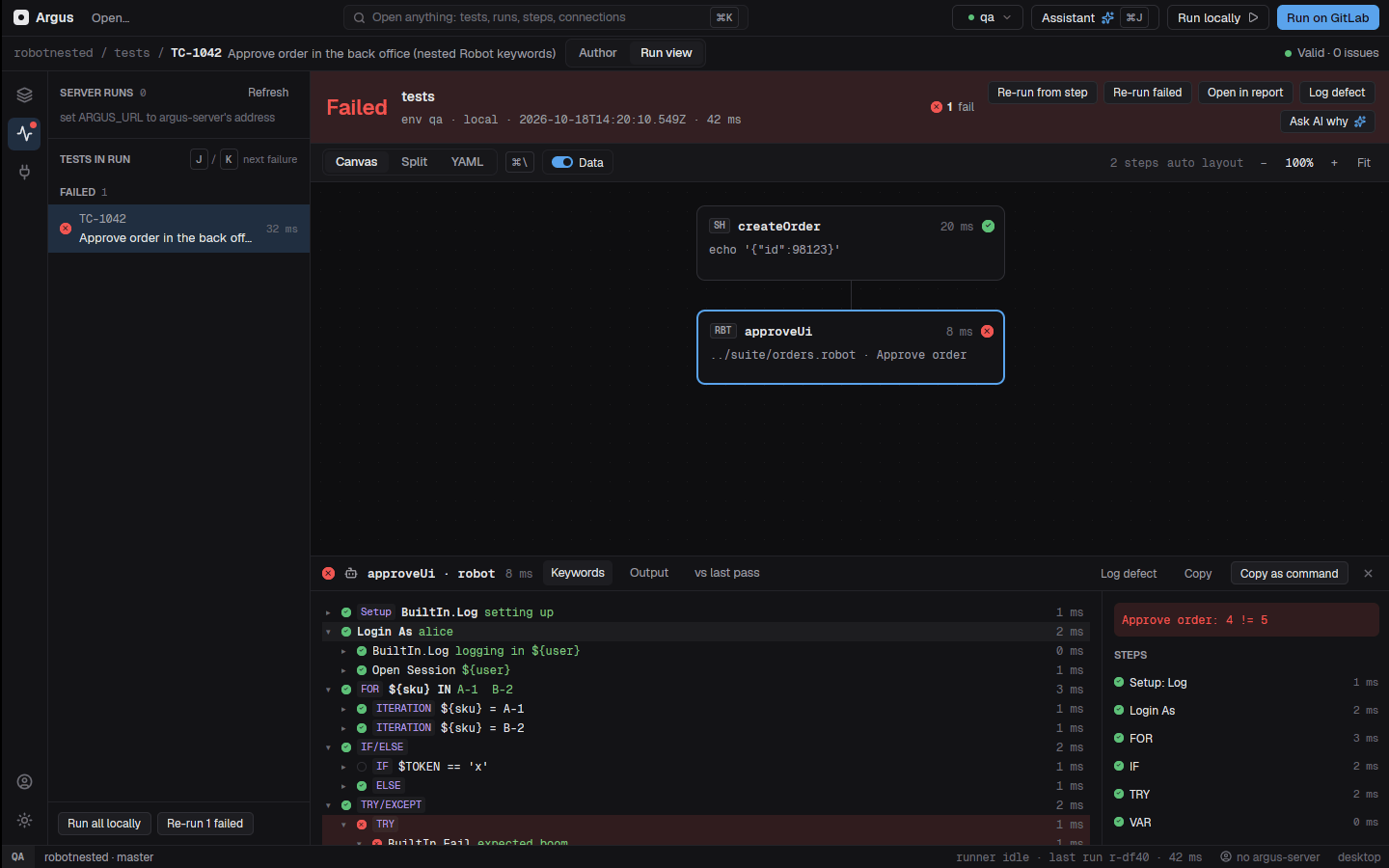
6.19 load and page-perf
load runs many virtual users through nested steps and
measures latency, throughput and errors; page-perf measures
how fast a page loads in a real browser. Both are described in chapter 12.
- id: orders-load
  type: load
  users: 50
  ramp-up: 30s
  duration: 2m
  steps:
    - { id: list, type: http, request: { url: "{{env.api}}/orders" }, expect: [ "status == 200" ] }
  expect: [ "latency.p95 < 500", "error_pct < 1" ]

- id: home-speed
  type: page-perf
  url: "{{env.web}}/dashboard"
  runs: 5
  expect: [ "lcp.p75 < 2500" ]
6.20 email
Sends a message through an smtp, sendgrid
or ses connection, filled from earlier steps, with
attachments.
- id: notify
  type: email
  connection: mail
  to: "{{steps.owners.rows | pluck(email)}}"   # text (commas), a list, or rows with `email`
  cc: qa-leads@example.com                     # also bcc, reply-to; from: wins over the connection's
  subject: "{{steps.query.count}} open orders"
  body: |                                      # text; html: for an HTML version
    Open: {{steps.query.rows | pluck(id) | join(', ')}}
  attach:
    - results                    # this test so far: report.html, output.json, evidence (results.zip)
    - report                     # report.html alone
    - exports/daily              # a file, or a folder (zipped as daily.zip)
    - { evidence: ui }           # an earlier step's evidence files
    - { name: open.csv, content: "{{steps.query.rows | format('{id},{total}') | join('\n')}}" }
    - { file: [ a.csv, b.csv ], zip: exports }
  zip: nightly                   # optional: every attachment in one nightly.zip
  # send: false                  # build the message and zip as evidence, don't send
  # max-size: 30MB               # attachments allowed in total (default 18MB)
  expect: [ "sent == true" ]
Without body or html the body is a summary
of the test's steps so far. Argus's own files are masked before they are
attached. Output: sent,
provider, message_id, from,
to, cc, bcc,
subject, attachments, bytes, and
zip (the path of the zip it made), so the next step can use
it:
{ type: sftp, put: { local: "{{steps.notify.zip}}", remote: /inbox/r.zip } }.
ARGUS_EMAIL_REDIRECT=me@example.com sends every message
to that one address instead (subject [test] …, the real
recipients named at the top), which is what you want on a shared QA
environment.
In the desktop
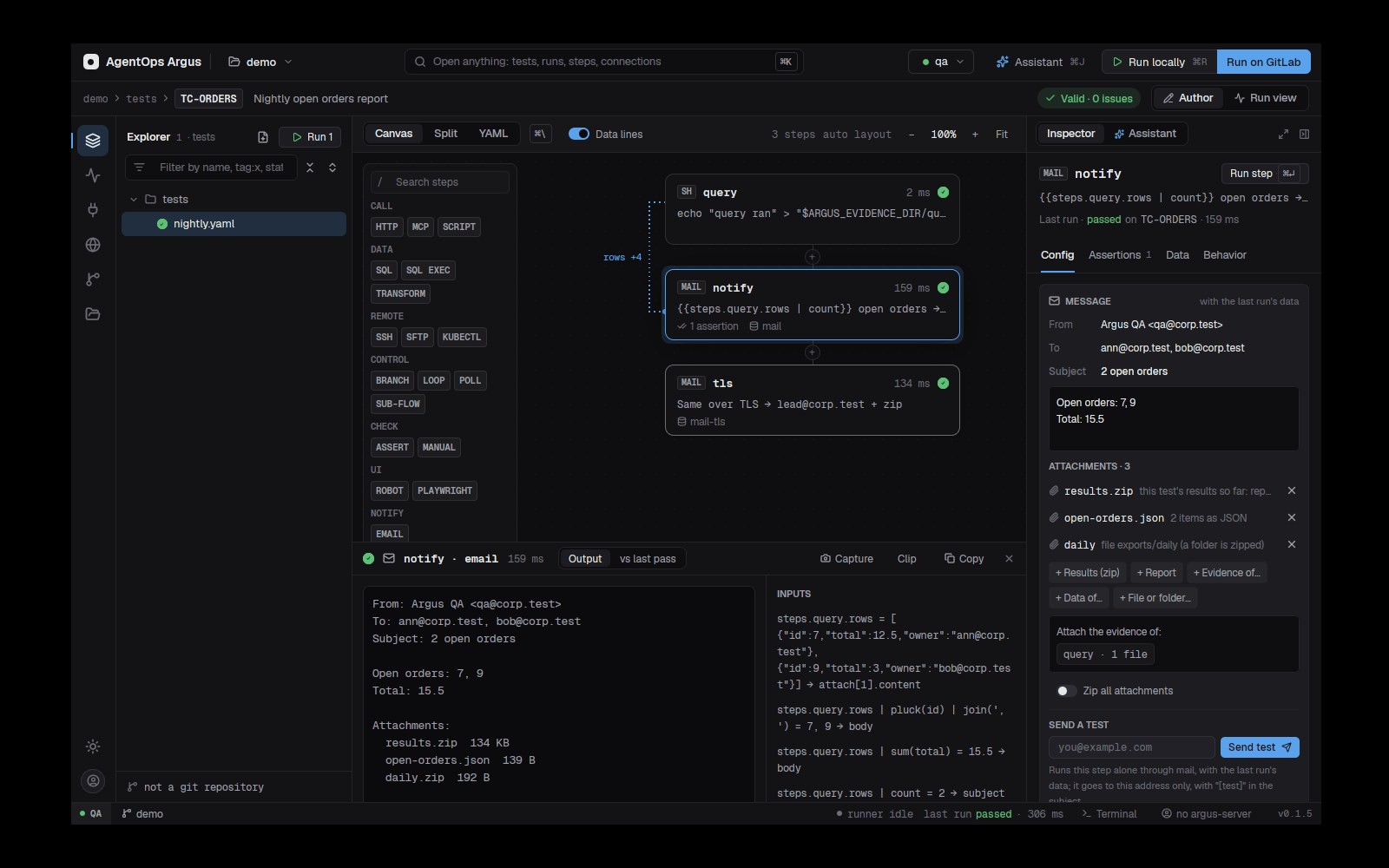
The Config tab shows the message as it would go out with the last run's data, lets you add and remove attachments (results, report, files, an earlier step's evidence), Zip all, and Send test, which sends it to you only (your address is remembered).
6.21 desktop-app
Drives a native desktop app (a Windows program, a macOS app, a Linux GTK/Qt app) on the machine that runs the test, through its accessibility tree: UI Automation on Windows, the Accessibility API on macOS, AT-SPI and XTest on Linux (X11). Elements are found by what they show, not by screen position, and every action waits for its element.
- id: add-invoice
  type: desktop-app
  app: Billing                # its name as the system shows it (or a window title, or a pid)
  launch: '"C:\Program Files\Billing\billing.exe" --env qa'   # started when not running
  close: true                 # default: close it when this step started it
  wait: 10s                   # how long each action waits for its element
  screenshots: end            # end (default: last action and a failure) | each | failure | none
  actions:
    - click: { name: "New invoice", role: button }
    - type: { into: { name: Customer }, text: "{{env.customer}}" }
    - set: { name: Amount, to: "42.50" }   # sets a field's value directly
    - press: ctrl+s
    - expect: { name: Status, value: Saved }
    - expect: { name: "Unsaved changes", gone: true, timeout: 3s }
    - read: { name: "Invoice number", as: invoice }
    - check: { id: sendCopy }               # ticks it only if it is not ticked
    - expand: Advanced
    - click: Export…
    - window: Export                       # act in the Export dialog from here on
    - click: Cancel                        # back in the main window once the dialog closes
    - click: Copy number
    - expect: { clipboard: "{{steps.add-invoice.values.invoice}}" }
    - screenshot: saved
Finding elements. A plain string matches an
element's name, description or id. A mapping narrows it:
name (or text), role (or
class), id, desc,
value, contains (part of the name or value,
any case), index (the nth match, from 0), or
x/y relative to the window. A state narrows it
further: checked, expanded,
selected, enabled or focused
(true or false); an element without that state
never matches.
id is the id the app's developers gave the element for
testing: the AutomationId on Windows, the accessibility
identifier on macOS, the accessible id on Linux. It stays
the same when a label is reworded or translated, so tests the assistant
saves use it whenever the element has one. Ask the app's developers to
set it on the controls your tests use.
Actions. click,
double_click, right_click, type
(text into the focused field, or { text, into }),
press (Enter, ctrl+shift+p),
set (to), scroll
(down, or { dy, dx } over an element),
drag (from, to),
wait (an element, or a duration), expect (an
element, with value or gone),
read (as: keeps its value, else its name),
screenshot (a name), sleep, and
action (do: an accessibility action such as
expand or toggle). Any action takes
timeout and optional: true.
checkanduncheckset a check box, radio button or switch and confirm it took; they click only when it is not already that way, so a rerun never flips it back.expandandcollapsedo the same for tree items, combo boxes and expandable sections, through accessibility first so the pointer does not move.selectchooses a list or table row, a tab, a radio button or a combo option through accessibility (a click when it cannot), and does nothing when it is already selected.scroll_toscrolls an element into view without the mouse wheel.windowwaits for a window of the app whose title holds the text (a dialog such as Save As) and acts in it from then on. When that window closes, the actions go back to the app's front window by themselves.window: { title: Export, gone: true }waits for it to close.expect: { window: Export }(withgone: truetoo) only checks.clipboard: textputs text on the clipboard;expect: { clipboard: text }checks what a Copy put there;read: { clipboard: true, as: name }keeps it. Desktop apps only.resize: 1280x800(or{ width, height, x, y }),move: 0,0(or{ x, y }),maximize,minimize,restoreandfocuschange the app's window and confirm it took. When the app or the screen will not allow the size, the step says what it got instead.
Ready to act. Before a click, a type
into a field, a set or a check, the action
waits (up to its timeout) for the element to be enabled, so
a button that the app turns on a moment later is clicked once it can be.
A disabled element fails with "… is disabled" rather than a
click that did nothing. set reads the field back and fails
when the app kept another value (a number field that rounds, a mask that
drops characters); verify: false skips that check.
launch runs in the test's folder, so a path like
../shop.py works.
Output: values (what read
kept, so {{steps.add-invoice.values.invoice}}),
passed, actions (each with ms,
ok, error, screenshot),
screenshots, app, pid.
Screenshots are the step's evidence.
Electron and Chromium apps. Many desktop apps are a
web page in a window (Teams, Slack, VS Code and most in-house Electron
tools). Their accessibility tree is thin and slow, but started with a
debugging port they can be driven like a web page with Playwright.
cdp: true (or a port number) adds the port switch to
launch and keeps the app open after the step; the output's
cdp is the address a playwright step connects
to:
- id: app
  type: desktop-app
  app: Billing
  launch: '"C:\Program Files\Billing\Billing.exe"'
  cdp: true                    # needs launch: the app must start fresh
  actions: []
- id: invoice
  type: playwright
  spec: billing.spec.ts        # import { appTest as test } from './argus-playwright'
  cdp: "{{steps.app.cdp}}"
- id: close-app
  type: desktop-app
  app: Billing
  close: true
  actions: []
In the spec, appTest's page is the app's
window; Playwright disconnects at the end and leaves the app running.
Native parts (menus, file dialogs, other windows) stay with
desktop-app steps. If the app is already running the step
stops and says to close it first, since only a fresh start opens the
port. The assistant writes all three steps when it drove the app with
computer_launch_app and cdp: true.
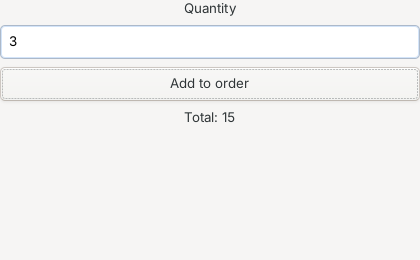
The easiest way to write one is to let the assistant drive the app
and save what it did (13.5). The step palette
has DESKTOP APP under UI; the card's badge is
APP.
6.22 mobile-app
Drives an app on an Android emulator or device
(through adb) or an iOS simulator (on a
Mac, through xcrun simctl and idb), with the
same actions as desktop-app plus tap,
long_press, swipe
(up/down/left/right,
{ from, to }, or
{ until: <element>, direction, max }),
back, home, launch,
stop and open (a URL or deep link).
- id: sign-in
  type: mobile-app
  platform: android           # android | ios
  app: com.example.shop       # package, package/.Activity, or iOS bundle id; started fresh
  device: emulator-5554       # optional: default the only one running
  install: build/shop.apk     # optional: installed first (relative to the test)
  reset: true                 # optional: clear the app's data first
  actions:
    - type: { into: { id: email }, text: "{{env.user}}" }
    - type: { into: { id: password }, text: "{{env.password}}" }
    - tap: Sign in
    - expect: { contains: Welcome }
    - swipe: { until: { text: Orders }, direction: up }
    - tap: Orders
    - read: { id: order_count, as: orders }
    - screenshot: orders
  expect: [ "values.orders != '0'" ]
id matches an Android resource id with or without its
package (email matches
com.example.shop:id/email). Points are Android pixels or
iOS points. restart: false keeps the app where it is,
launch: false leaves it unstarted, close: true
stops it afterwards.
Output: values, passed,
actions, screenshots, device,
platform, app.
What it needs. The emulator or simulator must be
running on the machine that runs the test (start one in
Android Studio's Device Manager, or with
emulator -avd <name>). Argus finds adb
through ARGUS_ADB, then ANDROID_HOME /
ANDROID_SDK_ROOT, then the SDK's default folder
(%LOCALAPPDATA%\Android\Sdk on Windows), then
PATH. For iOS install idb
(brew install idb-companion and
pip install fb-idb); ARGUS_IDB points at it if
it isn't on PATH. Android typing is ASCII only.
The step palette has MOBILE APP under UI;
the card's badge is MOB.
Passing data: expressions, transforms, data sets and payloads
Steps hand data to each other through {{...}}
expressions. This chapter covers what an expression can read, how to
reshape a value on the way, how assertions work, how to run a step or a
test once per row of data, and the project's payload library. It ends
with the desktop tools that write expressions for you.
Watch the video: Desktop 3: Passing data between steps 1:21
7.1 Expressions
{{...}} can appear in any string field of a step.
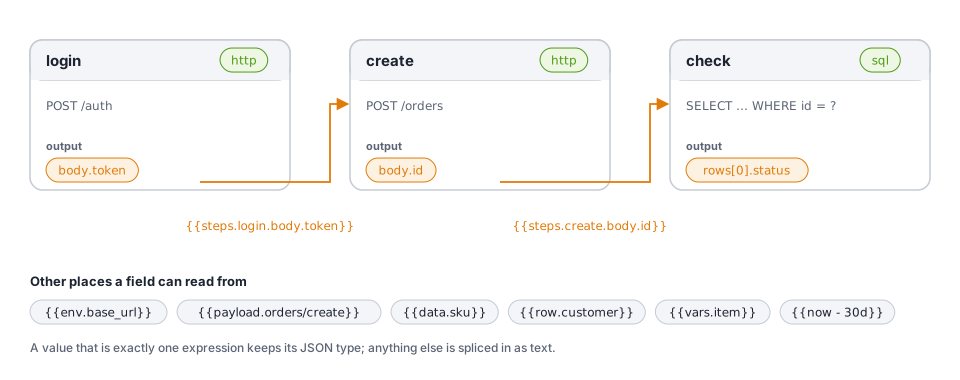
| Root | Reads |
|---|---|
env.<name> |
The environment's vars in argus.yaml; if
no environment defines it, the process / local / CI variable
<name>. |
steps.<id>.<path> |
Output of an earlier step: {{steps.create.body.id}},
{{steps.q.rows[0].total}},
{{steps.login.token.body.token}} (a sub-flow's inner
step). |
row.<column> |
The test's current data row (the test has data:). |
data.<column> |
The step's current data row (the step, or a step it is nested in,
has data:). |
vars.<name> |
Step vars, a loop's item (as:, default
item) and index, a flow's
with. |
payload.<name> |
A payload from the project's library:
{{payload.orders/create}}. |
input.*, trigger.*,
error.* |
Automations (chapter 11). |
load.user, load.iteration,
load.user_iteration |
Inside a load step (chapter 12). |
now, now - 30d, now + 2h |
RFC 3339 timestamps (units d, h,
m, s). |
- Paths use dots and
[n];.lengthis the size of a list, string or object. - Arithmetic and comparisons work inside:
{{steps.count.rows[0].n + 1}}. - A value that is exactly one expression keeps its JSON
type:
json: { ids: "{{steps.q.rows}}" }sends a list, not text. Otherwise values are spliced in as text ("Order {{steps.create.body.id}} created"). - A reference to an unknown step or a later step is a validation error.
7.2 Where data comes from, on screen
With Data lines on, the canvas connects each step to the steps it reads from. The inspector's Data tab lists them in Where this step's values come from, and every field shows a lens under it (7.7).
7.3 Transforms
Add transforms after a | to fit one step's result to
what the next needs. They apply left to right:
url: "{{env.api}}/orders?ids={{steps.query.rows | where(state, OPEN) | pluck(id) | join(',')}}"
json: { lines: "{{steps.order.body.lines | pick(sku, qty)}}" }
body: "{{steps.user.body | format('{first} {last}')}}"
Arguments are bare words (field names), quoted text or numbers; quote
text that holds a comma, bracket or space (join(', ')). A
missing value is null to transforms, so | default(0) fills
it.
| Transform | Gives |
|---|---|
first, last |
The first / last item of a list |
at(index) |
The item at a position (0 is the first, -1 the last) |
count |
How many items, characters or keys |
get(path) |
A field inside the value: get(customer.id) |
pluck(path) |
Each item's field, as a list: pluck(id) |
pick(field, …) |
Keep only these fields (of an object, or of each item) |
omit(field, …) |
Drop these fields |
rename(from, to) |
Rename a field |
where(path, [op,] value) |
Items whose field matches: where(status, OPEN),
where(total, >, 100) |
find(path, [op,] value) |
The first item whose field matches |
sort([path]), reverse,
unique, flatten |
List order and shape |
slice(start, [end]) |
Part of a list or text |
join([sep]), split([sep]) |
List ↔︎ text (default ,) |
format(template) |
Text from a template: format('{first} {last}'); on a
list, one per item |
object(key, [value]) |
A list of rows as an object keyed by a field |
keys, values |
An object's field names / values |
sum([path]), min([path]),
max([path]) |
Totals of numbers |
number, text, json,
parse |
Conversions (json writes JSON text, parse
reads it) |
upper, lower, trim,
replace(from, to) |
Text |
match(pattern, [group]) |
The part of the text a regular expression finds |
default(value) |
This value when there is none |
base64, urlencode |
Encodings |
Unknown transforms and missing arguments are validation errors.
A transform step (6.7) does the same as a step of its own, so the
reshaped value shows on the canvas and in the report:
{ id: openIds, type: transform, input: "{{steps.query.rows}}", pipe: [ "where(state, OPEN)", "pluck(id)" ] }
gives {{steps.openIds.value}}.
7.4 Assertions
expect (and retry.until,
branch.if, poll-until.until, a consume's
until and where) take assertion
expressions:
expect:
  - "status == 201"
  - "body.items.length >= 1"
  - "body.type == 'UNKNOWN'"
  - "body.id"                                         # a bare path must be truthy
  - "status == 200 && (body.state == 'OPEN' || body.retries < 3)"
  - "body.ids contains 42"
  - "body.ref matches '^ORD-[0-9]+$'"
- "steps.invoice.row.total == body.total"- Bare paths read the step's own output;
steps.<id>.<path>reads earlier steps (in anassertstep that is all there is). - Operators:
== != > >= < <=,contains(substring, list item, object key),matches '<regex>',&&/and,||/or,!/not, parentheses,+ - * / %. - Strings in single or double quotes.
- A number equals the same number written as text, and
true/falseequal the words, so CSV cells compare naturally (status == data.expected). - Each assertion records the actual value it compared
(for
&&/||, each comparison's left side). The run view's Assertions tab and the report show expected against actual.
7.5 Retries
retry: { until: "status == 200", every: 2s, max: 30s }   # poll until the condition holds
retry: { times: 3, every: 5s }                            # run again while the step fails (its expect included)
7.6 Data sets
On a test: the whole test per row
id: TC-1042
title: Orders in every currency
data: data/orders.csv          # CSV with a header row, a JSON list of objects, or a YAML list of mappings
steps:
  - id: create
    type: http
    request: { method: POST, url: "{{env.api}}/orders", json: { currency: "{{row.currency}}", qty: "{{row.qty}}" } }
The test runs once per row as TC-1042[1],
TC-1042[2] …, reading {{row.<column>}}.
The file is looked up from the argus.yaml folder, then
beside the test. argus-server maps every row's result to test case
TC-1042.
On a step: one step per row
- id: signIn
  type: http
  data: data/users.csv                 # or { file: … }, or rows in place:
  # data: [ { user: ann, expected: 200 }, { user: bob, expected: 403 } ]
  request: { method: POST, url: "{{env.api}}/login", json: { user: "{{data.user}}" } }
expect: [ "status == data.expected" ]- The step runs once per row as
signIn[0],signIn[1]…, with the row's values as{{data.<column>}}(inexpectasdata.<column>). - Every row runs, even after one fails; the step fails if any row did.
- Later steps read the rows' outputs as
{{steps.signIn[1].body}}, andsteps.signIn.lengthis the row count.
In the desktop
The step's Data tab starts with a DATA
SET section: the rows with a status dot per row after a run,
column chips that insert {{data.<column>}}, New
data file (creates data/<test>-<step>.csv
with the columns the step reads), Use another file, Open in
editor and Remove. Run step uses picks which row
a single-step run uses.
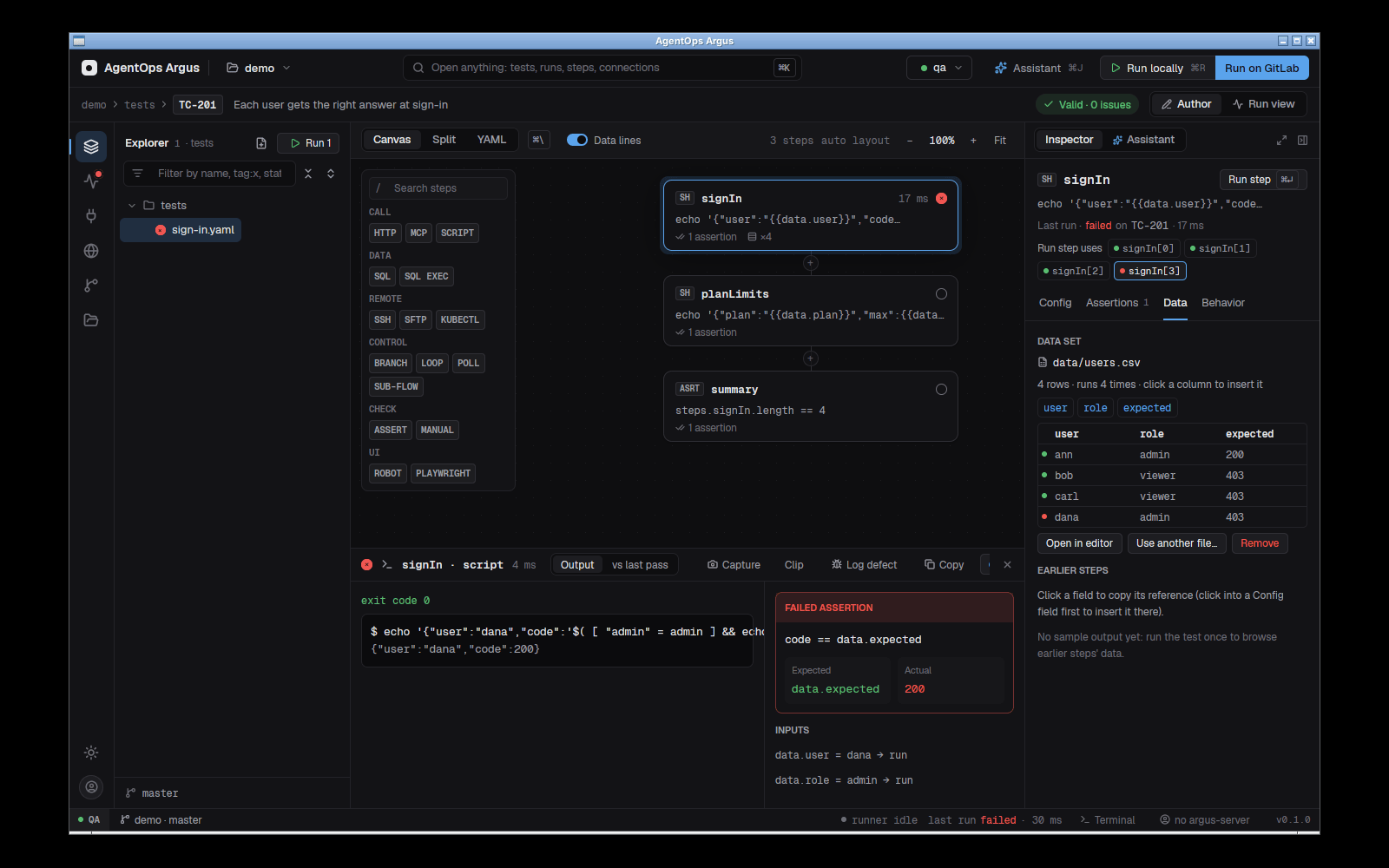
In Files, data files open in a Table view to edit cells directly (4.8).
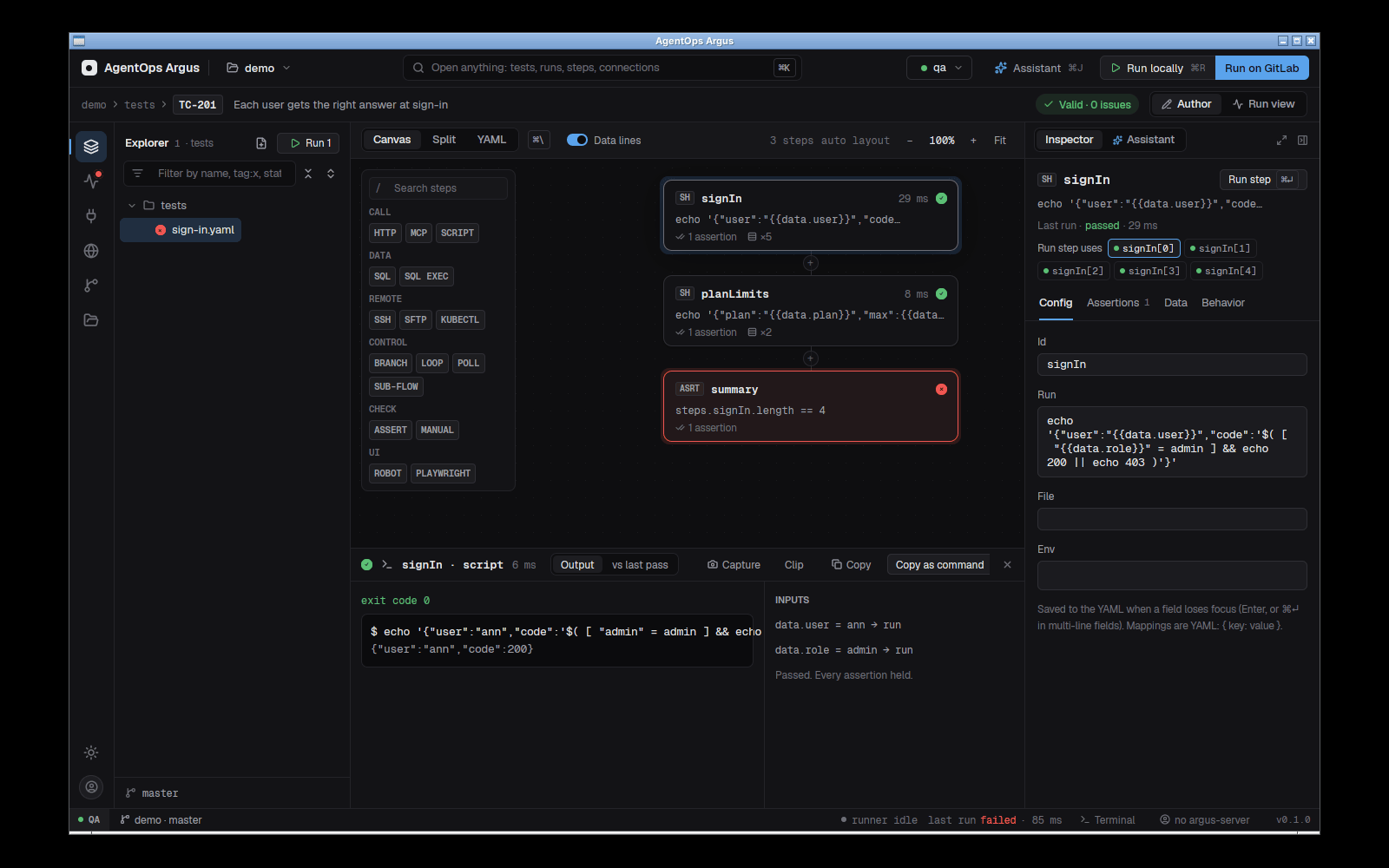
7.7 Insert value and the reference lens
You rarely need to type a {{...}} by hand.
{x} Insert value sits beside every field that takes
a value (and the HTTP URL bar). It opens a picker of everything the step
can read: earlier steps' outputs (with their last-run values),
environment variables, data columns, payloads, vars. Pick
one and the reference is inserted at the cursor.
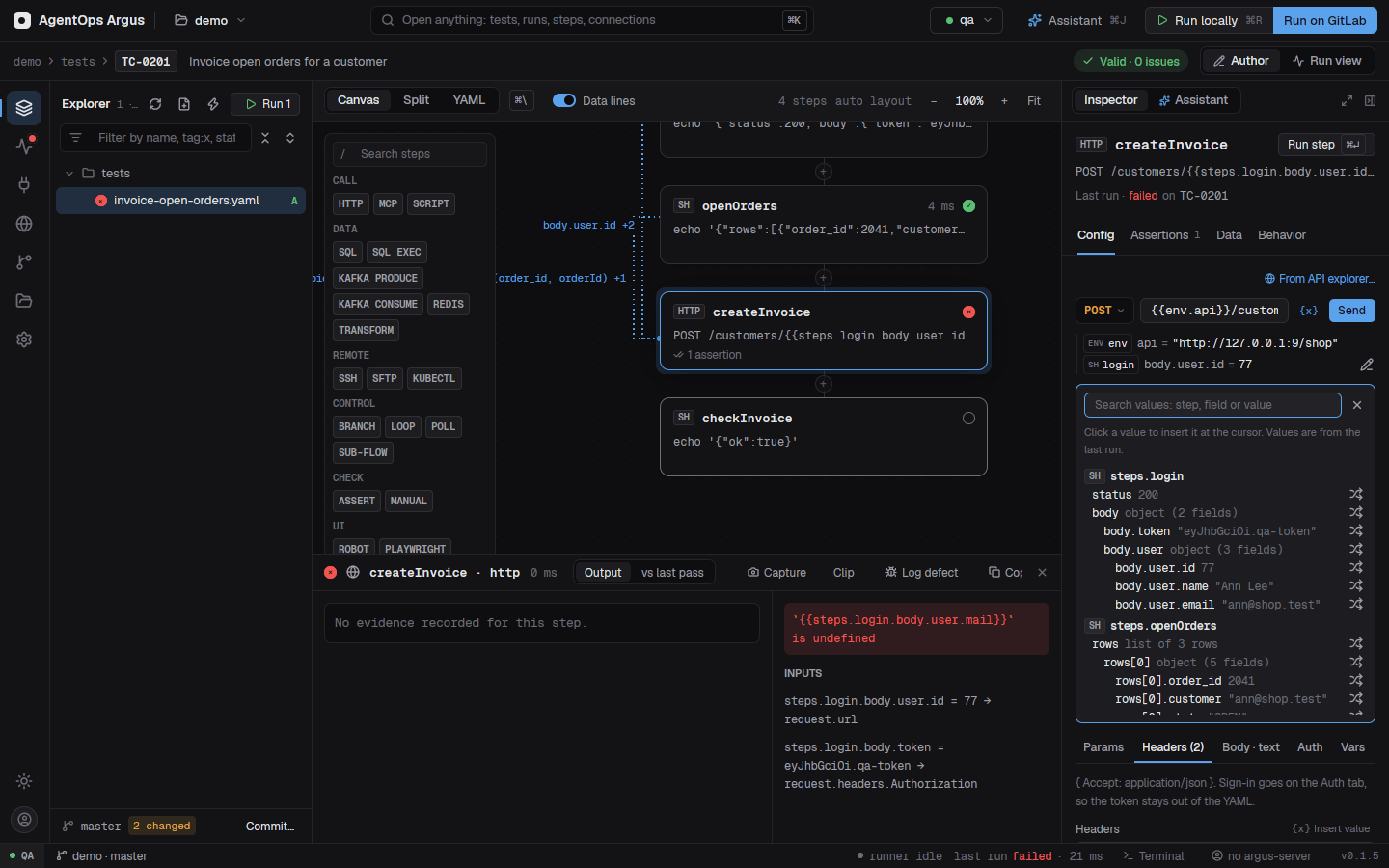
The lens under each field shows, for every
{{...}} in it, where it comes from (a step,
env, data, a payload) and what it resolved to on the last
run. Broken references are red: an unknown step, a later step, a missing
field, an undefined variable. Click a reference to edit it: change the
source, add transforms, and see the result update as you go, then
Update in
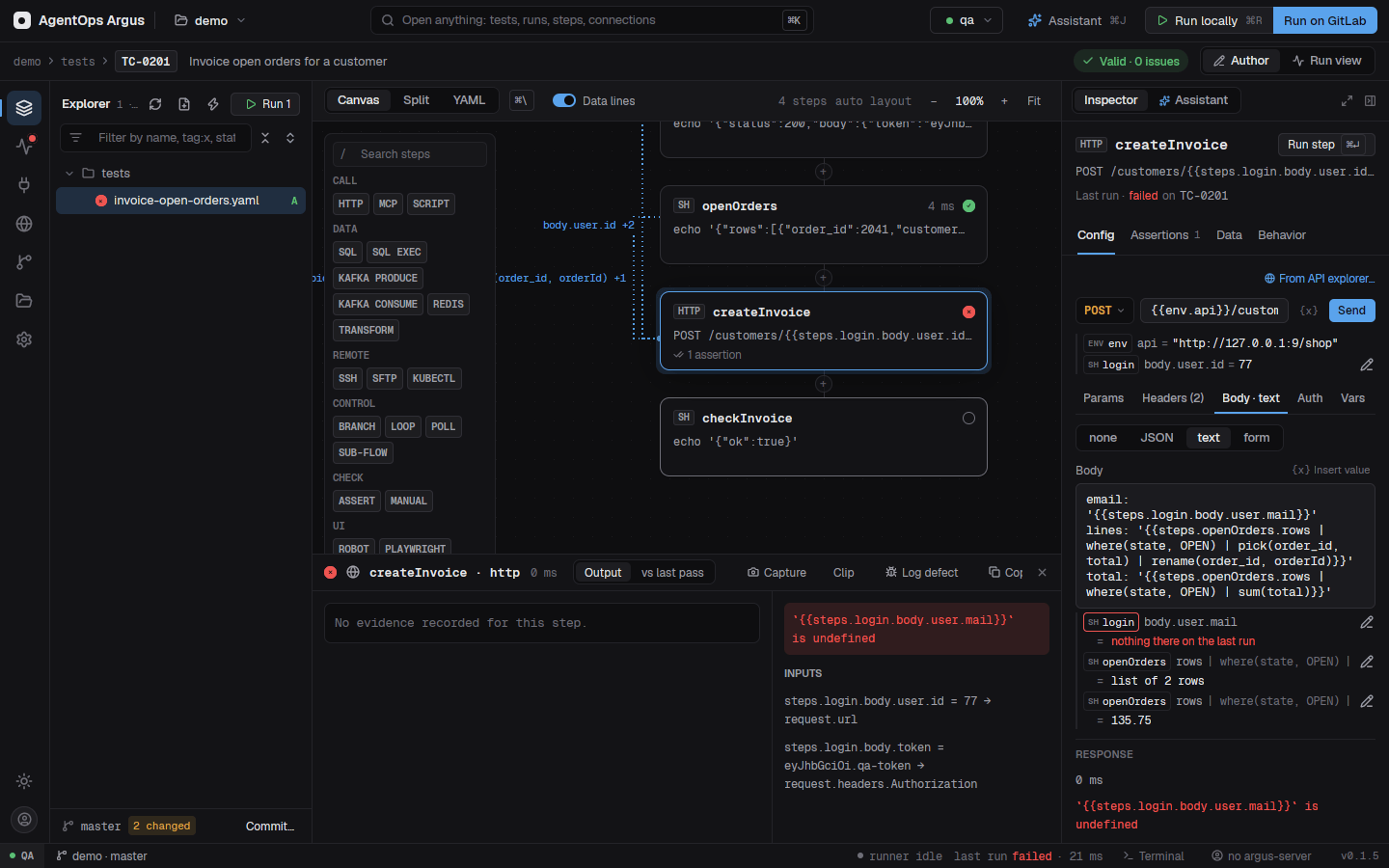
Change a value includes a field mapper: for a list
of objects, tick the fields to keep and type new names
to rename them; Argus writes the matching
pick(...) and rename(...) transforms.
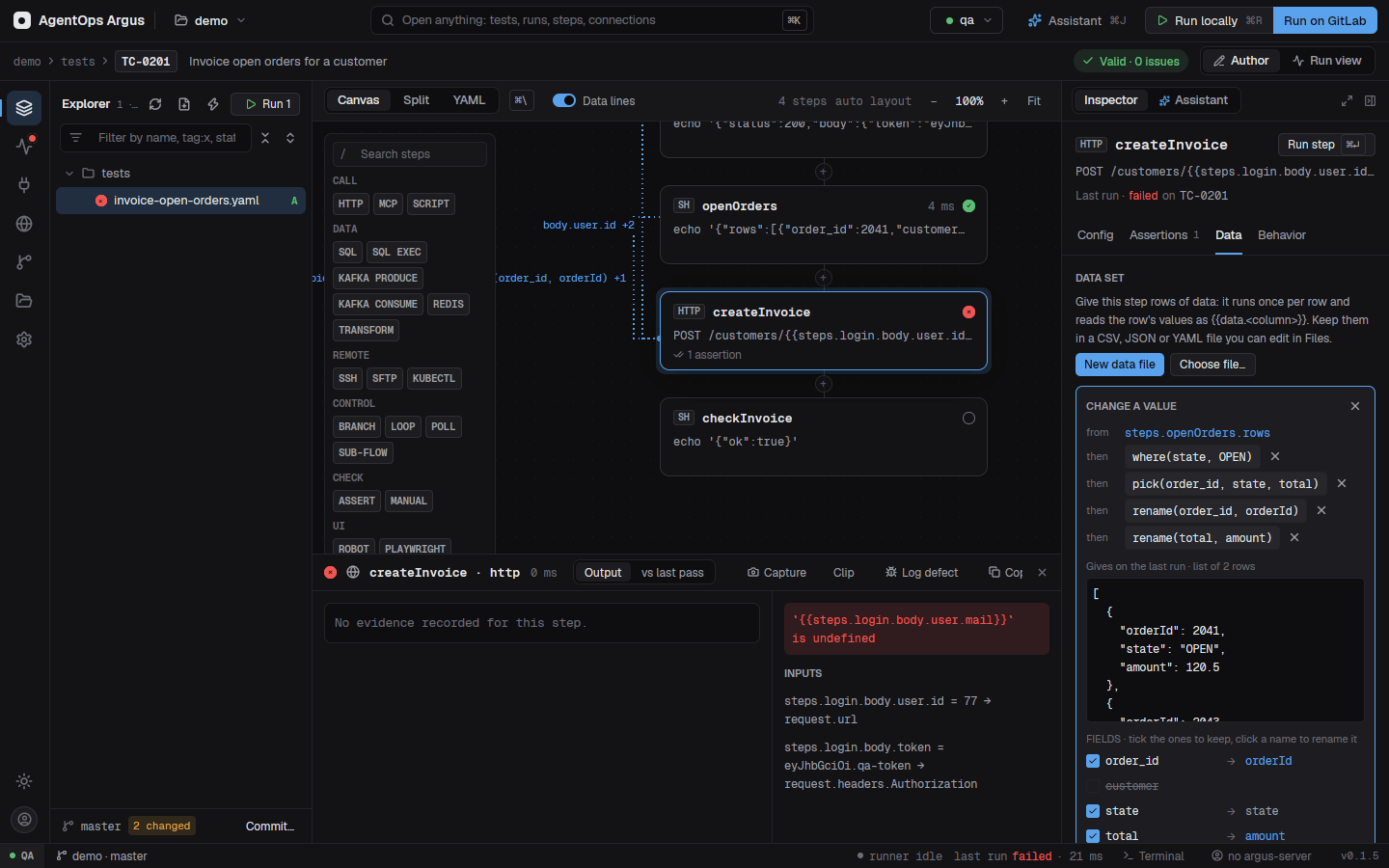
The Data tab's "Use a value" card
The Data tab lists every earlier step's result as a tree. Click a
value to open Use a value: it shows what the value
gives on the last run while you add transforms (suggested for the
value's shape, such as pluck(id) for a list of rows, or
typed), then either inserts it into the field you were
editing or saves it as a transform step
before the selected step and puts
{{steps.<id>.value}} in the field.
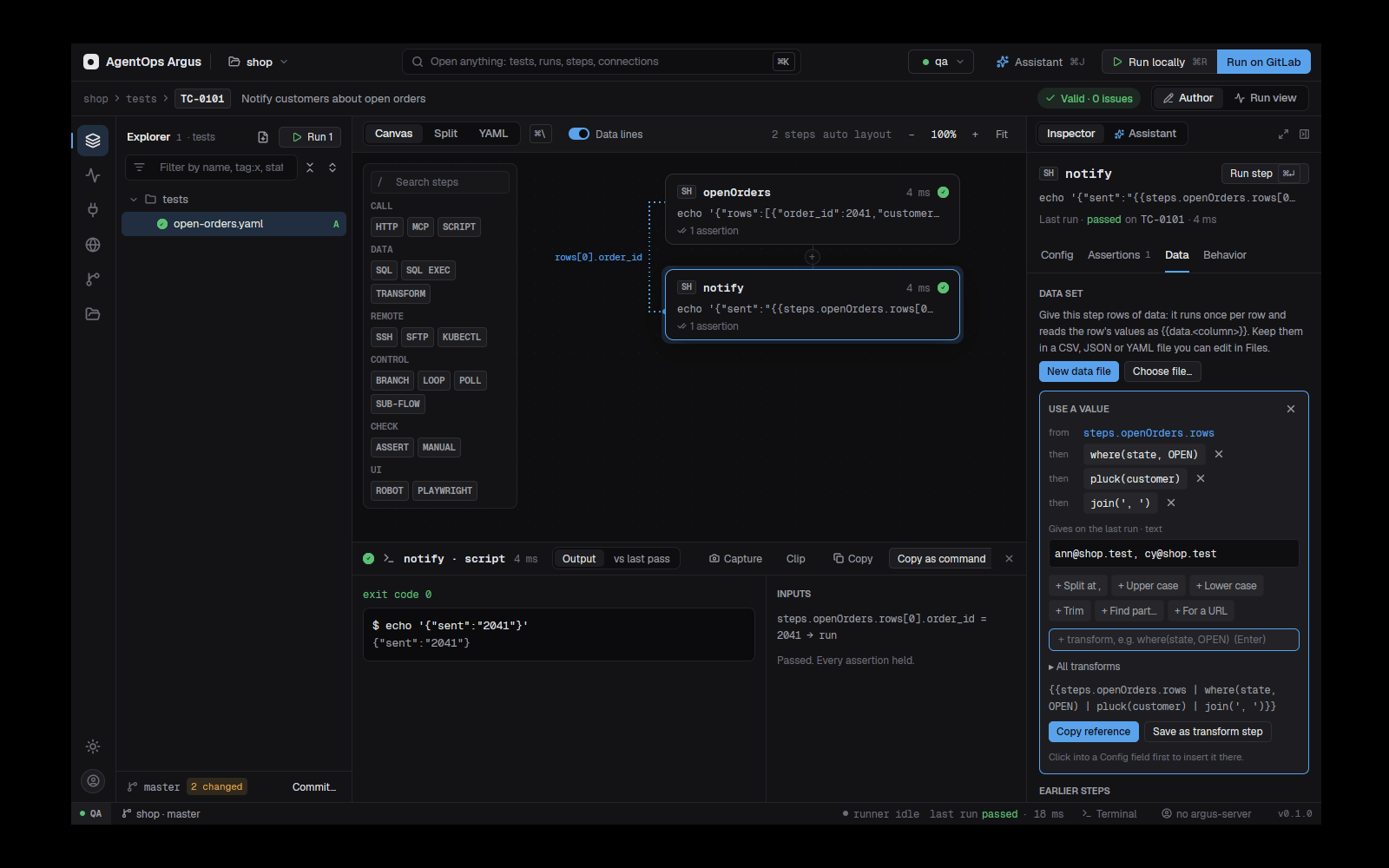
7.8 The payload library
Request bodies, messages and documents the project reuses live in one
folder, payloads/ beside argus.yaml
(sub-folders are fine). A payload's name is its path
there without the extension: payloads/orders/create.json is
orders/create. When two files share a name, add the
extension (orders/create.xml).
Use it in any field:
- id: create
  type: http
  vars: { qty: 3 }                         # the payload reads {{vars.qty}}
  request: { method: POST, url: "{{env.api}}/orders", json: "{{payload.orders/create}}" }
- id: getOrder
  type: http
  request: { method: POST, url: "{{env.api}}/soap", headers: { Content-Type: text/xml }, body: "{{payload.soap/get-order}}" }
- id: publish
  type: kafka
  connection: events
  produce: { topic: orders.created, value: "{{payload.events/order-created | omit(internal)}}" }
// payloads/orders/create.json
{ "sku": "A1", "qty": {{vars.qty}}, "customer": "{{env.customer_id}}" }- JSON and YAML payloads read as values (so
json:, Kafka and Redis values keep their shape, and transforms work on them); CSV reads as a list of rows (usable asdata: "{{payload.users}}"); XML and other text reads as text; binary files as base64. {{...}}inside a payload resolves where it is used: the step'svars:,env, earlier steps, data rows, other payloads. In JSON a bare"qty": {{vars.qty}}is allowed and keeps the value's type.- A payload the library doesn't have stops the run before it starts, naming the closest names.
- The older
json: "@file.json"(a file beside the test) still works and also finds library payloads by name. - In CI the library is found from
argus.yaml's folder, else the nearestpayloads/above the test, the working folder or$CI_PROJECT_DIR.
The Payloads screen
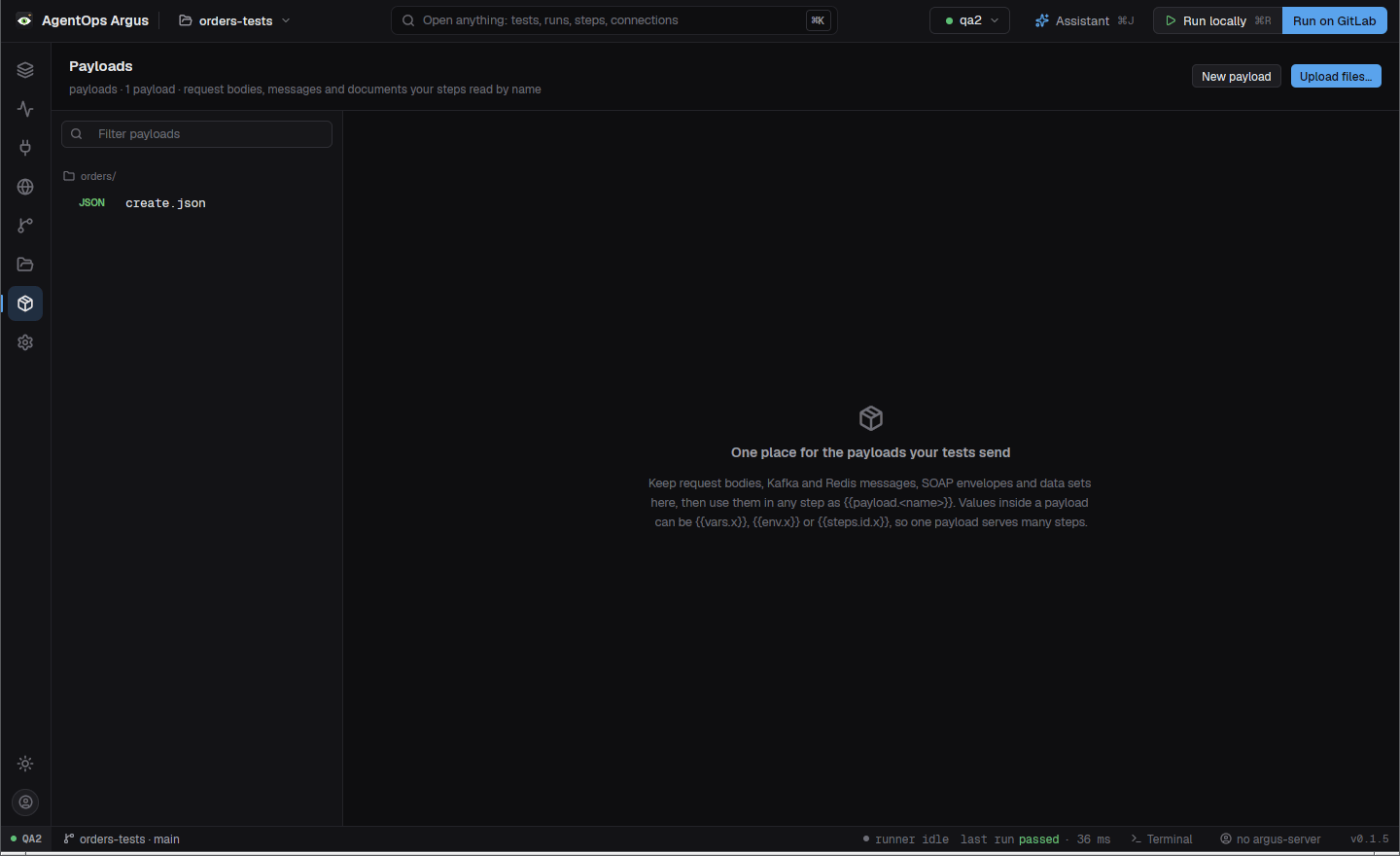
The Payloads screen (⌘8, the package in
the rail) manages the library:
- Upload files (button, or drop them on the screen), or New to write a JSON / YAML / XML / text / CSV payload.
- Edit in place and save (
⌘S); Format JSON. - Update from file replaces one with a newer file.
- Rename / move: tests and payloads that read it are rewritten.
- Remove, and Used by: which tests read it.
- Insert into the step: put
{{payload.<name>}}in the field being edited.
The HTTP composer's Body tab has a Payload library…
list (XML adds the Content-Type), the Data tab shows the
library as chips, and payloads are a group in every field's value
picker.
From the command line and the assistant:
argus payloads list
argus payloads show orders/create
argus payloads add ./order.json --name orders/create
argus payloads rename orders/create orders/create-basic   # references follow
argus payloads remove orders/old
The MCP tools are list_payloads,
read_payload and save_payload.
Connections, MCP servers and tools
A step that talks to a system names a connection;
the connection's settings live in argus.yaml, and its
secrets come from the OS keychain, local variables or CI/CD variables.
This keeps tests portable: the same test runs against qa2
or uat by picking an environment.
connections:                       # shared by every environment
  batch-host: { type: ssh, host: batch01.qa, user: qa, key: "${BATCH_SSH_KEY}" }
environments:
  qa2:
    connections:                   # only qa2; wins over a shared one of the same name
      orders-db: { type: postgres, url: "${QA2_PG_URL}" }
Watch the video: Desktop 4: Connections and variables 1:20
8.1 Connection types
type |
Fields (secrets as ${...}) |
Used by |
|---|---|---|
postgres |
url, or host, port,
database, user, password;
sslmode (disable, prefer
(default), require, verify-full),
ca-cert, trust_cert, via |
sql |
sqlserver |
url (ADO string, e.g.
server=tcp:db.qa,1433;database=orders;user id=qa;password=${QA_SQL_PW};trustservercertificate=true)
or host fields; encrypt (required,
on, off), ca-cert,
trust_cert, via |
sql |
oracle |
host, port (1521), service,
user, password; or connect (TNS
alias, host:port/service, descriptor);
privilege (sysdba …), client_lib_dir,
via |
sql |
sqlite |
path (relative to argus.yaml, or
:memory:), read_only, create |
sql |
redis |
host, port (6379), db,
user (ACL), password; tls,
ca-cert, client-cert, client-key,
trust_cert; mode: cluster or
sentinel with nodes, master,
sentinel-password; via; or
url: redis[s]://user:pass@host:port/db |
redis |
kafka |
brokers; security (plaintext,
ssl, sasl_plaintext, sasl_ssl),
sasl-mechanism (PLAIN, SCRAM-SHA-256, SCRAM-SHA-512),
user, password; ca-cert,
trust_cert, client-cert +
client-key; schema-registry,
schema-registry-user,
schema-registry-password; client-id |
kafka |
ssh |
host, port, user,
auth (password, key,
agent), password, key,
passphrase, known_hosts, jump,
identity-agent, keepalive,
host-key-checking,
insecure_ignore_host_key |
ssh, sftp, via: tunnels |
aks |
kubeconfig (file or text) + context,
namespace; or cluster,
resource-group, subscription,
admin, login (kubelogin),
client-id, client-secret,
tenant-id |
kubectl |
kubernetes |
kubeconfig, context,
namespace |
kubectl |
smtp |
host, port (587 STARTTLS, 465 TLS),
user, password, from,
tls (starttls, tls,
opportunistic, none),
ca-cert |
email |
sendgrid |
api-key, from (a verified sender) |
email |
ses |
region, access-key-id,
secret-access-key (else the AWS_* variables),
from |
email |
Examples:
connections:
  orders-db:
    type: sqlserver
    host: sql01.qa
    database: orders
    user: qa
    password: "${keychain:shared.orders-db.password}"
    encrypt: required
    via: bastion                  # tunnel through an ssh connection
  ledger:
    type: oracle
    host: ora01.qa
    service: LEDGER
    user: qa
    password: "${LEDGER_PW}"
  cache:                          # Azure Cache for Redis
    type: redis
    host: orders.redis.cache.windows.net
    port: 6380
    tls: true
    password: "${REDIS_ACCESS_KEY}"
  events:                         # Confluent Cloud
    type: kafka
    brokers: pkc-xxxx.westeurope.azure.confluent.cloud:9092
    security: sasl_ssl
    user: "${KAFKA_API_KEY}"
    password: "${KAFKA_API_SECRET}"
    schema-registry: https://psrc-xxxx.westeurope.azure.confluent.cloud
  eventhubs:                      # Azure Event Hubs (Kafka endpoint)
    type: kafka
    brokers: orders-ns.servicebus.windows.net:9093
    security: sasl_ssl
    user: $ConnectionString
    password: "${EVENTHUBS_CONNECTION_STRING}"
  mail:
    type: smtp
    host: smtp.office365.com
    port: 587
    user: qa@example.com
    password: "${keychain:shared.mail.password}"
    from: Argus QA <qa@example.com>
8.2 Databases through SSH
via: <ssh connection> on a postgres,
sqlserver, oracle or redis (one
server) connection opens ssh -N -L to the database through
that host (and its jump hosts) for the step, like Switchyard's
Connect via host.
8.3 SSH hosts
ssh and sftp steps run the system's OpenSSH
client, so agents and ~/.ssh/config work.
connections:
  bastion:
    type: ssh
    host: bastion.example.com
    port: 2222
    user: ops
    auth: key                       # password, key or agent; empty: whatever OpenSSH tries
    key: ~/.ssh/ops_ed25519         # a file, or the key itself (e.g. "${BASTION_KEY}")
    passphrase: "${keychain:shared.bastion.passphrase}"
    known_hosts: "${KNOWN_HOSTS}"   # files, or the known_hosts lines themselves
  batch01:
    type: ssh
    host: batch01.internal
    user: qa
    auth: password
    password: "${keychain:shared.batch01.password}"
    jump: bastion                   # ProxyJump: ssh connections or user@host:port, commas for more hops
keepalive: 30- Passwords and passphrases are answered through
SSH_ASKPASS(OpenSSH 8.4+, Windows 10/11 included);argusis its own helper and passes the answer only through thesshprocess's environment. - Host keys:
host-key-checkingisaccept-newon a workstation andyesin CI (CIorGITLAB_CIset), unless you set it. In CI giveknown_hosts(the output ofssh-keyscanyou checked);insecure_ignore_host_key: trueturns checking off for lab hosts. - A key or known_hosts given as text is written to a private temporary file for the step; a key file others can read (a GitLab File variable) is copied to a private one, as OpenSSH refuses it.
8.4 AKS and Kubernetes
connections:
  qa2-aks:                          # a kubeconfig, e.g. from Key Vault
    type: aks
    kubeconfig: "${keyvault:qa2-aks-kubeconfig}"   # or a path: ~/.kube/qa2.yaml
    context: qa2-aks
    namespace: billing
  qa2-aks-ci:                       # or the cluster, through the Azure CLI
    type: aks
    cluster: qa2-aks
    resource-group: rg-qa2
    subscription: QA
    login: spn                      # kubelogin: azurecli, spn, msi or workloadidentity
    client-id: "${AKS_CLIENT_ID}"
    client-secret: "${AKS_CLIENT_SECRET}"
    tenant-id: "${AZURE_TENANT_ID}"
An inline kubeconfig is written to a private temporary file for the
step and deleted after it. cluster +
resource-group run az aks get-credentials into
a temporary file (signed in as the Azure CLI is), and login
converts a copy with kubelogin convert-kubeconfig, never
your own file. The service principal reaches kubelogin through its
environment, never its arguments.
8.5 The Connections screen
The Connections screen (⌘3, the plug in
the rail) has four tabs: Connections,
Variables, Jira and Tools on
this computer. Tab badges are red when something fails and
amber when something is missing.
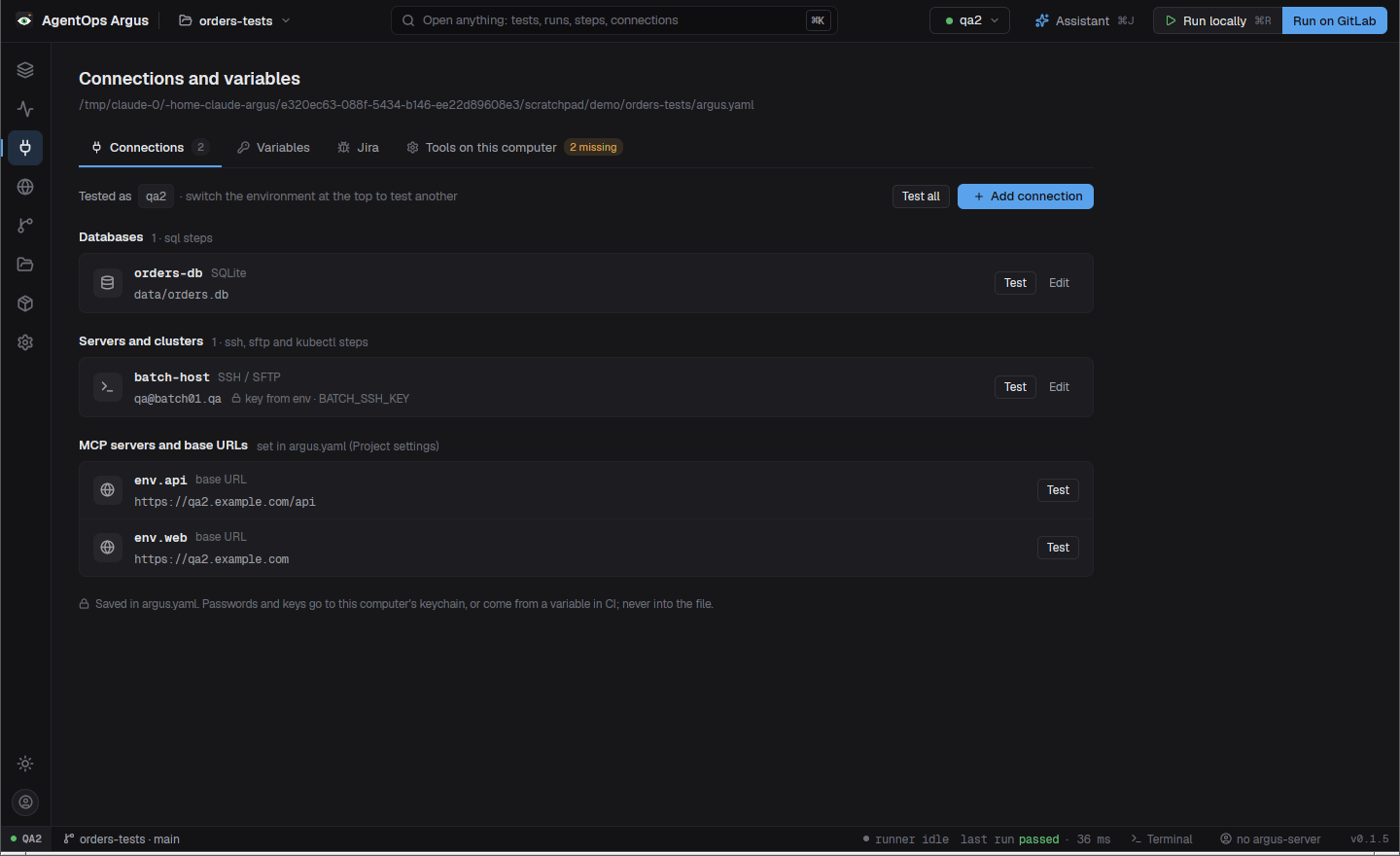
Connections groups the project's connections
(Databases, Cache and messaging, Servers and clusters, Email, Web) for
the selected environment, with MCP servers and the environment's base
URLs in their own card. Each row has an inline Test; a
failure shows its message under the row. Test all
checks everything, like argus check: Postgres connects and
runs SELECT 1, SSH runs true, AKS asks the
cluster for its version, Redis PINGs, MCP servers initialize and list
their tools, and base URLs get a GET. Results show names and outcomes,
never settings or secrets.
Add connection starts with a type picker:
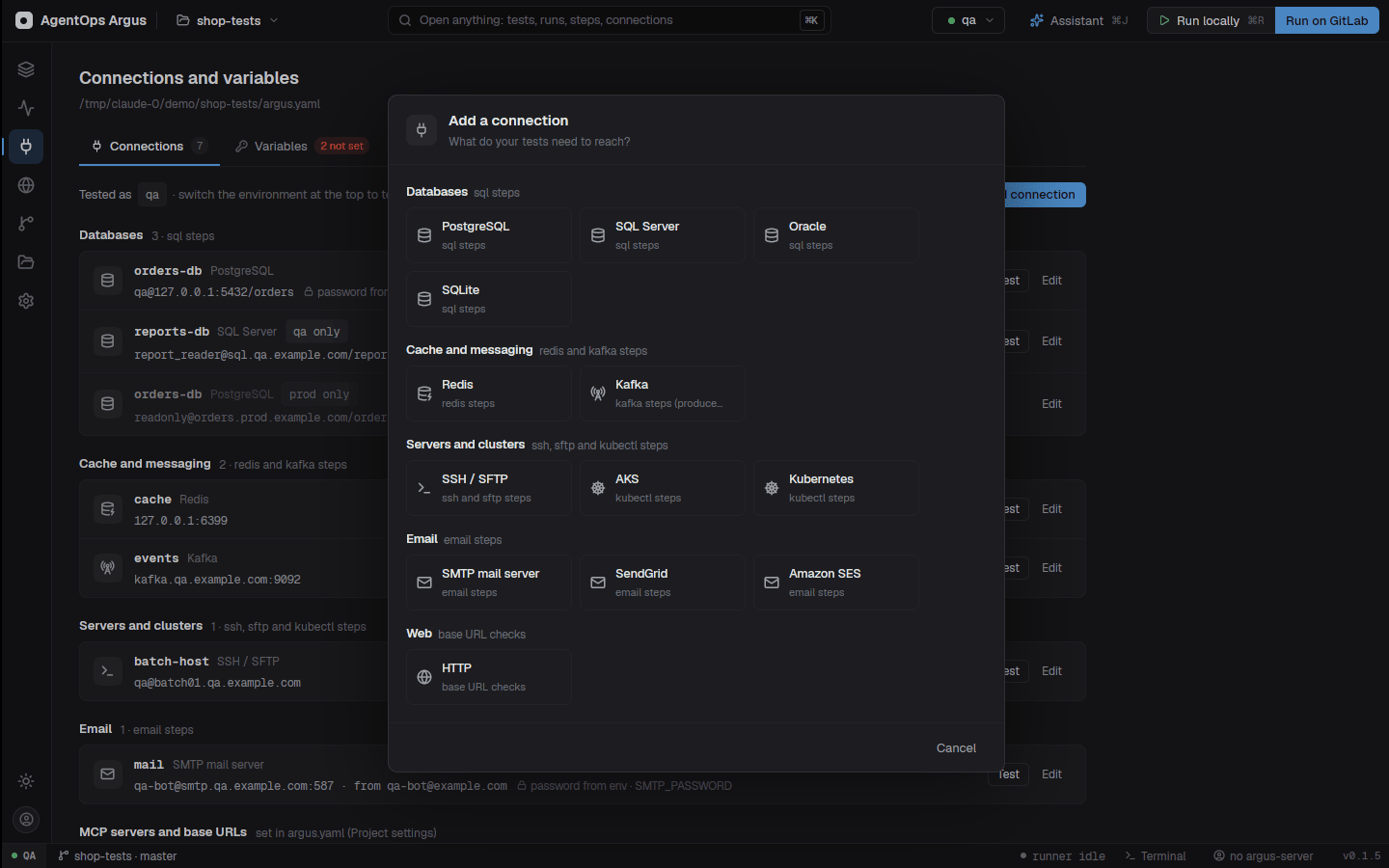
then a form in sections: Target (where),
Sign in (fields follow Auth), and
More (folded unless something in it is set).
Defined in chooses every environment or one. Each secret is
either saved in the OS keychain (the file gets
${keychain:<scope>.<connection>.<field>})
or named as a variable for CI
(${QA2_DB_PASSWORD}). Test connection
checks the form before it is saved; the result shows as a banner above
the buttons.
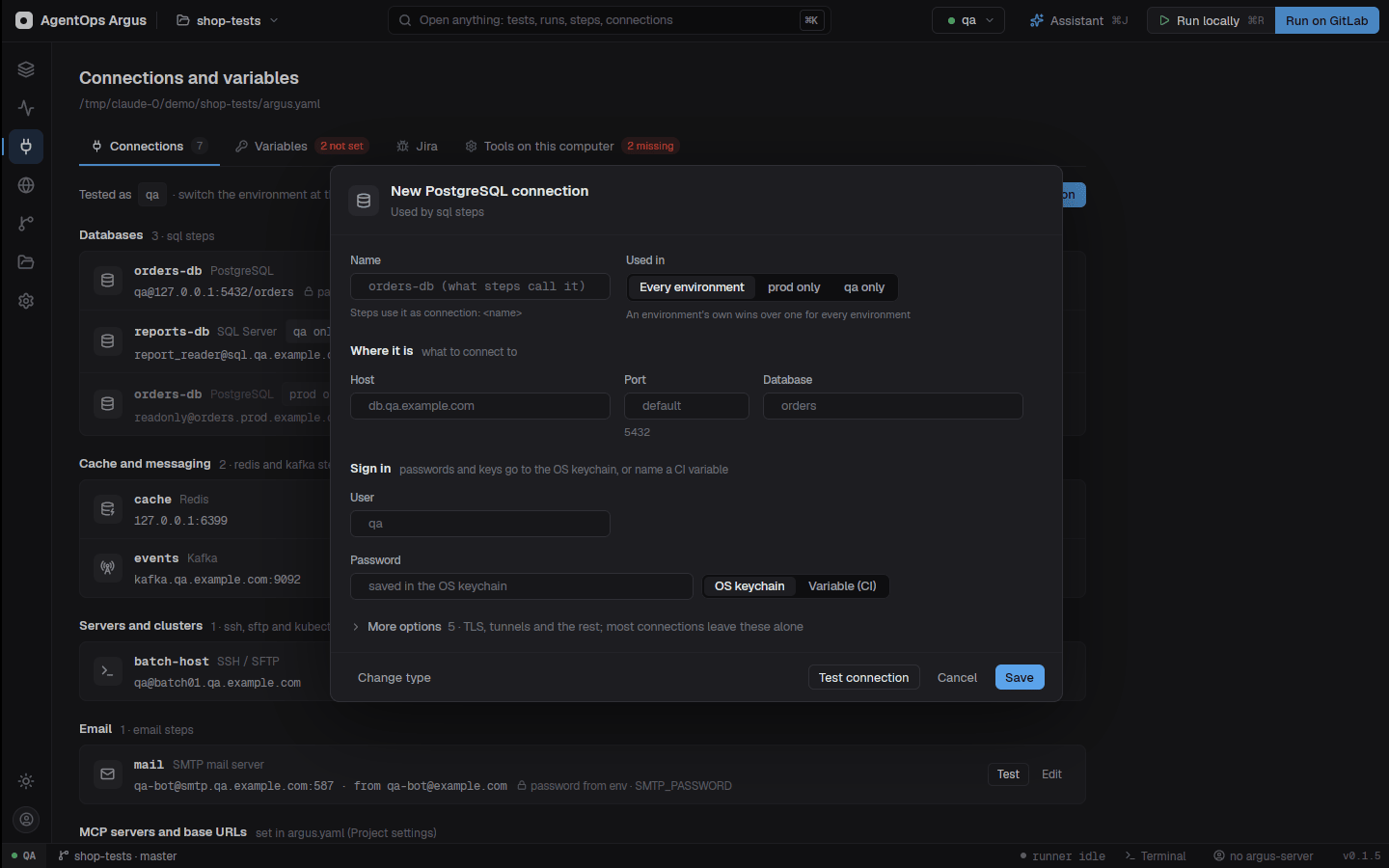
Saving writes argus.yaml for you, changing only that
connection's lines; comments and the rest of the file stay as they are.
Edit, Duplicate and Delete are on each
row.
Variables is the local variables editor (3.6). Jira connects Jira for the desktop (chapter 19).
Tools on this computer checks what steps need on this machine (Robot Framework, Node.js / npx, Playwright browsers, formatters such as Prettier, Ruff and Robocop) and installs what is missing.
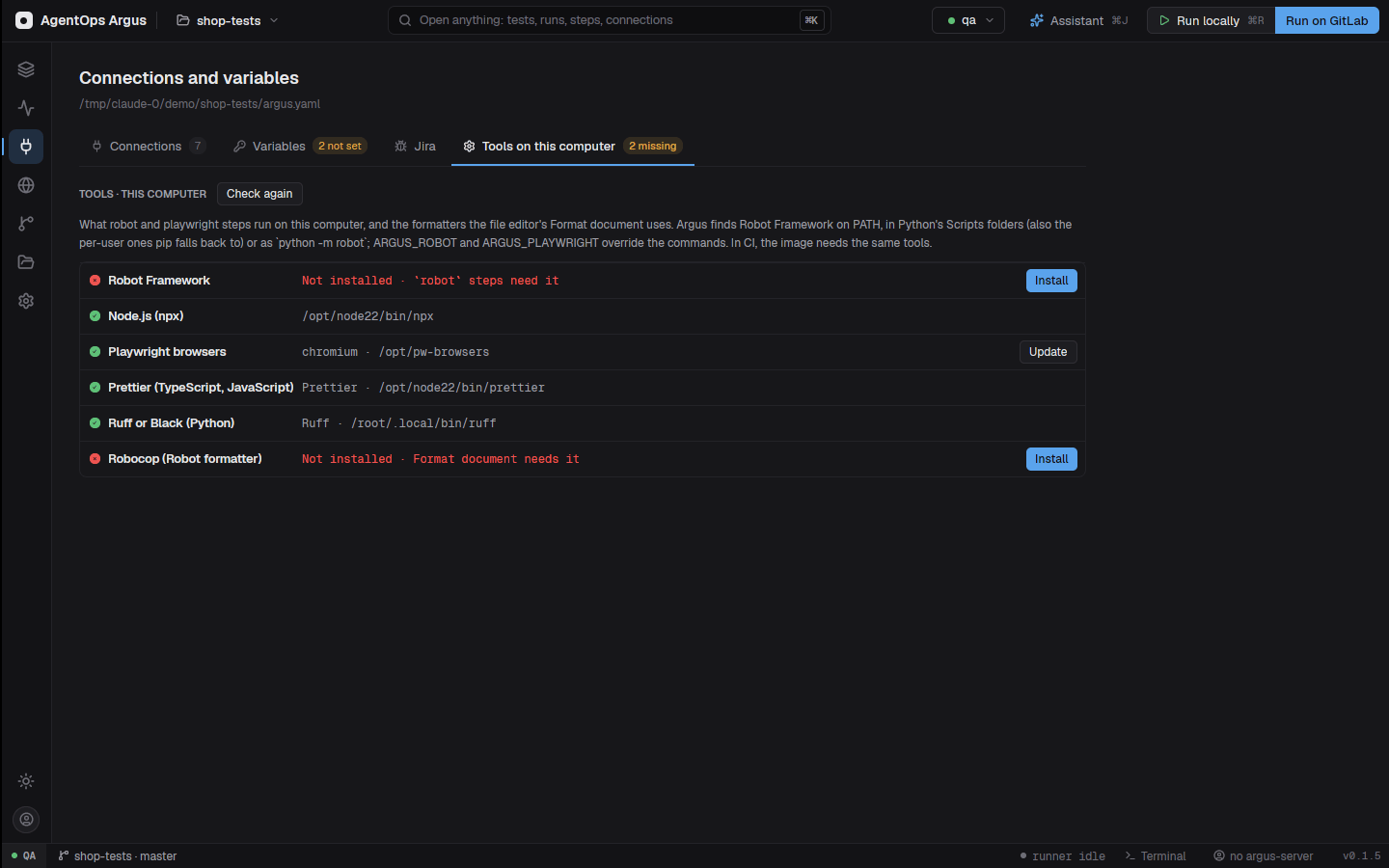
8.6 MCP servers
mcp steps call tools on MCP servers. Servers use the
mcpServers format Claude Code, Cursor and AgentOps share,
from a file, inline, or per environment:
mcp:
  config: mcp.json                 # the team's mcpServers file
  servers:                         # inline; these win over the file
    servicebus:                    # stdio: started by Argus
      command: npx
      args: [-y, "@acme/servicebus-mcp@1.4.2"]
      env: { SERVICEBUS_CONNECTION: "${keyvault:qa-servicebus}", LOG_LEVEL: info }
      cwd: tools                   # relative to argus.yaml
      startup_timeout: 120         # seconds to start and initialize (default 60)
environments:
  qa2:
    mcp:
      servers:
        orders:                    # streamable HTTP (or type: sse for HTTP+SSE)
          type: http
          url: https://orders-mcp.qa2.example.com/mcp
headers: { Authorization: "Bearer ${ORDERS_MCP_TOKEN}" }typeisstdio,httporsse; without it,commandmeans stdio and aurlending in/ssemeans SSE.- Override order: the
mcp.configfile (orARGUS_MCP_CONFIG), thenmcp.servers, then the environment'smcp.configandmcp.servers. - A stdio server starts the first time a step calls it and is shared
by every later step and test in the run. A call that times out kills the
server (and everything it started) and the next call starts a fresh one.
At the end of the run each server is stopped with its whole process
group, so
npxlaunchers leave nothing behind. group: core|fulltellsargus planwhich CI image runs tests that use it (16.3).
8.7 Connections from the command line
argus connections list                       # names, targets, where each secret comes from
argus connections add orders-db --type postgres --env qa2 \
  --set host=pg.qa2.internal --set database=orders --set user=qa --set via=bastion \
  --secret password                          # read from stdin (no echo), saved in the keychain
argus connections add batch --type ssh --set host=batch01 --secret-var password=BATCH_PW
argus connections test [orders-db] --env qa2 # connect: SELECT 1, ssh `true`, ...
argus connections secret qa2.orders-db.password   # save or rotate one keychain item
argus connections remove orders-db --env qa2      # and its keychain items
argus connections env tests/orders --env qa2      # CI/CD variables those tests need (names only)
From Switchyard
argus connections import-switchyard lists what it can
import from Switchyard's profile store on this machine (or
--from team.switchyard-workspace.json, or
--ssh-config for ~/.ssh/config hosts); give
names or --all. Hosts, SFTP, PostgreSQL and SQL Server are
imported with their jump and tunnel hosts. --secrets copy
(default) copies passwords into Argus's keychain items;
reference writes ${switchyard:<item>};
env writes ${VAR}s; skip leaves
them out. A connection can also stay in Switchyard:
orders-db: { from: switchyard } (this machine only, so not
in CI).
8.8 Connections in CI
One argus.yaml serves the desktop and a GitLab Docker
job, which has no keychain: every ${keychain:<item>}
falls back to the variable ARGUS_SECRET_<ITEM>.
argus connections env tests/ --env qa2lists the variables the tests need (ARGUS_SECRET_…for keychain items, and any${VAR}). Names only, never values.- Add each in GitLab under Settings > CI/CD >
Variables, masked (and protected where the branch allows). A
private key or known_hosts can be a File variable:
key:andknown_hosts:take a path or the contents. - Give SSH connections
known_hosts.
connections:
  batch01:
    type: ssh
    host: batch01.internal
    user: qa
    key: "${keychain:shared.batch01.key}"     # CI: ARGUS_SECRET_SHARED_BATCH01_KEY (File or contents)
    known_hosts: "${KNOWN_HOSTS}"
argus ci gitlab lists all of them for you when it sets a
repository up (chapter 16).
Running tests
Run tests and read the results, schedule automations and measure performance.
Running tests and reading results
- 9.1Running from the desktop app
- 9.2Stopping a run
- 9.3Run options
- 9.4Running from the command line
- 9.5What a run writes
- 9.6The run view
- 9.7Running one step
- 9.8The evidence drawer
- 9.9Hybrid tests: manual steps
- 9.10Capturing evidence and filing defects
- 9.11Live results on the server
- 9.12Reading results on the command line
- 9.13Self-healing locators and visual checks
Watch the video: Desktop 5: Running tests and reading results 1:11
9.1 Running from the desktop app
| To run | Do |
|---|---|
| The open test | Run locally in the top bar, or ⌘R |
| A folder | Select it in the explorer and click Run N, or
⇧⌘↵ |
| Every test | Select the root folder and Run N |
| Only the selected step | Run step in the inspector, or ⌘↵
(9.7) |
| The failed tests of the last run | Re-run failed tests (palette, or the run view) |
| On GitLab instead | Run on GitLab, or ⇧⌘R (16.5) |
Runs use the environment picked in the top bar's environment menu. Folder runs and "run all" leave automations out.
While a test runs, the canvas lights up step by step: running (with elapsed time and, for Playwright and Robot, the current action), then passed, failed or skipped. The evidence drawer follows the step that is running and streams its output live (Playwright's and Robot's console, SQL progress such as still waiting every 10 s).
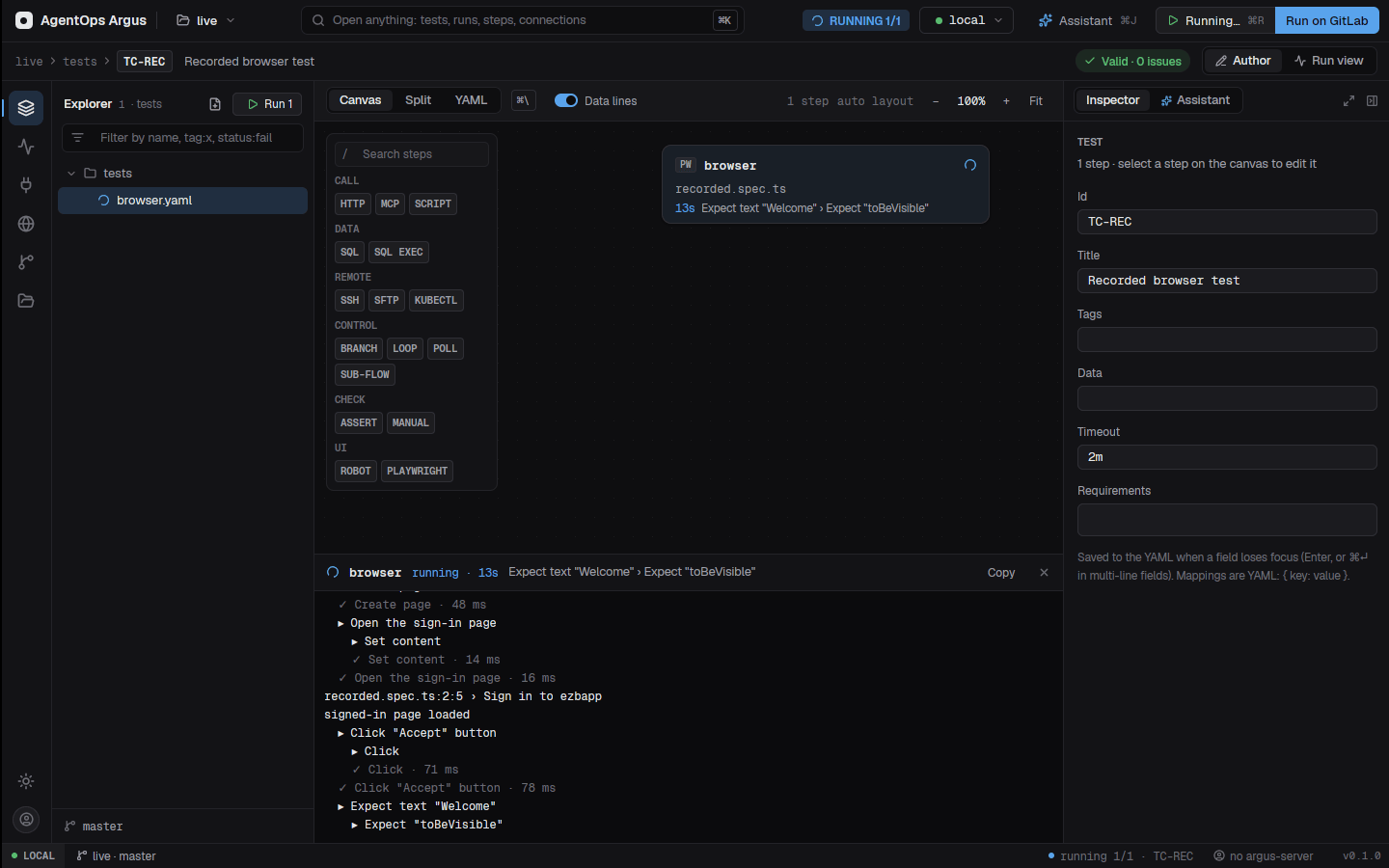
When the run ends, a toast says how it went with an Open report link.
9.2 Stopping a run
While a run is live, Run locally becomes
Stop; the run view's header has Stop
too. Stopping kills the step's whole process tree (Playwright, Robot,
browsers, scripts; taskkill /T on Windows), cancels a
running SQL statement on the database server, marks the step
Skipped with "stopped", and the steps after it Not
run. The run shows as Stopped.
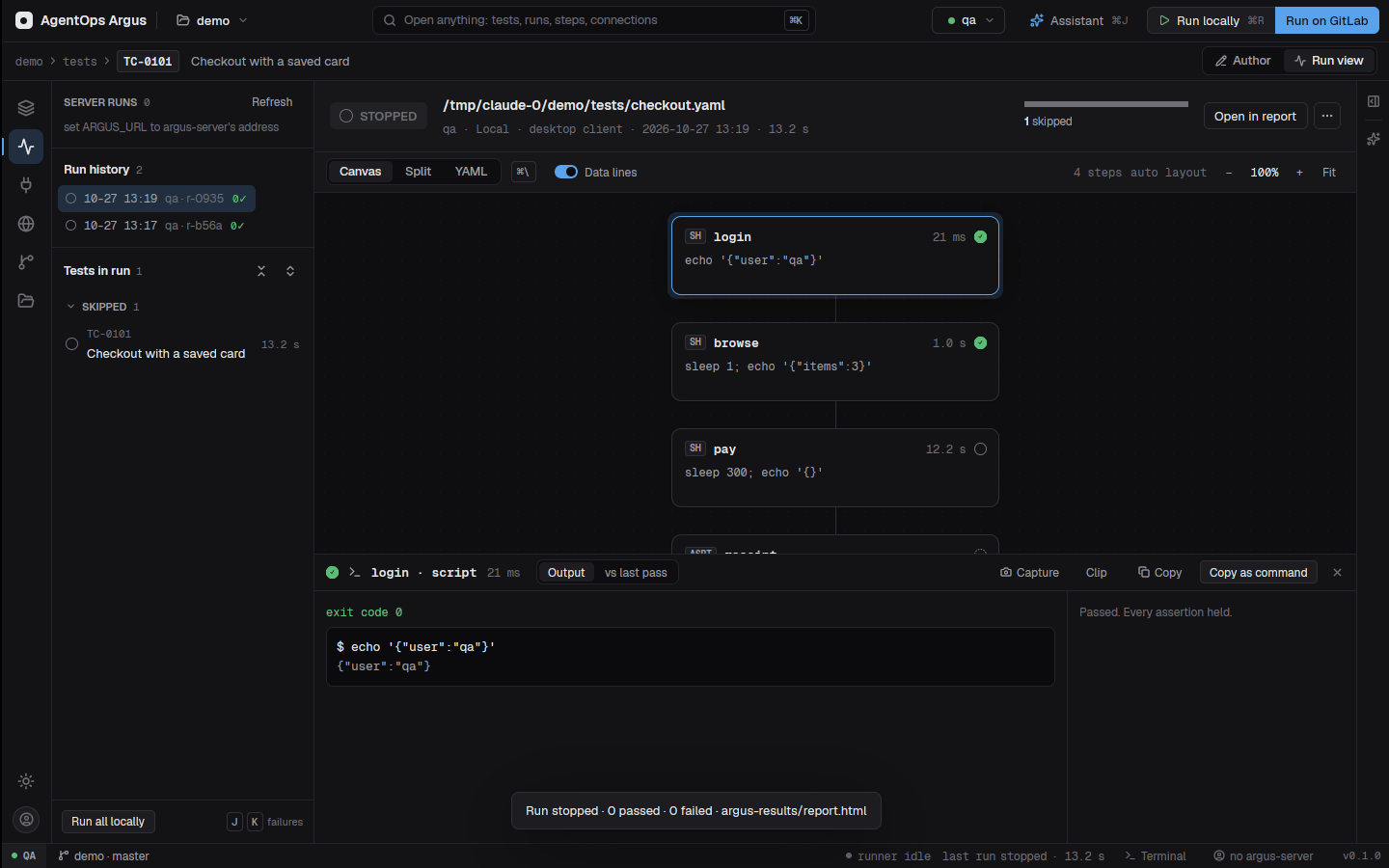
9.3 Run options
The environment menu's Local runs section holds the
options for runs from the app (saved in desktop.json):
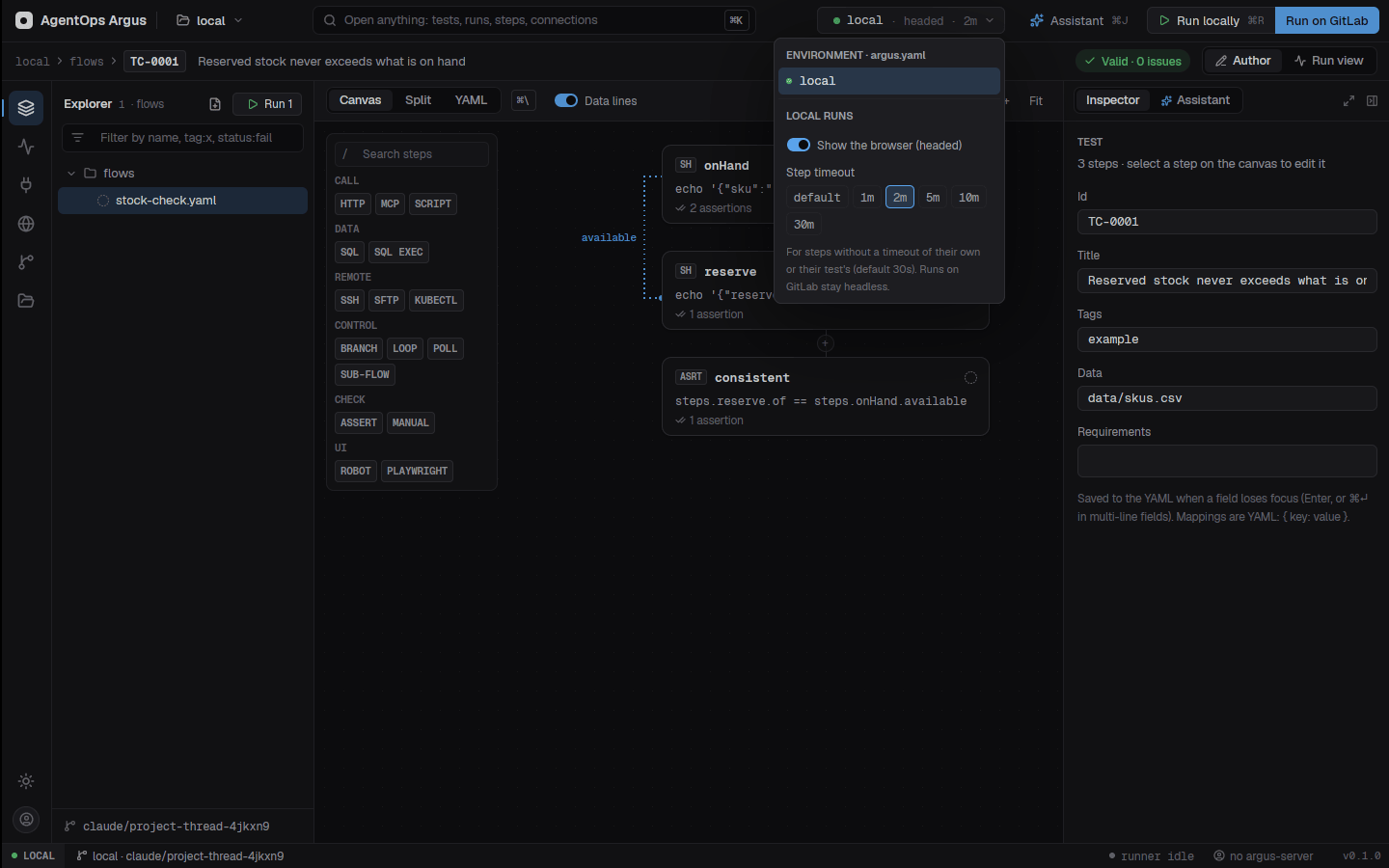
| Option | Effect | CLI equivalent |
|---|---|---|
| Step timeout | How long a step may take when nothing more specific sets a limit
(see Time limits below); none for no limit. |
--timeout 2m, ARGUS_TIMEOUT |
| Test time limit | How long each test may take as a whole, unless the test or its folder sets its own. | --test-timeout 30m,
ARGUS_TEST_TIMEOUT |
| Show the browser | Headed runs: playwright steps get
--headed; Robot gets ${HEADLESS} = False and
visible browsers; Windows brings the browser to the front. |
--headed, ARGUS_HEADED=1 |
| Tests at once | How many tests run in parallel (default, 1, 2, 4, 8, auto). | --workers N, -j N,
ARGUS_WORKERS, argus.yaml workers: |
Time limits
Every limit is a duration (500ms, 30s,
2m, 1h30m, 1d) or
none for no limit. A step's limit is the first of these
that sets one; at each level a limit for the step's type counts before
the general one:
- the step's own
timeout:(inspector, Behavior tab); - the
loop,branch,poll-untilorsub-flowstep it sits in (itstimeout:is the limit of each step inside), and the flow file's owntimeout:/timeouts:; - the test's
timeouts.<type>, then itstimeout:(inspector: step timeout, test time limit, timeouts by step type); argus.yamltimeouts.foldersentries the test is under, deepest first;- the environment's
timeouts.<type>, thenargus.yaml'stimeouts.<type>; - the run's Step timeout
(
--timeout); - the environment's
timeout:, thenargus.yaml'stimeout:; - 30 s (
scriptsteps 10 minutes andemailsteps 2 minutes, which they also keep over a shorter limit from 6 and 7).
# argus.yaml
timeout: 45s                 # every other step
timeouts:
  test: 30m                  # each test as a whole (teardown aside)
  run: 3h                    # the whole run
  sql: 10m                   # step types: http sql ssh sftp kubectl kafka redis
  robot: 1h                  #   script mcp email robot playwright pytest page-perf
  folders:
    tests/batch: { step: 5m, test: 2h, sql: 1h }
    tests/batch/nightly: { kafka: none }
environments:
  perf:
    timeout: 2m              # this environment is slower
timeouts: { http: 1m, test: 1h }- A
playwrightstep's limit is Playwright's per-test--timeout(noneis0). When nothing sets one, Argus passes none and the project'splaywright.configdecides.pytestnamesplaywrightsteps with a.pyspec, so they can be set apart. robotand pytest steps run whole suites, so they are only stopped as a whole by a limit set for them: on the step, test, folder or step type (not by the run-wide step timeout). Robot gets SIGTERM first and still writes its log.- A test's time limit (
timeouts.teston the test, its folder, the run's Test time limit, the environment orargus.yaml) cuts the running step to what is left; the steps after it are skipped,always:teardown steps still run with their own limits, and an automation'son-errorsteps too. When the run's limit (--run-timeout,timeouts.run) runs out, tests that have not started are Not run. - A step that fails at its limit says how long it had and where that
was set (
[time limit 45s, from argus.yaml timeout:]), so you know what to change. - The Project settings screen has a Timeouts section: test and run limits, one field per step type, folders, and each environment's step timeout and test time limit.
Parallel runs. With more than one test at once, the
run view lists Running now. Results, events and the
report keep the usual order and masking. Tag a test serial
when it shares state with others (one account, one row): it runs alone,
after the rest. Each worker starts its own MCP servers.
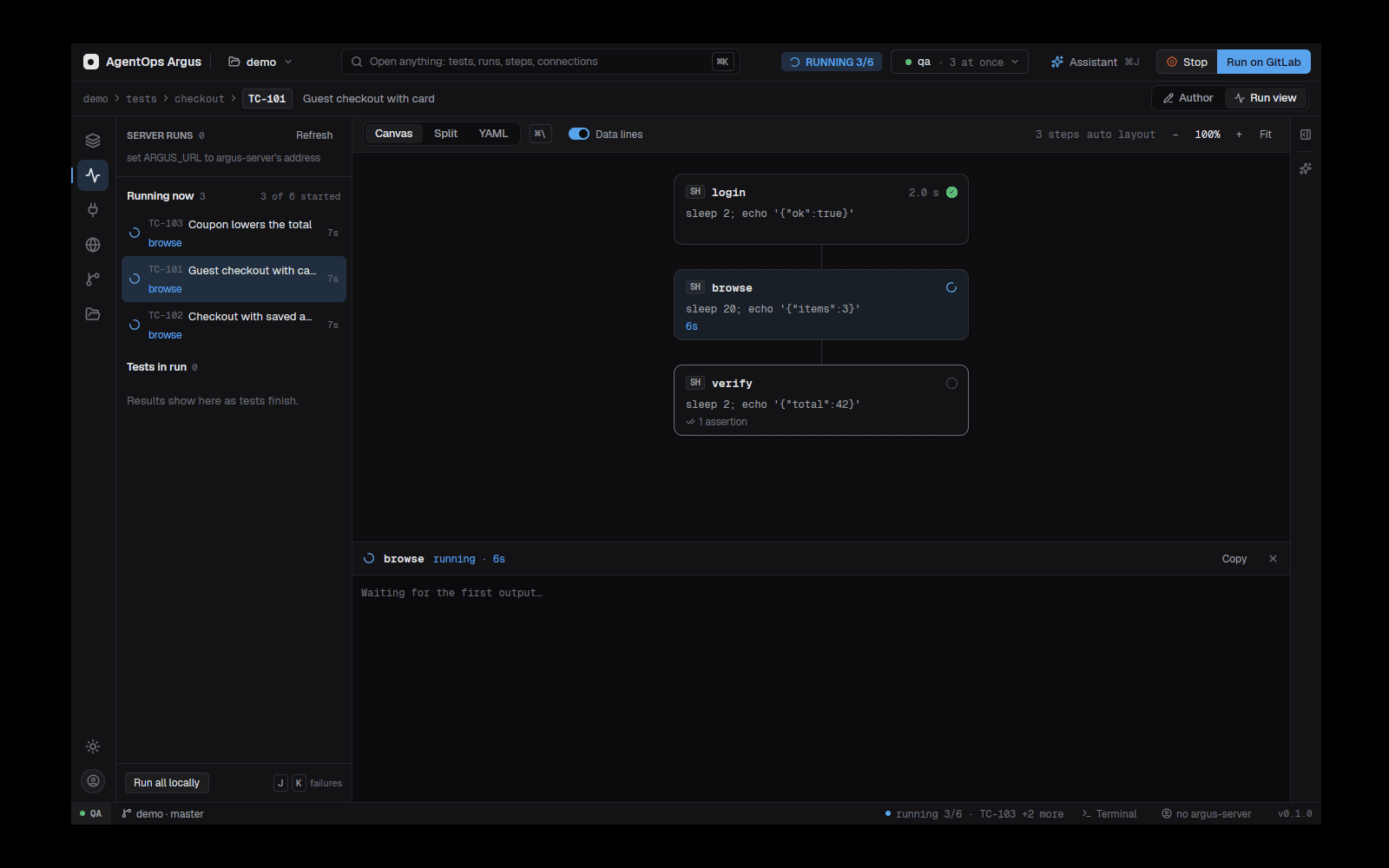
9.4 Running from the command line
argus run tests/orders --env qa2              # files or folders
argus run tests/ --env qa2 --tags smoke,!slow --timeout 2m
argus run tests/ui --headed                   # show the browser
argus run tests/ --env qa2 --workers 4        # four tests at once (-j 4, auto = one per CPU)
argus run tests/ --note "retest after BUG-12" # why this run happened
argus report show --failed argus-results/output.json| Option | |
|---|---|
--env |
Environment from argus.yaml (else the test's
env:). |
--tags smoke,!slow |
Tests carrying any listed tag and none of the !
ones. |
--timeout, --test-timeout,
--headed, -j/--workers |
As in 9.3. |
--run-timeout 2h |
The whole run's time limit (or ARGUS_RUN_TIMEOUT);
tests not started by then are not run. |
--note |
Why the run happened (or ARGUS_RUN_NOTE); shown in
history, reports and the web app. |
--out |
Results folder (default argus-results). |
--no-history / --history |
Don't keep the run / earlier runs for the report. |
--shard 2/4, --group core|full,
--report-shard |
Split a suite across machines (chapter 16). |
--push / --no-push |
Stream results to argus-server as tests finish (on when
ARGUS_URL, ARGUS_PROJECT and
ARGUS_API_KEY are set). |
--trigger |
What started it: local, pipeline,
schedule, merge_request, web,
ai. |
--remote [--wait] |
Start the tests repository's GitLab pipeline instead (16.5). |
--resume, --manual,
--manual-results |
Hybrid tests (9.9). |
-v/--verbose |
More output. |
Exit codes: 0 every test passed,
1 one or more tests failed, 2 configuration or
infrastructure error (invalid YAML, unknown environment, unreachable
connection, missing program).
ARGUS_REQUIREMENTS (e.g. EBM-412,EBM-415)
records which requirements a run covers.
9.5 What a run writes
argus-results/
├── output.json        # the run's single source of truth (schema argus-results/1.0)
├── junit.xml          # for GitLab's Tests tab and other tools
├── report.html        # one self-contained file (chapter 10)
├── events.ndjson      # live events: start_run, start_test, start_step, end_step, end_test, end_run
├── evidence/          # per test and step: bodies, logs, screenshots, videos, traces, downloads
└── history/
    ├── 2026-10-31T09-12-03_<run id>/   # each local run (output.json, events, evidence under 25 MB)
    └── history.json                    # step records for baselines and "vs last pass"
The newest 30 runs are kept. Runs in CI (CI set) are
never kept in history. The results format is described by a JSON Schema
in docs/schema/argus-results-1.0.json.
Every run also records what it covered and why: its
scope (paths, tag filter, and the mix of tests:
tests/billing · tags smoke · 12 tests: 4 Robot, 8 Argus),
its note, its trigger (Run all · desktop,
Schedule (0 6 * * 1-5), pipeline), and commit
and branch.
9.6 The run view
The Run view (⌘2, or Run view
in the breadcrumb bar) shows the open run: the verdict and counts in the
header, the tests grouped by status with failures
first, and each test's steps. J / K
move to the next and previous failure.
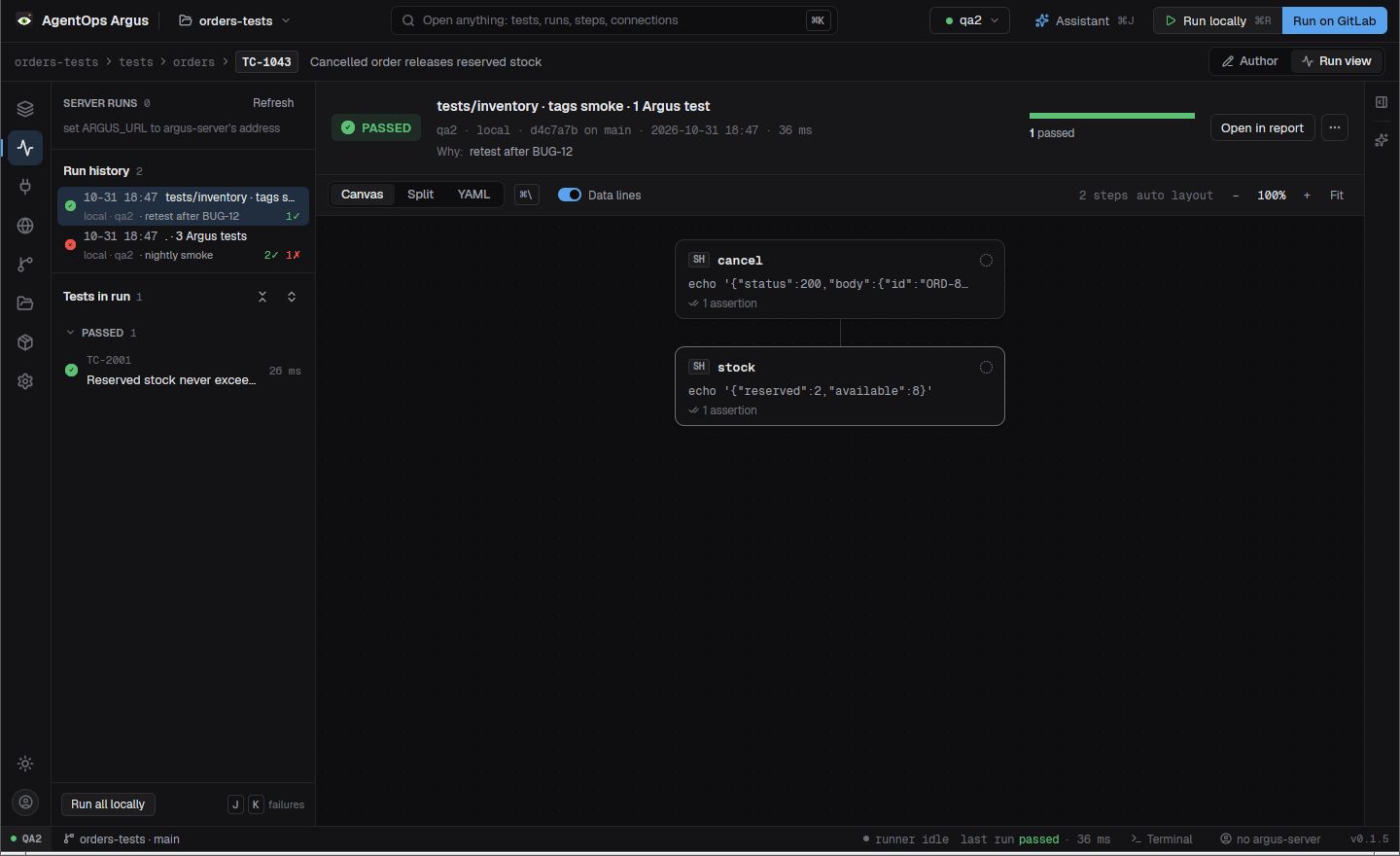
- Groups (Failed, Passed, …) fold on click; Collapse all / Expand all in the Tests in run header. Folds survive live updates.
- Select a step to open its evidence in the drawer below (9.8).
- Re-run failed runs the failed tests again.
- The header's run menu has Add a note…, which saves a note on the run.
- A step re-run alone is marked
rerun, and the run's counts are recomputed.
Run history
The run view lists the runs kept in
argus-results/history/ (from argus run and the
app alike), newest first. Each row has two lines: what ran (the scope)
and how and why (trigger and note), with a tooltip for the details.
Click one to open it.
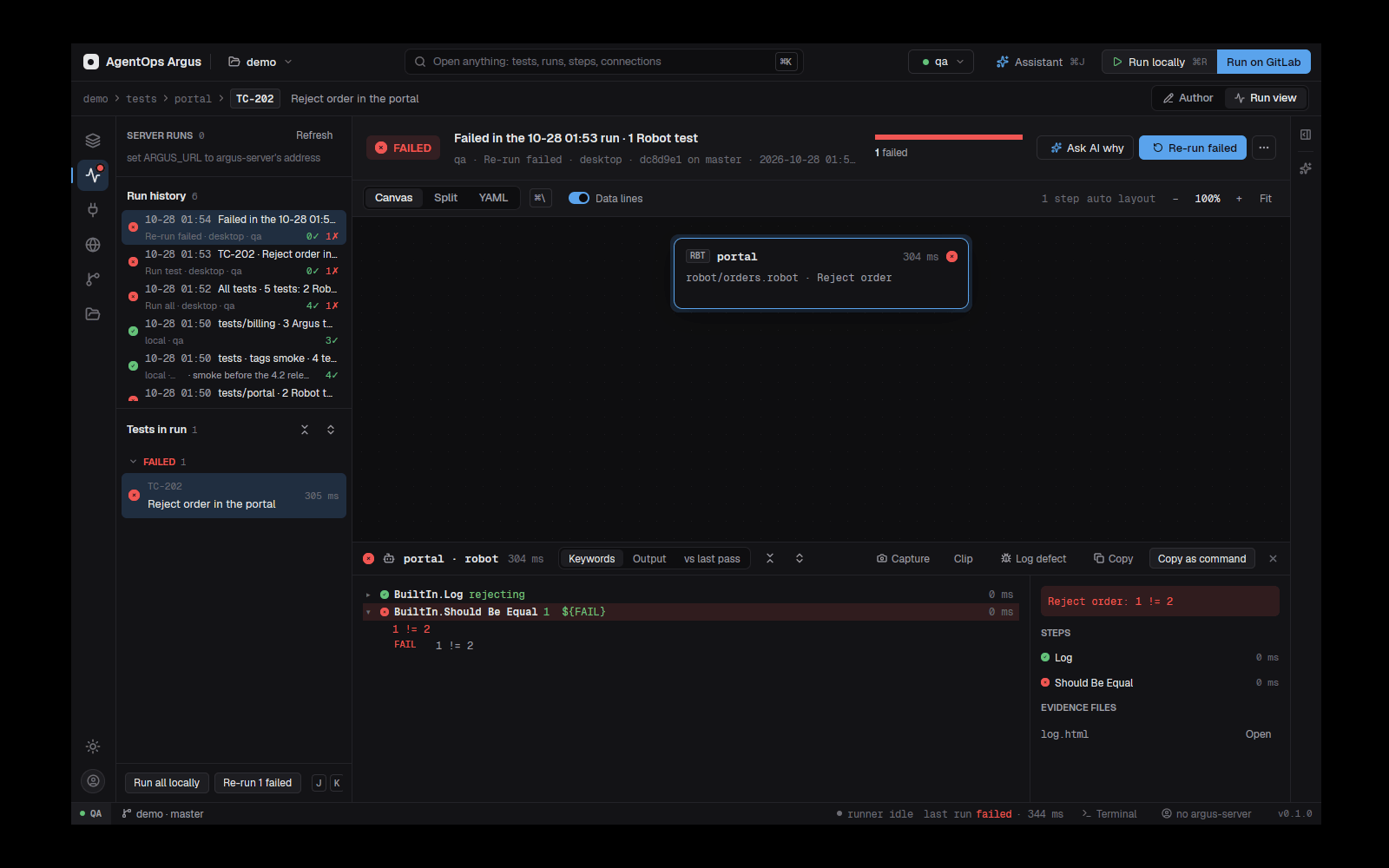
When you are signed in to argus-server, Load runs from argus-server adds the project's server runs (CI pipelines, other people's runs) to the list.
9.7 Running one step
⌘↵ (or Run step, or a composer's
Send / Run query / Try it) runs only the
selected step. The outputs of the steps before it are taken from the run
on screen, so you can fix and re-run a failing step without running the
whole test. A test that has never run can be run step by step: each
step's result feeds the next.
- A step inside a loop sees the iteration you choose
in Run step uses (
each[0],each[1]…; the failing one by default). - A step with a data set uses the row chosen there.
- A step inside a sub-flow sees the flow's
with.
The result replaces the step's record in that run's
output.json and history entry, marked
rerun.
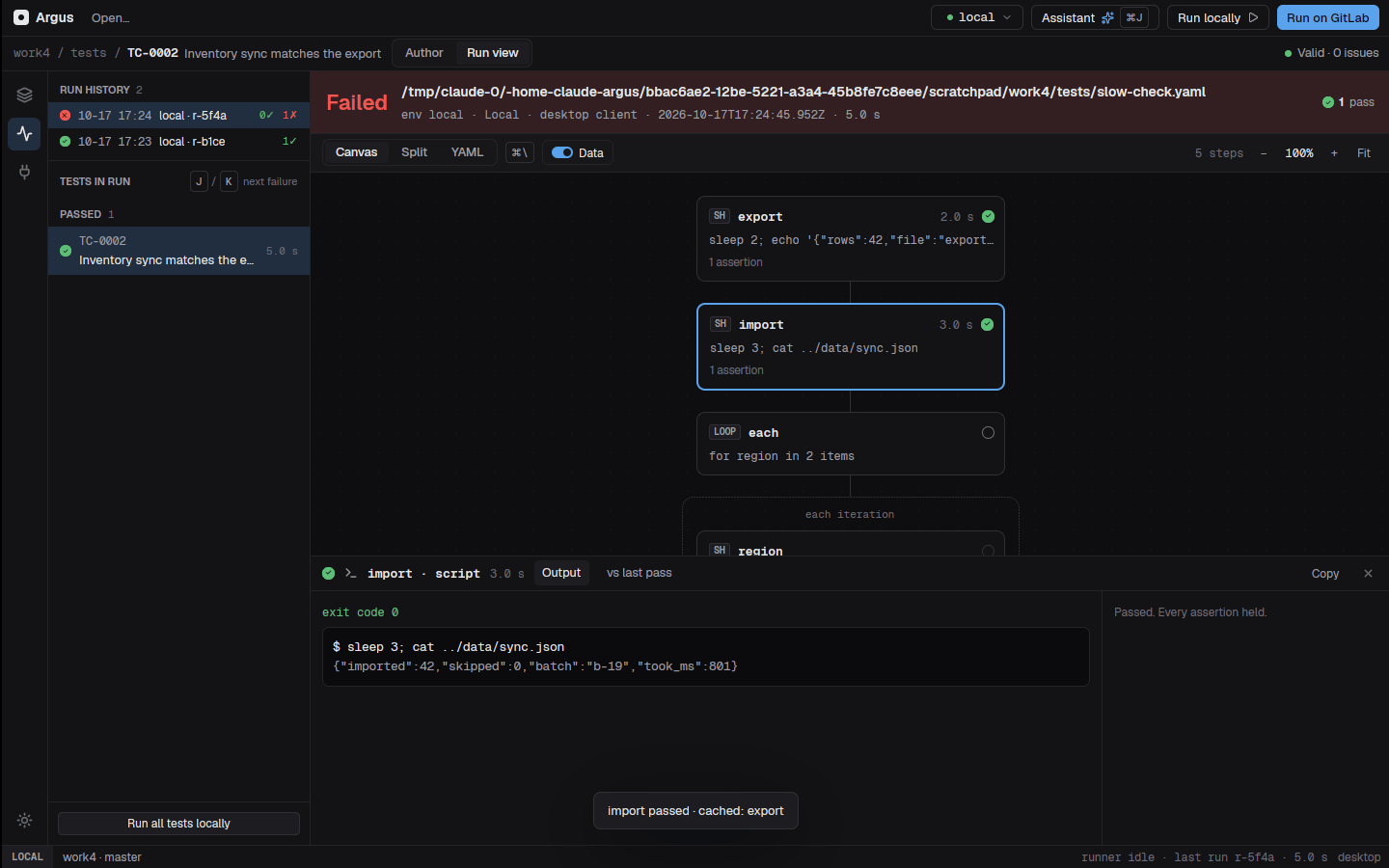
9.8 The evidence drawer
The drawer shows what the selected step did, in tabs that depend on its type:
| Step | Tabs |
|---|---|
http |
Request (method, URL, headers, body), Response (status, headers, body), Assertions |
sql, redis, kafka |
Result (the rows or messages as a sortable table), the statement / command, Assertions |
ssh, script, kubectl |
Output (stdout and stderr
as terminal tabs with colours), Assertions |
sftp |
Transfers (sizes, text previews) |
playwright |
Steps, screenshots, video, trace, output |
robot |
Keywords (Robot's keyword tree, open along the failing path, with Expand all / Collapse all), Log |
load, page-perf |
Results (chapter 12) |
| every step | vs last pass: the step's status and output compared with the latest kept run where it passed |
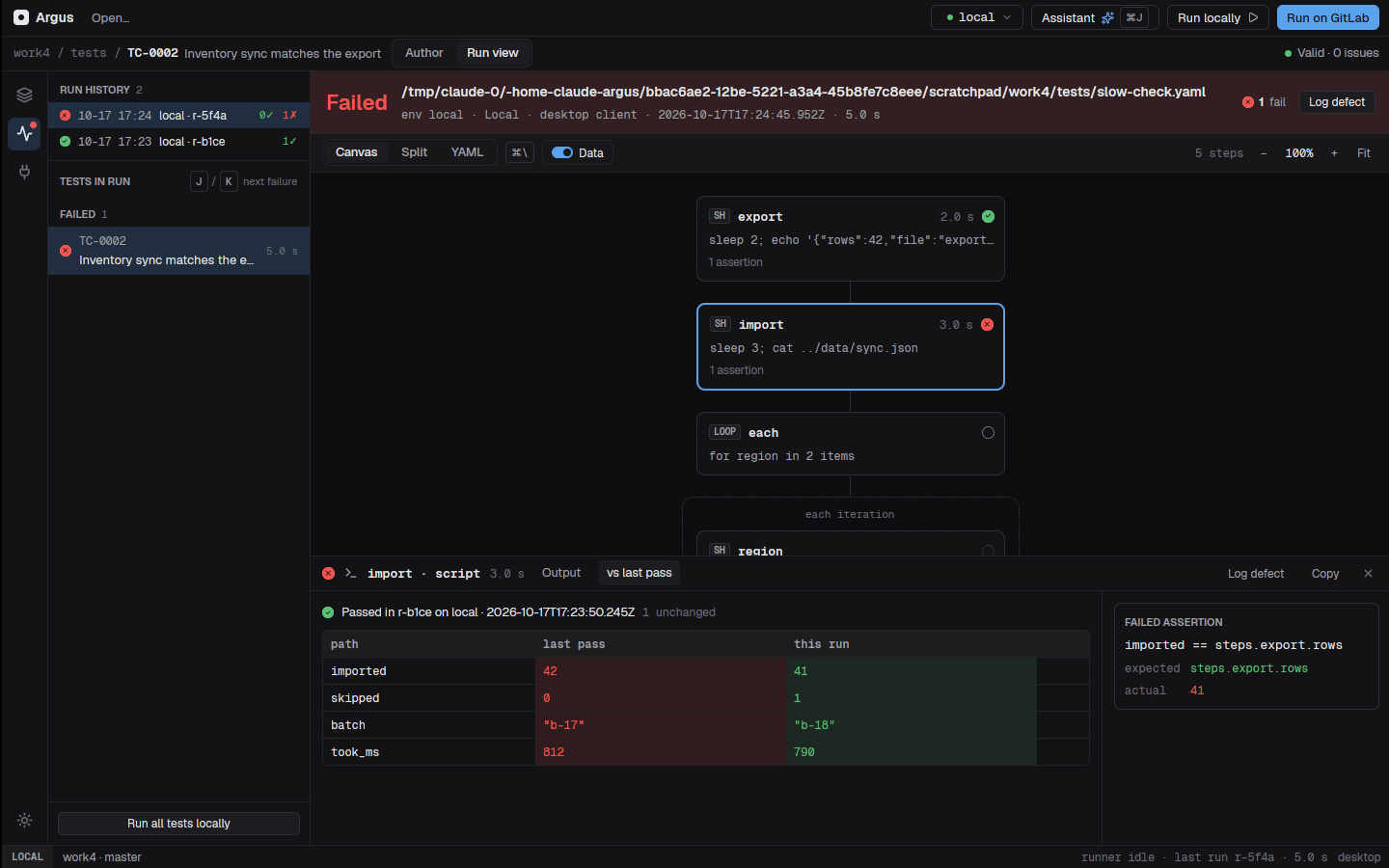
Copy as cURL / SQL / command on HTTP, SQL, Redis,
SSH, script and SFTP steps (Copy input on MCP) copies a command
you can paste into a terminal; masked credential headers become shell
variables such as ${AUTHORIZATION}.
A flow card (sub-flow or setup) is clickable during and after a run: its drawer shows the flow's result, and its open card shows each inner step.
9.9 Hybrid tests: manual steps
A test with a manual step stops there as
pending. When a tester has done the step, resume the
run; the steps after it run, and the other tests keep their results:
argus run tests/ --resume argus-results/output.json \
  --manual 'TC-1042/verify-letter=pass' --manual 'TC-1043/check-ui=fail:wrong total'
# or --manual-results manual.json: [{ "test", "step", "status", "actual", "tester" }]
On argus-server, testers record manual steps in the execution player;
the server's GET …/cycles/{id}/manual-results returns
exactly the file --manual-results reads, so a pipeline can
pick the results up.
9.10 Capturing evidence and filing defects
- Capture (in the drawer, the defect dialog, or the palette's Capture the screen as evidence of the selected step…) takes a screenshot, lets you mark it up (arrows, highlights, text, blur to hide data), and saves the PNG into the step's evidence.
- Clip (the palette's Record a screen clip…, or the status bar button) records the screen for up to 2 minutes (MP4 through ffmpeg, else GIF) as evidence. Run the command again, or press Stop, to end it.
- Log defect (in the run header, or under a failed
step's evidence) fills in the test, step, expected and actual, evidence
and run.
- Signed in with
ARGUS_PROJECTset: the defect is filed in argus-server (and in Jira through it, with the captures attached). - Jira connected on the desktop and no server: it is filed straight in Jira, linked to the test's requirements.
- Otherwise Copy as defect copies it as Markdown.
- Signed in with
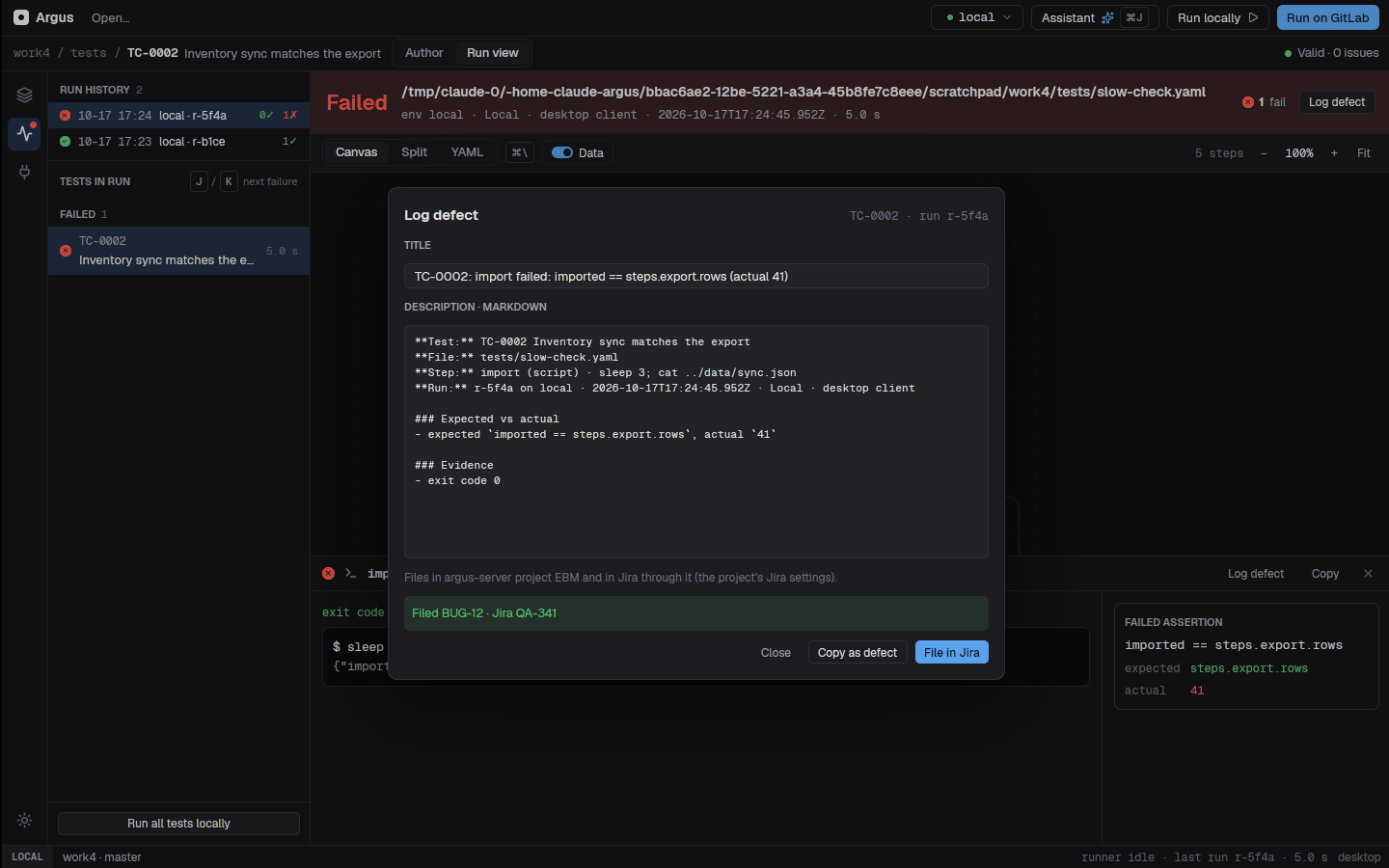
9.11 Live results on the server
With ARGUS_URL, ARGUS_PROJECT and
ARGUS_API_KEY set (or --push),
argus run streams start_run, each
end_test and end_run to argus-server, so the
web app shows the run live. A server that can't be reached is a warning,
never a failed run. events.ndjson can also be sent as is to
POST /api/projects/{p}/events.
Robot suites run outside Argus can stream the same way with the listener:
robot --listener tools/robot-listener/ArgusListener.py tests/with ARGUS_URL, ARGUS_PROJECT,
ARGUS_API_KEY and ARGUS_ENV set. Tests are
matched to test cases by a TC-1042-style key in their tags
or name. The listener masks secrets itself (variables whose names look
secret, plus ARGUS_MASK_VARS and
ARGUS_MASK_PATTERNS) before anything is sent.
9.12 Reading results on the command line
argus report show --failed argus-results/output.json     # failures as text
argus report diff before.json after.json                 # started failing, fixed, new
argus report diff 1842 1857                               # run ids read from argus-server
argus report render output.json --history history.json -o report.html
argus report export output.json --format robot            # a Robot-compatible output.xml
9.13 Self-healing locators and visual checks
Recorded Playwright specs import two helpers from
argus-playwright.ts, which Argus writes next to the spec
before each run (it never overwrites a copy you changed and that lacks
its version marker).
import { heal, snapshot } from './argus-playwright';

const el = await heal(page, "getByLabel('Email')", {
  alts: ["locator('#email')", "getByRole('textbox', { name: 'Email' })"],
  fp: { tag: 'input', role: 'textbox', name: 'Email', id: 'email' },
});
await el.fill('qa@shop.test');
await snapshot(page, 'after save', { mask: ['.clock'], maxDiffRatio: 0.002 });
Healing. heal() waits for the main
locator as usual. If it has not found exactly one element after 2
seconds, it tries the backups, then looks for the element most like the
fingerprint (it must score at least 50% and clearly beat the next best).
The step goes on with what it found and the run log says
⚕ healed locator. Nothing in the spec changes during the
run: the healed locator goes to the review queue. When
nothing matches, the step fails as before.
| Variable | Default | |
|---|---|---|
ARGUS_HEAL |
on | off turns healing off (the main locator only) |
ARGUS_HEAL_GRACE_MS |
2000 | How long the main locator gets before healing |
ARGUS_HEAL_WAIT_MS |
10000 | When to give up |
ARGUS_HEAL_MIN_SCORE |
0.5 | How alike a fingerprint match must be |
Visual checks. snapshot() takes a
stable screenshot (it repeats until two agree) and Argus compares it
with the baseline in
visual-baselines/<test>/<step>/<name>-<os>.png:
- New (no baseline yet): the step passes and the
screenshot waits for review (
visual: { new: fail }on the step makes it fail instead). - Same, within the tolerance: passes.
- Changed: the step fails with
visual change: … (0.25% of pixels differ)and the evidence has the baseline, the new screenshot and a diff image with changed pixels in red.
The tolerance is a per-pixel colour threshold (0.1),
maxDiffRatio (0.1% of pixels) and
maxDiffPixels, set on the snapshot() call or
for the whole step:
- id: ui
  type: playwright
  spec: save.spec.ts
  visual: { threshold: 0.15, max_diff_ratio: 0.002, new: fail }
mask takes selectors to paint over (dates, ads, avatars)
before comparing.
Reviewing. Healed locators and new or changed
screenshots wait in the review queue
(argus-results/review/review.json). A step that passes
later with its own locator drops its heals from the queue.
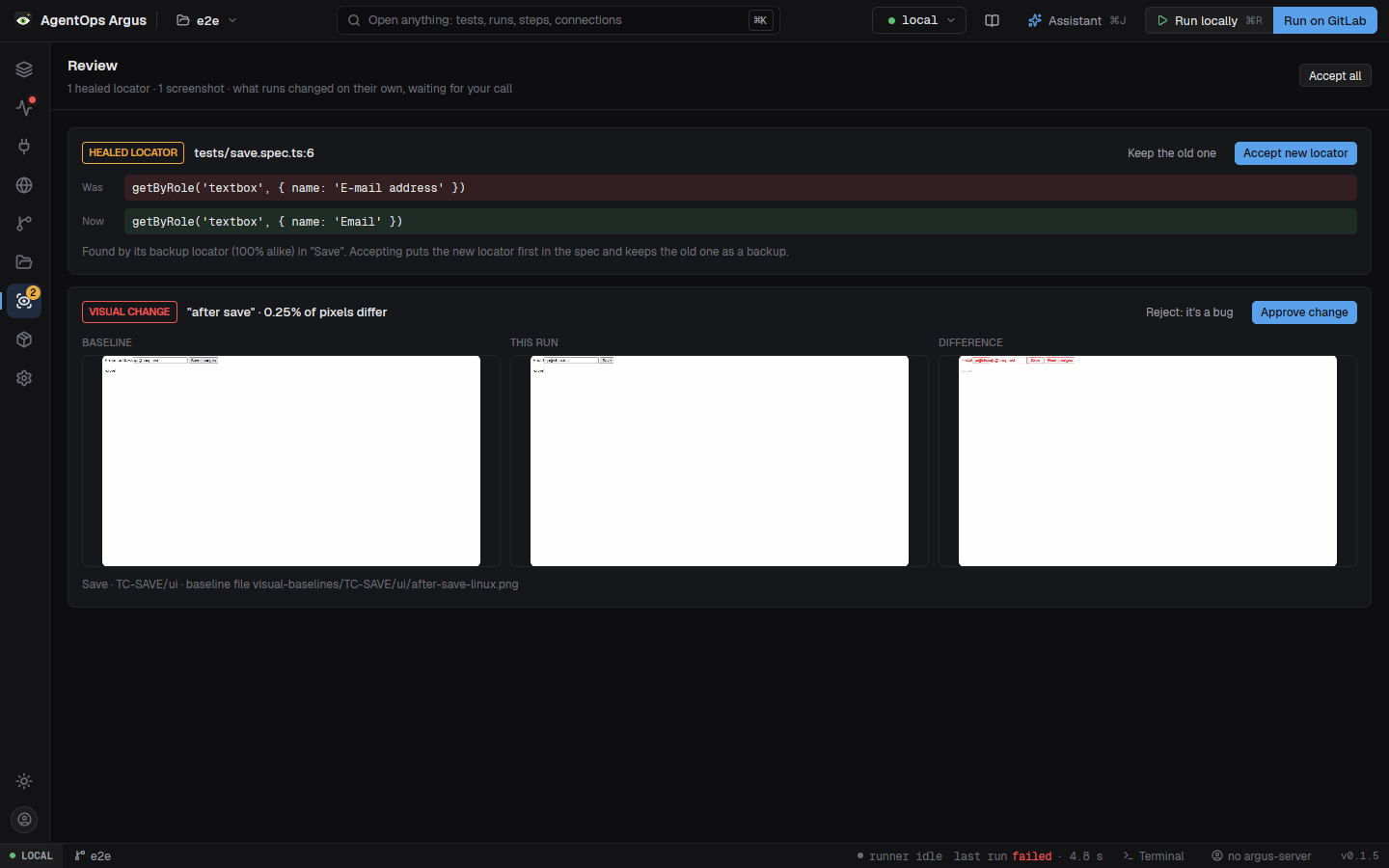
- Desktop: the Review button in the
rail (with a count) shows each healed locator as Was and
Now, and each screenshot as baseline, this run and difference.
Accept new locator rewrites the spec: the new locator
comes first and the old one stays as a backup. Approve
copies the screenshot into
visual-baselines/. Commit both. - Command line:
argus reviewlists the queue;argus review accept <id>,argus review accept-allandargus review reject <id>decide. - Web app: Runs → Review (see 18.7). An approved screenshot becomes
the baseline on the server at once, for every run that reports to it,
until the repository gets the file:
argus review pull(orargus visual pullfor baselines only) writes the approved baselines intovisual-baselines/and the accepted locators into the specs. - Assistant and MCP:
review_list,review_acceptandreview_reject, thefix_broken_locatorprompt (it looks at the live page withbrowser_suggest_locatorand proposes a fix), andbrowser_visual_checkto add a checkpoint while recording.
Baselines are per operating system, because fonts render differently; approve the screenshots from the machine type your pipeline uses.
The report
Every run writes argus-results/report.html: one file
with its styles, script, fonts and the run's data inlined, so it opens
from a GitLab artifact, a Jira attachment or an email with no network
access. argus-server serves the same report for each stored run
(GET …/runs/{run}/report), with history from the 20 earlier
runs on the same environment.
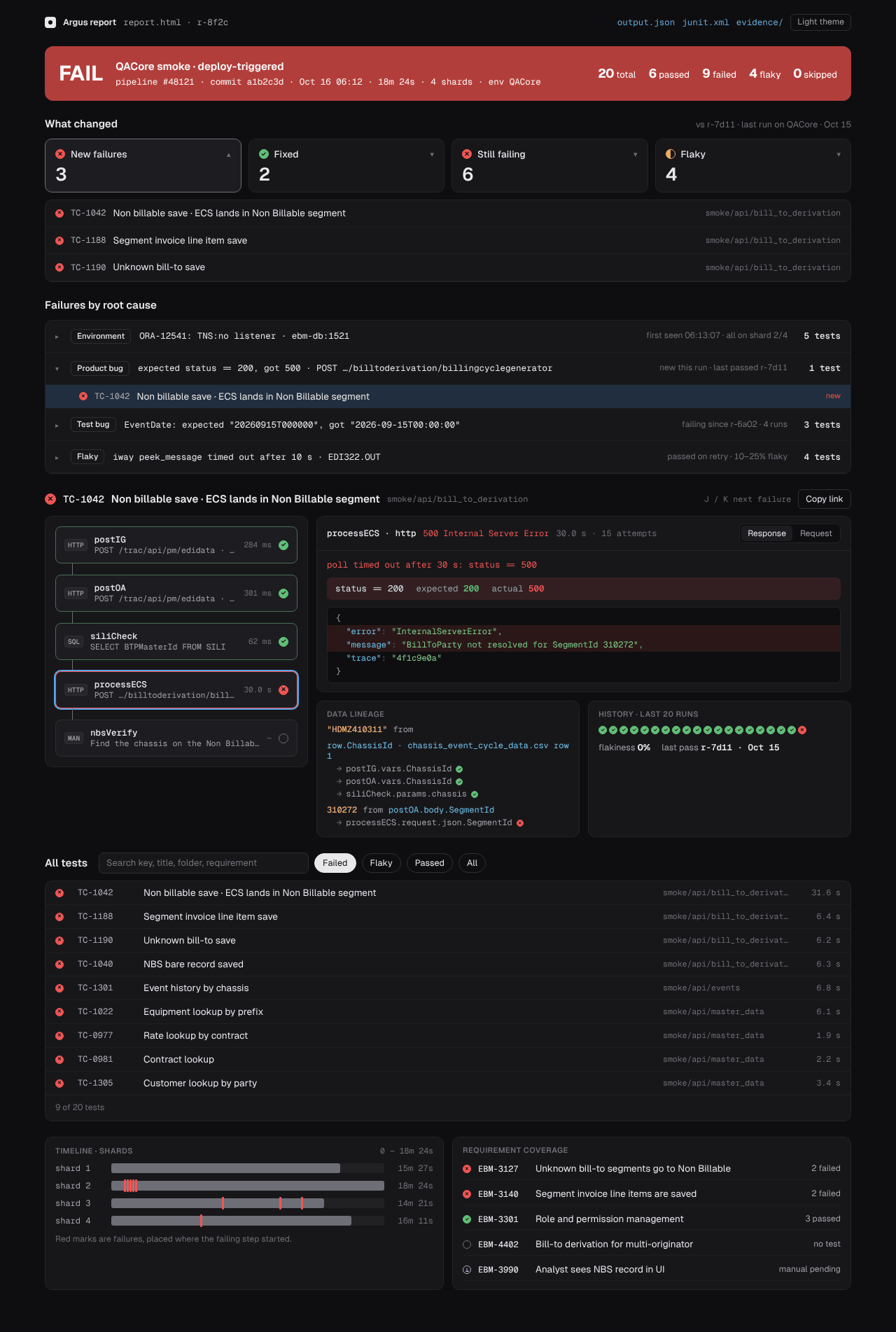
10.1 Reading it top-down
The report reads from verdict to cause:
- Banner: verdict, pipeline, commit, branch, duration, shards and counts, with the run's scope and note.
- What changed: new failures, fixed, still failing and flaky, against the last run on the same environment.
- Failures by root cause: failures grouped by error signature and labelled Environment, Product bug, Test bug, Flaky or Needs triage (categories QA set on the server carry over to later runs with the same error).
- Drill-down for a test: its workflow replay, the failed step's evidence, step timing against baseline, data lineage, and its last 20 runs.
- All tests: search, with facets for status, suite (a folder selects everything under it), tag and requirement. The list is virtualized, so very large runs stay fast.
- Timeline: a waterfall across shards; each test is a bar of its steps at its start time. Steps at least twice as slow as in the test's last passing run (and 250 ms slower) are striped and listed under Slowest against baseline.
- Requirement coverage, linked to the requirement facet.
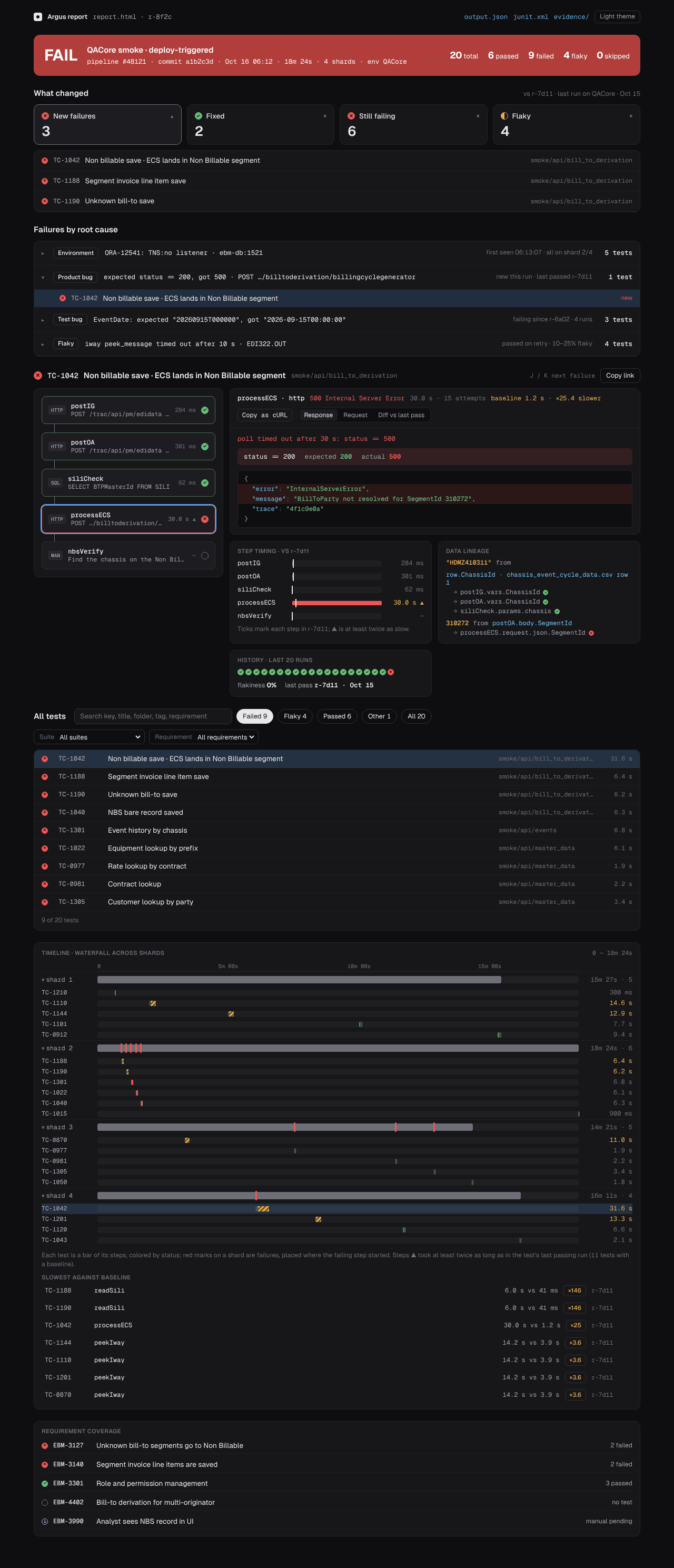
10.2 Workflow replay
The replay draws the test as the desktop canvas does: a
branch splits into yes / no lanes (the
lane not taken is shown empty), a loop is a container with
one section per iteration, and sub-flows and poll-until
expand in place. A failed loop opens on the iteration that failed.
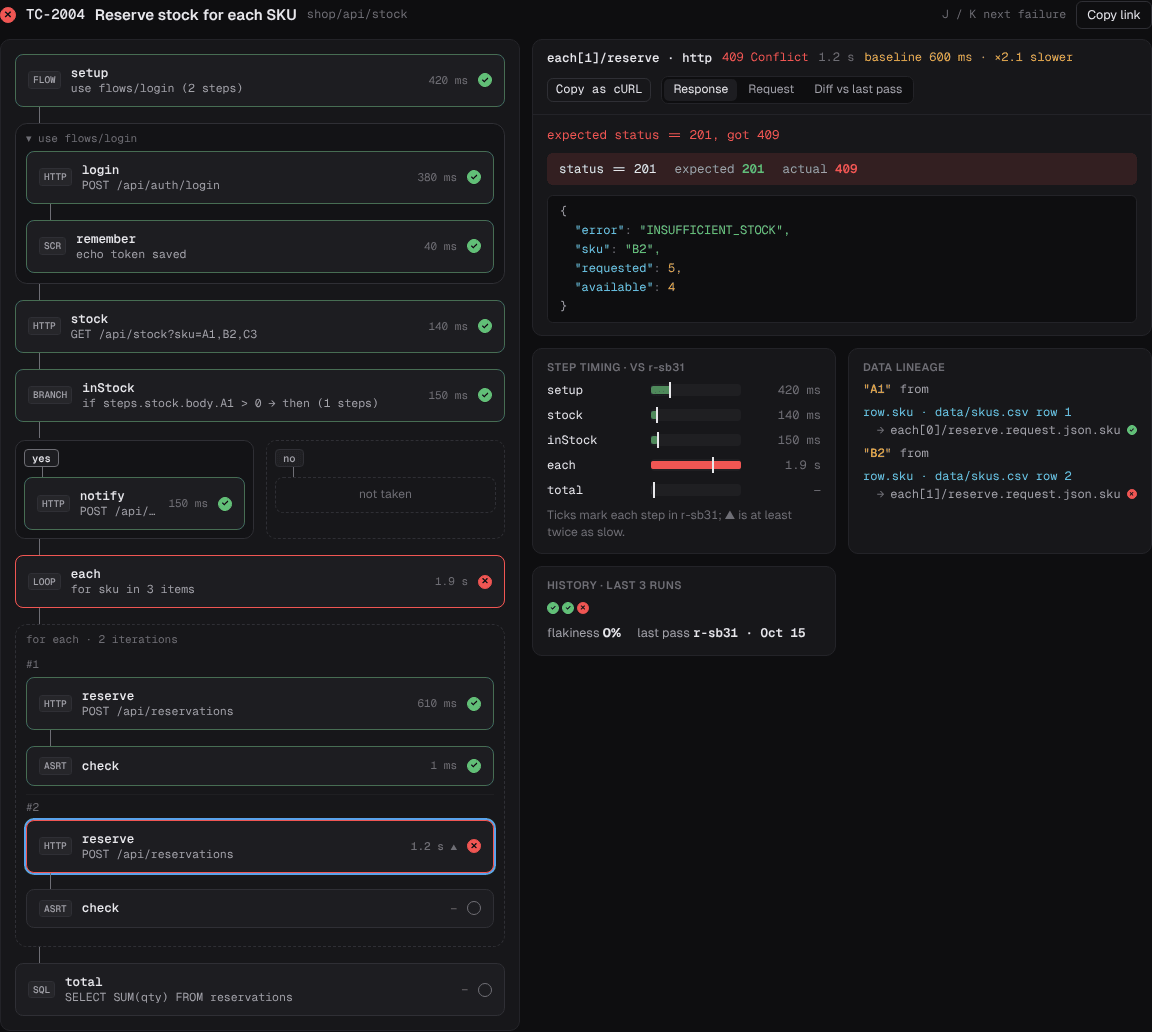
10.3 Evidence viewers
| Step | Viewer |
|---|---|
| HTTP | Request and response, expected against actual |
| SQL, Redis, Kafka | The statement or command and the rows or messages |
| SSH, script | stdout and stderr as separate terminal
tabs, with ANSI colours |
| SFTP | Transfers with sizes and a preview for text files |
| MCP | Input and output |
| Robot | The keyword tree, nested as Robot ran it, with arguments, status, time and messages (open along the failing path; Expand all / Collapse all) |
| Playwright | Steps, screenshots, the video and the trace (Open trace to
trace.playwright.dev when served over HTTP, or the
npx playwright show-trace command when opened from
disk) |
| assert, manual | Expressions and actual values; the action and expected result |
| load, page-perf | Charts and tables (chapter 12) |
Copy as cURL / SQL / command is on HTTP, SQL, SSH, script and SFTP steps (Copy input on MCP); masked credential headers become shell variables, so the command never carries a secret. Diff vs last pass compares the step's output with the same step in the test's last passing run.
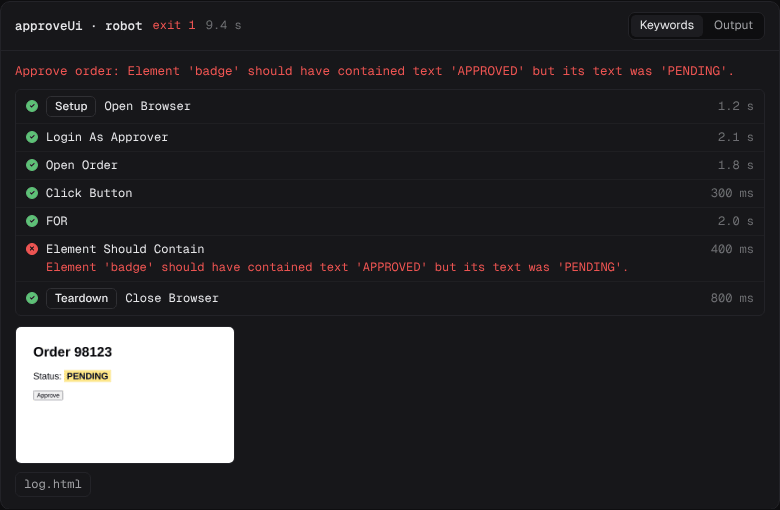
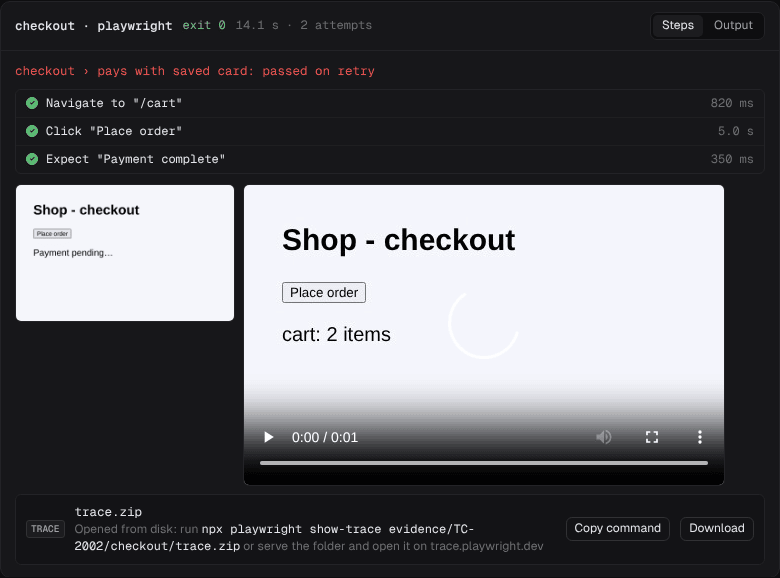
10.4 Using it
- Light and dark themes follow the system and can be toggled.
J/Kmove between failures.- Every test and step has a deep link:
report.html#TC-1042/processECS. - All text from the run is placed as text, never as HTML.
- A 5,000-test run renders to about 17 MB and opens in about a second.
10.5 Making reports by hand
argus report render output.json --history history.json -o report.html
argus report render output.json --history-from "$ARGUS_URL"     # trends from the server's last runs
argus report merge --from-pipeline "$CHILD_PIPELINE_ID" --run "$CI_PIPELINE_ID" \
  --history-from "$ARGUS_URL" --push "$ARGUS_URL/api/projects/EBM/runs"
merge joins shard results into one run and report (16.3).
Ad-hoc checks the assistant drives in a browser and suites run
directly with run_suite also get a report
(browser_report), kept in the run history and opened from
the chat's Open report button (13.5).
Automations and triggers
Argus's steps (HTTP with sign-in, SQL, Kafka, Redis, email, scripts, MCP, transforms, branches and loops) are the same building blocks a workflow automation needs. So besides tests, a project can hold automations: workflows that start on a schedule, at an interval or on a webhook, do their work, and hand back a result instead of a pass or fail. And any test can have triggers too, for example a nightly run on a QA machine.
Watch the video: Desktop 8: Automations, CI and the server 1:06
11.1 Tests and automations compared
| Test | Automation | |
|---|---|---|
| File | kind: test (default) |
kind: automation |
Steps, connections, {{...}} data |
same | same |
branch, loop, poll-until,
sub-flow, data: |
same | same |
retry, continue-on-failure,
always |
same | same |
triggers: |
yes | yes |
Run by argus run <folder> |
yes | no (run it on its own) |
| Verdict | pass / fail, in QA results and reports | succeeded / failed, kept apart from QA results |
input:, {{input.*}},
{{trigger.*}} |
readable | yes |
on-error: steps |
no (use always: true) |
yes |
output: |
no | yes: the run's result, and a webhook's reply |
11.2 An automation
kind: automation
id: AUTO-order-digest
title: Summarise new orders
env: qa2
triggers:
  - schedule: "30 7 * * mon-fri"        # weekdays at 07:30, local time
  - webhook: orders/digest              # POST /hooks/orders/digest {"limit": 50}
    secret: ${ORDERS_HOOK_SECRET}
    respond: with-output
input:
  limit: 500
steps:
  - id: orders
    type: http
    request: { url: "{{env.api}}/orders?since={{now - 1d}}&limit={{input.limit}}" }
    retry: { times: 3, every: 5s }
  - id: big
    type: transform
    input: "{{steps.orders.body}}"
    pipe: [ "where(total, >=, 100)" ]
  - id: tell
    type: email
    connection: mail
    to: sales@example.com
    subject: "{{steps.big.value | count}} orders over 100 since yesterday"
    attach: [ { name: orders.json, content: "{{steps.big.value}}" } ]
on-error:
  - id: alert
    type: email
    connection: mail
    to: ops@example.com
    subject: "Order digest failed at {{error.step}}"
    body: "{{error.message}}"
output:
  checked: "{{steps.orders.body | count}}"
  sent: "{{steps.big.value | count}}"
started_by: "{{trigger.kind}}"{{input.*}}is the run's input: theinput:defaults, then the trigger'sinput:, then a webhook's JSON body (or--input).{{trigger.*}}describes what started it:kind(schedule,every,webhook,manual),name,time, and for webhooksmethod,path,query,headersandbody(JSON when it parses, text otherwise).on-error:steps run after a failure and read{{error.step}},{{error.message}}and{{error.status}}: post to a chat, send an email, roll back. The run still counts as failed.output:is evaluated when the steps end: it is the run's result, printed byargus automate runand returned by arespond: with-outputwebhook.- An
expect:in an automation is a guard: it stops the automation when its data looks wrong.
An automation run succeeded when no step failed, failed otherwise.
11.3 Triggers
triggers:
  - at: ["07:30", "13:15"]       # times of day (24-hour); one time can be just at: "07:30"
    days: mon-fri                # weekdays: mon-fri, sat,sun, mon,wed,fri; every day if left out
    timezone: Europe/Paris       # optional: an IANA time zone; this computer's time if left out
  - every: 15m                   # a fixed interval (at least 10s)
    between: "08:00-18:00"       # optional: only in these hours (22:00-02:00 runs past midnight)
    days: mon-fri                # optional: only on these weekdays
    input: { limit: 50 }         # optional: input for this trigger's runs
  - schedule: "0 6 1 * *"        # cron: minute hour day-of-month month weekday
    timezone: UTC
    env: qa2                     # optional: the environment this trigger runs in
  - webhook: orders/new          # POST/PUT/GET http://<host>:<port>/hooks/orders/new
    secret: ${ORDERS_HOOK_SECRET}
    respond: with-output         # reply with the run's output; default at-once (202)
    enabled: false               # keep it, but don't fire it
A trigger has exactly one of at, every,
schedule or webhook. days goes
with at and every (a cron has its own weekday
field), between with every, and
timezone with any timed trigger. An every with
between or days fires at the start of each
window, then every interval while it is open.
Cron fields accept *, numbers, lists
(1,15), ranges (1-5), steps
(*/10, 8-18/2) and names (jan,
mon-fri); weekday 0 and 7 are Sunday. When both
day-of-month and weekday are restricted, either one matching is enough,
as in standard cron.
Webhook secrets are checked in one of three ways:
the X-Argus-Secret header equals the secret;
X-Argus-Signature: sha256=<hex> is the HMAC-SHA256 of
the body with the secret as key (GitHub style;
X-Hub-Signature-256 works too); or ?secret= in
the URL for senders that can do neither. A webhook without
secret: is open, and argus validate warns
about it.
Tests started by a trigger are ordinary QA runs (results, report,
history), labelled with the trigger, e.g.
Mon–Fri at 07:30, 13:15,
Every 15m 08:00-18:00,
Schedule (0 6 1 * *) UTC or
Webhook orders/new.
11.4 Who fires triggers
| Where | Fires | Notes |
|---|---|---|
| The desktop app | Schedules and intervals of the open project's tests and automations, while Argus runs, also with its window closed to the tray (4.13). | A firing that comes due during another run waits for it.
Pause in the Triggers section, or Pause all schedules
on the tray icon, stops it on this machine (schedules in
desktop.json). Quitting Argus stops it. Webhooks need the
service. |
argus triggers serve |
Schedules, intervals and webhooks for every test and automation under the paths. | The long-running service: on a QA machine, a server, or next to argus-server in Docker. |
argus triggers list .                    # every trigger and when it fires next
argus triggers serve . --port 8686       # fire them; POST /hooks/<path> for webhooks
triggers serve rescans the files every few seconds, so
edits take effect without a restart. It runs one run per test or
automation at a time: a schedule that comes due while the last run is
still going is skipped (and logged); webhook calls queue (up to 20).
GET / lists every trigger with its next time and last
run.
11.5 Running automations by hand
argus automate run automations/order-digest.yaml --input '{"limit": 50}' --env qa2
argus automate history automations/order-digest.yaml
Automation runs are kept per automation under
argus-results/automations/<id>/ (newest 30), apart
from QA results, and are never pushed to argus-server.
11.6 In the desktop app
The explorer marks automations
autoand anything with an enabled trigger with a clock. New automation (the lightning button, or the palette) starts one from a template.Open an automation and Run it like a test. Its run says Succeeded or Failed and shows its output under the run's name.
Above the canvas of an automation (and of a test with triggers) a Starts bar lists every trigger in words with when it fires next, for example Mon–Fri at 07:30 · next Mon 07:30. Click one to edit it, + Schedule to add one, and Run now to run it at once. The bar stays whatever step is selected.
The test's settings (click a trigger in the Starts bar, or select no step) have a Triggers section with the schedule editor. Pick how it starts:
- At times: one or more times of day
(
07:30, 13:15), the weekdays (or Every day, Weekdays, Weekends) and a time zone. - Every…: an interval (
15m,1h,1d), optionally only between two times of day and on some weekdays, and a time zone. - Cron: any cron expression, with common ones one click away.
- Webhook: the path, the secret and whether to reply with the output.
The editor shows the trigger in words and its next three firings before you save (Enter in any field saves). Each trigger can be turned off or removed;
triggers, and an automation'sinputandoutput, can also be edited as YAML below.- At times: one or more times of day
(
Run step (and running up to a step) works in automations as in tests; the step reads the automation's
input:defaults.
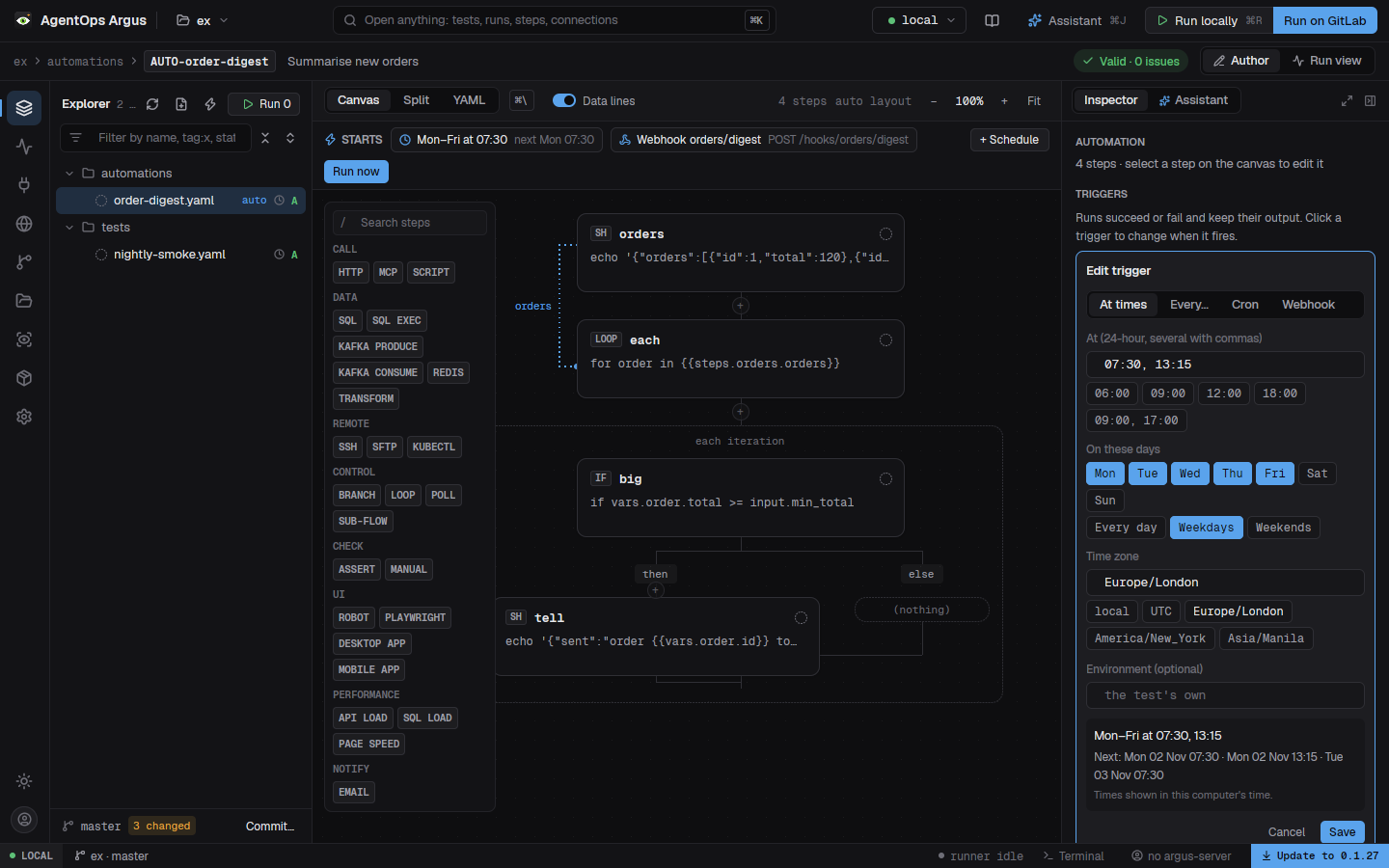
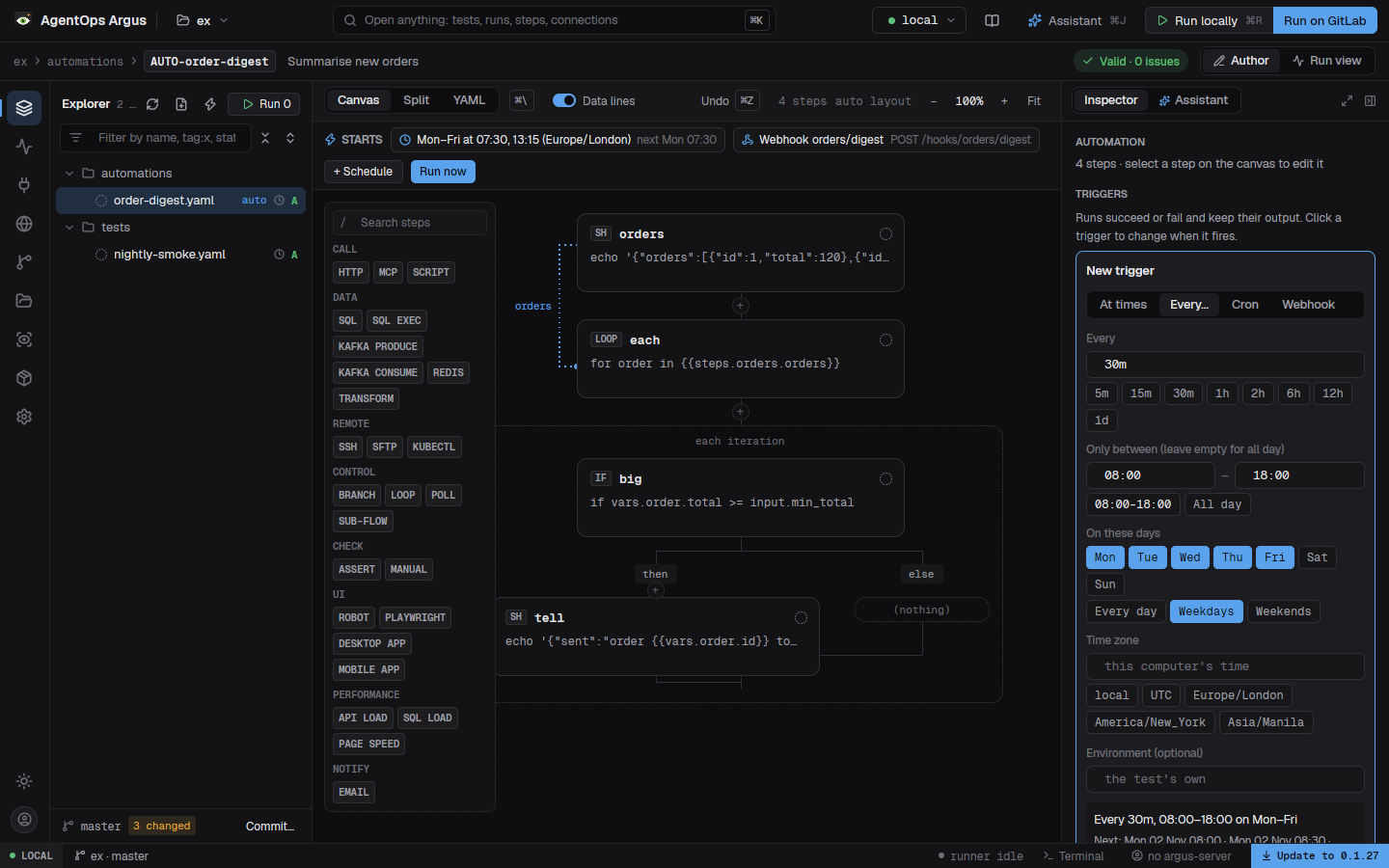
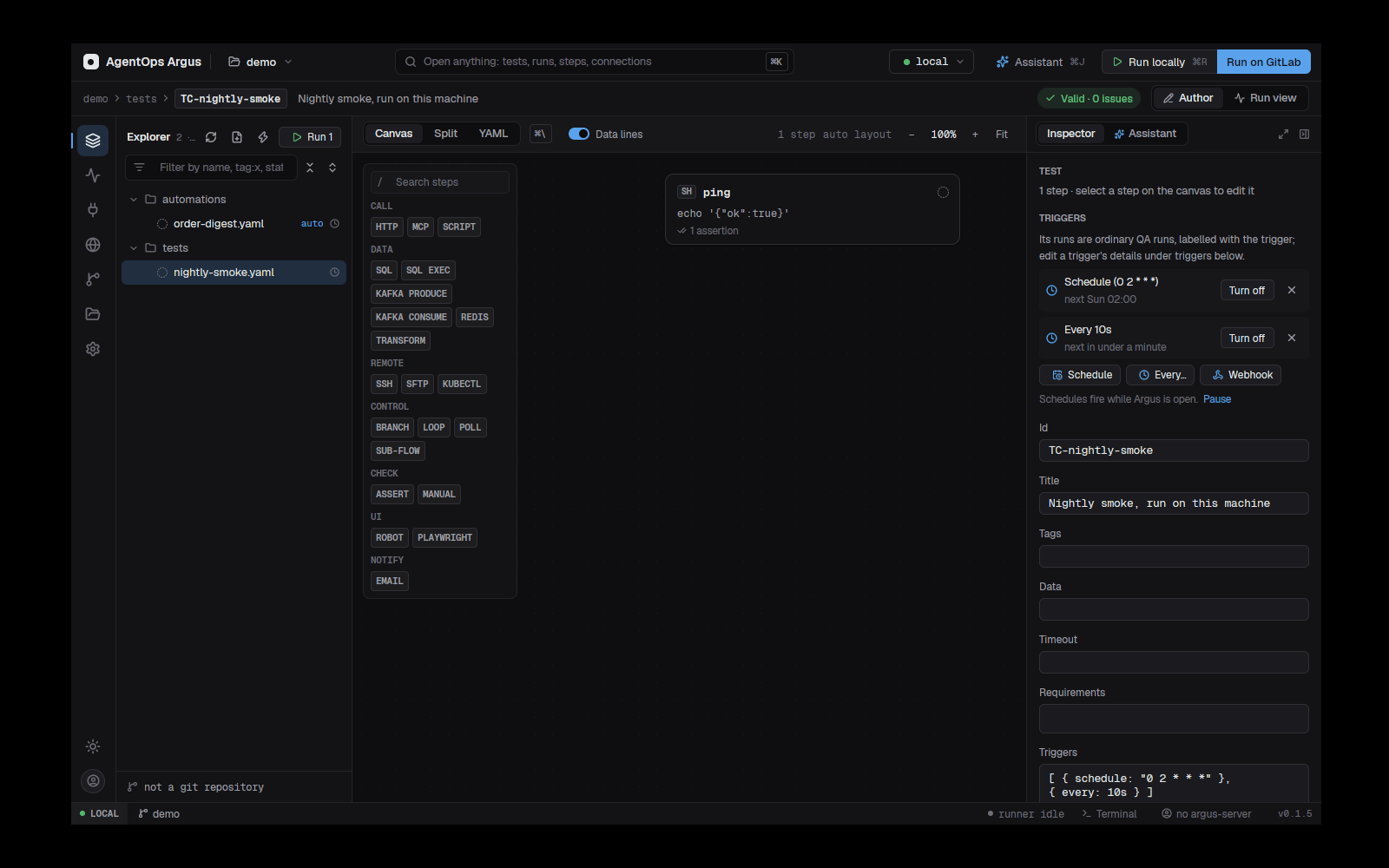
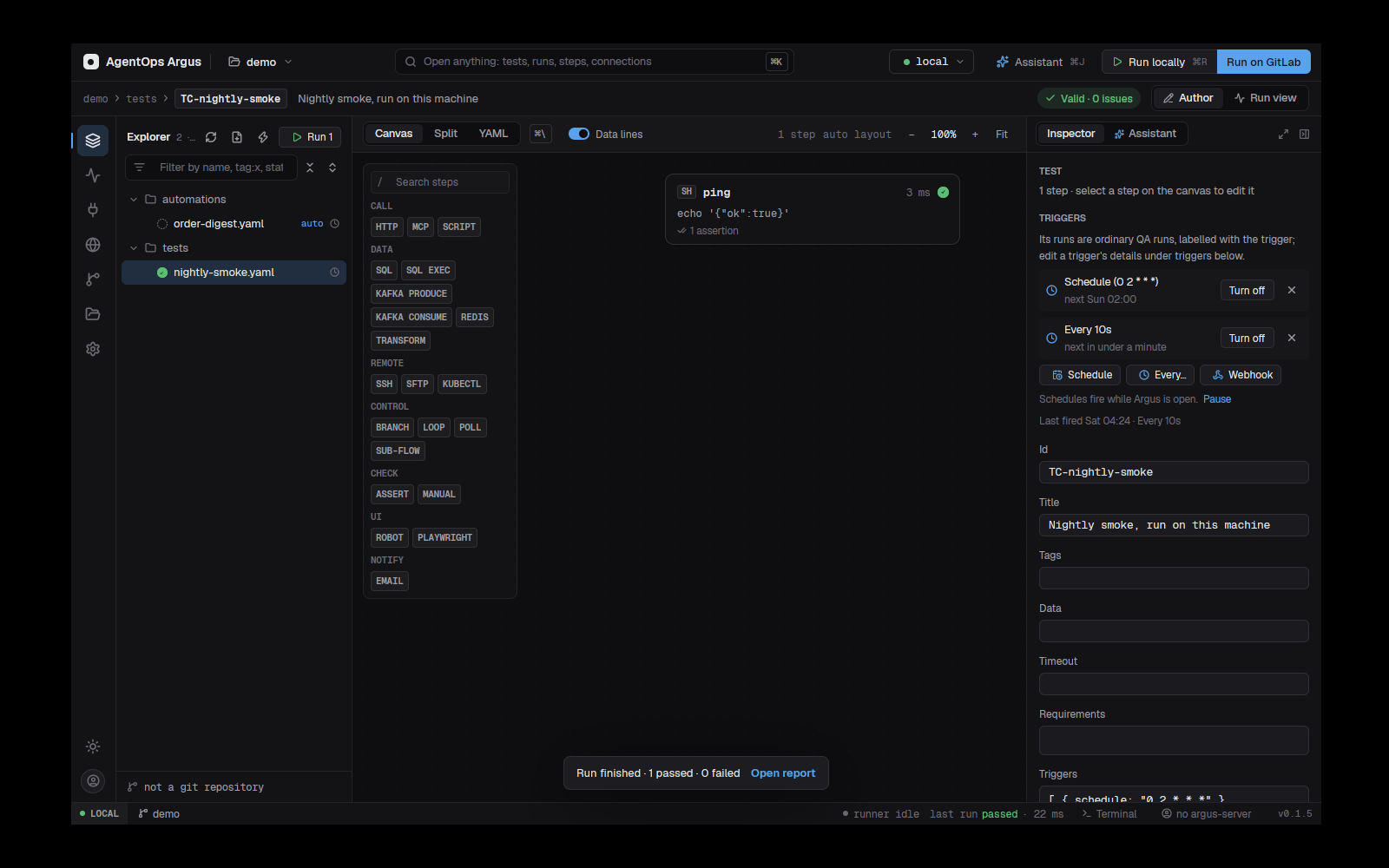
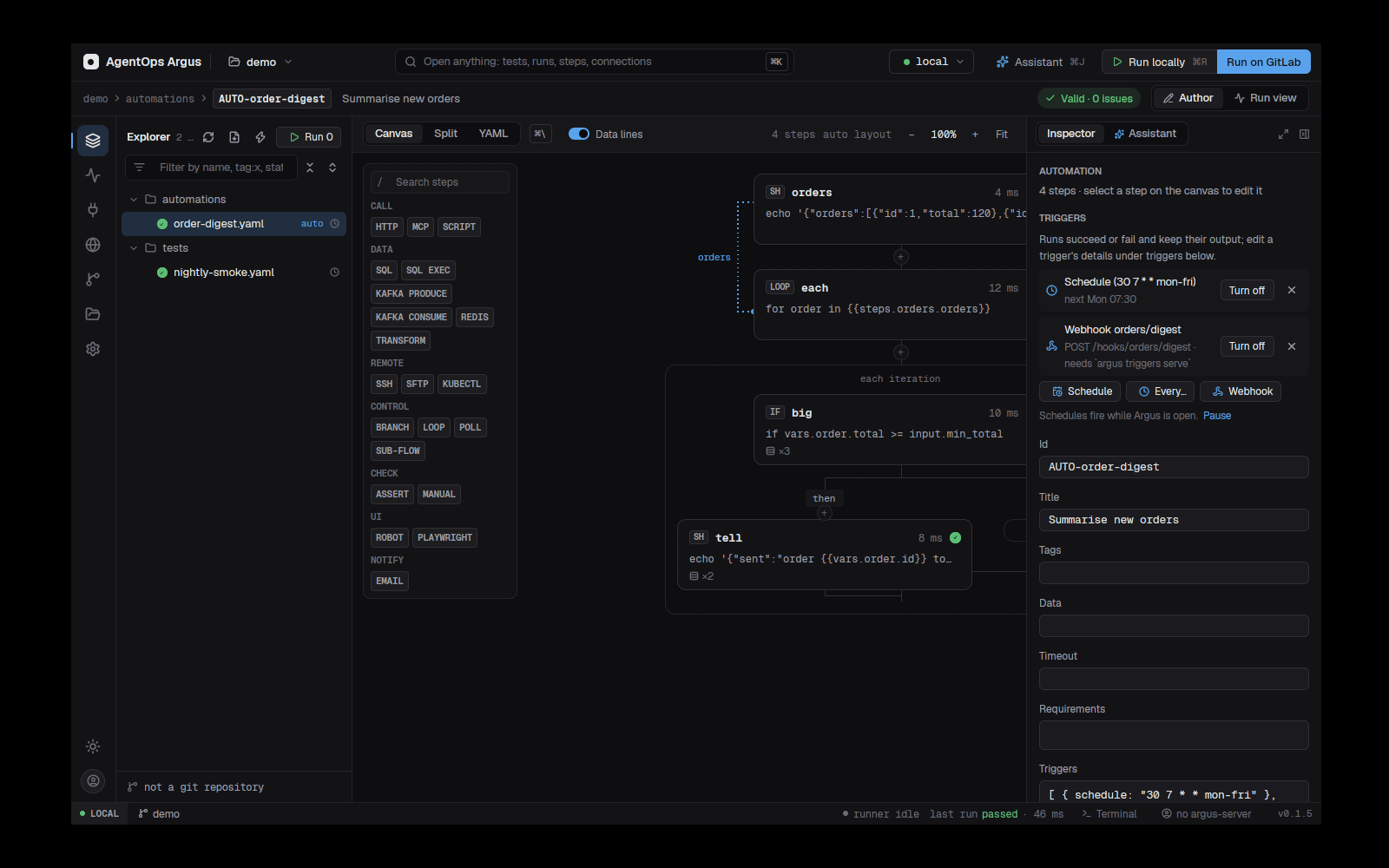
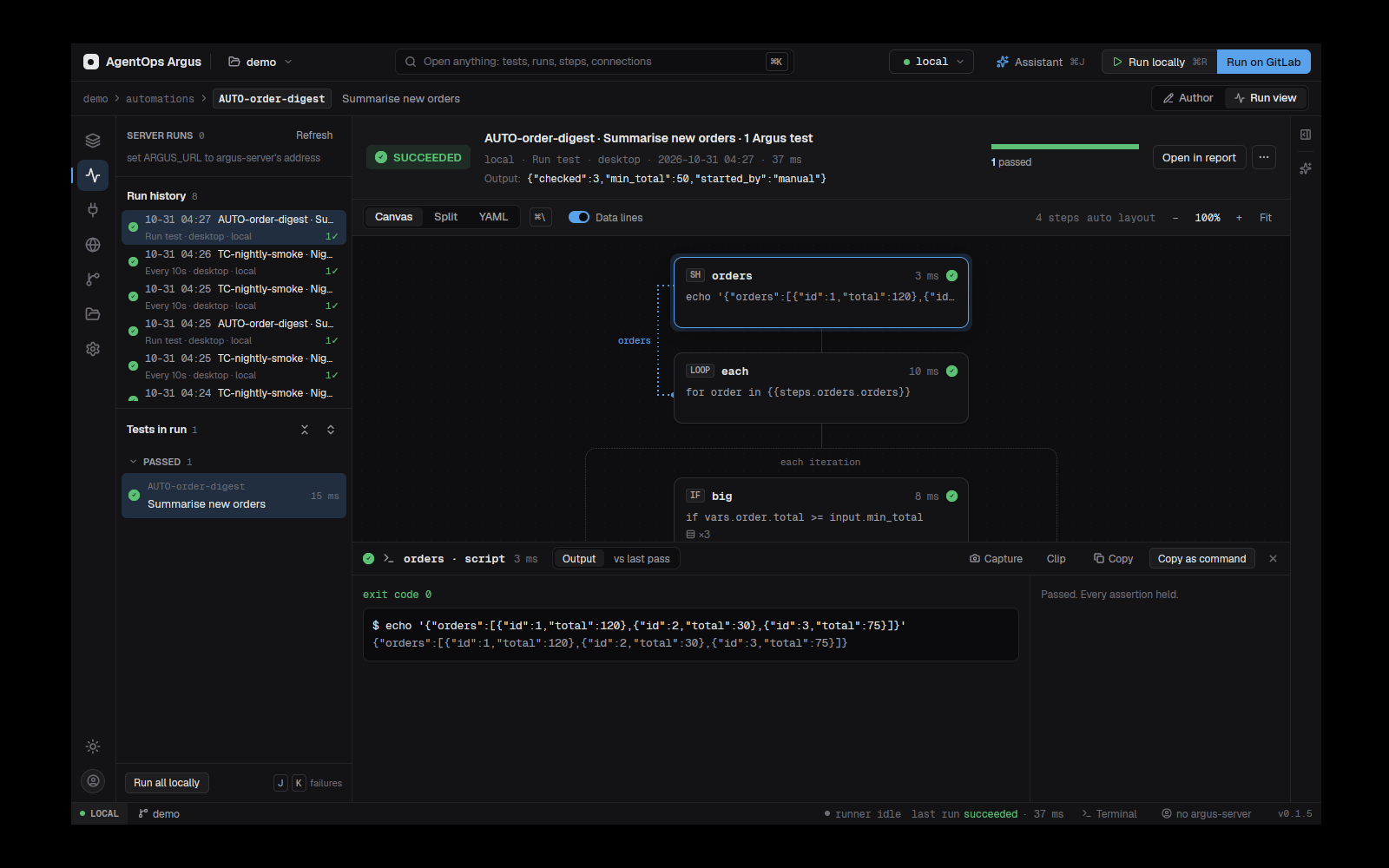
11.7 Not yet built
Performance testing
- 12.1The load step
- 12.2The page-perf step
- 12.3In the desktop app
- 12.4The Performance page in the web app
- 12.5Performance tests in GitLab CI
- 12.6Journeys: flows, sign-in per user, feeds and pacing
- 12.7Watching the system during the load (monitors)
- 12.8More load than one machine: remote generators
- 12.9UI under load: Playwright and Robot
- 12.10The performance/ folder and making a load test from a test
- 12.11How many users a machine runs
- 12.12Compared with LoadRunner, JMeter, k6 and Gatling
Two step types measure performance, and the web app's Performance page keeps their results (and JMeter, k6 and Lighthouse uploads) over time.
| Step | Measures |
|---|---|
load |
An API or database under load: many virtual users run nested steps over and over; latency percentiles, throughput, errors. |
page-perf |
How fast a page loads in a real browser: TTFB, FCP, LCP, DCL, load, TBT, CLS, requests, transfer size. |
12.1 The load step
Each virtual user is its own thread with its own kept-alive HTTP
connection (keep-alive: false opens one per call). An
iteration runs the steps in order; later
ones read earlier ones as {{steps.<id>…}}; a failed
step ends that iteration. Steps that can run under load:
http, sql, redis,
kafka, script, mcp,
ssh, kubectl, assert,
transform, sub-flow (a whole journey, timed as
a transaction), branch, loop,
poll-until, and playwright /
robot for real browsers (12.9). Steps can carry
data: as anywhere else; a load-wide feed
(12.6) is usually what a load needs.
- id: login
  type: http
  request:
    url: "{{env.api}}/me"
    auth: { type: oauth2, token-url: "{{env.idp}}/connect/token", client-id: argus, client-secret: "{{env.secret}}" }

- id: orders-load
  type: load
  users: 50                 # virtual users at full strength (1-2000)
  ramp-up: 30s              # 0 → 50 users over 30s (default: all at once)
  duration: 2m              # then 2 minutes at 50 users
  ramp-down: 10s            # optional
  think: 500ms              # each user's pause between iterations
  rate: 200/s               # optional cap on iterations a second, all users (or 600/m)
  steps:
    - id: list
      type: http
      request: { url: "{{env.api}}/orders?user={{load.user}}", auth: { use: login } }
      expect: [ "status == 200" ]
  expect:                   # thresholds: the load fails when one does not hold
    - "latency.p95 < 500"
    - "error_pct < 1"
    - "rps > 80"
    - "by_step.list.latency.p99 < 1500"
How long. duration (after
ramp-up), or iterations: 1000 (stop after that
many in all; with duration too, whichever comes first), or
stages instead of users / ramp-up / duration /
ramp-down:
- id: spike
  type: load
  stages: [ { users: 10, for: 30s }, { users: 200, for: 10s }, { users: 200, for: 1m }, { users: 0, for: 20s } ]
  steps:
    - { id: home, type: http, request: { url: "{{env.api}}/home" } }
  expect: [ "error_pct < 2" ]
Inside, {{load.user}} is the virtual user (from 1),
{{load.iteration}} the iteration across all users and
{{load.user_iteration}} this user's own count.
auth: { use: login } reuses a token signed in once before
the load.
Output (times in ms): requests,
failed, error_pct (0–100), rps,
latency
{min, mean, p50, p75, p90, p95, p99, max} over every call,
iterations, iteration (the same for whole
iterations), users (most at once),
duration_ms, statuses
({"200": 9812, "503": 4}), errors
([{step, message, count}]), by_step.<id>
with the same per step, and:
latency.stddev(standard deviation) next to the percentiles;apdex(0–1) withapdex_t_ms(T, set withapdex: 300ms, default 500ms): satisfied under T, tolerating under 4T;distribution: how many calls answered within each band ([{le, count}]);bytesandbytes_per_secreceived;by_step.<flow step>withtransaction: truefor asub-flow(the whole journey, like a LoadRunner transaction), and<flow step>/<id>for each call inside it;user-setup/<id>for the sign-ins;monitors(12.7) andgenerators(12.8) when the load has them.Without
expect, the load fails when any call failed (failed == 0).A load where nothing answered at all stops early as an infrastructure error.
timeout:on the load step caps its whole run.The run view lists one iteration's step records under the load (the first failed one when the load failed), and keeps
load.svg(throughput, users, p50/p95 over time),timeline.csv(with p99 and bytes a second) andload-report.htmlas evidence. The load report is a page of its own: the headline numbers and Apdex, the thresholds, the chart over the run, every step and transaction with p50/p90/p95/p99/max/std dev, the response-time spread, status codes, grouped errors, each monitor's graph and each generator's share. It opens offline and can be sent on as it is.
12.2 The page-perf
step
Playwright (installed in the project, or globally) opens the page
runs times and measures each load.
- id: home-speed
  type: page-perf
  url: "{{env.web}}/dashboard"
  runs: 5                     # default 3 (1-50)
  device: mobile              # desktop (default, 1366×768) | mobile (Pixel 5)
  cache: cold                 # cold (default, a fresh profile each load) | warm (after a first load)
  wait: load                  # load (default) | domcontentloaded | networkidle
  throttle: { network: fast-3g, cpu: 4 }   # Chromium only: none | 4g | fast-3g | slow-3g | offline; cpu ×1-20
  settle: 1s                  # wait after loading for late paints (default 1s)
  browser: chromium           # chromium (default) | firefox | webkit
  headers: { Authorization: "Bearer {{steps.login.body.token}}" }
  storage-state: auth/user.json   # Playwright storage state, to start signed in
  expect: [ "lcp.p75 < 2500", "cls.max < 0.1", "tbt.median < 200", "ttfb.p95 < 800" ]
Output: url, status,
title, runs, and for each metric
{min, median, p75, p95, max, mean} over the loads:
ttfb, fcp, lcp, dcl,
load, tbt, cls,
requests, transfer_kb; each lists
every load's numbers. A page that answers 400 or more fails the step.
Evidence: a screenshot of the last load and page-perf.json;
the run view lists the slowest requests. WebKit reports no LCP.
12.3 In the desktop app
The step palette's PERFORMANCE group has API LOAD, SQL LOAD and PAGE SPEED. Their composers offer shape presets (Smoke, Load, Stress, Spike, Soak), page setups (Desktop, mobile and throttled), threshold chips for common checks, and the drawer's Results tab shows the numbers and charts after a run.
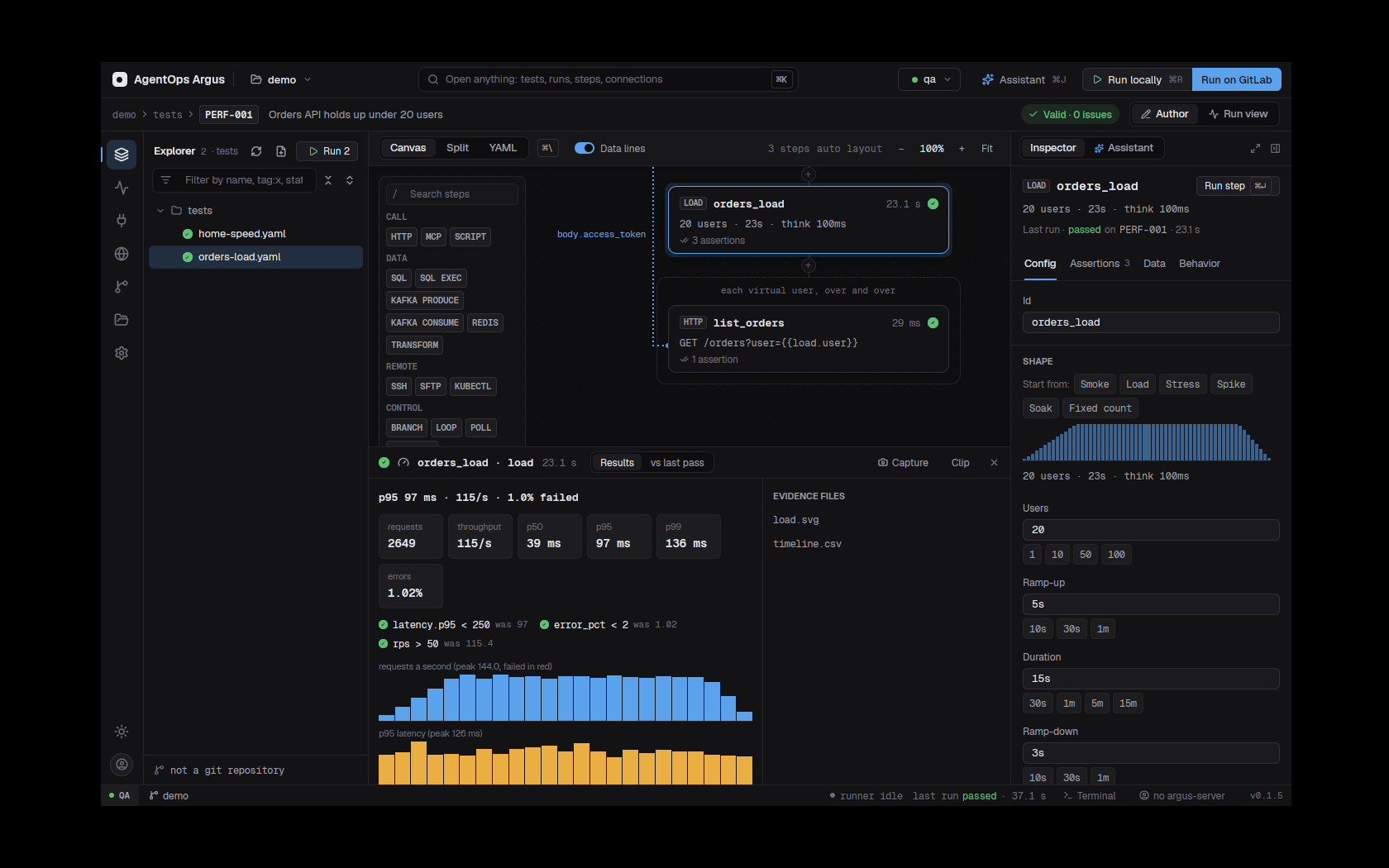
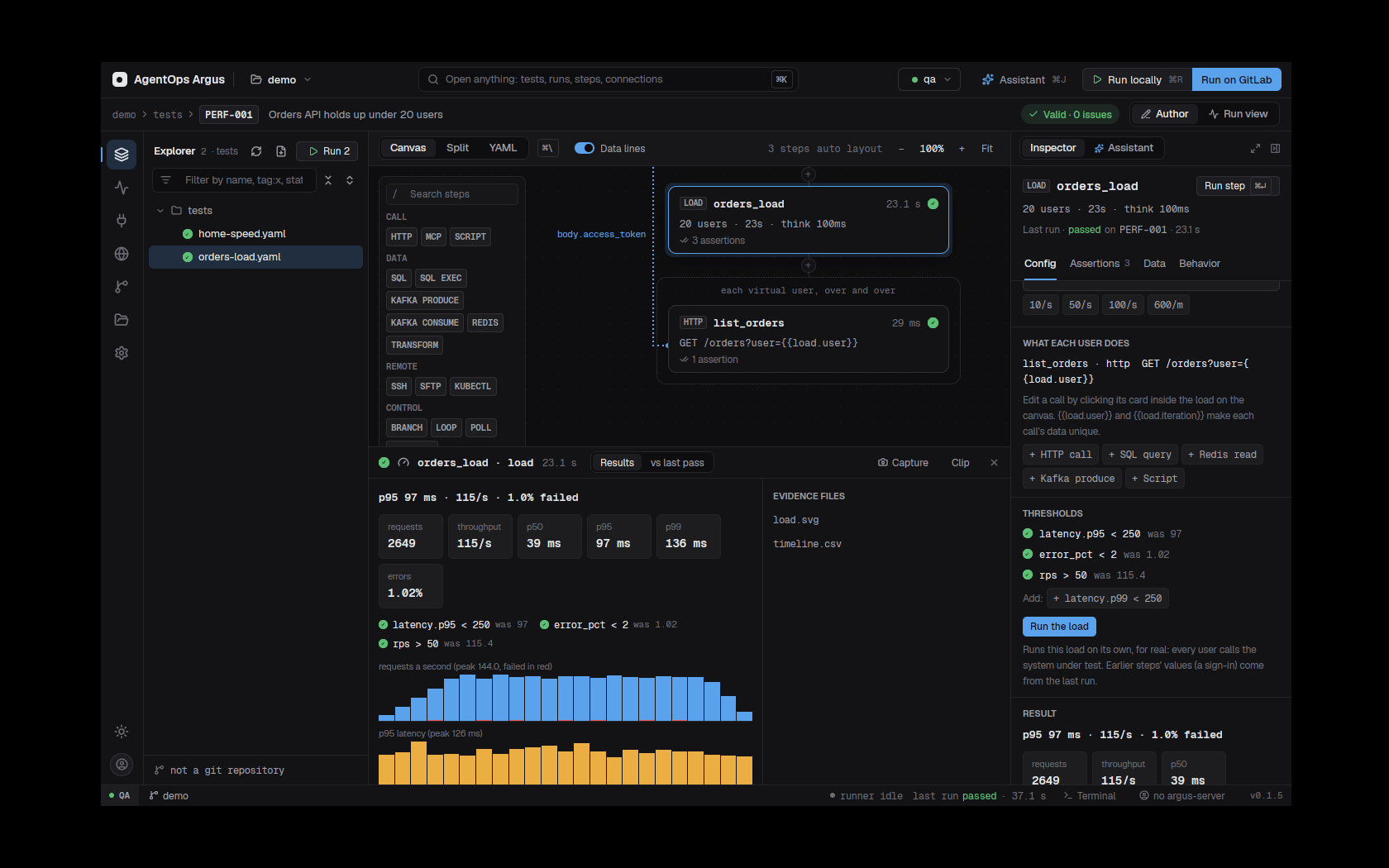
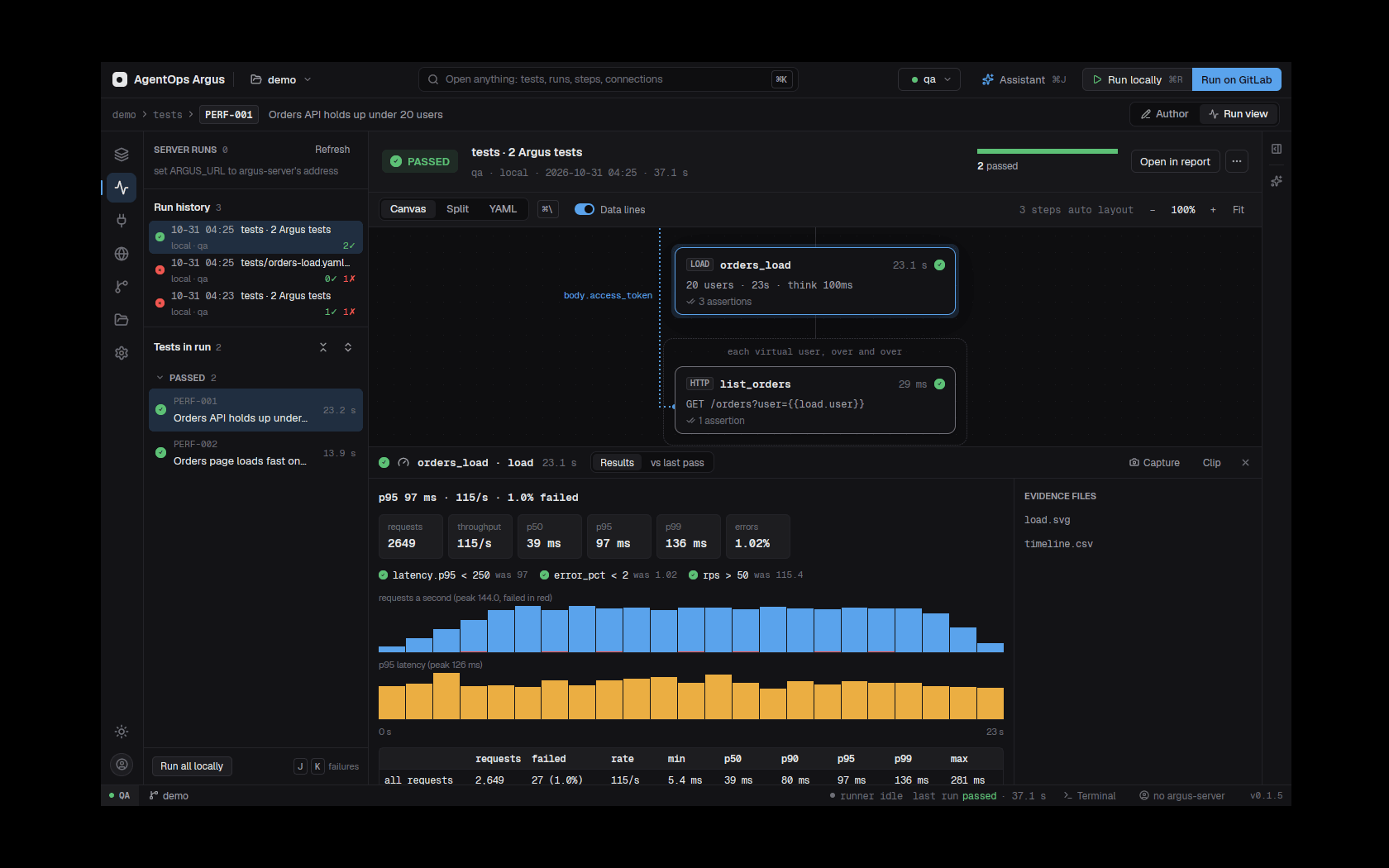
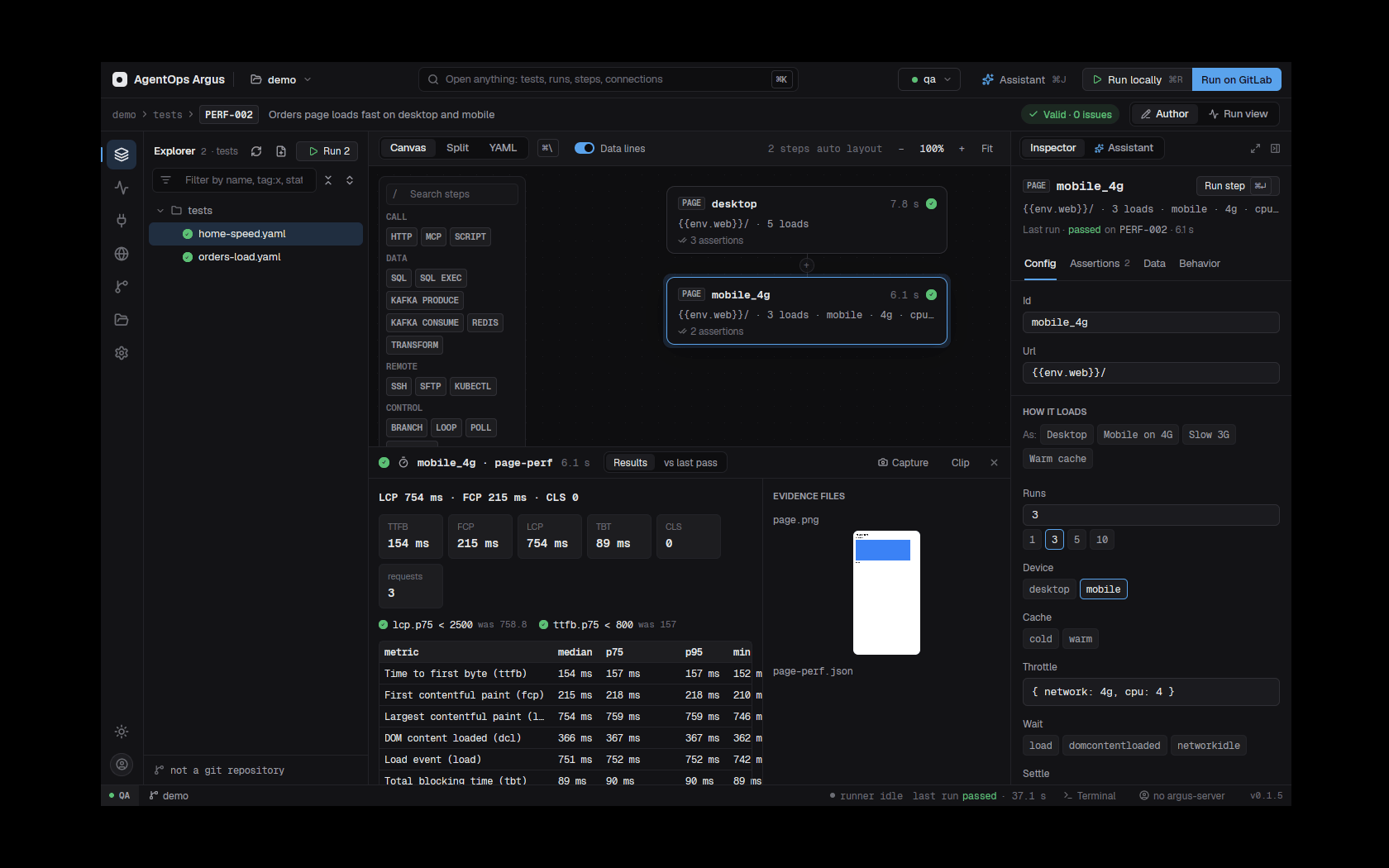
12.4 The Performance page in the web app
Performance in the web app's navigation
(#/<project>/performance) keeps every performance
result of the project:
- A series table: the same step of the same test (or the same upload name) over time, with the latest numbers, the change against the previous result and a sparkline.
- An all results table.
- A detail page per result: KPI tiles, Compare with any other result of the series (deltas and a dashed p95 overlay), the load timeline chart, a per-step table, page metrics, each load and the slowest requests, a trend chart (click a point to open it), and the run's evidence.
- A run's detail page has a Performance card.
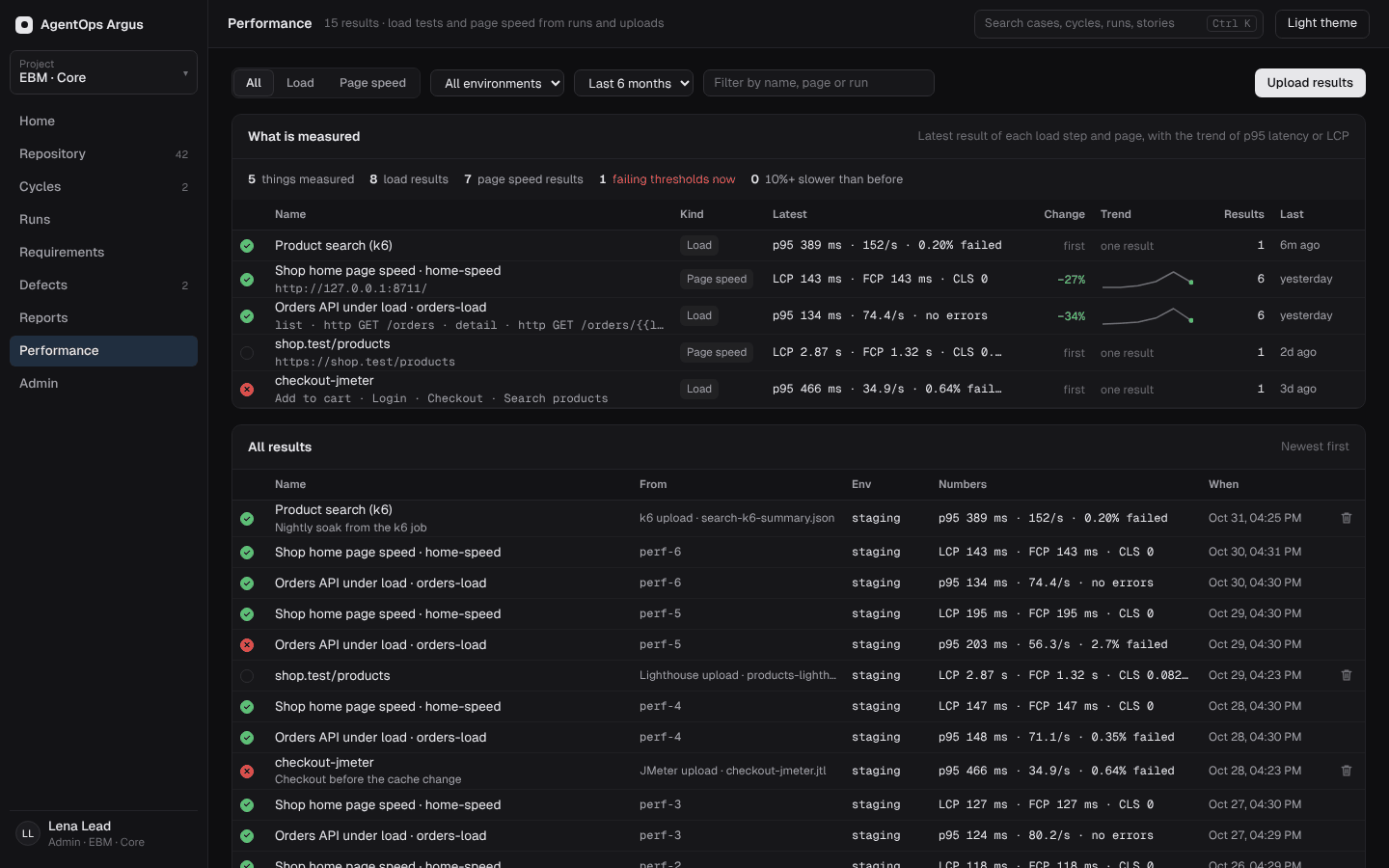
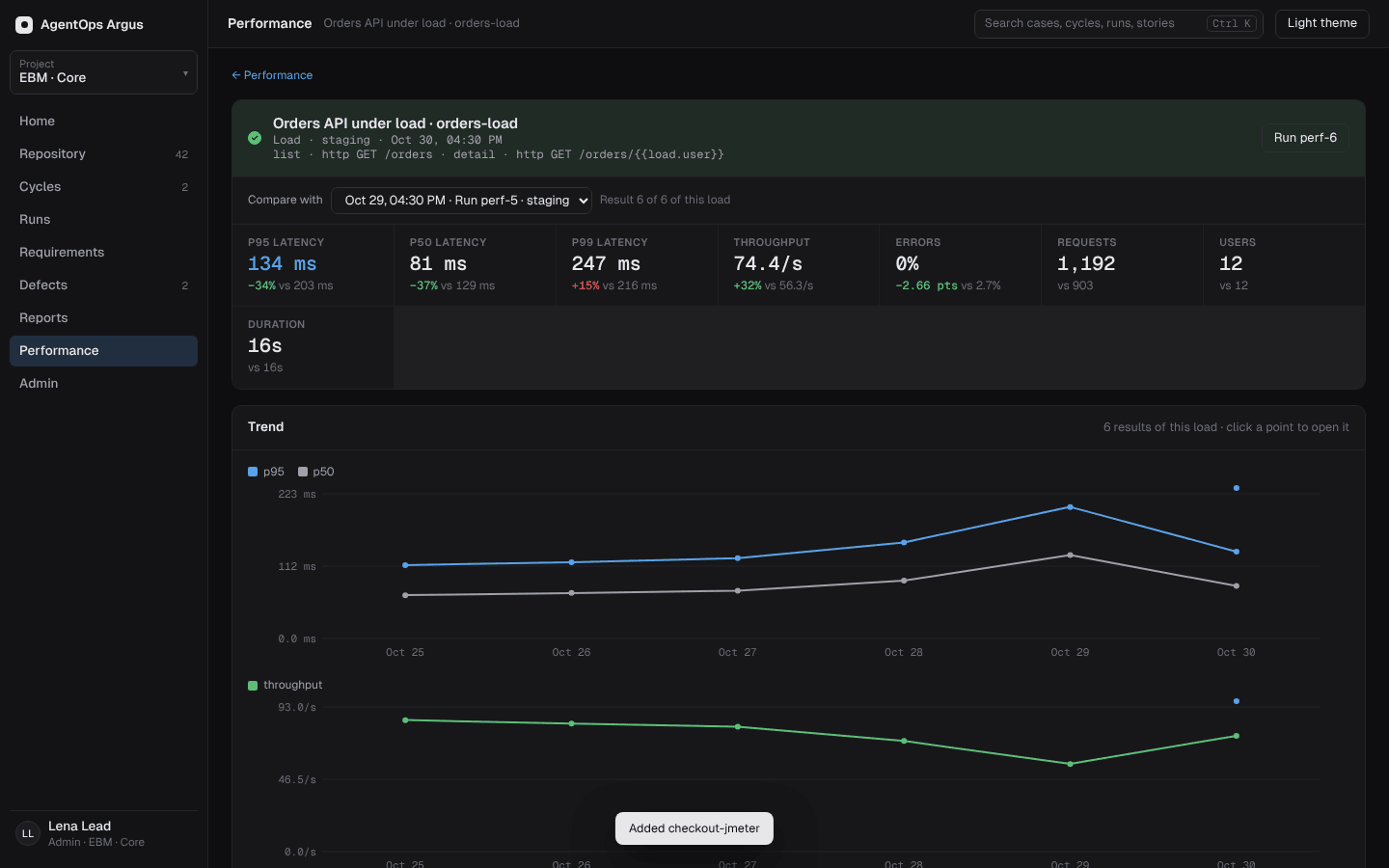
Uploading results from other tools
Upload on the page (or the API, which a CI job can call with a project API key) takes:
- Argus
output.json, a step's output, or a load'stimeline.csv; - JMeter results (JTL as CSV);
- k6 summary JSON (
--summary-exportorhandleSummary); - Lighthouse JSON.
curl -X POST -H "Authorization: Bearer $ARGUS_API_KEY" \
--data-binary @results.jtl \
"$ARGUS_URL/api/projects/EBM/perf/uploads?file=results.jtl&name=checkout-load&env=qa2¬e=release%2026.5"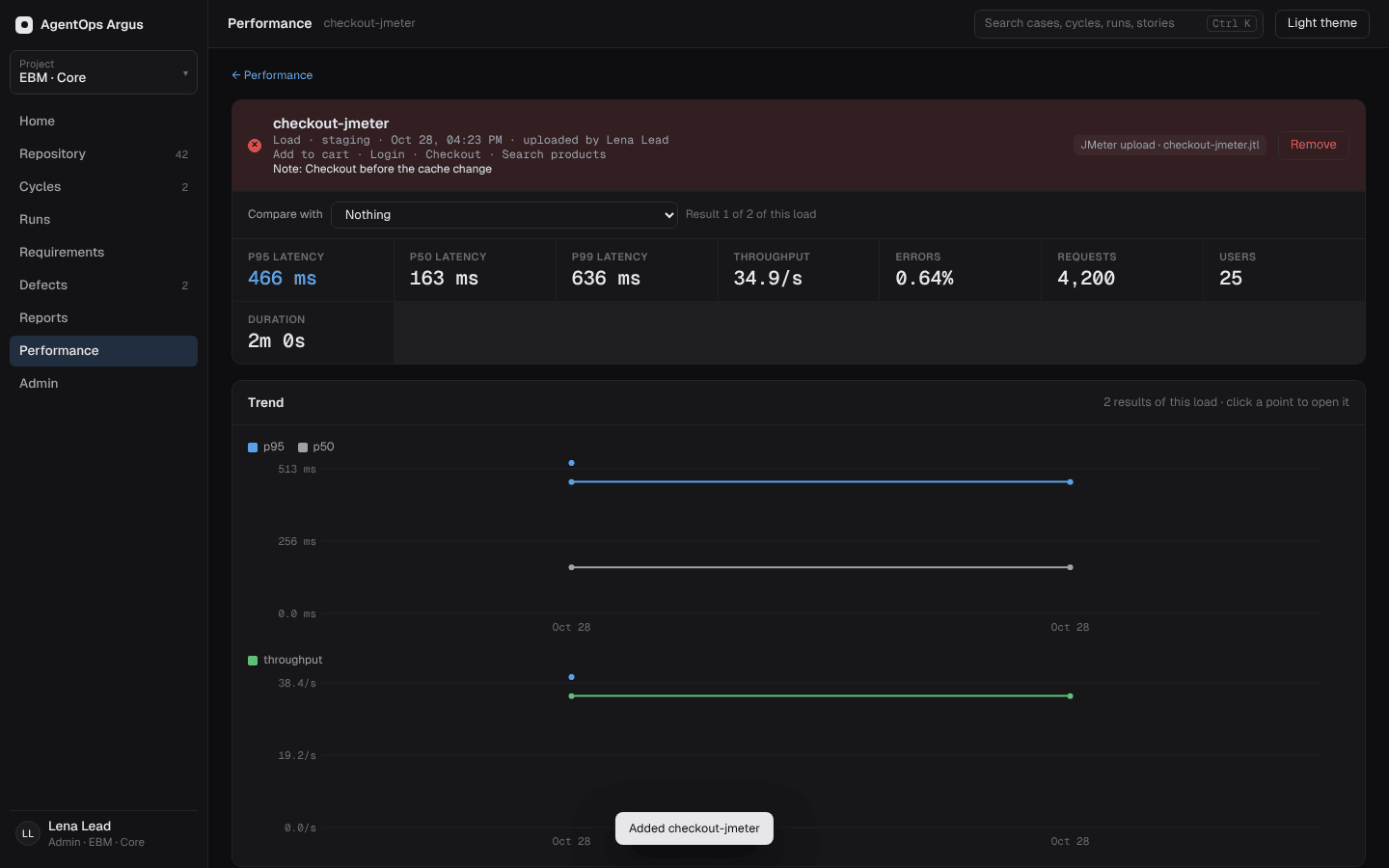
Results of runs are read live from the stored runs; uploads are kept until a lead deletes them.
12.5 Performance tests in GitLab CI
Tests with a load or page-perf step count
as tagged perf by themselves, so
argus run tests --tags perf runs only them and
--tags '!perf' leaves them out.
argus ci gitlab keeps them out of the usual merge request
and push jobs and adds an argus-perf job that runs them,
one at a time, in pipelines started with ARGUS_PERF=1 (a
nightly schedule, say). With ARGUS_URL,
ARGUS_PROJECT and ARGUS_API_KEY set, results
and their charts land on the Performance page (12.4), and a threshold
that does not hold fails the job. Details are in 16.8.
12.6 Journeys: flows, sign-in per user, feeds and pacing
A realistic load is a user's journey, not one call. A
load step has four parts, run in this order:
| Part | Runs | For |
|---|---|---|
setup |
once, before any user starts | preparing data; outputs reach everyone as
{{steps.<id>…}} |
user-setup |
once per virtual user | signing in; outputs stay for that user's iterations |
steps |
every iteration | the journey being measured |
teardown |
once, after the last user stops (even when the load failed) | clean-up |
- id: checkout-load
  type: load
  users: 100
  ramp-up: 1m
  duration: 10m
  think: 1s..3s              # a random pause in that range, like a person
  pacing: 10s                # each user starts an iteration at most every 10s
  apdex: 400ms
  feed: { file: performance/data/users.csv, pick: per-user }
  user-setup:
    - { id: signin, type: sub-flow, use: flows/login, with: { user: "{{data.email}}", password: "{{data.password}}" } }
  steps:
    - id: browse
      type: sub-flow
      use: flows/browse
      with: { token: "{{steps.signin.token.body.token}}" }
    - id: order
      type: http
      request:
        method: POST
        url: "{{env.api}}/orders"
        headers: { Authorization: "Bearer {{steps.signin.token.body.token}}" }
        json: { sku: "{{data.sku}}", ref: "load-{{load.user}}-{{load.user_iteration}}" }
      expect: [ "status == 201" ]
    - { id: read-back, type: http, request: { url: "{{env.api}}/orders/{{steps.order.body.id}}" } }
  teardown:
    - { id: clean, type: http, request: { method: DELETE, url: "{{env.api}}/test-orders?prefix=load-" } }
  expect: [ "error_pct < 1", "by_step.browse.latency.p95 < 2000", "apdex > 0.85" ]
Correlation is plain
{{steps.<id>…}}: the id an earlier call returned, a
token, a CSRF value or an ETag is read from that call's response in the
same iteration, so nothing captured at authoring time is replayed.
Feeds give each iteration a row as
{{data.<column>}}, from a CSV, JSON or YAML file
(file:) or inline rows:. pick
says how:
pick |
Each iteration gets |
|---|---|
next (default) |
the next row, starting again after the last |
random |
any row |
unique |
a row no other iteration had; the load ends when they run out |
per-user |
the same row for all of a user's iterations (accounts) |
feed: performance/data/users.csv alone means
pick: next. Keep feeds in performance/data/
(12.10).
Think and pacing. think: 500ms or
think: 1s..3s pauses between iterations.
pacing: 10s starts each user's iterations at most that
often, waiting for the rest when an iteration was quicker;
rate: 200/s caps the iterations a second over all
users.
12.7 Watching the system during the load (monitors)
monitors sample numbers from the system under test while
the load runs: CPU and memory of the pods in AKS, queue depth, the rate
a service takes data in. Each is read every every (default
5s, at least 500ms):
  monitors:
    - name: cpu
      type: prometheus          # Prometheus, or Grafana's proxy to it
      url: "{{env.grafana}}/api/datasources/proxy/uid/prometheus"
      headers: { Authorization: "Bearer {{env.grafana_token}}" }
      query: sum(rate(container_cpu_usage_seconds_total{namespace="shop"}[1m])) * 100
      unit: "%"
    - name: memory
      type: prometheus
      url: http://prometheus.monitoring:9090
      query: container_memory_working_set_bytes{namespace="shop", container="api"} / 1e6
      aggregate: max            # sum (default), avg, max or min over the series
      unit: MB
    - name: ingest
      type: http                # any endpoint answering JSON
      url: "{{env.api}}/admin/stats"
      value: body.ingest.per_second   # where the number is; body for a bare number
      every: 2s
      unit: msg/s
  expect: [ "monitors.cpu.max < 80", "monitors.ingest.mean > 500" ]
type: prometheusruns the query against<url>/api/v1/query, so it works with Prometheus itself, Azure Monitor managed Prometheus, or Grafana's data source proxy (/api/datasources/proxy/uid/<uid>) with a Grafana token.type: httpGETs the URL (withheaders) and reads the number atvalue.- Output
monitors.<name>:min,max,mean,last,samples,failed,unit,source,series(time and value), anderrorwhen it could not be read. Thresholds can check them; the load report draws each one over the run beside the load's own chart. - A monitor that cannot be read never fails the load by itself; check
monitors.<name>.samples > 0inexpectwhen it must be there. - Only the controller samples (12.8), so a monitor is read once however many generators share the load.
- For Grafana, give a service account token with the Viewer role. The runner reads Grafana over its HTTP API as above; Grafana's MCP server is for the assistant (chapter 13), which can browse dashboards and write the queries for these monitors.
12.8 More load than one machine: remote generators
One machine runs a few thousand API users (12.11). For more, or for
load from inside the cluster, the load is split over
generators: argus load agent processes on
other machines, AKS pods or GitLab CI job services. The machine running
the test (the controller) sends each generator the
project's files and what the test has so far, each generator runs its
share of the users, iterations and rate, and their numbers merge into
one result as if one machine had run it.
- id: checkout-load
  type: load
  users: 2000
  duration: 15m
  generators: [ "dns://argus-load.argus-perf.svc.cluster.local:7071" ]
  local: false                 # this machine only controls (default: it runs a share too)
  steps: [ ... ]
generators takes http://host:7071,
host:7071, or dns://<name>:7071 (also
k8s://), which is every address the name has: a Kubernetes
headless service reaches each pod. ARGUS_LOAD_GENERATORS
(the same list, commas) applies to every load step without one.
- Controller and generators share a token in
ARGUS_LOAD_TOKEN(at least 8 characters); a generator answers nothing else. - Each generator reads secrets from its own environment, so
{{env.*}}values that are secrets are set on the generators, not sent. - Files sent leave out
node_modules,argus-results, build folders and folders with a.argusignorefile; at most 5 MB a file and 64 MB in all. - A generator that cannot be reached, refuses or fails its part fails
the load as an infrastructure error; the output's
generatorslist shows each one'srequestsandfailed. - A generator runs one load at a time.
On AKS
argus load k8s --replicas 4 --memory 8Gi --cpu 4 --out performance/generators/aks.yaml
kubectl create namespace argus-perf
kubectl -n argus-perf create secret generic argus-load-env \
  --from-literal=ARGUS_LOAD_TOKEN=... --from-literal=API_SECRET=...
kubectl apply -f performance/generators/aks.yaml
The manifest is a Deployment of argus load agent pods on
the argus:core image, each ready once /v1/health answers,
and a headless Service argus-load. Every variable in the
argus-load-env secret reaches the pods. Load steps then use
generators: [ "dns://argus-load.argus-perf.svc.cluster.local:7071" ],
and the test runs in a pod or a CI job inside the cluster (or with
kubectl port-forward to each pod). Scale with
kubectl scale.
In GitLab CI, without a cluster
Job services start generators beside the job that runs the load, so the same tests run before any pods exist:
argus ci gitlab --load-generators 3      # the argus-perf job gets three generators
argus load gitlab --generators 3         # or print the services to paste in
The job gets ARGUS_LOAD_GENERATORS
(gen-1:7071,gen-2:7071,gen-3:7071) and a
ARGUS_LOAD_TOKEN made from the pipeline and job ids unless
the project sets one. Services share the runner's machine, so this
spreads the work over processes, not machines; give the runner the
memory (12.11).
Results go to argus-server like any other run: with
ARGUS_URL, ARGUS_PROJECT and
ARGUS_API_KEY set, the merged numbers,
load.svg, timeline.csv and
load-report.html reach the project's Performance page
(12.4), whichever machines produced them.
12.9 UI under load: Playwright and Robot
playwright and robot steps run under load
too: each virtual user drives its own real browser, and each test
(Playwright) or test case is timed as a transaction
(by_step.<step>/<test title>), next to the step
itself.
- id: shop-ui-load
  type: load
  users: 10                 # browsers at once: at most 50
  duration: 5m
  think: 2s..5s
  apdex: 3s                 # a page is slower than a call
  steps:
    - { id: buy, type: playwright, cwd: .., spec: e2e/checkout.spec.ts }
  expect: [ "error_pct < 2", "by_step.buy.latency.p95 < 15000" ]
A browser takes 150–300 MB and about a CPU core when busy, so a load
with browsers is capped at 50 users per machine; use generators (12.8)
for more, or load the APIs behind the pages with http steps
and keep a few browsers for what users see. Each user's screenshots,
videos and traces land in its own evidence folder (u1,
u2, …).
12.10 The performance/ folder and making a load test from a
test
argus load init (and the first load test made) creates
beside argus.yaml:
performance/
  README.md                    how the folder is used
  data/users.example.csv       feeds (12.6)
  generators/aks.yaml          the AKS manifest (12.8)
  generators/gitlab-services.yml
Load tests go in performance/ (by area, like
tests/); data/ and generators/
are not tests, so runs skip them.
Make a load test from this test. Any working test can become a load test:
- Desktop: right-click a test in the explorer, Make a load test (or Make a load test with the assistant, which also asks the assistant to review it).
- CLI:
argus load make tests/orders/checkout.yaml --profile load --users 50. - MCP / assistant: the
make_load_testtool and prompt.
What it does:
- Calls repeat in
steps. A sign-in before the first other call (a step whose id or URL says login, signin, authenticate, oauth or/token, or asub-flowof a login flow) and the test'ssetup:move touser-setup, once per user. - The test's data set becomes a
feed, and{{row.x}}becomes{{data.x}}. - Steps that cannot run under load (manual, email, sftp, page-perf,
desktop-app, mobile-app; browsers unless
--browsers) are left out and listed with the reason; deletes (HTTP DELETE, SQL DELETE or DROP) are noted, since every iteration repeats them. --profilesets the shape:smoke(up to 5 users for 1 minute),load(1m ramp-up, 5m at--users, 30s down),stress(stages from half to twice the users),spike(a fifth, then three times the users for a minute, and back),soak(1 hour at--users).--think(default1s..3s) and--expect(repeatable) set the rest; without--expectit checks errors under 1% and p95 under 1s.- It writes
performance/<the test's folder>/<name>-load.yamlwith id<test id>-LOAD, checks it the wayargus validatedoes, and keeps an existing file unless--force.--dry-runprints it,--promptprints what to ask the assistant.
The assistant review covers what a conversion can't decide: values that must come from an earlier response (correlation), data that must be unique per iteration, what is per user and what per iteration, pacing for a target throughput, thresholds from the service's targets, and whether anything left out needs replacing. Then a smoke run with 2 users for 30 seconds before the real profile.
12.11 How many users a machine runs
An API virtual user is a thread with its own kept-alive connection. Measured on Linux, a user takes about 0.2 MB besides what the responses it keeps take, so memory is rarely the limit: 2,000 users (the most a load step takes) need about 400 MB plus the process. The limits are CPU and network, the system under test, and the operating system's open connections. As a guide for one 32 GB, 8-core machine:
| Load | Users on one machine |
|---|---|
API calls (http, sql, redis,
kafka) |
up to 2,000 per load step; several steps or generators for more |
Browsers (playwright, robot) |
50 at most; 20–30 is more realistic on 8 cores |
Watch the generator's own CPU during a first run: above about 80%, its latencies include its own waiting, so add a generator rather than users.
12.12 Compared with LoadRunner, JMeter, k6 and Gatling
| Argus | |
|---|---|
| Scripts | Argus tests and flows (YAML), Playwright and Robot; made from existing tests |
| Transactions | each sub-flow and each Playwright test, with
percentiles |
| Correlation | {{steps.<id>…}} from earlier responses,
transforms (7.3) |
| Parameters | feeds with next, random, unique, per-user |
| Think time, pacing | think (fixed or a range), pacing,
rate |
| Scenarios | users with ramp-up/down, stages,
iterations, duration |
| Load generators | argus load agent on machines, AKS pods, GitLab
services |
| Monitors | Prometheus / Grafana queries and JSON endpoints |
| Results | p50–p99, std dev, Apdex, distribution, bytes/s, errors, statuses,
per transaction, load-report.html, the web Performance page
with comparisons; JMeter/k6 results can be uploaded |
| Not built | a recorder for load scripts (use the browser recorder or a test, then Make a load test), protocols other than those Argus steps speak, network virtualization, IP spoofing |
Help with the work
Let the assistant write, run and triage tests, and bring the tests you already have.
The assistant
The desktop app has an AI assistant in the side panel
(⌘J). It drives a coding CLI you already have,
Claude Code, Codex or Gemini
CLI, in the open project folder, with Argus's own tools through
argus mcp. It writes and edits tests, runs them, reads
results and evidence, checks a web app in a real browser, converts Robot
Framework and pytest suites, and files Jira issues. Like the chat in
AgentOps, it is an ongoing conversation that edits files directly, and
every change can be undone.
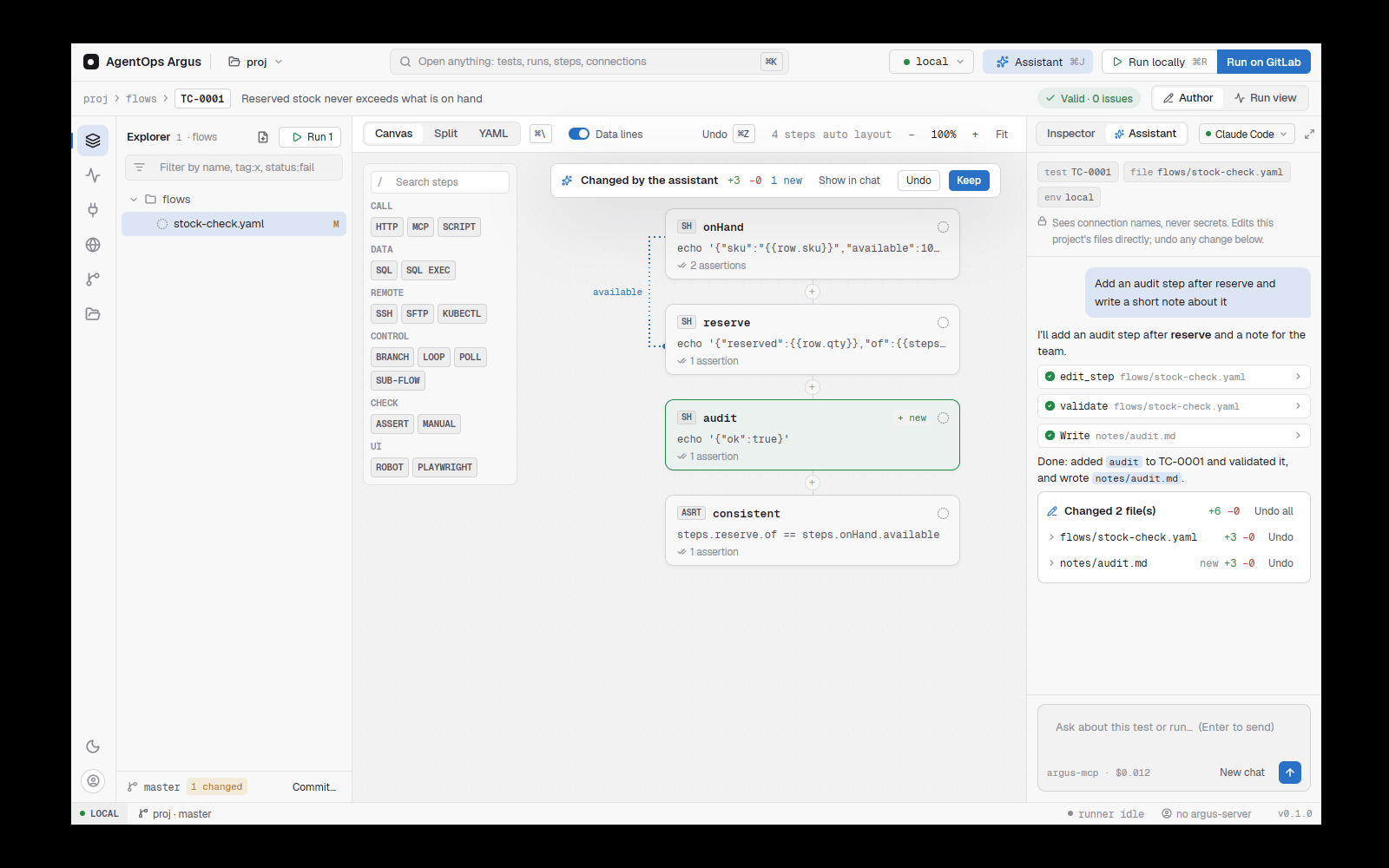
Watch the video: Desktop 6: The assistant 0:59
13.1 Setting it up
- Install one of the CLIs and sign in to it as usual
(
claude,codexorgeminionPATH, or the program inARGUS_CLAUDE,ARGUS_CODEXorARGUS_GEMINI). - Open a project folder and press
⌘J. - Pick the CLI in the composer's footer (the Runs on menu).
Without a pick, Argus uses
ARGUS_ASSISTANT, else the settings file'sassistant, else the first CLI it finds.
The assistant runs argus (or ARGUS_BIN) as
its MCP server, falling back to argus-desktop mcp. It
always works in the project folder (the one with
argus.yaml).
What each CLI may do:
| CLI | Tools |
|---|---|
| Claude Code | The Argus MCP tools, plus its file tools (Read, Edit, MultiEdit,
Write, Glob, Grep, LS). No shell: it runs suites
through Argus's run_suite tool. |
| Codex | Argus MCP tools, in a workspace-write sandbox |
| Gemini CLI | Argus MCP tools |
The Argus skill (13.9) is preloaded on every turn, whichever CLI runs, so the assistant knows the test format, every step type and every tool.
The assistant never sees connection secrets: tests
run through the runner, and list_connections returns only
names and types.
13.2 The conversation
- Each reply streams its text and tool calls as they happen ("Working… 12s · tool"). Three or more tool calls in a row fold into one summary line once done; click to open. The model's thinking shows as Thought.
- When a reply changed files, it ends with the files it
changed, each with a diff and Undo, and
Undo all for the whole reply.
⌘Zworks too. Undo is refused for a file you changed since. - Each reply's footer shows time, cost and model, with Copy and Retry.
- File paths in replies are links: a test opens in the test editor, any other file in Files at the line.
- The conversation is kept per project and survives restarts.
New conversation (the icon in the panel header,
⇧⌘J, or/new) stops a reply still running, clears the chat and starts a fresh CLI session.
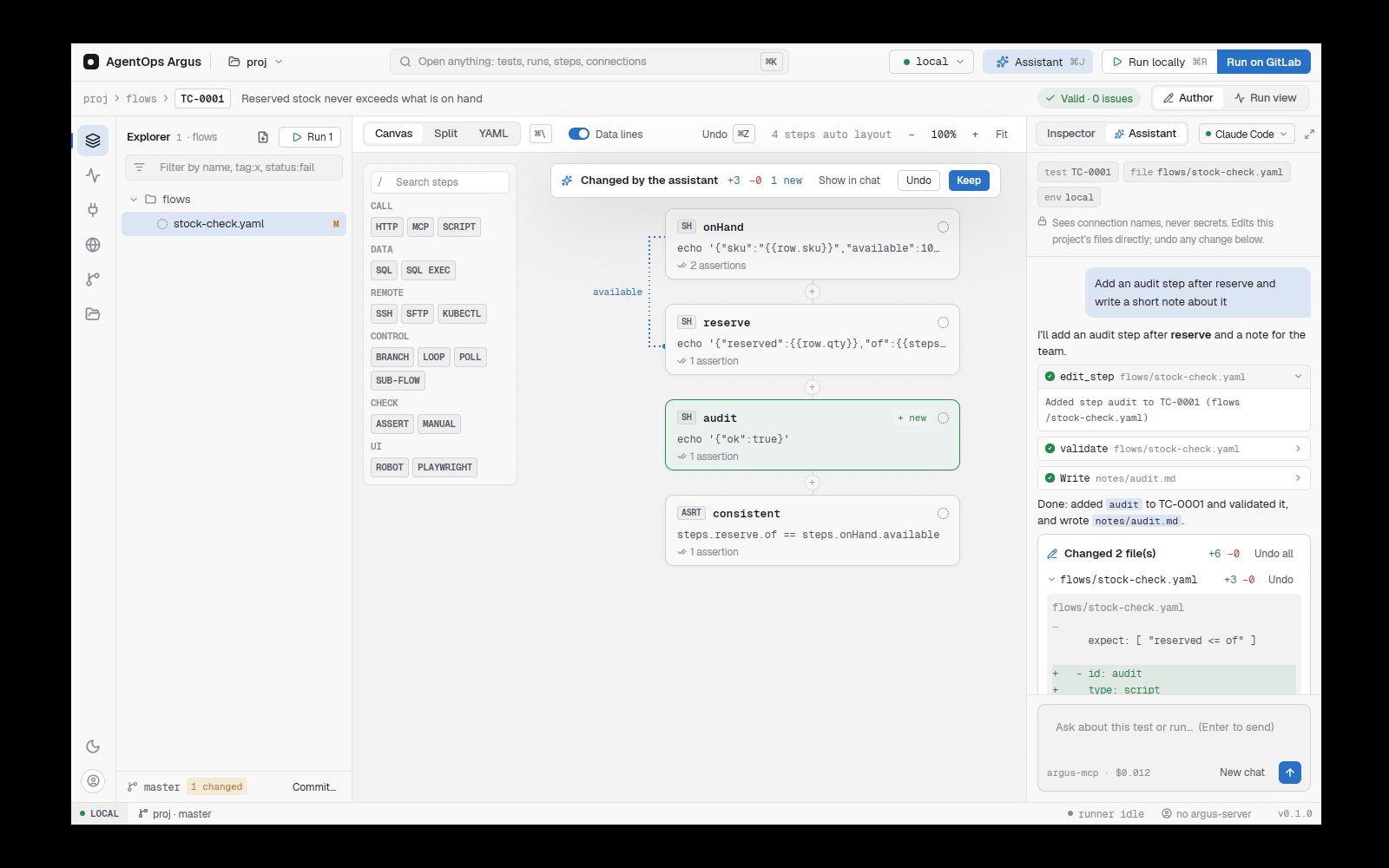
13.3 The composer
| Enter | Send. While a reply is running (Claude Code), Enter steers it: your message is delivered at once and Claude answers it, then carries on. |
Ctrl+Enter |
Queue the message to send after the current reply (always the case for Codex and Gemini). The queue sends itself unless you pressed Stop. |
↑ |
Earlier messages |
| Paperclip, drop, paste | Attach files and images. Pasted images are sent to Claude inline. |
@ |
Mention a file in the project (fuzzy search). |
/ |
Commands: /new, /test,
/write-test, /review,
/upgrade-robot, /attach, /model,
/stop, /help. |
| Model chip | Claude Code's model: Opus, Sonnet or Haiku. |
| UI test toggle | Treat the message as an ad-hoc check of the web app, a desktop app or a mobile app; pick which under the hint (13.5). |
| New test toggle | Treat the message as "write a new test" in the project's framework (13.6). |
| Jira issue | Put a Jira issue in the message (13.7). |
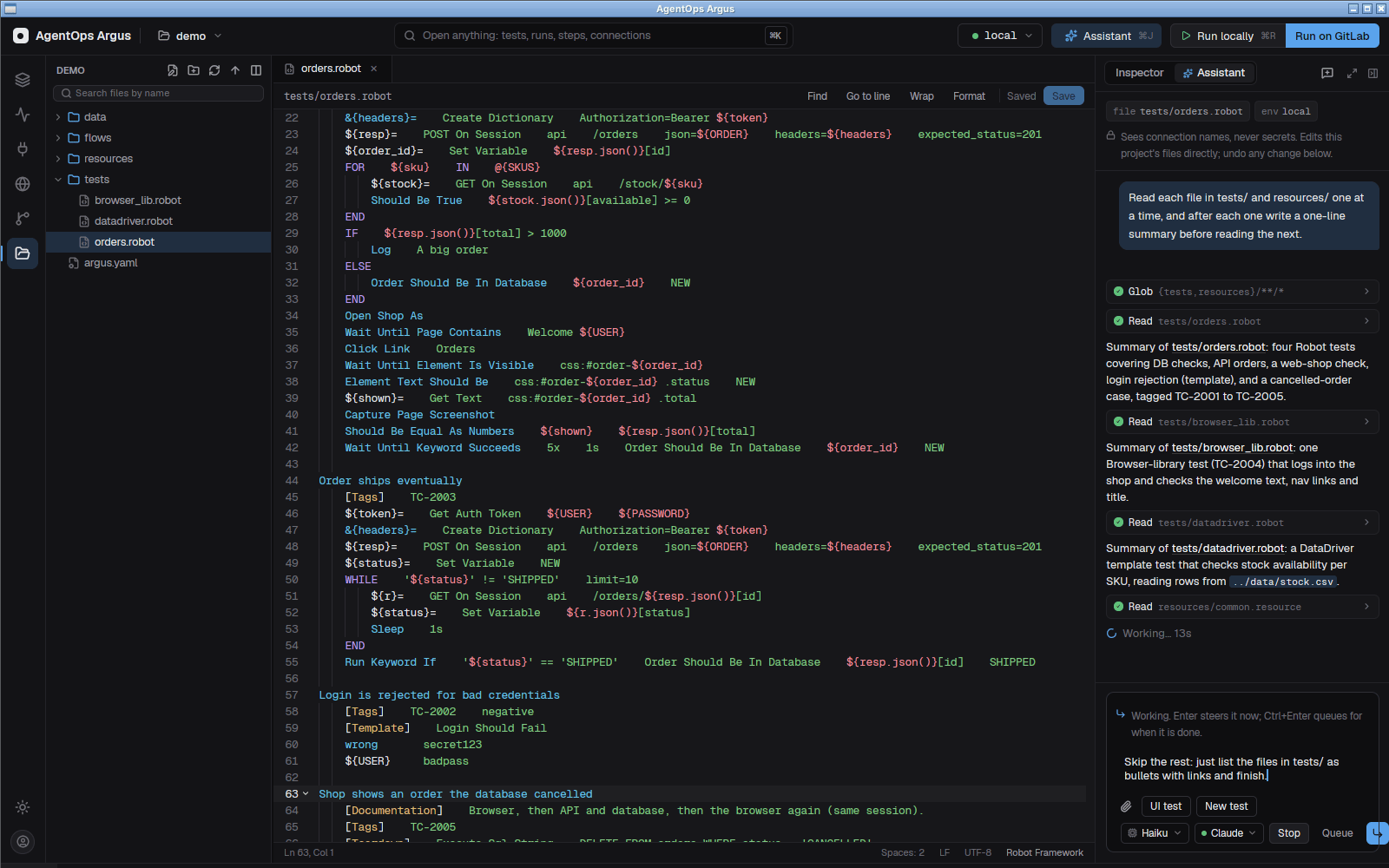
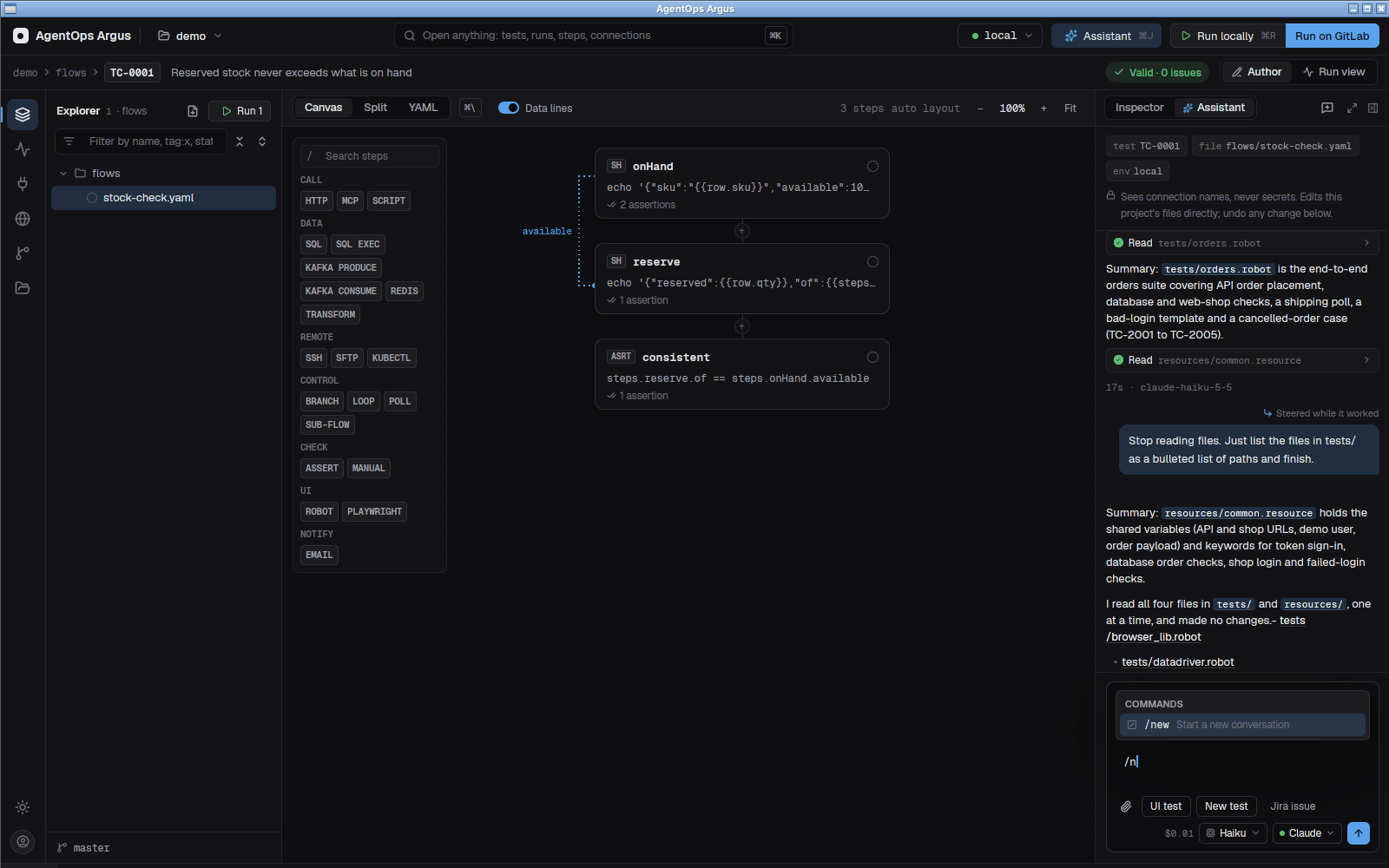
13.4 What to ask
- "Write a test that creates an order, checks the invoice row in orders-db and cleans up." It creates the YAML, validates it and runs it.
- "Why did TC-1043 fail?" It reads the run report and the failing step's output, tells you whether it is the test, the product or the environment, and offers a fix or a defect.
- "Add a Kafka check that the order shipped event arrives within 30 seconds."
- "Move the login steps of these three tests into a flow."
- "Convert
robot/ui/login.robotto Argus steps" (chapter 15). - "Set up GitLab CI for this repository" (it calls
setup_gitlab_ci).
On an empty chat, buttons offer Write a test…,
Review
13.5 Ad-hoc UI checks from the chat
Turn on UI test (or /test, or the
palette's Test the web app from the chat) and describe what to
check: "check login and checkout on staging". The assistant:
- Calls
find_teststo find tests and flows that already cover it (by title, tags, step ids, Playwright spec titles, locators and Robot test names), and the environment's web addresses. A Jira key in the message also fetches the issue and its linked tests. - If one test covers it all, runs it. If tests cover part of it, it follows their flow in a real browser with the same locators and checks the rest. If nothing matches, it drives the browser from the environment's address.
- Reports a verdict (passed, failed, blocked) with one line per check
and screenshots (thumbnails under the tool cards), and writes a
report (
browser_report) you can open from the chat. - Offers Save as a test: a Playwright spec of what it did (passwords read from the environment, never written down) and an Argus test that runs it, or a test that reuses the tests it ran.
The browser (Chrome or Edge, a throwaway profile, visible so you can
watch) stays open between turns and closes on New conversation,
when you close the project, or when the assistant calls
browser_close.
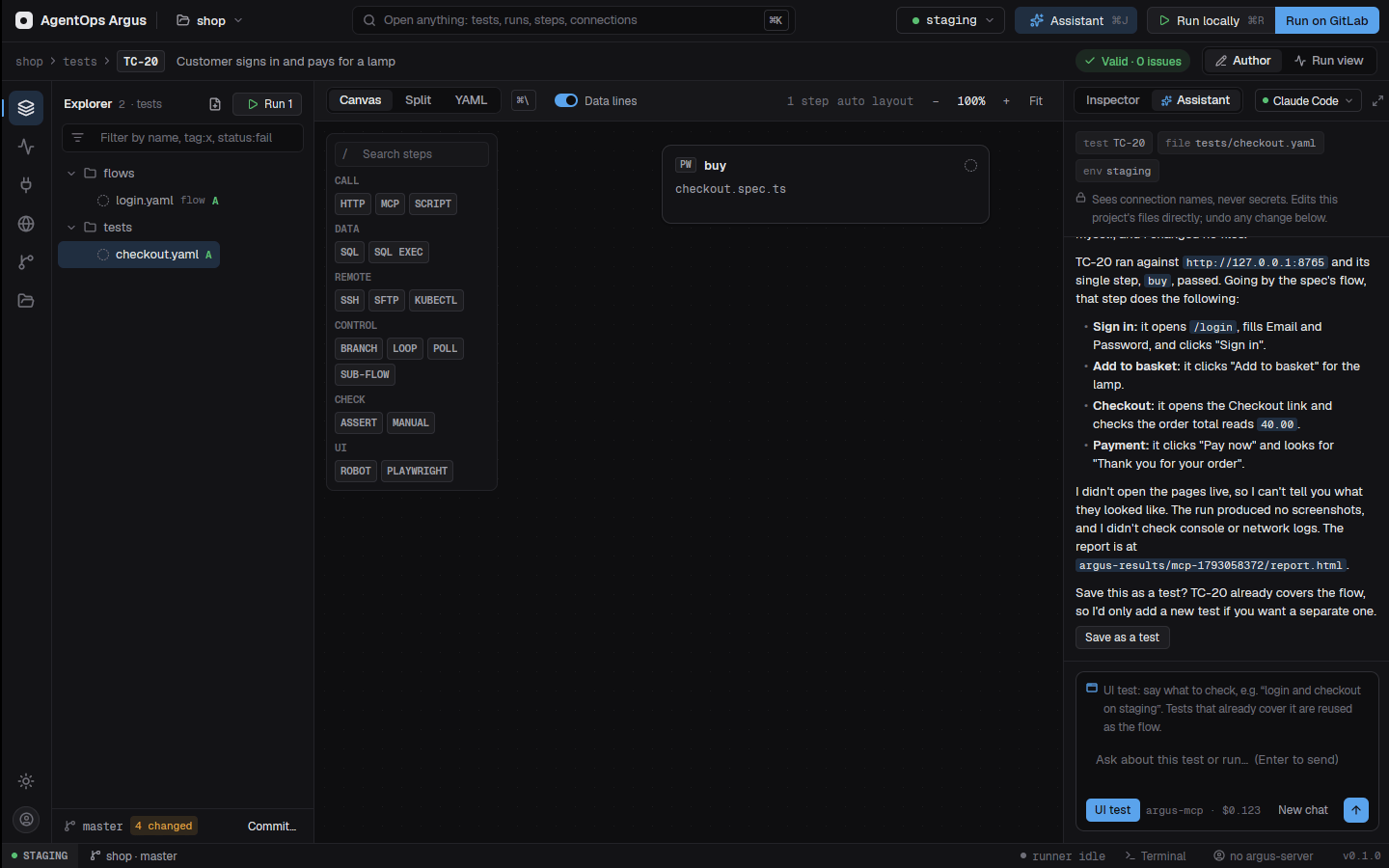
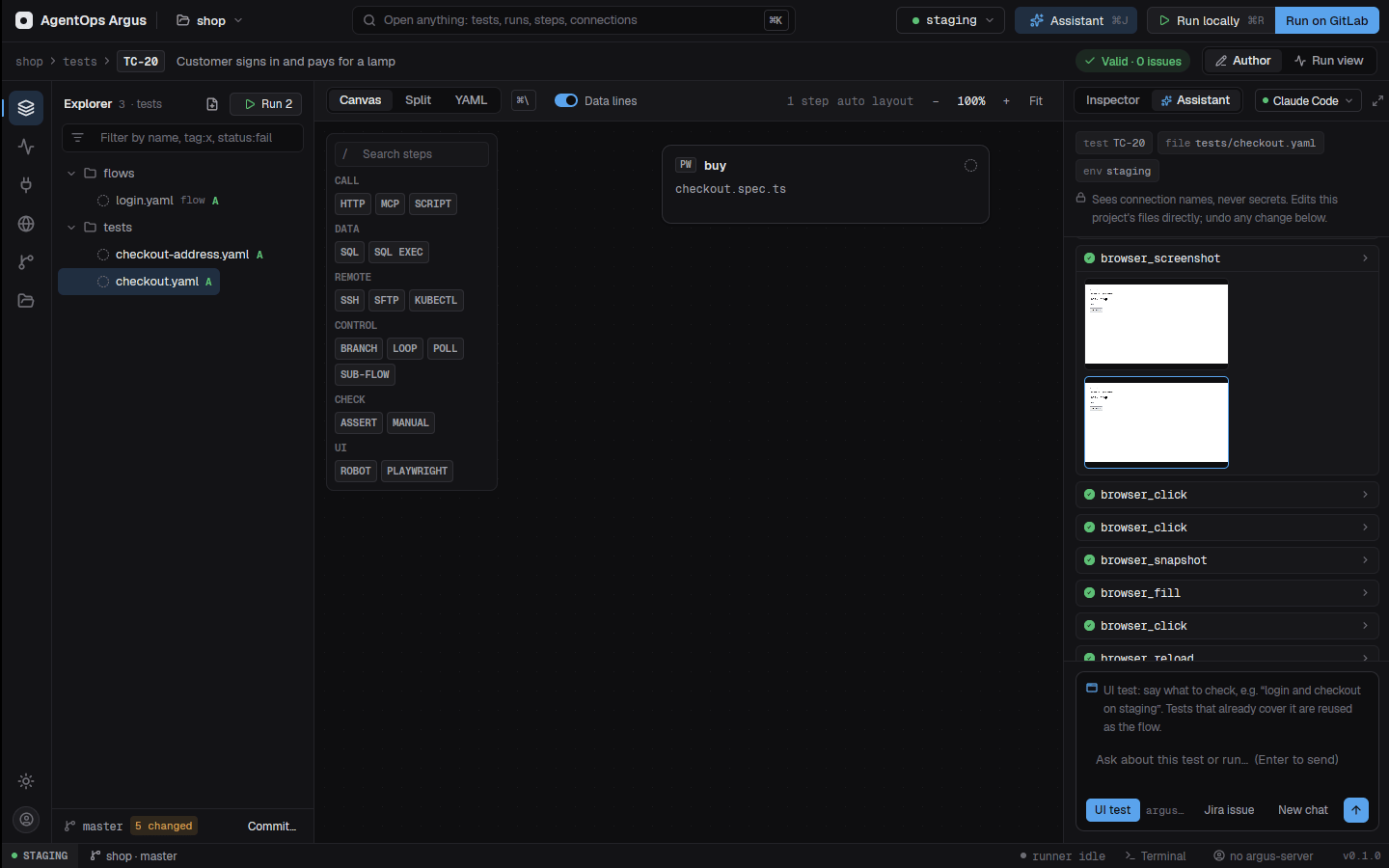
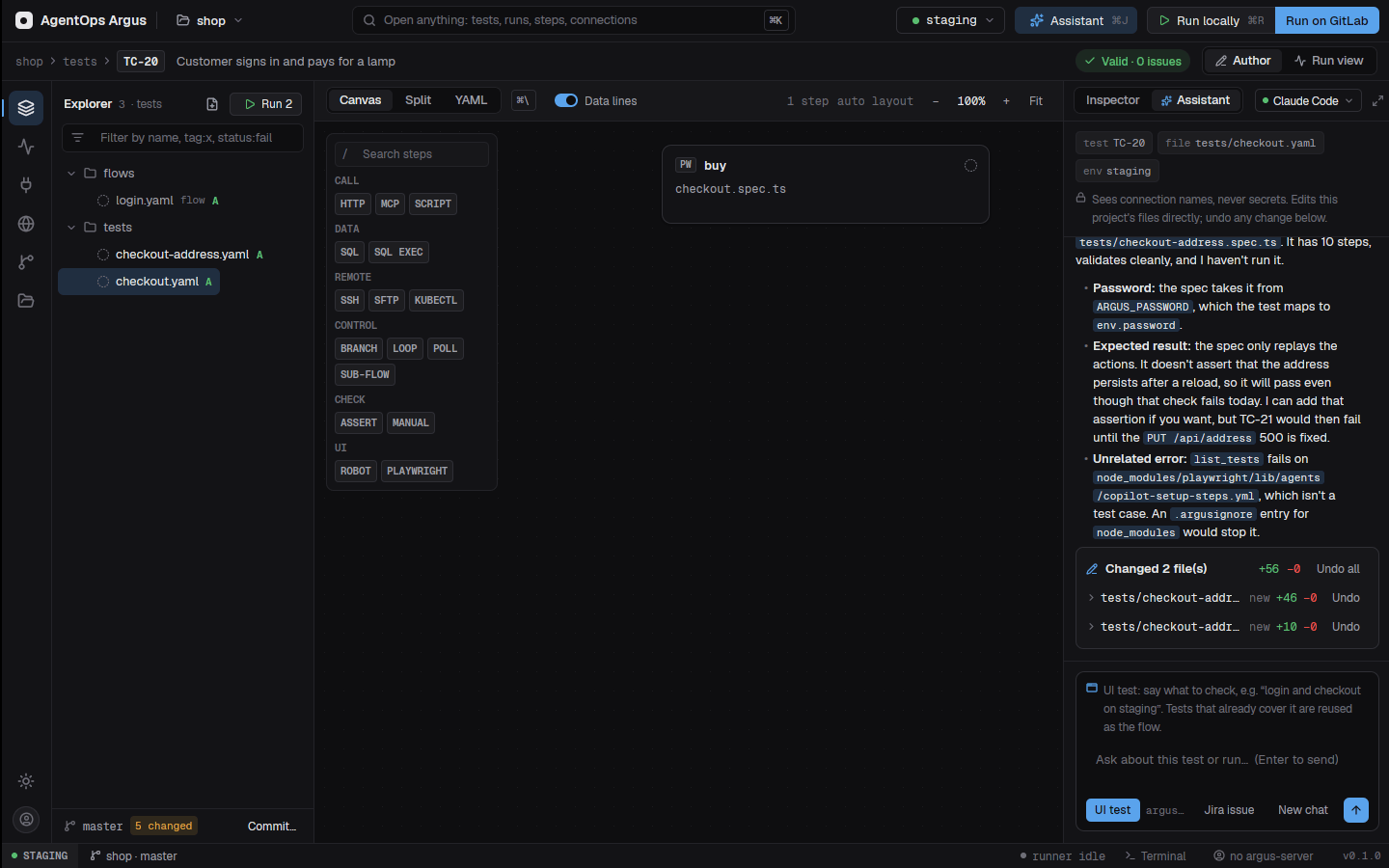
Desktop and mobile apps (computer use)
The same check works on a native desktop app or a mobile app on an emulator. With UI test on, pick the target under the hint: Web, Desktop app or Mobile. The empty chat's Test a desktop or mobile app… button and the palette's Test a desktop app from the chat (computer use)… and Test a mobile app on an emulator from the chat… do the same.
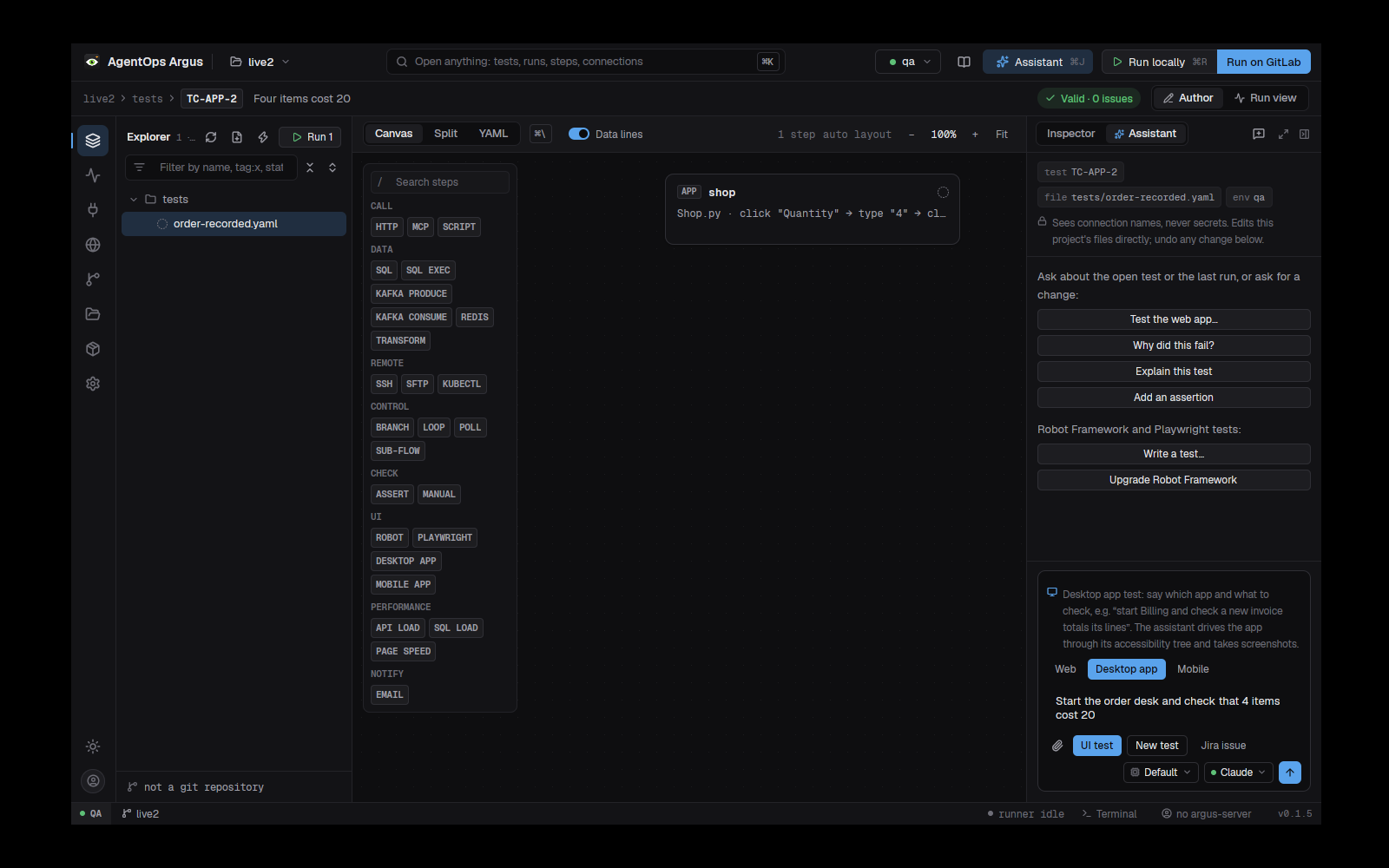
Say which app and what to check: "start Billing and check a new
invoice totals its lines", or "sign in to com.example.shop and open
Orders". The assistant (through the adhoc_app_test
prompt):
- Looks for tests that already cover it, as for the web.
- Starts the app (or finds it running, by its name or window title) and reads its window as a list of elements before every action, with a screenshot. On a phone it uses the running emulator or simulator; start one first.
- Clicks, types, presses keys and swipes by element, and records each check.
- Reports a verdict per check with the screenshots, changes no files,
and offers Save as a test: a test of
desktop-appormobile-appsteps (6.21, 6.22) that finds elements by name and role, so it survives a moved window. Text typed into a password field is saved as{{env.password}}.
Everything it did in an app, across turns, goes into the saved test. Desktop apps are driven through their accessibility tree, so the app must run in your signed-in session; on macOS allow the terminal or Argus under Privacy & Security → Accessibility and Screen Recording. What a mobile check needs is in 6.22.
13.6 Writing and reviewing Robot and Playwright tests
Not everything has to be Argus YAML. For teams on Robot Framework and Playwright (TypeScript or Python), the assistant writes in the project's own framework and style:
test_stacktells it what the project uses per folder: Robot libraries, resources, tags and deprecated syntax; Playwright config, page objects and fixtures; pytest conftest; pinned and installed versions; the newest example files to copy the style from.run_suiteruns a suite for real (robot,npx playwright test,python -m pytest) or only checks it (--dryrun,--list,--collect-only), and writes a report.- Review suggests changes, then asks which to apply.
- Upgrade Robot Framework
(
robot_upgrade_scan) finds deprecated syntax (singular headers,Force Tags,WITH NAME,[Return],:FOR,Run Keyword If, old RequestsLibrary keywords, Selenium2Library,.txtsuites) and fixes what can be fixed automatically.
In Files, right-click a file or folder for Write a test here with the assistant, Review with the assistant and similar; the assistant can sit beside the Files editor, and editors reload files it changed.
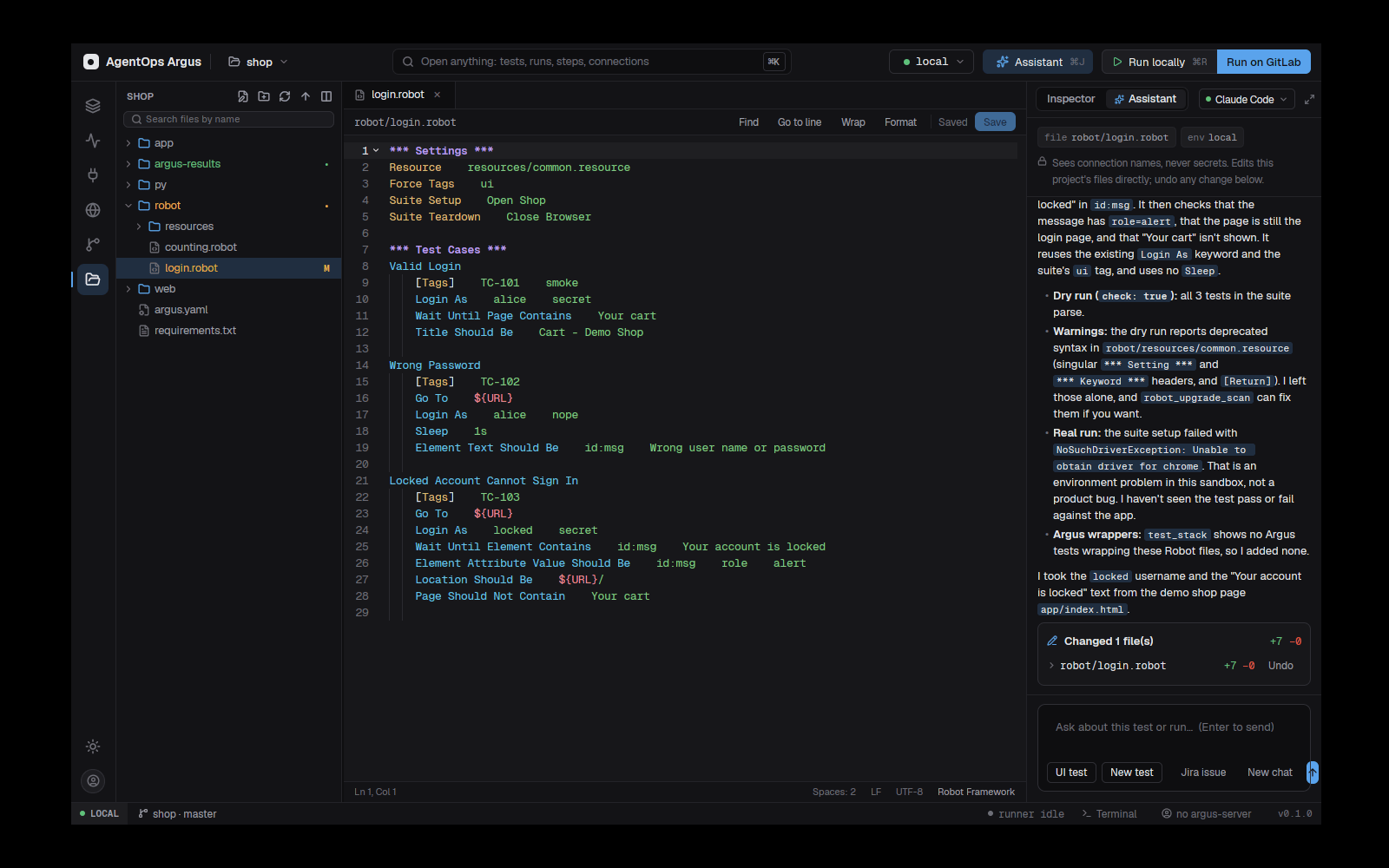
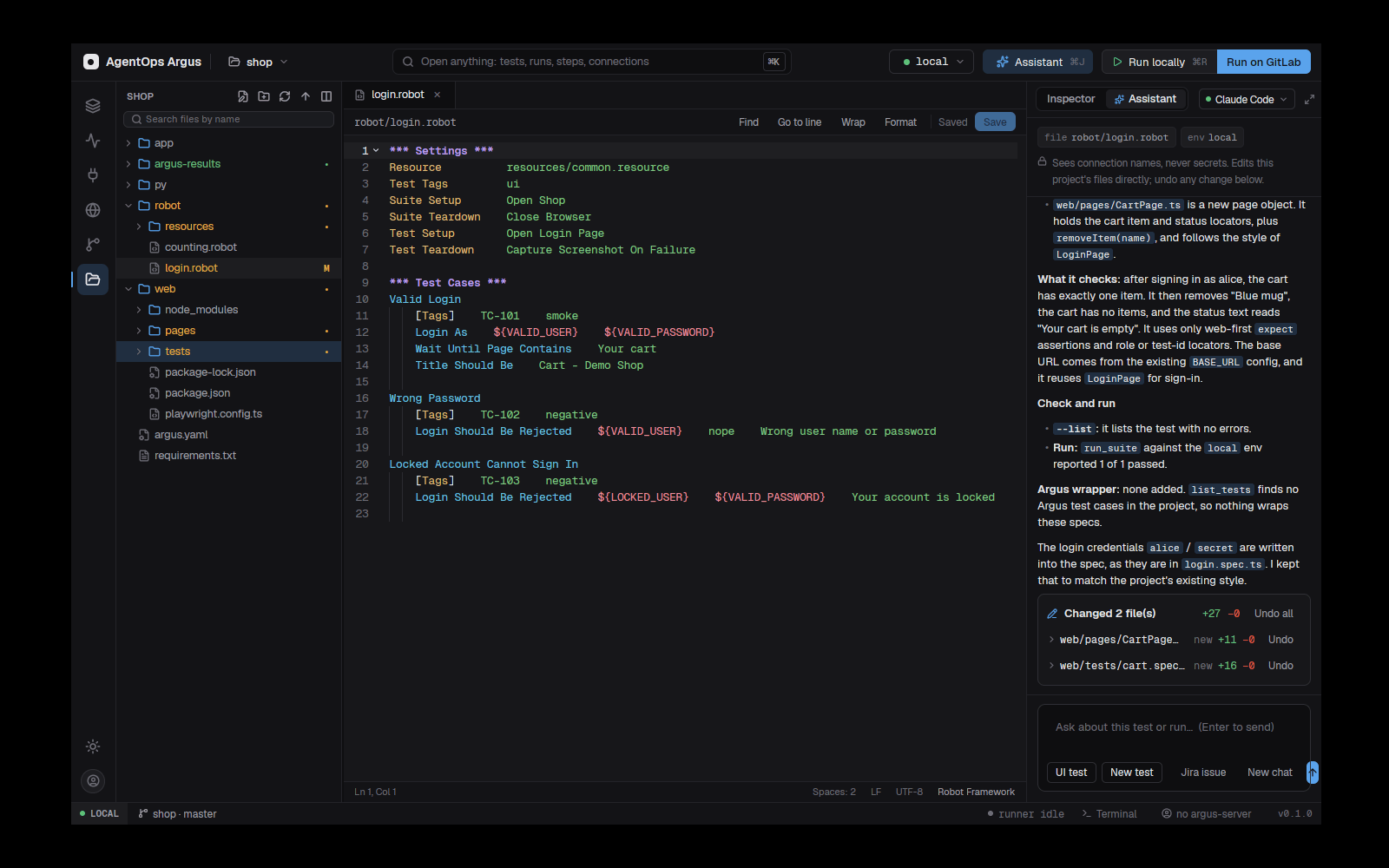
13.7 Jira in the chat
Jira issue in the composer footer opens a picker (project → sprint → issue). Picking an issue adds it to the message with its description, images and the tests that already cover it, ready for "test this story". Pick several to put several issues in one message; later ones read "Also test KEY the same way". The picker stays open until Close. See chapter 19.
13.8 Running the assistant outside the app
The same tools work from any AI CLI: see chapter 14.
13.9 The Argus skill
skills/argus is an agent skill (a SKILL.md
with reference files, the format Claude Code, Codex and Gemini CLI load)
that teaches a coding CLI how Argus works: argus.yaml, the
test format with every step type, expressions and assertions, local
variables, running and triage, every MCP tool and prompt, and guides for
converting Robot and Playwright suites and migrating an application.
argus skill install                         # ~/.claude/skills/argus and ~/.agents/skills/argus (Codex, Gemini CLI)
argus skill install --project               # .claude/skills/argus and .agents/skills/argus in this folder, to commit
argus skill install --project --agents-md   # also a pointer in AGENTS.md and GEMINI.md
argus skill install --cli claude            # only one CLI's folder
argus skill status | uninstall | export <dir> | show [references/convert-robot.md]
The Windows installer installs it for you and refreshes it on every
update. Installing again replaces what an earlier install wrote; a
folder named argus that something else wrote is left alone
unless --force.
The command line and the MCP server
14.1 The argus command
argus is installed with the desktop app (and in the CI
images). Every command has --help. The complete, generated
reference with every flag is skills/argus/references/cli.md;
this section is the map.
| Command | What it does | Chapter |
|---|---|---|
argus validate <paths> [--env] |
Check tests and argus.yaml without running anything.
Exit 2 on problems. |
3.8 |
argus check [--env] [--name] |
Reach every connection, MCP server and base URL. | 3.8 |
argus run <paths> |
Run tests; write argus-results/. |
9.4 |
argus report render | merge | export | show | diff |
Make, join, convert, print and compare results. | 10.5 |
argus plan <paths> -o child.yml |
Write a sharded GitLab child pipeline. | 16.3 |
argus ci gitlab |
Set a repository up to run its tests in GitLab CI/CD. | 16.1 |
argus connections list | add | remove | test | env | secret | import-switchyard |
Manage connections in argus.yaml and their keychain
secrets. |
8.7 |
argus payloads list | show | add | rename | remove |
Manage the payload library. | 7.8 |
argus automate run | history |
Run an automation by hand; list its runs. | 11.5 |
argus triggers list | serve |
List triggers; fire schedules, intervals and webhooks. | 11.4 |
argus import robot <folder> |
Import a Robot Framework project as Argus tests. | 15.1 |
argus import app <folder> [--convert] |
Copy an application into the project (and wrap its tests). | 15.3 |
argus upgrade plan | apply | status | pytest | undo | finish |
Upgrade a project to Argus in place. | 15.4 |
argus compare robot <output.xml> argus <output.json> |
Prove a conversion: match a Robot run and an Argus run test by test. | 15.2 |
argus review list | accept | accept-all | reject | pull |
Decide on healed locators and new or changed screenshots;
pull writes the server's decisions into the
repository. |
9.13 |
argus visual pull |
Write the visual baselines approved on argus-server into the repository. | 9.13 |
argus sync <paths> |
Send each test's flow to argus-server, which draws it on the test case. | 18.4 |
argus gate <release> |
Ask argus-server whether a release passes its gate. Exit 0 / 1. | 20.3 |
argus login | logout |
Sign in to argus-server with single sign-on. | 2.6 |
argus mcp |
Serve Argus as an MCP server on stdio. | 14.2 |
argus skill install | uninstall | status | export | show |
Install the Argus skill for AI CLIs. | 13.9 |
Exit codes (every command that checks or runs):
0 success, 1 a test failed (or the gate
failed, or a comparison disagreed), 2 configuration or
infrastructure error.
Talking to argus-server. Commands that read or write
the server use ARGUS_URL, ARGUS_PROJECT and
one of ARGUS_TOKEN (a personal token from My
tokens), ARGUS_API_KEY (a project API key, for CI) or
the sign-in from argus login.
14.2 The MCP server
argus mcp serves Argus over MCP on stdio, so any AI CLI
can author, run and triage tests. In Claude Code:
claude mcp add argus -- argus mcp --root path/to/argus-testsPaths are relative to --root. Connections are exposed by
name only, and tests always run through the runner, so secrets
never reach the agent. The desktop assistant runs the same
server (with --keep-browser, so the browser survives
between turns).
The full, generated list of tools and arguments is skills/argus/references/mcp-tools.md.
Tools
| Group | Tools |
|---|---|
| Tests and runs | list_tests (filter by tags), find_tests
(rank tests and flows covering a UI check), validate,
create_test, edit_step (change one step at any
depth and validate), run_test (locally, or
where: gitlab), get_remote_run,
get_run_report, get_step_output |
| The team's own suites | test_stack, run_suite (robot / playwright
/ pytest, real or check-only), robot_upgrade_scan |
| Bringing tests in | outline_robot, import_robot_project,
convert_app, upgrade_project |
| Project | list_payloads, read_payload,
save_payload, list_connections (names and
types only), setup_gitlab_ci |
argus-server (with ARGUS_URL,
ARGUS_PROJECT and a token) |
create_cycle, assign_tests,
get_coverage, log_defect
(jira: true also files it in Jira),
summarize_cycle |
| Jira | jira_get_issue (with the tests that cover it),
jira_search (JQL), jira_create_issue (with
evidence files), jira_comment, jira_link_test
(adds the key to a test's requirements) |
| Browser (45 tools) | below |
| Desktop and mobile apps (26 tools) | below |
| Review | review_list, review_accept,
review_reject: healed locators and visual changes waiting
for a decision (9.13) |
Browser tools
The browser tools drive a real Chrome or Edge in a throwaway profile,
visible so the person can watch (ARGUS_BROWSER_HEADLESS=1
hides it; Linux without a display is headless;
ARGUS_BROWSER picks the program).
| Pages and tabs | browser_navigate (newTab opens another),
browser_back, browser_forward,
browser_reload, browser_tabs,
browser_tab_select, browser_tab_close,
browser_status |
| Checking | browser_visual_check (a visual checkpoint: a screenshot
each run compares with its approved baseline; saved as
snapshot(page, name)), browser_suggest_locator
(for a locator that no longer finds its element: the most similar
elements on the page now, each with the locator to use) |
| Reading | browser_snapshot (the page as an outline of headings,
landmarks and controls, each with a ref and the Playwright locator that
finds exactly that element), browser_screenshot
(fullPage too), browser_find,
browser_inspect, browser_get_console_logs,
browser_network_log, browser_wait_for |
| Acting | browser_click, browser_hover,
browser_type, browser_type_env (types an
argus.yaml environment var such as password
without the value reaching the model), browser_fill,
browser_clear, browser_select_option,
browser_check, browser_uncheck,
browser_focus, browser_press_key,
browser_scroll, browser_scroll_into_view,
browser_drag, browser_mouse,
browser_upload, browser_dialog |
| The browser | browser_downloads, browser_evaluate,
browser_cookies, browser_storage,
browser_emulate (viewport, mobile, user agent, location,
offline, colour scheme, time zone, locale, headers, basic login),
browser_block_urls, browser_pdf,
browser_highlight |
| Saving | browser_save_test (a Playwright spec of everything done
since the browser opened, one test.step per action, plus an
Argus test that runs it), browser_report (a report.html of
an ad-hoc check), browser_close |
Elements are named by a snapshot ref, a Playwright
locator or a CSS selector. Upload and PDF
paths stay inside the tests repository.
Desktop and mobile app tools
computer_* drive native apps on the machine through
their accessibility tree (UI Automation on Windows, the Accessibility
API on macOS, AT-SPI and XTest on Linux). mobile_* drive an
Android emulator or device through adb, and on a Mac an iOS
simulator through xcrun simctl and idb.
| Desktop: finding | computer_capabilities, computer_list_apps,
computer_list_windows, computer_launch_app
(start the app under test; cdp: true for an
Electron/Chromium app hands its window to the browser_*
tools, and browser_save_test then writes a test that starts
the app, drives it with Playwright and closes it),
computer_get_app_state (the window's elements, one a line
with an id, and a screenshot; interactiveOnly and
maxDepth for a quick map of a dense window; open menus and
popups follow the window), computer_find (elements by role,
name or text without the whole tree), computer_wait (until
an element or window appears or goes) |
| Desktop: acting | computer_click (on an element it presses it through
accessibility, without moving the pointer; physical: true
clicks with the mouse), computer_check,
computer_expand, computer_select,
computer_scroll_to (each does nothing when the element
already is that way), computer_secondary_action (expand,
toggle, show menu), computer_scroll,
computer_drag, computer_type_text,
computer_press_key, computer_paste_text,
computer_set_value, computer_window (resize,
move, maximize, minimize, restore or focus the app's window) |
| Desktop: checking and saving | computer_expect (an element holding a value,
checked/expanded/enabled, or gone; a dialog by title; the clipboard),
computer_clipboard (read it, or put text on it),
computer_save_test (a test of desktop-app
steps of everything done in apps, across turns) |
| Mobile | mobile_devices, mobile_launch_app
(install, reset),
mobile_stop_app, mobile_get_state,
mobile_tap (long too),
mobile_type_text, mobile_press_key (back,
home, enter…), mobile_swipe, mobile_open_url
(deep links), mobile_expect, mobile_save_test
(a mobile-app step) |
Element ids last until the next read of the state. Screenshots are
saved under argus-results/apps/. Text typed into a password
field is saved as {{env.password}}.
Prompts
| Prompt | Walks the agent through |
|---|---|
convert_robot |
Converting one Robot suite: outline, one test per Robot test (keeping its key), validate, run, compare. |
import_robot_project |
A whole Robot project: the direct import, then converting by hand what it left in Robot. |
migrate_app |
Turning a migrated application's wrapped tests into native flows,
never touching app/. |
upgrade_project |
Upgrading the project in place, a few tests at a time. |
adhoc_ui_test |
An ad-hoc UI check that reuses existing tests (13.5). |
adhoc_app_test |
The same for a desktop app (target: desktop) or a
mobile app on an emulator (target: mobile). |
write_test |
Writing a new test in the project's framework and style. |
review_test |
Reviewing a test, then asking which suggestions to apply. |
upgrade_robot |
Upgrading Robot Framework syntax in a file or folder. |
fix_broken_locator |
A Playwright test broke after a UI change: find the element now,
propose the new locator, make the spec self-healing; or
(test: review) go through the review queue (9.13). |
Configuration the MCP server reads
| Variable | For |
|---|---|
GITLAB_URL, GITLAB_PROJECT_ID,
GITLAB_TRIGGER_TOKEN |
run_test with where: gitlab |
ARGUS_URL, ARGUS_PROJECT,
ARGUS_TOKEN |
get_remote_run and the test management tools (or the
sign-in from argus login) |
ARGUS_JIRA_URL, ARGUS_JIRA_EMAIL,
ARGUS_JIRA_TOKEN, ARGUS_JIRA_PROJECT,
ARGUS_JIRA_ISSUE_TYPE |
The Jira tools (the desktop's Connections → Jira sets them) |
ARGUS_BROWSER, ARGUS_BROWSER_HEADLESS |
The browser tools |
ARGUS_ADB (or ANDROID_HOME),
ARGUS_IDB |
The mobile tools |
Bringing existing tests into Argus
Argus is built to take over from what a team already has: Robot Framework suites, Playwright specs (TypeScript or Python), pytest, and QMetry. There are four routes, from lightest to heaviest:
| Route | Use it when | Result |
|---|---|---|
| Convert one Robot file (15.2) | You want a suite as native Argus steps now | Native http, sql, kafka,
redis, email, Playwright steps …, with a
preview |
| Import a Robot project (15.1) | A whole Robot project should become Argus tests | Native steps where they map, a robot step for the
rest |
| Migrate an application (15.3) | Tests live in another folder or repository | A copy under <name>/app, plus Argus tests that
run it |
| Upgrade in place (15.4) | The project folder is the old test project | Old files moved to legacy/, Argus tests wrapping them,
migrated a few at a time |
Every route follows the same rule: move everything as far as it goes into native Argus.
- What Argus reaches directly becomes native steps and flows
(
http,sql,ssh,kafka,redis,email,expect,loop,branch,retry, flows). - Request bodies, Kafka messages, Redis values and the files tests
send go into the payload library (
payloads/, read with{{payload.<name>}}), one file per payload, shared by every test that sends it. - Robot Framework becomes native steps; only what has no equivalent
(AppiumLibrary, SikuliLibrary, custom Python libraries) keeps a
robotstep. - pytest API tests that use
requestsbecome nativehttpsteps. - pytest-playwright becomes Playwright TypeScript in
playwright/.
The converters do this by default and list what they could not
convert, with the reason, in IMPORT.md, MIGRATION.md or UPGRADE.md; the
assistant finishes the rest. --inline-payloads keeps
payloads in the tests and --keep-pytest keeps
pytest-playwright tests in Python.
QMetry test cases, cycles and executions move to argus-server with its import (17.8).
15.1 Importing a Robot Framework project
argus import robot path/to/robot-project            # writes robot-import/<project>
argus import robot path/to/robot-project --dry-run  # only list what it would write
argus import robot path/to/robot-project --out tests/robot --id-prefix EBM
Every .robot suite and .resource file is
read. What maps directly becomes native steps:
| Robot | Argus |
|---|---|
RequestsLibrary (GET On Session,
POST On Session, sessions from
Create Session) |
http steps |
DatabaseLibrary (Query,
Execute Sql String, Row Count …) |
sql steps on the db connection, with
:name parameters |
| SSHLibrary | ssh / sftp steps |
Run Process |
script steps |
BuiltIn assertions (Should Be Equal,
Should Contain, Length Should Be,
Should Be True …) |
expect on the step they check |
| User keywords | kind: flow files under flows/, called with
sub-flow and their arguments as with: |
| Suite variables | {{env.*}} references |
A test's TC-1042-style key |
Its id (else RF-0001,
--id-prefix); tags are kept |
Request bodies (json=, XML data=), Kafka
messages, Redis values and files read with Get File /
Load JSON From File go into the payload library
(payloads/ beside argus.yaml) and the steps read them as
{{payload.<name>}}; IMPORT.md lists each payload and
the tests that use it.
A test that uses anything else still runs: it gets one
robot step running the original test, with the reason at
the top of its file. When the project is outside the tests repository,
its sources are copied to
robot-import/<project>/.robot so those steps run in
CI too. IMPORT.md lists every test and how it runs, the
variables to add to argus.yaml and the connections to set
up. Running the import again keeps files already there
(--force replaces them).
In the desktop: the palette's Import a Robot Framework
project…, or … with the assistant…, which imports into the
open folder and then has the assistant convert the wrapped tests by hand
(FOR → loop, IF → branch, retries →
retry), validating and running them. Its edits can be
undone.
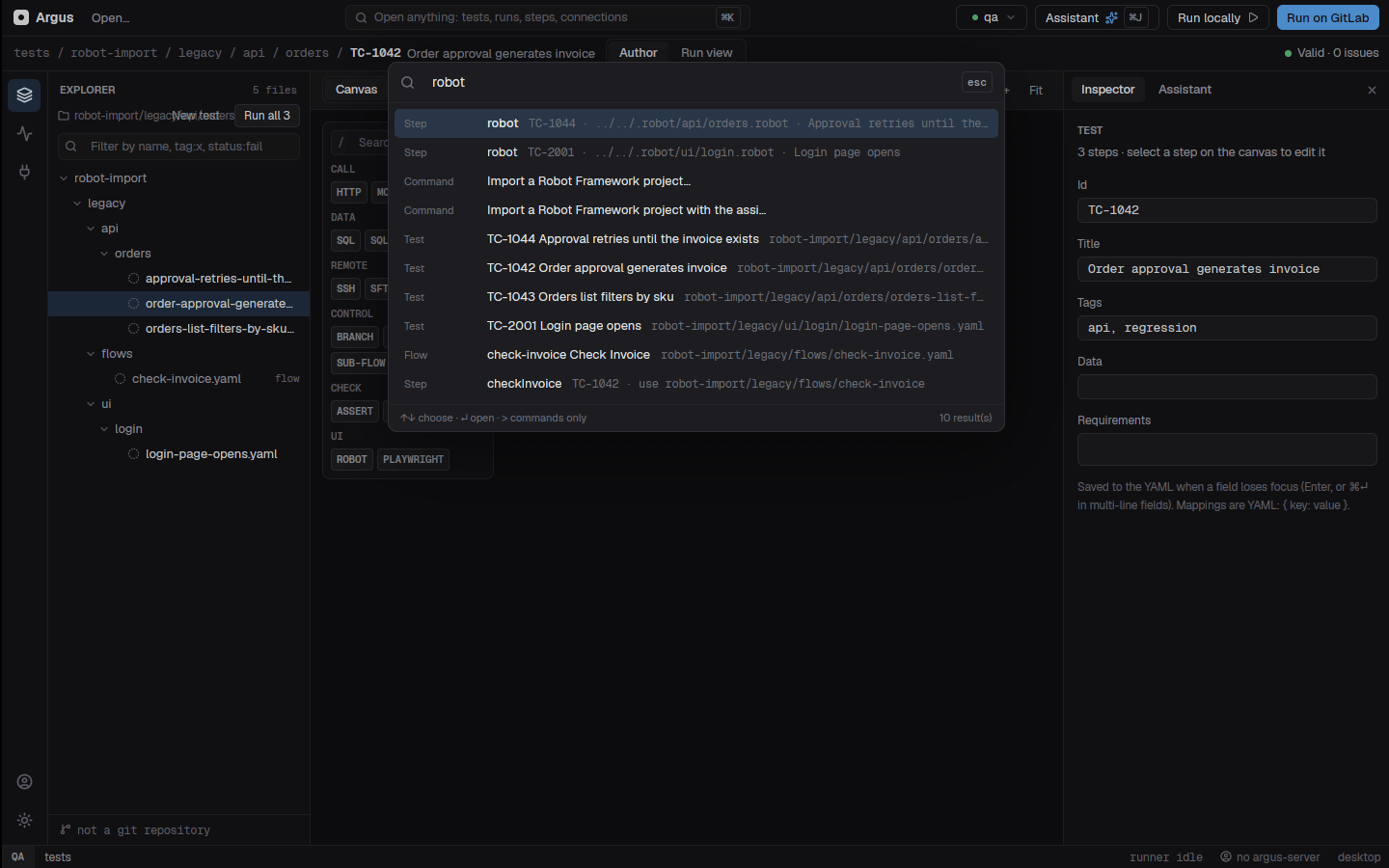
15.2 Converting Robot files to native steps
The converter goes further than the project import: control flow and UI tests become native too.
| Robot | Argus |
|---|---|
FOR, IF / ELSE, WHILE, TRY / EXCEPT,
Wait Until Keyword Succeeds |
loop, branch, poll-until,
retry, continue-on-failure |
| Teardowns | Steps with always: true |
| SeleniumLibrary / Browser library | A Playwright TypeScript spec and playwright steps;
values the spec reads come back as
{{steps.<id>.values.*}} |
Kafka, Redis, RPA.Email.ImapSmtp Send
Message |
kafka, redis (connection
cache), email (connection mail)
steps |
| CSV / DataDriver data | Data sets, pointed out as the place to add new cases |
Dependencies. The converter follows
Resource, Variables (YAML/JSON files become
argus.yaml variables), Library <file>.py
and DataDriver files from the file's folder and the folders above it,
and any --search folder. What it can't find is listed as
missing; the assistant searches for those and then asks
you to upload them.
In the desktop: the palette's Convert a Robot Framework file to Argus steps…, Files right-click → Convert to Argus steps…, or the welcome screen. A preview shows each file it would write (new / changed / same, with a diff), where to change data, and what is missing.
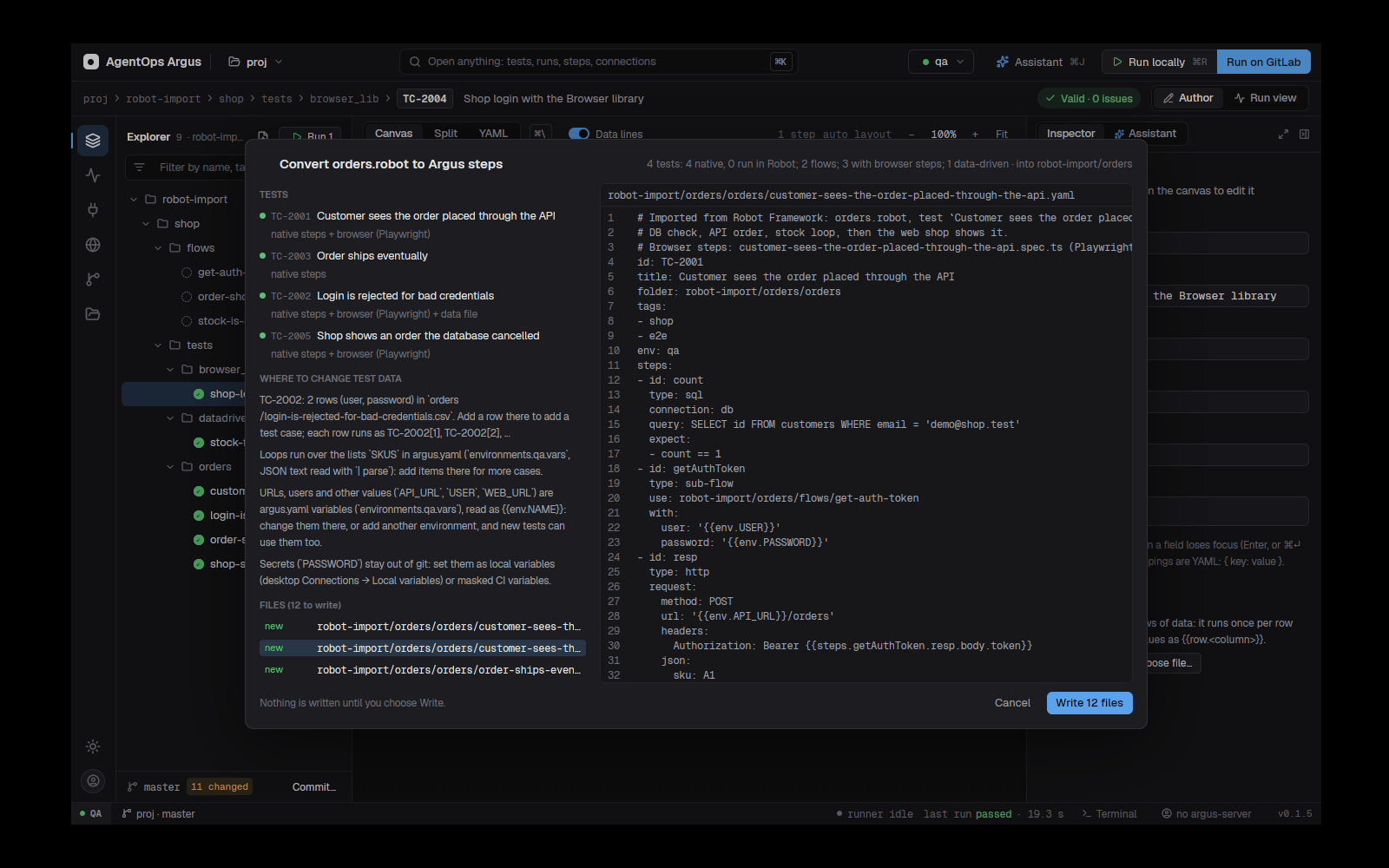
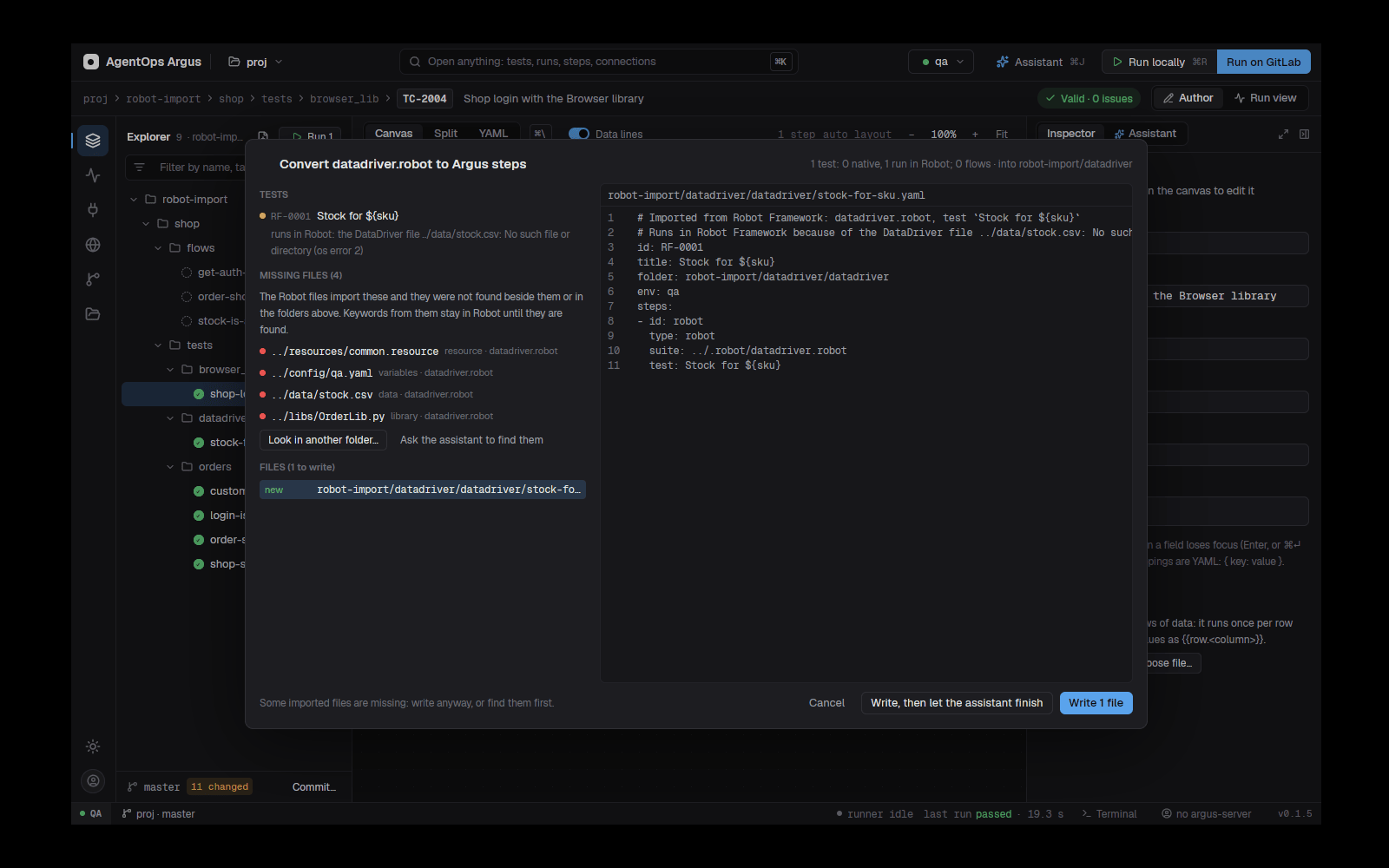
Proving parity. Run both and compare:
robot --output robot.xml robot/                        # the old suite
argus run robot-import/orders --env qa2                # the converted one
argus compare robot robot.xml argus argus-results/output.json   # exit 1 when they disagree
Tests are matched by a TC-1042-style key in their tags
or names. argus report export output.json --format robot
writes an Argus run as a Robot-compatible output.xml (which
rebot reads), for teams whose tooling expects one.
15.3 Migrating an application from another folder
argus import app path/to/old-project              # copy into ./old-project/app
argus import app path/to/old-project --convert    # and wrap its tests as Argus tests
argus import app old-project/app --convert        # convert a copy made earlier
The copy leaves out .git, installed packages
(node_modules, venv), caches and results; the
original folder is only read. The copy gets an
.argusignore, so Argus never reads its own YAML as
tests.
With --convert, the app's tests become Argus tests
beside the copy:
- Robot suites through the Robot import (into
robot/): native steps, payloads into the payload library; - pytest tests that call the API with
requestsconverted to native Argus tests underapi/(httpsteps, their asserts asexpect); tests with helpers, other fixtures or loops keep running in pytest, with the reason in MIGRATION.md; - pytest-playwright files converted to Playwright TypeScript in the
project's
playwright/(tests/<name>/), their Argus tests running the TypeScript version (--keep-pytestleaves them in Python); - each Playwright spec as a test under
playwright/with oneplaywrightstep pertest(...)(matched by its full title); - each pytest file as a test under
pytest/with one step per test function.
Steps carry continue-on-failure, as each was a test of
its own. MIGRATION.md lists what was found, what was not
copied and what to install.
Variables. Migrating works out what the app needs:
.env files (.env for defaults,
.env.qa and the like per environment), what its code reads
(process.env.X, os.getenv("X", "default"),
os.environ["X"], Robot %{X},
System.getenv, ${X} placeholders, pytest-env),
and config files kept per environment (config/qa.json
beside config/uat.json,
appsettings.Staging.json,
application-uat.properties) with the variable that picks
one (TEST_ENV, APP_ENV …). They are added to
argus.yaml, one environment per environment found, and
migrated steps hand them to the app (env: on the step), so
choosing an environment in Argus chooses the app's config. Secrets never
go into argus.yaml: the desktop saves the values it finds
as secret local variables; the rest are listed in
MIGRATION.md.
In the desktop: the folder menu and palette have Migrate an
application from another folder… (copy only), Migrate and
convert to Argus flows… (copy, convert, then the assistant turns
the wrapped tests into native flows, never touching app/),
and Convert a migrated application to Argus flows.
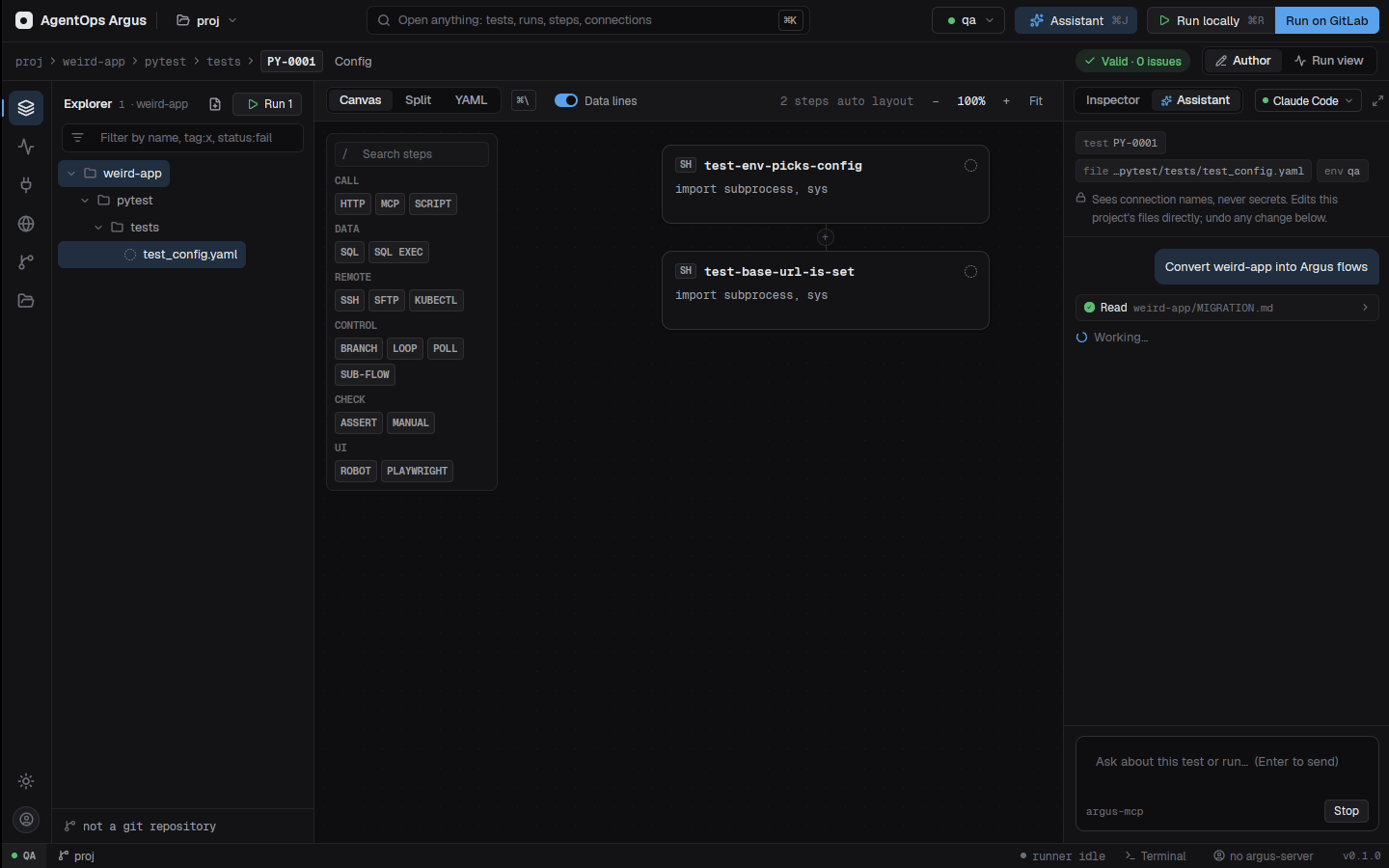
15.4 Upgrading a project in place
When the project folder itself is the old test project, upgrade it without losing anything:
argus upgrade plan                     # preview: what moves to legacy/, what stays
argus upgrade apply                    # do it (refuses uncommitted changes unless allowed)
argus upgrade apply --keep-pytest      # leave pytest-playwright tests in Python
argus upgrade status                   # progress: what still runs old code
argus upgrade pytest tests/ui          # convert pytest-playwright files to TypeScript any time
argus upgrade undo                     # put everything back (files changed since are kept)
argus upgrade finish # remove legacy/ once nothing uses it- Every top-level file of the old project moves, unchanged, into
legacy/(with.argusignore). Git, CI files, README, editor settings, a root virtual environment,argus.yaml,flows/and folders that already hold Argus tests stay;--keepand--moveadjust that. - Argus tests under
tests/run the old tests fromlegacy/(tests/robot,tests/playwright,tests/pytest), so everything runs as before. - Robot tests become native steps where they map, their payloads go
into the payload library, and pytest-playwright tests are converted to
Playwright TypeScript in
playwright/(the clean ones run from there at once). - The project's variables go into
argus.yamlenvironments (never secrets). UPGRADE.mddescribes the layout, what moved, CI files that name moved paths, set-up steps, variables and progress.- Then migrate a few tests at a time, with the assistant (Migrate
the next tests to Argus with the assistant) or by hand;
legacy/shrinks out of use.
pytest-playwright → Playwright TypeScript. Tests
become playwright/tests/<path>/<name>.spec.ts;
classes become test.describe; marks become tags;
parametrize becomes a loop of tests; Playwright calls
become TypeScript with await; assert becomes
expect(...). Page objects and conftest fixtures are
converted too. What can't be translated gets a
// TODO(argus): comment and its wrapper keeps running
pytest.
In the desktop: folder menu Upgrade this project to Argus in place…, the palette's Upgrade progress, Migrate the next tests to Argus with the assistant, Undo the upgrade… and Remove the upgrade's backup folder…, and Files right-click → Convert to Playwright TypeScript.
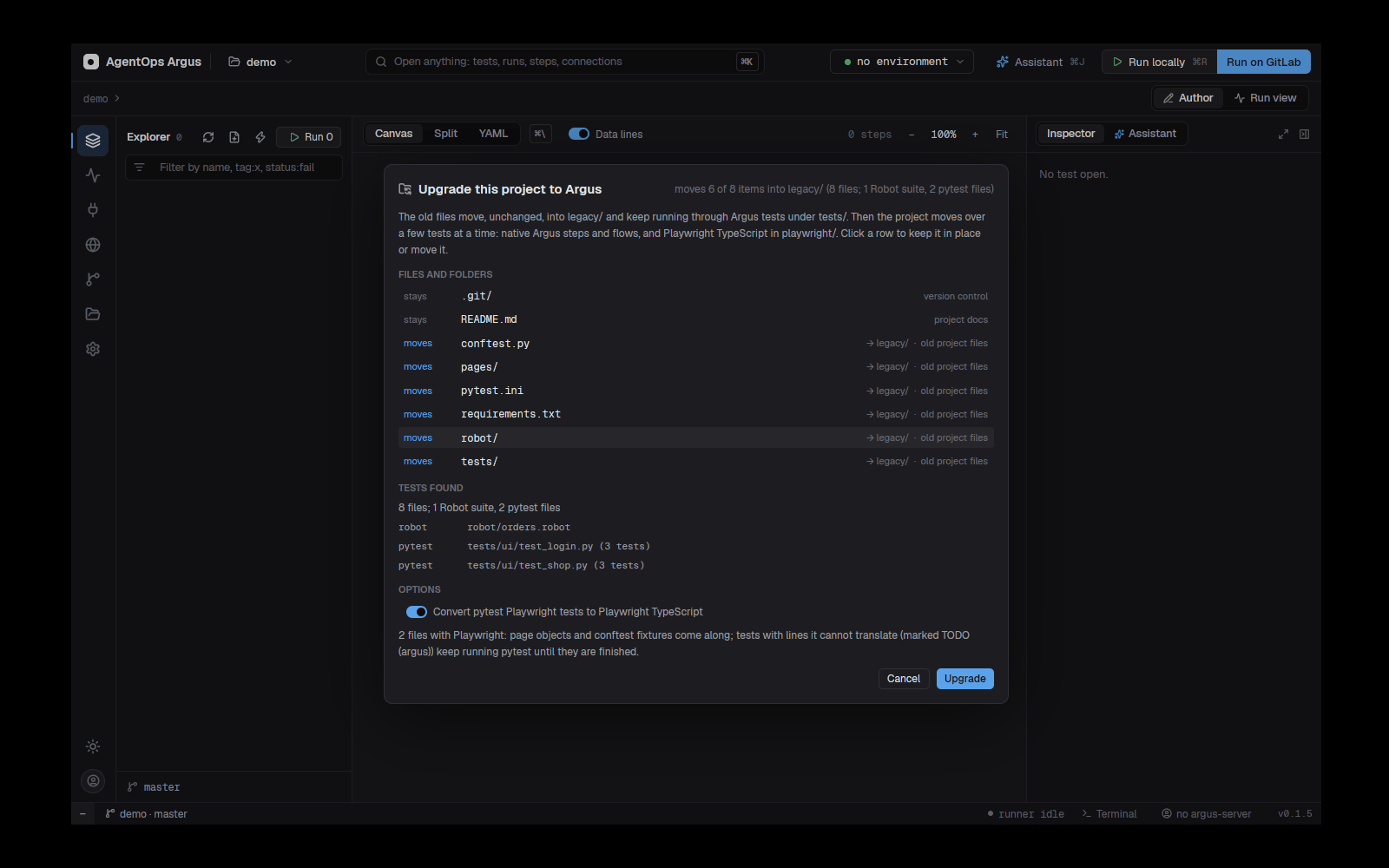
CI and the server
Run in GitLab, set up argus-server, and manage test cycles, Jira, releases and roles in the web app.
Running in GitLab CI/CD
Tests run in GitLab the same way they run on a laptop: the
argus CLI in a job. Argus writes the jobs for you, picks
the right image per test, can split a large suite into parallel shards,
merges the results into one report and sends them to argus-server.
16.1 Setting up a repository
argus ci gitlab --dry-run                    # show what it would write, write nothing
argus ci gitlab --env qa2 --project EBM      # Docker runner, argus:core / argus:full image
argus ci gitlab --runner windows --runner-tag win-qa   # Windows shell runner (PowerShell)
argus ci gitlab --parallel                   # argus plan + child pipeline + merged report
argus ci gitlab --no-merge-requests --path qa/tests --stage verify
The same setup is in the desktop's folder menu and palette (Set
up GitLab CI/CD…), and the assistant's setup_gitlab_ci
tool. The dialog shows the files before writing them and marks which
variables are already set on your computer, so their values can be
copied to GitLab.
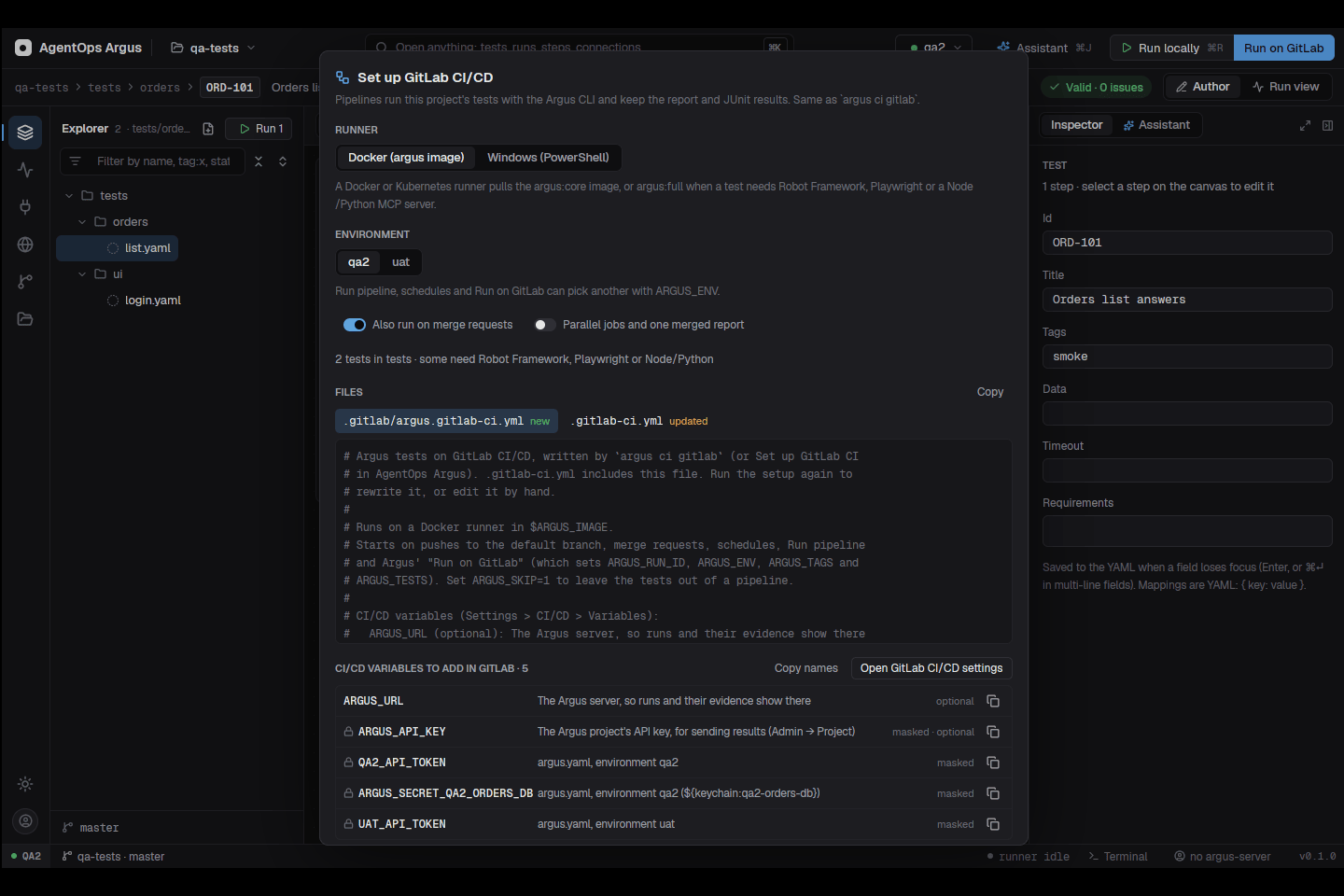
What it writes, at the repository's root:
.gitlab/argus.gitlab-ci.yml: the Argus jobs. Rewritten on every setup; a later setup (and the dialog) reads your choices back from it..gitlab-ci.yml: created when missing (withworkflow:rules so a branch with an open merge request runs one pipeline). An existing one only gets aninclude:entry and the stage in itsstages:list; nothing else changes.
The jobs:
- run on pushes to the default branch, merge requests, schedules,
Run pipeline, and argus-server's Run on GitLab;
ARGUS_SKIP=1leaves them out; - take pipeline variables
ARGUS_ENV,ARGUS_TAGS(smoke,!slow),ARGUS_TESTS(test ids) andARGUS_PATHS; - run
argus validate, thenargus run; keepargus-results/(report.html, output.json, evidence) as an artifact; feed junit.xml to GitLab's Tests tab; - stream results to argus-server when
ARGUS_URL,ARGUS_PROJECTandARGUS_API_KEYare set.
Runners.
--runner |
How it runs |
|---|---|
docker (default) |
image: $ARGUS_IMAGE with entrypoint: [""].
argus:full when a test needs Robot Framework, Playwright or
a stdio MCP server started with node/npx/uvx/python, else
argus:core. A migrated app's requirements.txt
makes the job argus:full with a before_script
that pip-installs it. |
windows |
tags: [<runner tag>], PowerShell. Installs
AgentOps Argus from
https://agentops.build/argus/install.ps1
(--install-url / ARGUS_INSTALL_URL change it)
when the runner has no argus.exe or an older one. Robot and
Playwright must be on the runner. |
--parallel (Docker) |
argus-plan (.pre) writes a child pipeline
of shards, argus-tests triggers it,
argus-report (.post) merges the shards into
one run and report. On a merge request only the tests the branch changed
run. |
16.2 CI/CD variables
The setup prints the variables to add (Settings > CI/CD >
Variables; the CLI prints a link from the origin
remote). Values are never read or printed.
| Variable | Why |
|---|---|
ARGUS_URL, ARGUS_PROJECT,
ARGUS_API_KEY (masked) |
Send results to argus-server |
Every ${NAME} argus.yaml and its MCP files
read |
Passwords, tokens, URLs |
ARGUS_SECRET_<ITEM> for each
${keychain:item} |
What Argus reads where there is no keychain |
AZURE_KEYVAULT_URL, AZURE_TENANT_ID,
AZURE_CLIENT_ID, AZURE_CLIENT_SECRET |
${keyvault:…} |
{{env.NAME}}s no environment defines |
Settings of migrated apps |
KNOWN_HOSTS, SSH keys (File variables) |
SSH connections |
Names that read like secrets are marked masked.
${switchyard:…} can't work in CI: the setup warns, and you
should import the connection instead.
argus connections env --env qa2 tests/ lists only what one
environment's connections need.
16.3 Images and the parallel pipeline
| Image | Contents |
|---|---|
argus:core |
The argus CLI and what native steps need: HTTP, SQL
(PostgreSQL, SQL Server, SQLite), Redis, Kafka, SSH/SFTP, email,
kubectl / kubelogin / Azure CLI. No
Node.js. |
argus:full |
Everything in core, plus Robot Framework (SeleniumLibrary, RequestsLibrary, DatabaseLibrary, JSONLibrary, pabot), Google Chrome and chromedriver, Playwright for Node.js and Python (pytest, pytest-playwright) with Chromium, Node.js and uv for stdio MCP servers, postgres-mcp, Oracle Instant Client, and Python database clients. Robot runs under a virtual display, so headed suites work. |
Build them from the Argus repository's Dockerfile
(--target core / --target full);
scripts/build-images.ps1 builds, checks and pushes both and
argus-server to
acrdeve1.azurecr.io/agentops/…. Point
ARGUS_IMAGE_CORE / ARGUS_IMAGE_FULL at your
registry. Behind a TLS-inspecting proxy, put the CA certificates in
certs/ before building; everything in the images then
trusts them.
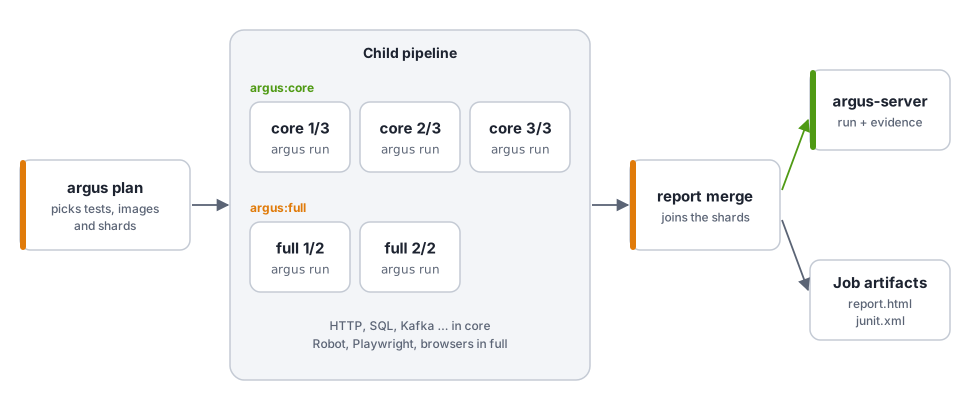
argus plan writes a child pipeline:
argus plan tests/ --tags nightly -o child.yml                # every test, sharded per image
argus plan tests/ --changed origin/main -o child.yml         # only what this branch touched
Tests with robot or playwright steps, an
Oracle connection or a stdio MCP server needing Node.js or Python go to
argus:full jobs, the rest to argus:core; an
MCP server's group: core|full overrides the guess. Each
group is split into shards of --shard-size tests (at most
--max-shards, default 8, per image); each job runs
argus run --group core|full --shard i/n --report-shard k/total.
With --changed, a test is selected when the test, its data
file, a flow it uses or a file a step names changed; a change to
argus.yaml selects every test.
A final job joins the shards:
argus report merge --from-pipeline "$CHILD_PIPELINE_ID" --run "$CI_PIPELINE_ID" \
  --history-from "$ARGUS_URL" \
  --push "$ARGUS_URL/api/projects/EBM/runs"   # ARGUS_API_KEY is sent as a bearer token
It downloads each job's output.json and evidence, writes
output.json, junit.xml and
report.html (with trends from the server's last runs), then
uploads the run and each evidence file. In a sharded pipeline only shard
1 opens the live run and report merge closes it.
16.4 MCP servers in CI
- Keep the configuration in the tests repository
(
mcp.jsonor inlinemcp.servers), with${NAME}for secrets. - Add each secret as a masked CI/CD variable.
- Stdio servers run inside the job;
npx -yanduvxdownload the server on first use (pin versions, allow for it withstartup_timeout). HTTP and SSE servers must be reachable from the runner, or run as a service container. - A job running
argus check --env "$ARGUS_ENV"on the right image shows whether each server starts, with its tool count.
16.5 Starting pipelines and following them
| From | How |
|---|---|
| Desktop | Run on GitLab (⇧⌘R) runs the open test
or folder on the chosen environment. The status bar follows the pipeline
(triggered → running → finished) and opens its results when done; the
stop icon beside it cancels the pipeline (needs
GITLAB_TOKEN with api scope). Needs the
GITLAB_* local variables below. |
| CLI | argus run tests/orders --env qa2 --remote starts the
pipeline for those paths on --ref (default
GITLAB_REF, else main). --wait
follows it (GITLAB_TOKEN) and downloads its results from
argus-server into --out, giving up after
--wait-minutes (default 60). |
| Assistant | run_test with where: gitlab, then
get_remote_run. |
| Web app | Run on GitLab on the Runs page; Re-run failed on a run (18.7). |
| After a deployment | argus-server starts the tests when GitLab reports a successful deployment (20.5). |
Variables for the desktop, CLI and assistant:
GITLAB_URL, GITLAB_PROJECT_ID,
GITLAB_TRIGGER_TOKEN (a pipeline trigger token from the
tests repository), and for following GITLAB_TOKEN; for
results ARGUS_URL and ARGUS_TOKEN.
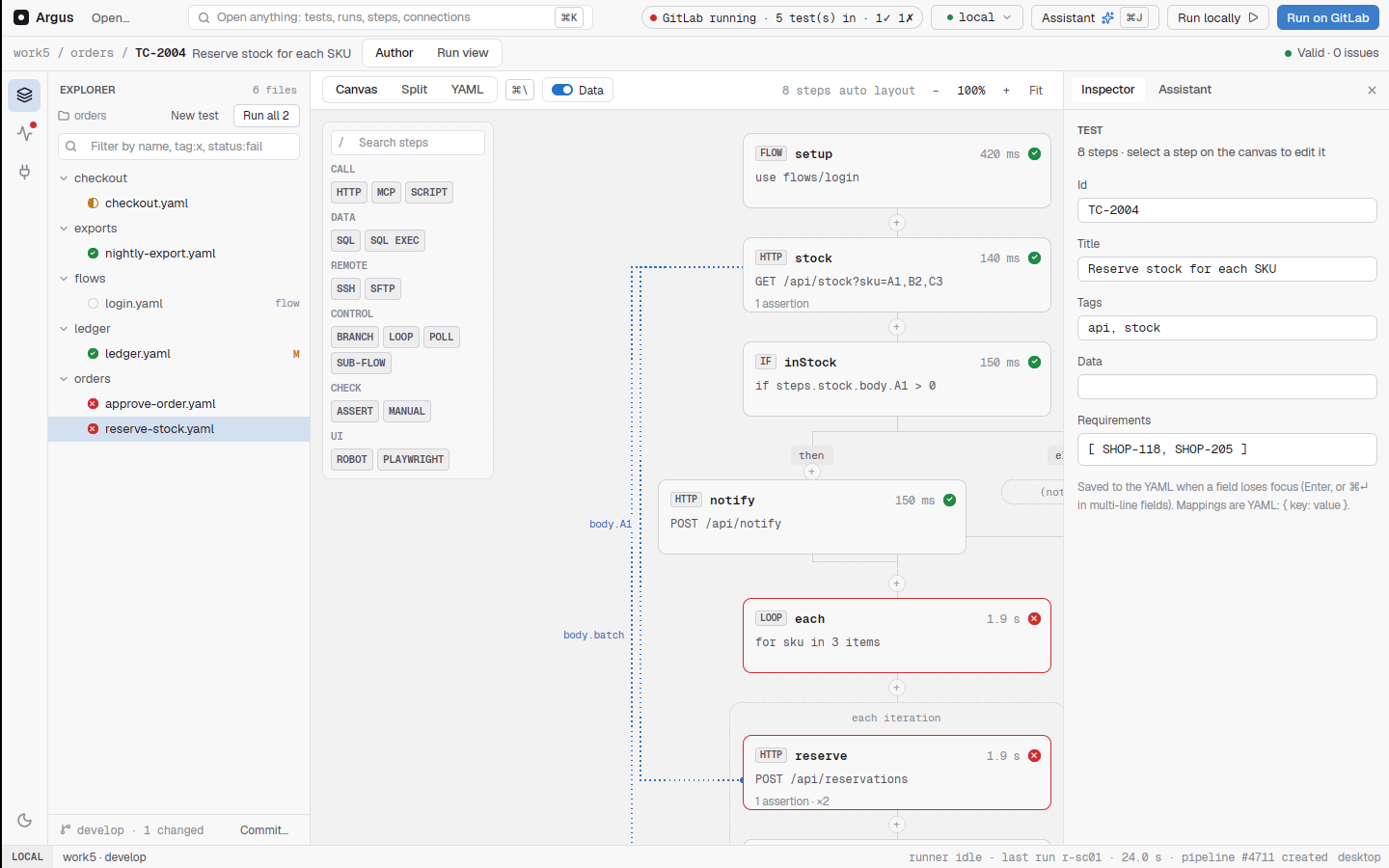
16.6 Gating a deploy on test results
An application repository can run the smoke flows after its deploy
and promote only when they pass; examples/gitlab/app-repo.gitlab-ci.yml
shows it. A release job can also ask argus-server whether the release
passes its quality gate with argus gate (20.3).
16.7 Nightly runs
Add a GitLab pipeline schedule on the tests repository with
ARGUS_CYCLE=nightly (and ARGUS_TAGS,
ARGUS_ENV as needed). With the project's Nightly
cycle turned on in argus-server, each night's results land in one
cycle (18.6).
16.8 Load and page-speed tests
Tests with a load or page-perf step are
performance tests, and they count as tagged perf without
anyone tagging them: argus run tests --tags perf runs only
them and --tags '!perf' everything else.
When a repository has both kinds, argus ci gitlab keeps
them apart, so a merge request or a push does not put load on an
environment:
- The usual jobs leave the performance tests out (unless
ARGUS_TAGSorARGUS_TESTSpick them). - A pipeline with
ARGUS_PERF=1runs only theargus-perfjob, which runs only the performance tests, one at a time, with up to two hours for the job and one such job per environment at once (resource_group). Add a pipeline schedule withARGUS_PERF=1(nightly, say), or start one from Run pipeline.
page-perf steps load the page in Chromium with Node.js
Playwright, which only the argus:full image has: the setup picks
argus:full for them, and argus plan sends their tests to
the full image's jobs. load steps run on argus:core.
With ARGUS_URL, ARGUS_PROJECT and
ARGUS_API_KEY set, each result goes to argus-server as its
test finishes, and the evidence (the load chart load.svg,
timeline.csv, the page screenshot) is uploaded at the end
of the run. The numbers appear on the project's
Performance page, in the same series as earlier runs of
the same step, so a slower build shows up as a change from the last
result (18). A threshold
(expect) that does not hold fails the step, the test and
the job (exit 1), which fails the pipeline.
argus ci gitlab --load-generators 3 gives the
argus-perf job three load generators as job services, so a
load bigger than one process runs before any AKS pods exist (12.8).
Results from other tools (JMeter, k6, Lighthouse) can be sent from a
job too, with the same API key:
curl -H "Authorization: Bearer $ARGUS_API_KEY" --data-binary @results.jtl "$ARGUS_URL/api/projects/$ARGUS_PROJECT/perf/uploads?file=results.jtl&name=Checkout&env=$ARGUS_ENV".
Setting up argus-server
argus-server is the team's system of record: test cases, cycles, executions, requirements, releases and defects, every run's results and evidence, and the web app. It is a single Rust program on SQLite or PostgreSQL 15 or later, with evidence on disk or in Azure Blob Storage. This chapter is for whoever runs it; using the web app is chapter 18.
The complete reference with every setting and API route is docs/server.md.
17.1 The quickest way: Docker Compose
deploy/server/ is all a machine needs:
docker-compose.yml runs the argus-server image
and a PostgreSQL 17 for it.
cp .env.example .env                 # set POSTGRES_PASSWORD and ARGUS_DB_PASSWORD
cp server.env.example server.env     # optional: sign-in, GitLab, Jira, storage
az acr login --name acrdeve1         # or docker login to your registry
docker compose up -d --wait
docker compose run --rm server token --email you@example.com --admin   # the first admin's token
Open http://<machine>:8080
(ARGUS_PORT) and sign in with that token.
| Every day | |
|---|---|
| Logs | docker compose logs -f server |
Settings changed in server.env |
docker compose up -d |
| New version | docker compose pull server && docker compose up -d
(migrations run at start-up) |
| Back up the database | docker compose exec db pg_dump -U postgres -Fc argus > argus-$(date +%F).dump |
| Back up evidence | The argus_argus-data volume, unless
ARGUS_STORAGE=azure |
17.2 The database: SQLite or PostgreSQL
DATABASE_URL picks the database. Leave it unset and the
server keeps everything in one SQLite file, argus.db in
ARGUS_DATA_DIR, created on first start; a
postgres:// URL puts it in PostgreSQL. Both hold the same
data and run the same features, and you can move from one to the other
at any time (17.2.2).
| SQLite | PostgreSQL | |
|---|---|---|
| Set-up | None: a file next to the evidence | A database and a login (below) |
DATABASE_URL |
unset, sqlite:/var/lib/argus/argus.db, or a path ending
in .db |
postgres://argus:<password>@<host>:5432/argus |
| Suits | One server for a team; trying Argus; a laptop | Many users at once; more than one server on one database; managed backups |
| Back up | Copy the file while the server is stopped, or
sqlite3 argus.db ".backup argus-copy.db" while it runs |
pg_dump |
17.2.1 SQLite
argus-server token --email lead@example.com --admin      # creates data/argus.db
argus-server serve --listen 0.0.0.0:8080 --data-dir /var/lib/argus
or with Docker, keeping the database on the data volume:
docker run -d --name argus-server -p 8080:8080 -v argus-data:/var/lib/argus/data acrdeve1.azurecr.io/agentops/argus-server
docker exec argus-server argus-server token --email you@example.com --admin
Only one server may use a SQLite file, and the file must be on a
local disk, not a network share. The server writes it in WAL mode, so
argus.db-wal and argus.db-shm next to it are
part of the database while it runs.
17.2.2 Switching between SQLite and PostgreSQL
argus-server copy-db copies everything from one database
into a new, empty one, in either direction. Ids are kept, so links,
tokens, API keys and test keys keep working; evidence and attachments
stay where they are (ARGUS_STORAGE).
# Stop the server first, so nothing changes during the copy.
argus-server copy-db --from /var/lib/argus/argus.db --to postgres://argus:<password>@<host>:5432/argus
# then start it with DATABASE_URL set to the new database
Back to SQLite is the same with --from and
--to swapped. Each database gets this server's tables
first; the copy refuses a target that already has data, and runs in one
transaction, so a failed copy leaves the target empty. The old database
is left as it was, so you can switch back.
17.2.3 Your own PostgreSQL
Make the argus login and database once:
psql -h <host> -U postgres -d postgres -v argus_password='<password>' -f deploy/server/server-database.sqlthen run the server (Docker or the binary from the Windows install):
export DATABASE_URL=postgres://argus:<password>@<host>:5432/argus   # ?sslmode=require for Azure Database for PostgreSQL
argus-server token --email lead@example.com --admin
argus-server serve --listen 0.0.0.0:8080 --data-dir /var/lib/argus
serve reads ARGUS_LISTEN (default
0.0.0.0:8080) and ARGUS_DATA_DIR (default
data). The web app is built into the server;
--web-dir serves a folder's copy instead.
Migrations run at start-up, which needs a login that
may create tables. When it may not, the database owner runs the script
argus-server schema sql --grant <login> prints, and
the server starts with --migrate check
(ARGUS_MIGRATE=check): it only checks that every migration
is there and otherwise refuses to start, naming the script to run.
(schema sql is for PostgreSQL; a SQLite file is always
created by the server itself.)
17.3 HTTPS and reverse proxies
The server speaks plain HTTP. Put a reverse proxy with the site's
certificate in front (IIS, nginx, a load balancer) and set
ARGUS_PUBLIC_URL to the HTTPS address; single sign-on and
Jira links need it. Under a path of another site
(https://tools.example.com/argus/), set
ARGUS_PUBLIC_URL to that address and the server serves from
/argus (or set ARGUS_BASE_PATH); the proxy may
keep or strip the path.
location /argus/ { proxy_pass http://<machine>:8080/; }CI and the CLI then use
ARGUS_URL=https://tools.example.com/argus.
Behind an SSO proxy (Azure App Service authentication, oauth2-proxy),
--trust-proxy (ARGUS_TRUST_PROXY_AUTH=1)
accepts the user the proxy signed in
(X-MS-Client-Principal-Name,
X-Auth-Request-Email, X-Forwarded-Email). Only
enable it behind such a proxy.
17.4 Sign-in with OpenID Connect
Argus signs people in with your identity provider directly
(authorization code with PKCE). The documented setup is Duende
IdentityServer; Microsoft Entra ID is a
preset, and other providers with a discovery document work as
generic. Personal tokens and API keys keep working
alongside it.
Duende IdentityServer
Register three things: a confidential web client for the browser, a
public device-flow client for argus login (CLI, MCP server,
desktop), and an API resource the access tokens are for.
new ApiScope("argus.api", "Argus");
new ApiResource("argus.api", "Argus") {
    Scopes = { "argus.api" },
    UserClaims = { JwtClaimTypes.Name, JwtClaimTypes.Email, JwtClaimTypes.Role },
    ApiSecrets = { new Secret("<introspection secret>".Sha256()) },   // only for reference tokens
};
new Client {                                     // the browser
    ClientId = "argus-web",
    ClientSecrets = { new Secret("<client secret>".Sha256()) },
    AllowedGrantTypes = GrantTypes.Code, RequirePkce = true,
    RedirectUris = { "https://argus.example/auth/oidc/callback" },
    PostLogoutRedirectUris = { "https://argus.example/" },
    AllowedScopes = { "openid", "profile", "email", "roles" },
};
new Client {                                     // argus login, the desktop, argus mcp
    ClientId = "argus-cli",
    RequireClientSecret = false,
    AllowedGrantTypes = GrantTypes.DeviceFlow,
    AllowOfflineAccess = true,
    RefreshTokenUsage = TokenUsage.OneTimeOnly,
    AllowedScopes = { "openid", "profile", "email", "roles", "argus.api" },
};
// plus an IdentityResource "roles" carrying the `role` claimARGUS_PUBLIC_URL=https://argus.example
ARGUS_OIDC_PROVIDER=duende
ARGUS_OIDC_PROVIDER_NAME="Company SSO" # the button: "Sign in with Company SSO"
ARGUS_OIDC_ISSUER=https://idsrv.example
ARGUS_OIDC_CLIENT_ID=argus-web
ARGUS_OIDC_CLIENT_SECRET=... # environment / secret store only
ARGUS_OIDC_SCOPES="openid profile email roles"
ARGUS_OIDC_CLI_CLIENT_ID=argus-cli
ARGUS_OIDC_DEFAULT_ROLE='*:viewer'
ARGUS_OIDC_ROLE_MAP='argus-admins=admin; qa-leads=EBM:lead; testers=EBM:tester,PAY:tester'- Users are matched by issuer +
sub, so a changed email follows the same user. - The role map reads the
roleclaim at every web sign-in (and at each new API token's first use):adminmakes a server admin,EBM:leada lead in project EBM. Mapped roles only ever raise a role, never lower one an admin set. ARGUS_OIDC_DEFAULT_ROLEgrants a new user's first roles.- Access tokens from
argus loginmust betyp: at+jwtwithaudand scopeargus.api(ARGUS_OIDC_REQUIRE_AT_JWT=falserelaxes the type). Reference tokens are checked at the introspection endpoint withARGUS_OIDC_INTROSPECTION_SECRET. ARGUS_LOCAL_SIGNIN=falsemakes the web app sign in only with single sign-on.- Web sessions last
ARGUS_OIDC_SESSION_HOURS(default 12).
If argus login or the desktop says the provider "has no
public client argus-cli" (invalid_client),
that client is missing, needs a secret, or is disabled.
Microsoft Entra ID
Register an app (App registrations → New registration),
redirect URI (Web)
https://<ARGUS_PUBLIC_URL>/auth/oidc/callback, a
client secret, optional app roles (Argus.Admin,
Argus.Lead, Argus.Tester), and for the CLI and
desktop Expose an API with a delegated scope
access_as_user and Allow public client flows. Then
ARGUS_OIDC_PROVIDER=entra and
ARGUS_OIDC_ISSUER=https://login.microsoftonline.com/<tenant id>/v2.0.
Servers configured with the older ARGUS_ENTRA_* variables
keep working.
All OpenID Connect settings are listed in docs/server.md.
17.5 Storage
Evidence and attachments are stored by key
(<project>/runs/<run>/evidence/<path>,
<project>/attachments/<id>-<name>).
ARGUS_STORAGE picks where:
local(default): files underARGUS_DATA_DIR.azure: block blobs in an Azure Blob Storage container. The server proxies every read and write, so access stays governed by Argus roles.
| Variable | |
|---|---|
ARGUS_AZURE_STORAGE_ACCOUNT,
ARGUS_AZURE_STORAGE_CONTAINER |
Required |
ARGUS_AZURE_STORAGE_ENDPOINT |
Sovereign clouds, private endpoints, Azurite |
ARGUS_AZURE_STORAGE_AUTH |
auto (default), managed-identity,
workload-identity, client-secret,
key or sas |
The identity needs Storage Blob Data Contributor on
the container. argus-server storage check tests the
configuration;
argus-server storage migrate --to azure --data-dir /var/lib/argus/data [--dry-run]
copies existing files (run it before switching, and again after).
Uploads are streamed, up to 64 MB each.
17.6 Run retention
Admin → Project → Run retention
({"days": 90, "keep_last": 20}) deletes a run when it
started more than days ago and is not
among the newest keep_last runs of its environment. Running
runs and runs that a cycle execution or a defect links to are never
deleted. The server applies it every
ARGUS_RETENTION_INTERVAL_MINUTES (default 360);
argus-server retention run [--dry-run] applies it now. Each
deletion is in the audit log.
17.7 Integrations configured on the server
| Integration | Server settings | Per project |
|---|---|---|
| GitLab (Run on GitLab, following pipelines, deployments) | ARGUS_GITLAB_URL, ARGUS_GITLAB_PROJECT,
ARGUS_GITLAB_REF, ARGUS_GITLAB_TRIGGER_TOKEN,
ARGUS_GITLAB_API_TOKEN,
ARGUS_GITLAB_WEBHOOK_SECRET (defaults),
ARGUS_GITLAB_POLL_SECONDS (60),
ARGUS_RUN_TIMEOUT_HOURS (12) |
Admin → GitLab |
| Jira | ARGUS_JIRA_URL (the Jira for every project; people add
their own email + token in My Jira),
ARGUS_JIRA_USER, ARGUS_JIRA_TOKEN (shared
sign-in, optional), ARGUS_JIRA_SYNC_MINUTES (60),
ARGUS_JIRA_WEBHOOK_SECRET |
Admin → Jira |
| Assistant (web app) | ARGUS_ASSISTANT_PROVIDER (anthropic,
openai, openrouter, azure,
azure-anthropic, openai-compatible),
ARGUS_ASSISTANT_MODEL,
ARGUS_ASSISTANT_BASE_URL,
ARGUS_ASSISTANT_API_KEY, ARGUS_ASSISTANT_AUTH,
ARGUS_ASSISTANT_API_VERSION; see 17.7.1 |
Admin → Assistant (server admins) |
| QMetry import | ARGUS_QMETRY_API_KEY,
ARGUS_QMETRY_URL |
Admin → QMetry import |
Tokens and webhook secrets are read from the environment and are never stored, returned, logged or sent to the browser. The one exception is a project's own GitLab or Jira sign-in saved in the web app: kept in the database so the server can use it, never returned.
17.7.1 The assistant's model
The web app's assistant uses one model provider for the whole server.
Pick it with ARGUS_ASSISTANT_PROVIDER:
anthropic: Claude from Anthropic.ANTHROPIC_API_KEY; the model defaults toclaude-opus-5-5. A server with onlyANTHROPIC_API_KEYset keeps using this.azure: Azure OpenAI, or any model deployed in Azure AI Foundry.ARGUS_ASSISTANT_BASE_URLis the resource as the portal shows it (https://<name>.openai.azure.comorhttps://<name>.services.ai.azure.com),ARGUS_ASSISTANT_MODELthe deployment name. Sign in with a key (ARGUS_ASSISTANT_API_KEY) or, with no key, Microsoft Entra ID: the server's managed identity, orAZURE_TENANT_ID+AZURE_CLIENT_ID+AZURE_CLIENT_SECRET(ARGUS_ASSISTANT_AUTHpicks one). Give the identity Cognitive Services OpenAI User (Azure AI User in Foundry).ARGUS_ASSISTANT_API_VERSIONswitches from the v1 API to the dated one.azure-anthropic: Claude deployed in Microsoft Foundry, same sign-in.openai,openrouter: their API key and a model (OpenRouter defaults toanthropic/claude-opus-5-5).openai-compatible: any server with the OpenAI Chat Completions API (LiteLLM, vLLM, Ollama): its URL, a model and, if it needs one, a key.
ARGUS_ASSISTANT_PROVIDER=azure
ARGUS_ASSISTANT_BASE_URL=https://qa-ai.openai.azure.com
ARGUS_ASSISTANT_MODEL=gpt-5-argus        # the deployment name
# no key: the server's managed identity signs in
Restart the server after a change, then open Admin →
Assistant (server admins): it shows the provider, model, endpoint
and sign-in (never a key) and Test connection sends one
short request. If the settings cannot be used, the assistant stays off
and the tab says why. All variables are in
docs/server.md.
17.8 Migrating from QMetry
QMetry is retired after a one-time import (Admin → QMetry import, admins). Three ways in, all writing through the same code:
- REST pull (preferred): give the Jira project (key,
name or id) and optionally the API URL; the API key comes only from the
server's
ARGUS_QMETRY_API_KEY. The job runs in the background, paging through folders, test cases (every version, with steps and requirements), cycles, executions (with history, step results, defects and attachments). Progress is saved after every page; a failed or interrupted job resumes where it stopped. - Excel export (
.xlsx) as a fallback. - JSON upload shaped like QMetry's REST responses.
Running an import again is always safe: everything matches on its
QMetry key, and unchanged versions are not written again. The
acceptance check shows, for folders, test cases, steps,
versions, requirements, cycles, executions, defects and attachments, how
many QMetry had and how many Argus holds, with ok where
they match.
17.9 Health
GET /api/health answers ok without signing
in, for load balancers and probes.
Using the web app
The web app is argus-server's front end: open the server's address in a browser. It is where testers execute manual tests, leads plan cycles and releases, and everyone reads runs, defects and reports. Some screenshots in this chapter come from earlier builds and may differ in small details (newer builds have a Performance item in the navigation, for example).
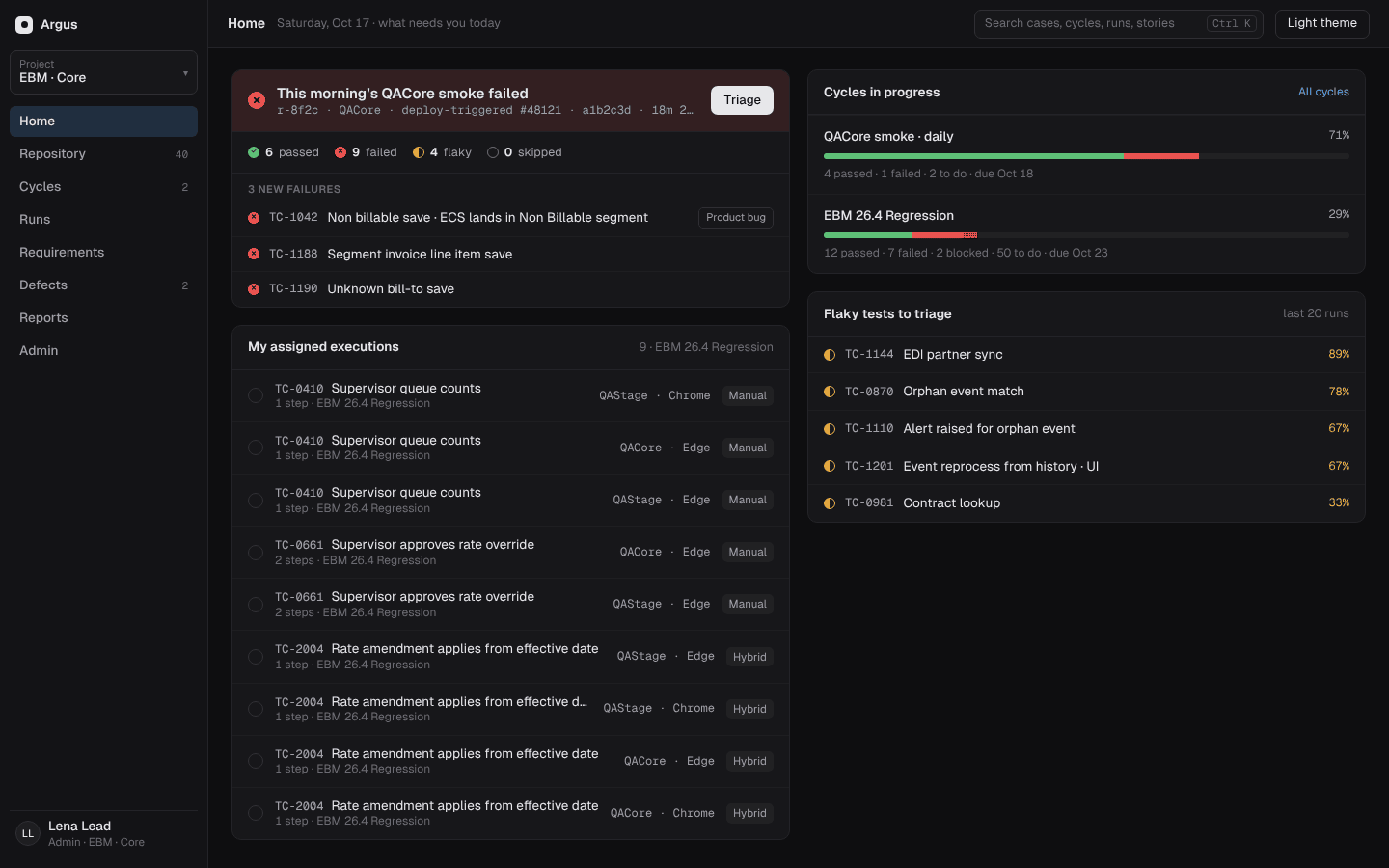
Watch the video: A tour of the web app 1:35
18.1 Signing in
- Sign in with
when the server has single sign-on. - Otherwise paste a personal token (the first admin
gets one from
argus-server token; everyone can make more under My tokens). - Everyone who signs in can view every project; what more you can do depends on your role (chapter 21).
18.2 Finding your way
The left navigation has the project picker and:
Home, Repository,
Cycles (with Releases and Test plans),
Runs (with Deployments), Requirements,
Defects, Reports,
Performance and Admin. The search box
(Ctrl+K) searches test cases, cycles, runs, requirements
and defects. The theme button switches light and dark.
Help (or F1, or User manual in
your account menu) opens this manual at help/ on the same
server, in a new tab. The account menu also has My
tokens and My Jira, where you add your own
Jira sign-in so what you do in Jira is done as you (19.1). On a phone the navigation
folds into a menu and tables scroll.
18.3 Home: what needs you today
- The latest run, with its new failures and a Triage button.
- My assigned executions, most urgent first, with due date, steps done, time spent and last result, grouped by cycle with your progress in each.
- Retest queue: your failed or blocked executions whose defect was resolved after they last ran.
- Cycles in progress and flaky tests to triage.
18.4 Repository and test cases
Repository lists the project's test cases in a folder tree and a fast table (it stays fast with 50,000 tests). Filter by folder, status, kind (manual, automated, hybrid), priority, owner, requirement (or none), tag, or last result failed; pick columns; select rows for bulk changes (priority, status, owner, folder, kind). New test case and Import are at the top.
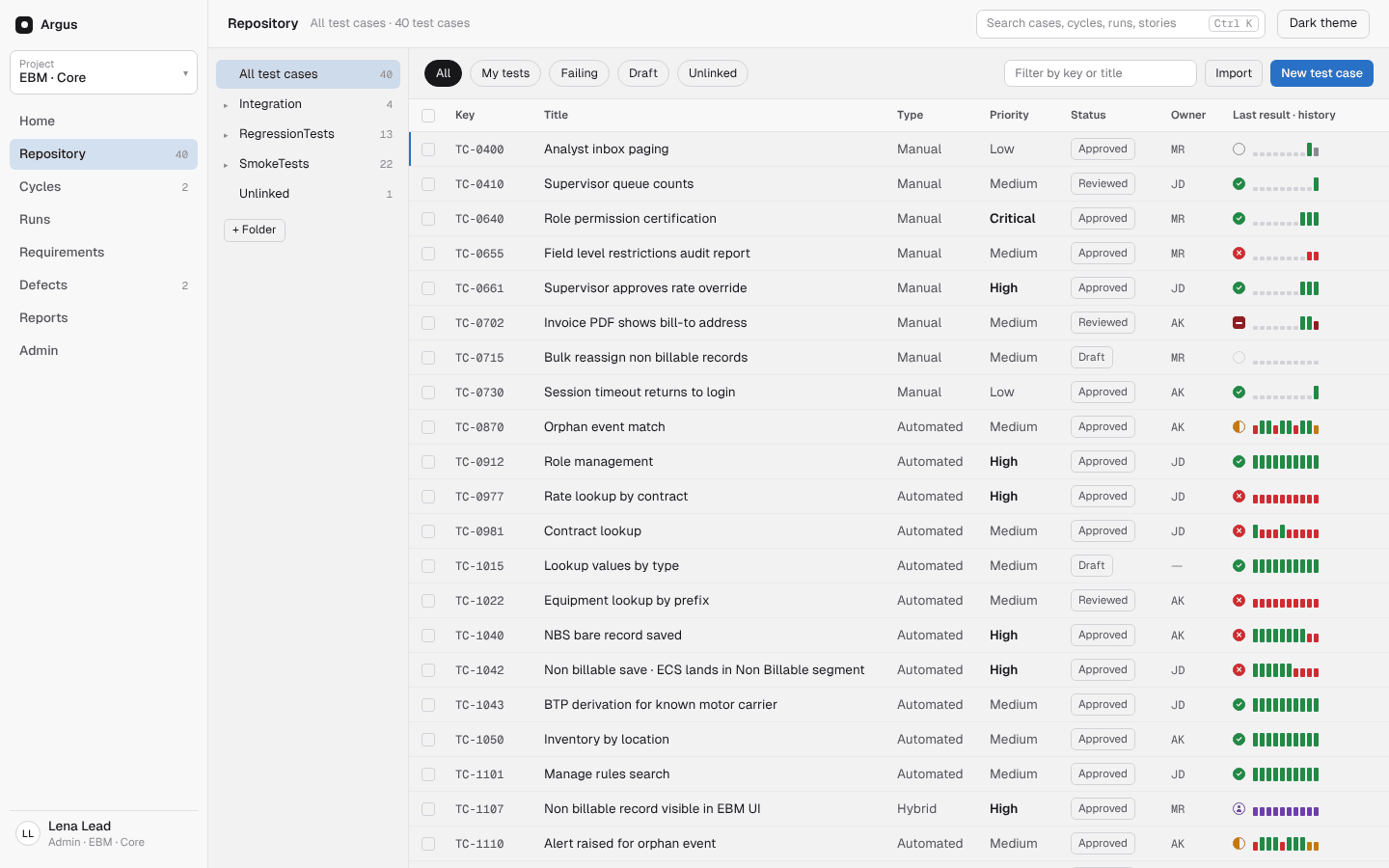
A test case has tabs:
| Tab | |
|---|---|
| Steps | Manual steps (action, expected result, data), edited in place; for
automated tests, the YAML flow drawn as the desktop
does (sent by argus sync), with a link to the file in
GitLab. |
| Details | Owner, priority, status, kind, tags, folder and the project's custom fields. |
| Links | Requirements it covers. |
| History | Every result, from runs and executions (QMetry history included). |
| Versions | Every change, with a snapshot (each change bumps the version). |
Buttons: Log defect, Add to cycle, and Assistant, which can propose better manual steps as a diff that a lead applies or discards.
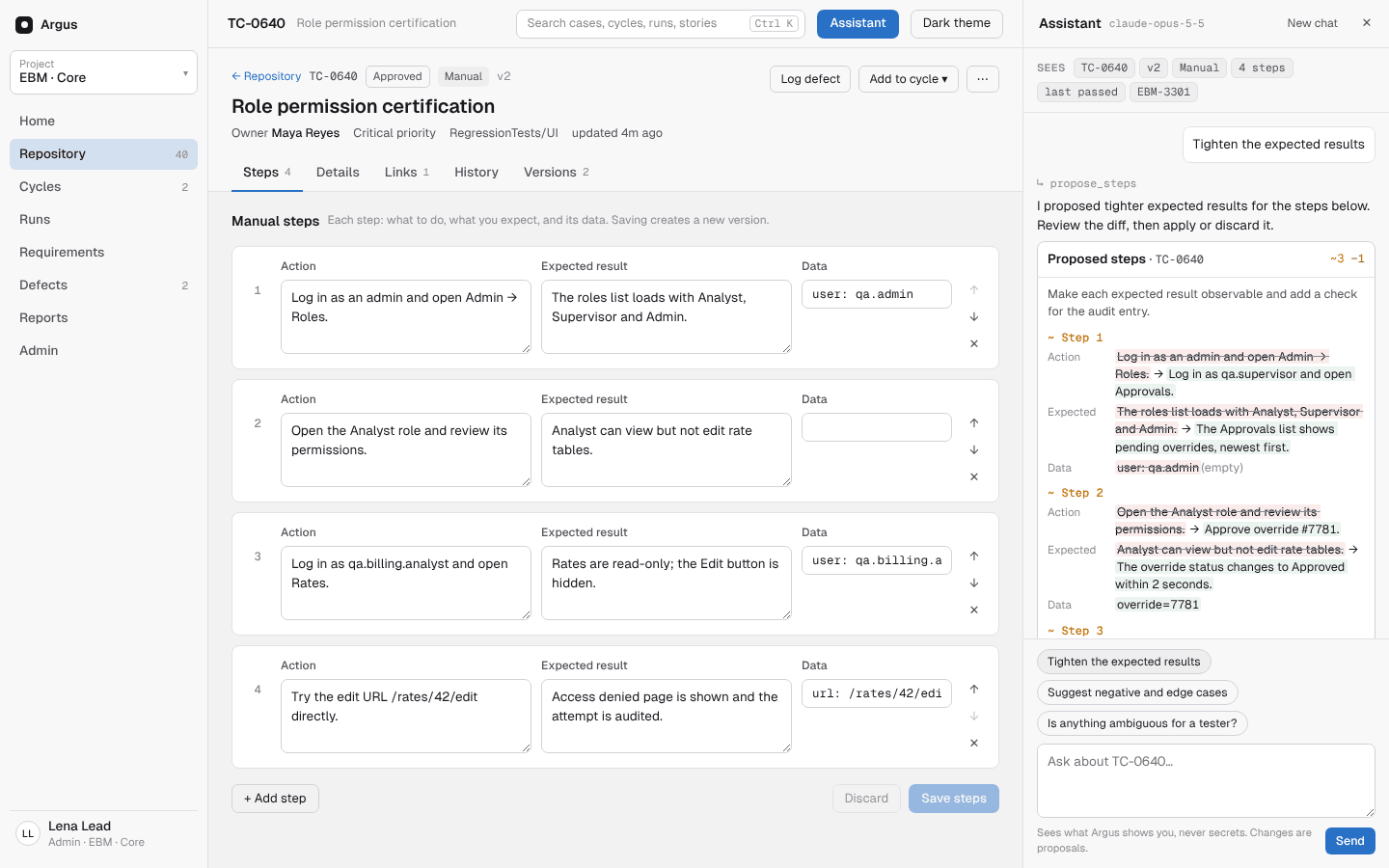
Automated tests appear in the repository by themselves: a result for
an unknown key creates the test case in the Unlinked folder.
argus sync tests/ sends each test's YAML so its Steps tab
shows the flow:
argus sync tests/ # ARGUS_URL, ARGUS_PROJECT and ARGUS_API_KEY or ARGUS_TOKEN18.5 Requirements
Requirements are the stories tests prove, with their
coverage (tests linked, and how they last did). They
come from Jira: the project's requirements_jql keeps them
in sync, and Import from Jira picks stories by project,
type, sprint and words, optionally creating a draft manual test case for
each uncovered story (chapter 19). Requirements
can also be made by hand. Leads and project admins can
Remove one from its page: its test links go, the test
cases and runs stay, and Jira sync and CI uploads leave it out until it
is imported or linked again (19.3).
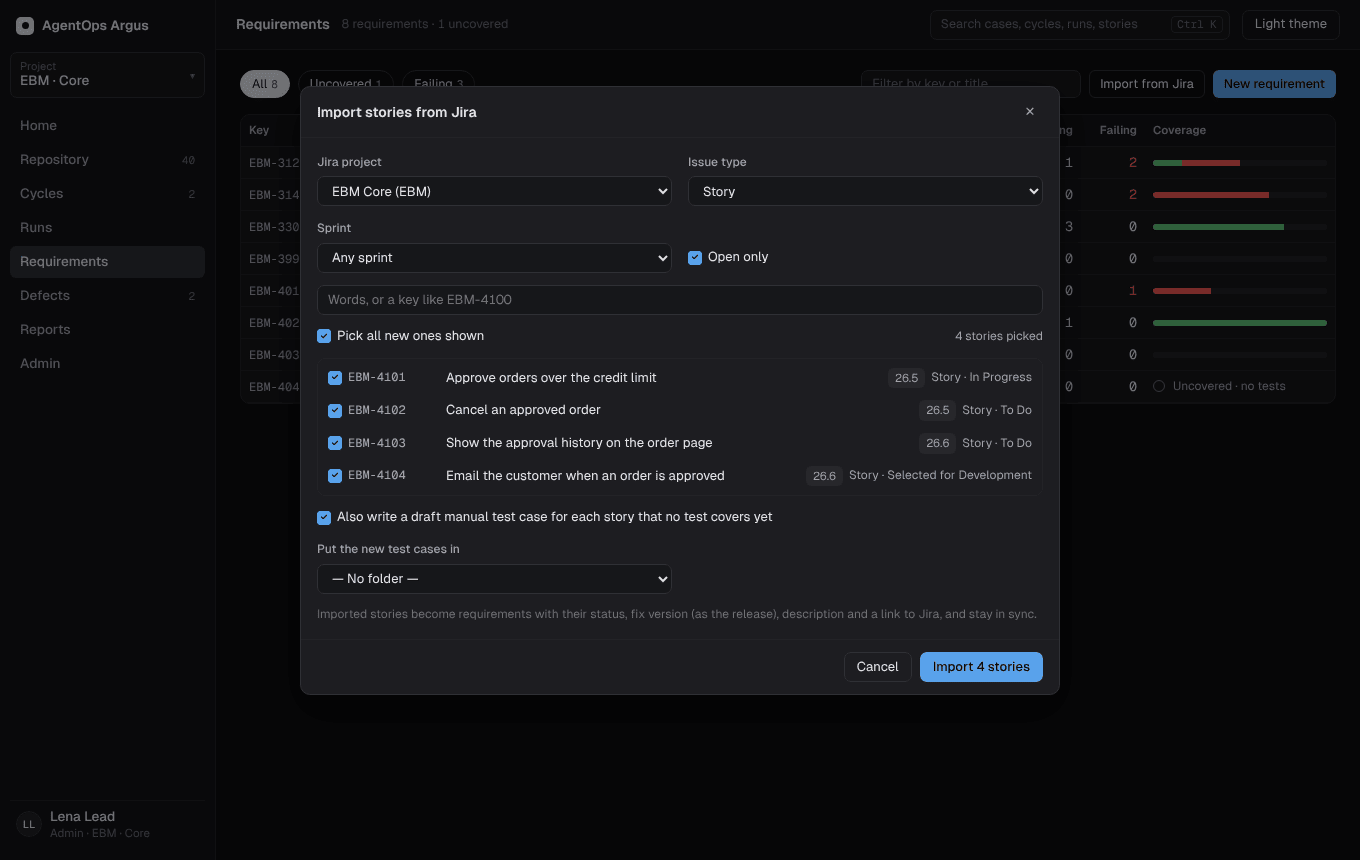
18.6 Planning: cycles, plans and the player
Test plans are reusable sets of tests: static (a list of keys) or filter (a saved repository filter, so new matching tests join automatically).
Cycles are rounds of testing: a sprint's regression,
a release candidate, a nightly. Create one from scratch or from
a test plan, with environments and platforms (e.g. QACore ×
Chrome, QAStage × Edge), dates and a release. The cycle page shows
progress and an environment × platform matrix; Add
tests (also "add a plan's tests") assigns executions to testers.
Automated results land in the cycle when a run is recorded against it
(?cycle= on upload, or record in a cycle on
Run on GitLab).
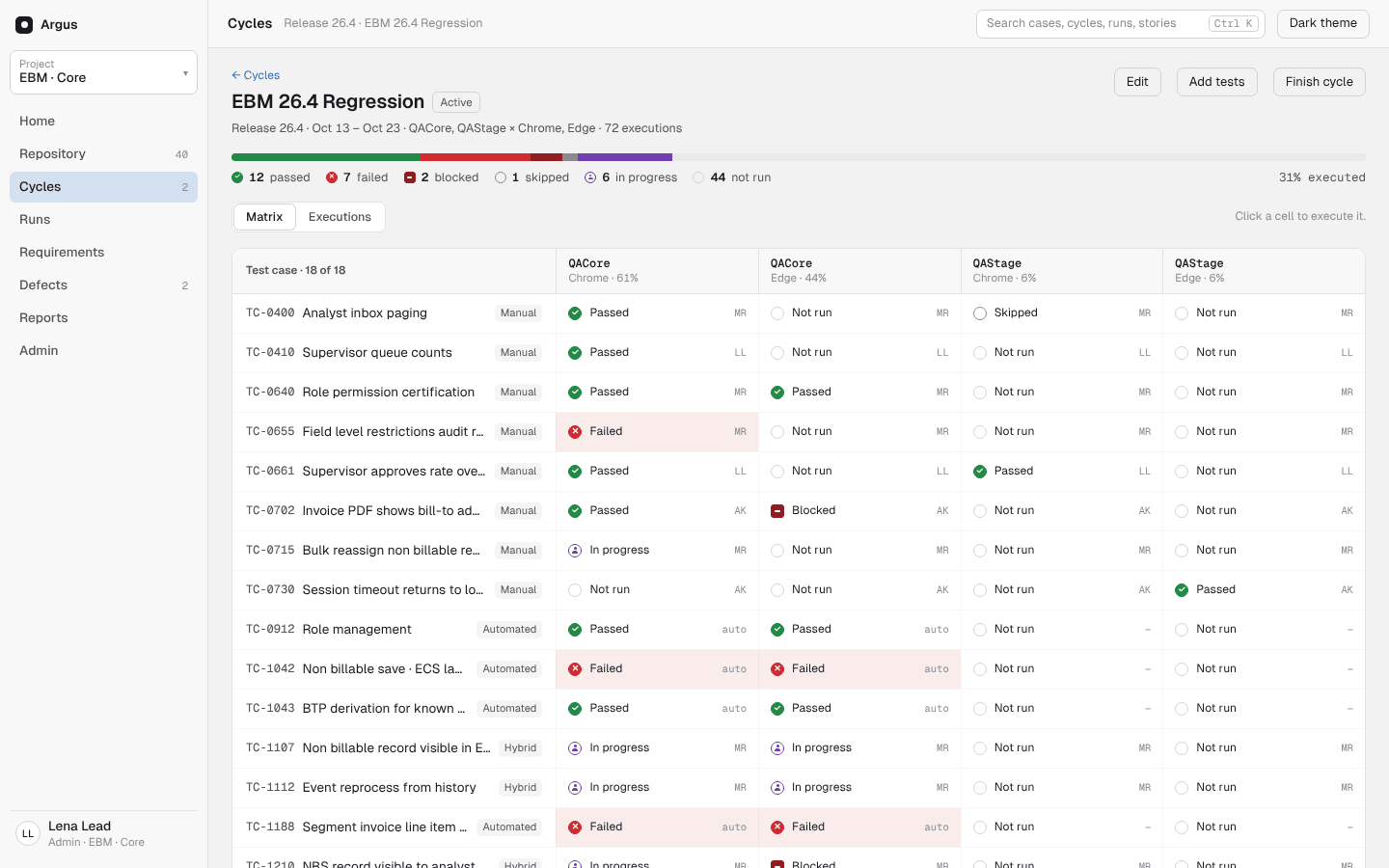
The nightly cycle (Admin → Project → Nightly
cycle) collects each night's scheduled runs in one cycle, created
on first use (Nightly {date}), optionally starting with a
plan's tests so the ones that didn't run show as not run.
The execution player walks a tester through a manual
test step by step: the action, expected result and test data; actual
result (required for Fail or Blocked); paste a screenshot
(Ctrl+V), drop a file or click to upload, then mark up
screenshots in the browser (arrows, boxes, text, blur);
Pass, Fail, Blocked
or Skip per step, with keyboard shortcuts. The
automated part of a hybrid test is shown above the manual steps. Time
spent is recorded, each final result is kept as an attempt (running it
again loses nothing), and Log defect files a defect
with the step's evidence.
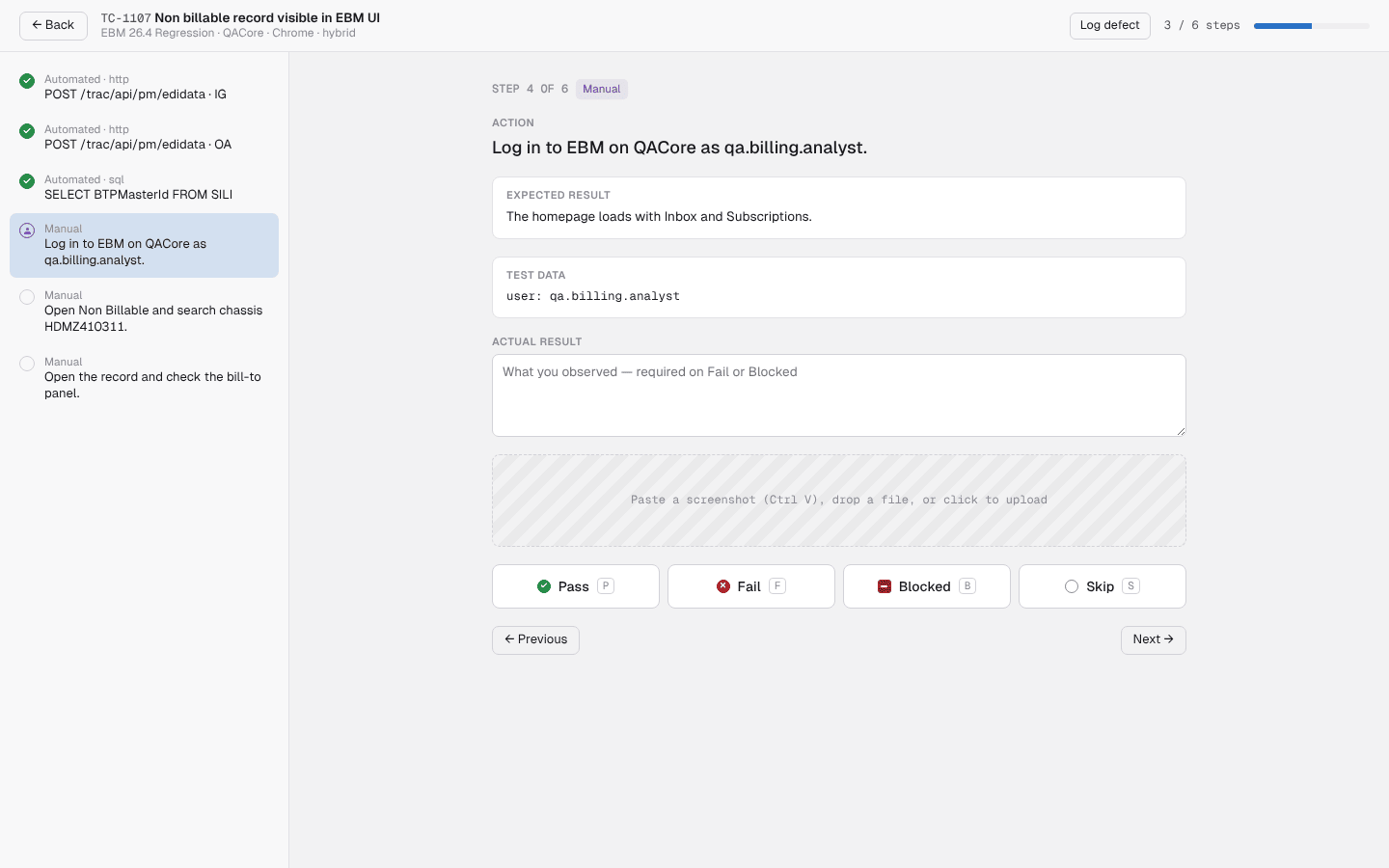
18.7 Runs and triage
Runs lists every run from every source (CI pipelines, the CLI, the Robot listener, JUnit and output.xml uploads, the web app's own Run on GitLab), with environment filters, verdict, trigger, build, counts, new failures and duration. Each row says what ran and why (scope and note).
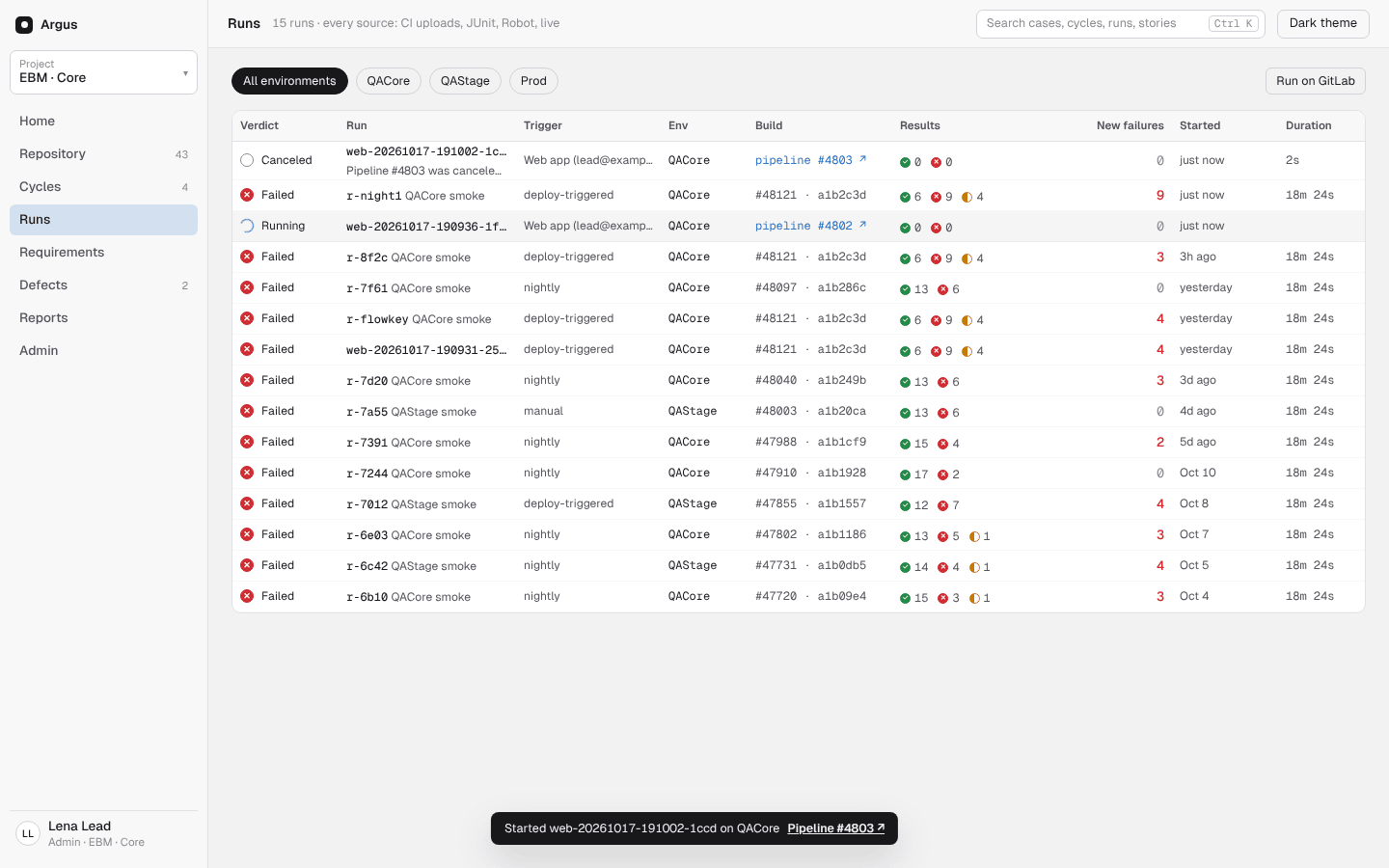
- Run on GitLab starts the tests pipeline: environment, tags, paths, a run name, and whether to record results in a cycle. The run shows as queued, then running, then fills in. It needs Admin → GitLab set up.
- A run's page has the results, the HTML report, evidence, and a Performance card when it has load or page-speed steps.
- Re-run failed starts the pipeline for just the failed tests.
- Cancel stops a running run and its GitLab pipeline.
- Delete (project admins) removes a run and its evidence; a run that executions or defects link to asks again (Delete anyway and unlink).
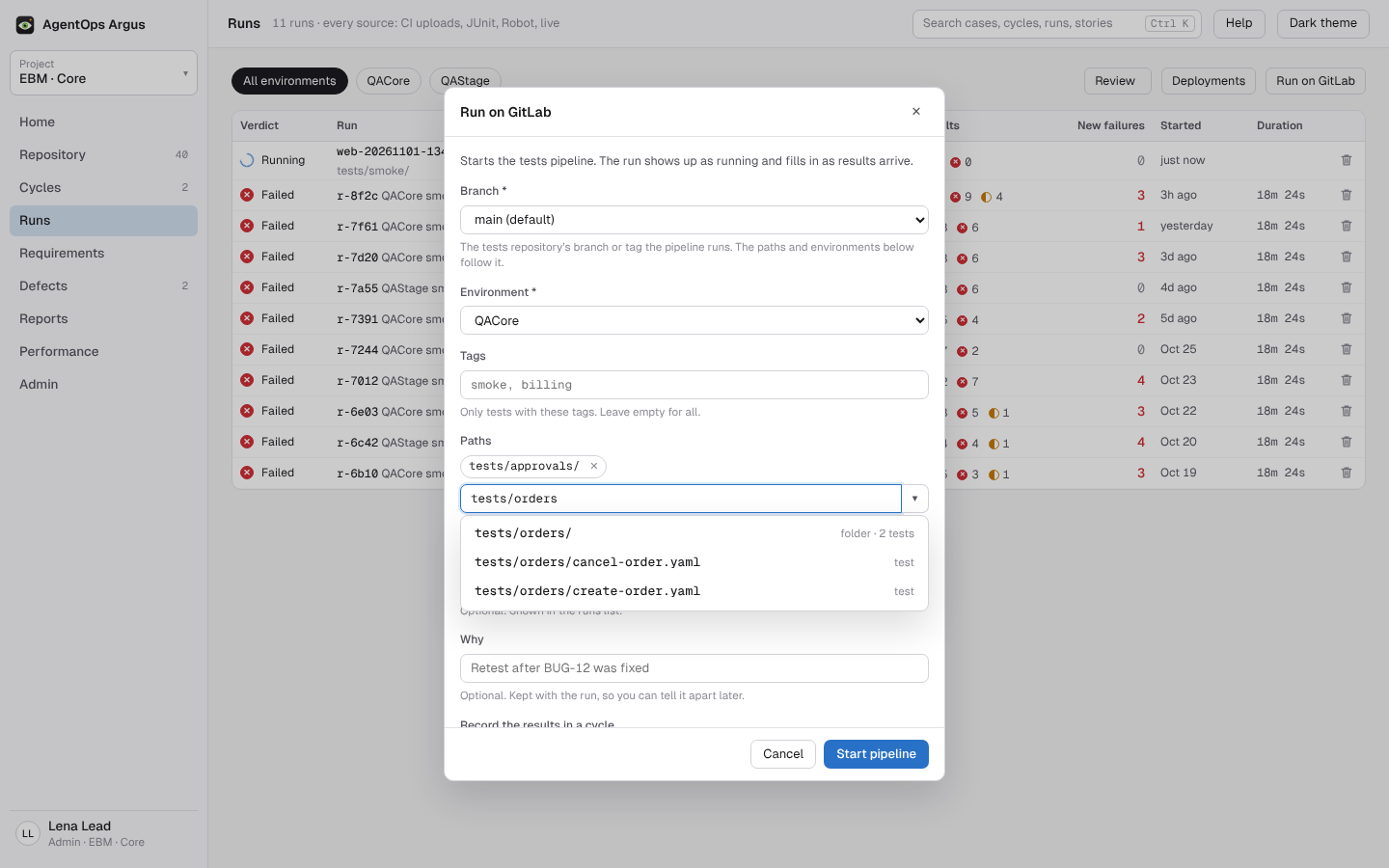
Review (a button on Runs, with a count)
lists what recent runs changed on their own: healed locators and new or
changed screenshots, with the baseline, this run's screenshot and the
difference side by side. People who can run tests approve or reject
them. An approved screenshot is the project's baseline from then on, on
the server; argus review pull brings approved baselines and
accepted locators into the repository. See 9.13.
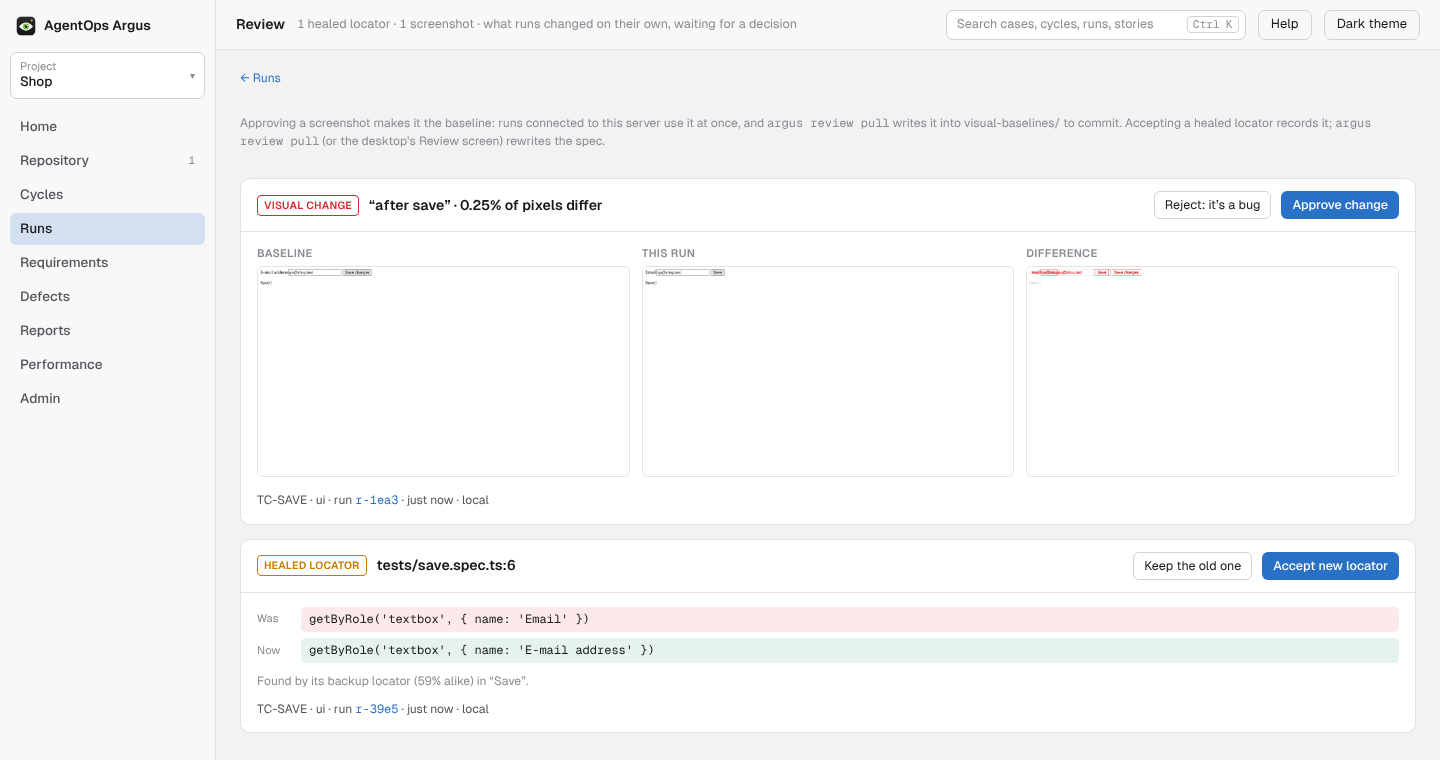
Triage by root cause. A run's failures are grouped by error signature, with errors nobody has categorised first. For each group set a category (Product bug, Test bug, Environment, Flaky), a note, or a defect. The decision is kept for that error, so later runs with the same error arrive already categorised (in their results and report). A failure whose defect is open shows it; one that fails again after its defect was resolved says so, with Reopen.
18.8 Defects
Defects are logged from a run, a failed step, an execution, the desktop app or the assistant, with the test, step, expected and actual, evidence and run. With Jira set up, file in Jira creates the issue, attaches the evidence and links back; Jira's status comes back by sync and webhook (chapter 19). To point at a bug that is already in Jira, pick it in the dialog's Existing Jira issue field: it lists the project's open bugs, finds any key, and searches by words (19.4). The Defects page lists them by status and severity.
18.9 Reports
| Report | Shows |
|---|---|
| Traceability | Requirements → tests → latest results |
| Release readiness | A release's verdict and reasons by its gate: requirements passing, failing, not run or uncovered; its cycles; open defects by severity; the latest sign-off (chapter 20) |
| Cycle progress | By tester, environment × platform and priority; executed per day |
| Pass-rate trend | Pass rate over time per environment |
| Flaky tests | Tests that flip between pass and fail |
| Tester workload | Open executions per tester |
Every report downloads as CSV or Excel, and prints to PDF.
18.10 Performance
The Performance page keeps load and page-speed results over time, with comparisons and uploads from JMeter, k6 and Lighthouse (12.4). GitLab pipelines send load and page-speed results there as they run (16.8).
18.11 The assistant
The Assistant button opens a chat about what you are looking at (a cycle, a test case, the project): "which stories have no passing test?", "summarize the failures and blocked executions". It reads test cases, runs, cycles and requirements as you, and can only propose new manual steps, which a lead applies. Connection settings and secrets are never part of what it sees. It uses the model the server is set up with: Anthropic, OpenAI, OpenRouter, Azure OpenAI / Azure AI Foundry or any OpenAI-compatible server (17.7.1).
18.12 Admin
| Tab | Who | |
|---|---|---|
| Members | Project admins | Give people tester or lead (pick from everyone Argus knows, or add an email). |
| API keys | Project admins | Keys for CI to upload results (shown once). |
| Environments | Project admins | The project's environments and platforms, and restricted environments (who may run or upload results there). |
| Connections | Project admins | Connection names the project knows. |
| Jira | Project admins | Site (read-only when the server sets ARGUS_JIRA_URL),
project, issue type, requirements JQL, an optional shared Jira sign-in,
Everyone uses their own Jira sign-in, your own sign-in
(Your Jira), Test connection, Sync now (19.2). |
| GitLab | Project admins | GitLab URL, tests project, ref, trigger and API tokens, webhook secret, Test connection, Tests after a deployment. |
| Custom fields | Project admins | Extra test case fields: text, number, select, date or user, optionally required. |
| Project | Project admins | Name, nightly cycle, run retention. |
| QMetry import | Project admins | The one-time import and its acceptance check (17.8). |
| Audit log | Everyone | Every change in the project. |
| Project admins | Server admins | Every project with its admins. |
| Server admins | Server admins | Who administers the whole server. |
| Assistant | Server admins | The assistant's model provider, model, endpoint and sign-in, and Test connection. |
| Sign-in audit | Server admins | Sign-ins, failed sign-ins and sign-outs. |
Jira
Argus works with Jira in two places, set up separately:
| Where | What it does | Sign-in |
|---|---|---|
| argus-server | Requirements from Jira stories (sync and import), defects filed as Jira issues with evidence, Jira status coming back, Jira versions as releases. | Jira URL set once on the server (ARGUS_JIRA_URL); each
person's own email + API token (My Jira, no admin needed), else
the project's shared sign-in (Admin → Jira), else the server's
ARGUS_JIRA_USER / ARGUS_JIRA_TOKEN. Jira Cloud
(email + API token) or Jira Server / Data Center (a personal access
token). |
Desktop app and argus mcp |
Jira issues in the assistant chat, the jira_* tools,
defects filed straight in Jira when no server is used. |
Connections → Jira (site, account email, API token), kept as
ARGUS_JIRA_* local variables, the token in the keychain.
Jira Cloud. |
When the desktop is signed in to argus-server with
ARGUS_PROJECT set, its defects go through the server (and
to Jira from there).
19.1 Your own Jira sign-in
The Jira URL is set once on the server by whoever runs it
(ARGUS_JIRA_URL, 17); nobody else sets or changes
it. Each person then adds only their own account: click your name (top
right) → My Jira and enter
- your email and API token (Jira Cloud), or only a personal access token (Jira Server / Data Center),
- a default Jira project for the defects you file when the Argus project names none.
No admin step is needed. Save and test signs in and says as whom. The token is stored write-only and never shown again. From then on what you do in Argus happens in Jira as you: stories you import (the requirement also shows imported by you), defects you file and the evidence attached to them, Jira versions you import or release, and Sync from Jira when you press it. The import dialog says whose account it uses.
A shared sign-in (19.2) is optional: people who haven't added their own use it, and background syncs and the webhook always do. A project admin can tick Everyone uses their own Jira sign-in in Admin → Jira, so nobody acts in Jira through the shared account.
Without ARGUS_JIRA_URL, the Jira URL a server admin set
on a project is used instead, and My Jira offers those.
19.2 Connecting a shared Jira on the server
Admin → Jira (project admins):
- Site
(
https://<company>.atlassian.net; shown read-only when the server setsARGUS_JIRA_URL), project and issue type for defects. A project admin may set a Jira Cloud URL; a self-hosted Jira URL has to be set by a server admin, since the server's own Jira credentials could reach it. - Shared connection (optional): the project's own sign-in. With an email the token is sent as Basic auth (Jira Cloud: email + API token); without one it is a Bearer personal access token (Server / Data Center). It is stored write-only and never shown again.
- Test connection signs in and says as whom.
- Requirements JQL
(
project = EBM AND type = Story): issues it finds become requirements (key, summary, status, link, first fix version as the release).
Sync runs every ARGUS_JIRA_SYNC_MINUTES
(default 60), and on demand with Sync from Jira now.
Jira's webhook. Point a Jira webhook at
POST /api/hooks/jira, signed with
ARGUS_JIRA_WEBHOOK_SECRET (X-Hub-Signature, or
?secret=), with issue events (and Version events
for 19.5). Then status changes arrive at once: done or resolved resolves
the defect, closed closes it, in progress reopens work on it.
19.3 Importing stories
Requirements → Import from Jira lists a Jira project's issues, filtered by type, sprint, open/all and words or a key, and imports the ones you pick as requirements with their type and description. With create tests, each story no test covers yet gets a draft manual test case linked to it. Imported stories stay in sync.
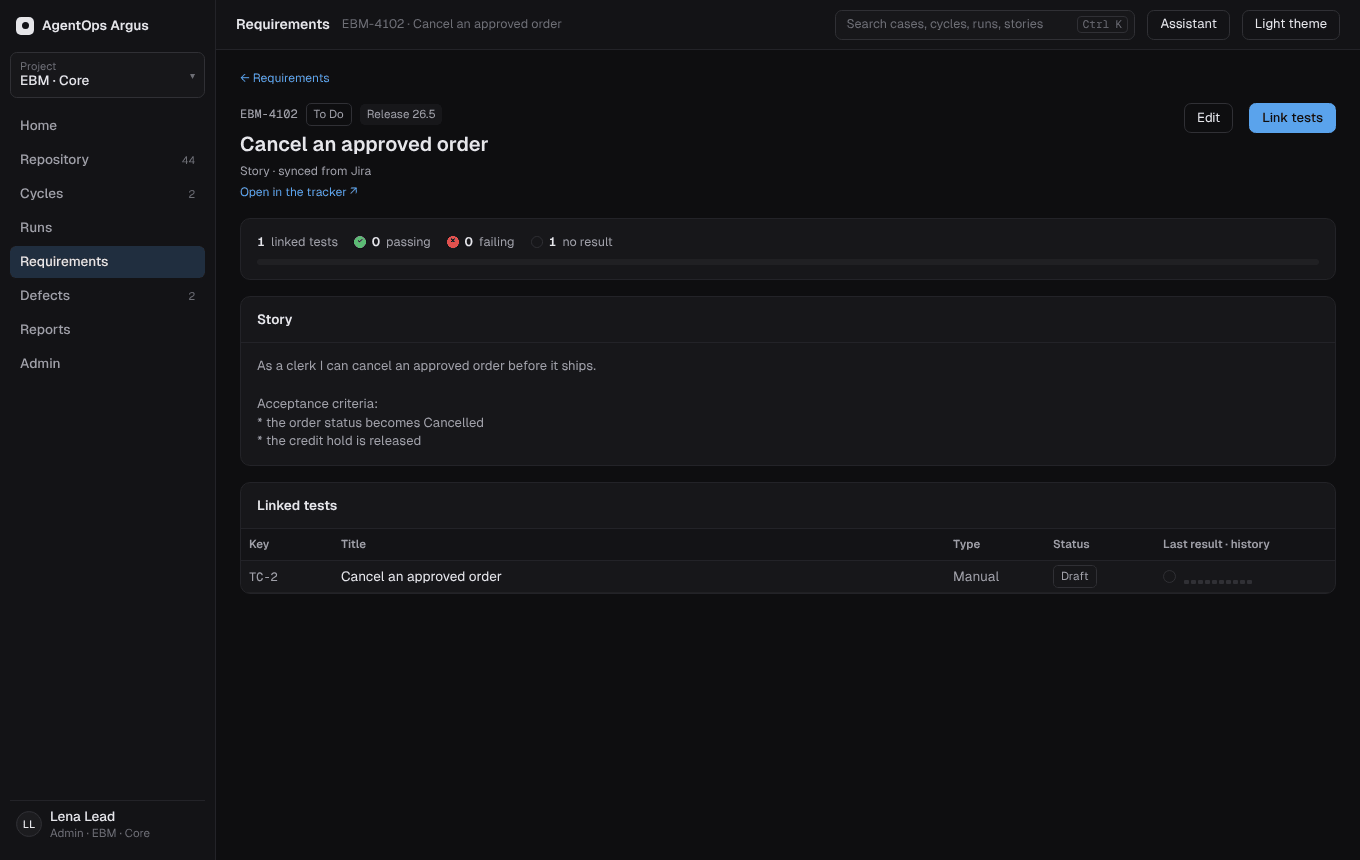
To take a story back out, open it under Requirements and press Remove (leads and project admins). The confirm lists the test cases linked to it and how many runs have results for them: the links go, the test cases and runs stay. Nothing changes in Jira. Sync from Jira and CI uploads that name the story leave it out from then on, and the import list marks it Removed; importing it again, creating it by hand or linking a test to it by hand brings it back.
19.4 Defects in Jira
Logging a defect with file in Jira creates the
issue, attaches the evidence (the execution's attachments or the run's
evidence files, up to 20 MB each, and desktop screen captures) and adds
a remote link back to the run or execution in Argus (which needs
ARGUS_PUBLIC_URL). The defect shows its Jira key and
status.
To link a Jira issue that already exists instead, use Existing Jira issue in the Log defect dialog. Opening it lists the open bugs of the project's Jira project (else your default one from My Jira), newest first; typing a key finds that issue anywhere, typing words searches Jira, closed issues included. The picked or typed issue is shown under the field with its summary, status, priority and assignee and a link to it. The search runs with your own Jira sign-in when you saved one. Without Jira on the server the field takes a typed key and says why it can't search.
19.5 Jira versions as releases
Releases → Import from Jira lists the project's versions and imports the ones you pick (or every unreleased, unarchived one) as releases, with description, dates and status. A release with the same name is linked rather than duplicated. Linked releases follow their version on every sync and on the webhook's version events: a rename renames the release everywhere it is used, a deleted version unlinks it. Mark released in Jira on the release page sets the Jira version released.
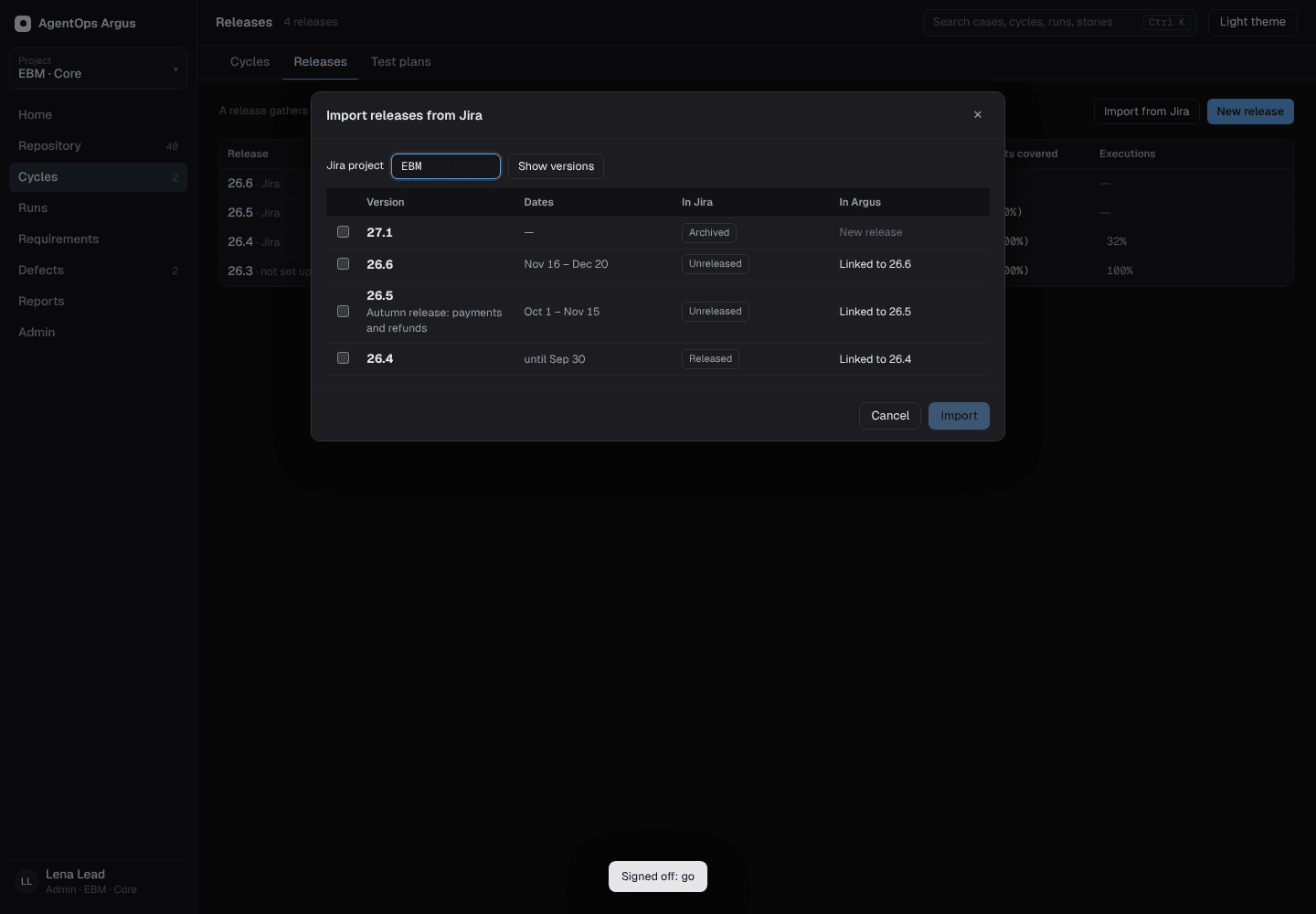
19.6 Jira in the desktop app
Connections → Jira (or the palette's Connect Jira…): site, account email and API token. Behind a proxy, the system proxy is used.
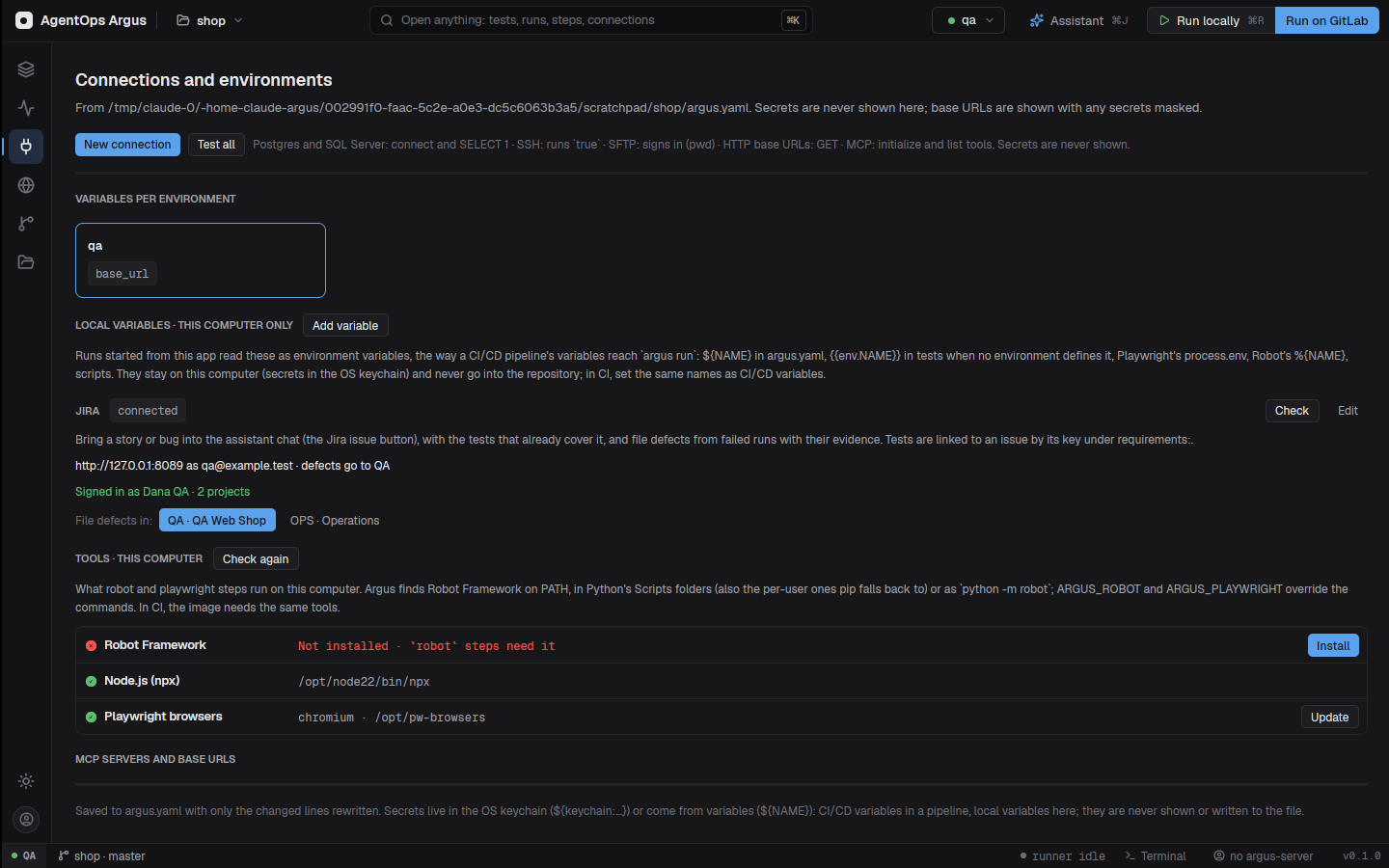
- Jira issue in the assistant composer: project →
sprint → issue. The issue goes into your message with its description,
images and the tests that already cover it (tests whose
requirementslist the key). Pick several for one message (13.7). - Log defect files straight in Jira when no argus-server is used, linked to the test's requirement keys.
- The assistant's
jira_get_issue,jira_search,jira_create_issue,jira_commentandjira_link_testtools use the same settings; the token never reaches the agent.
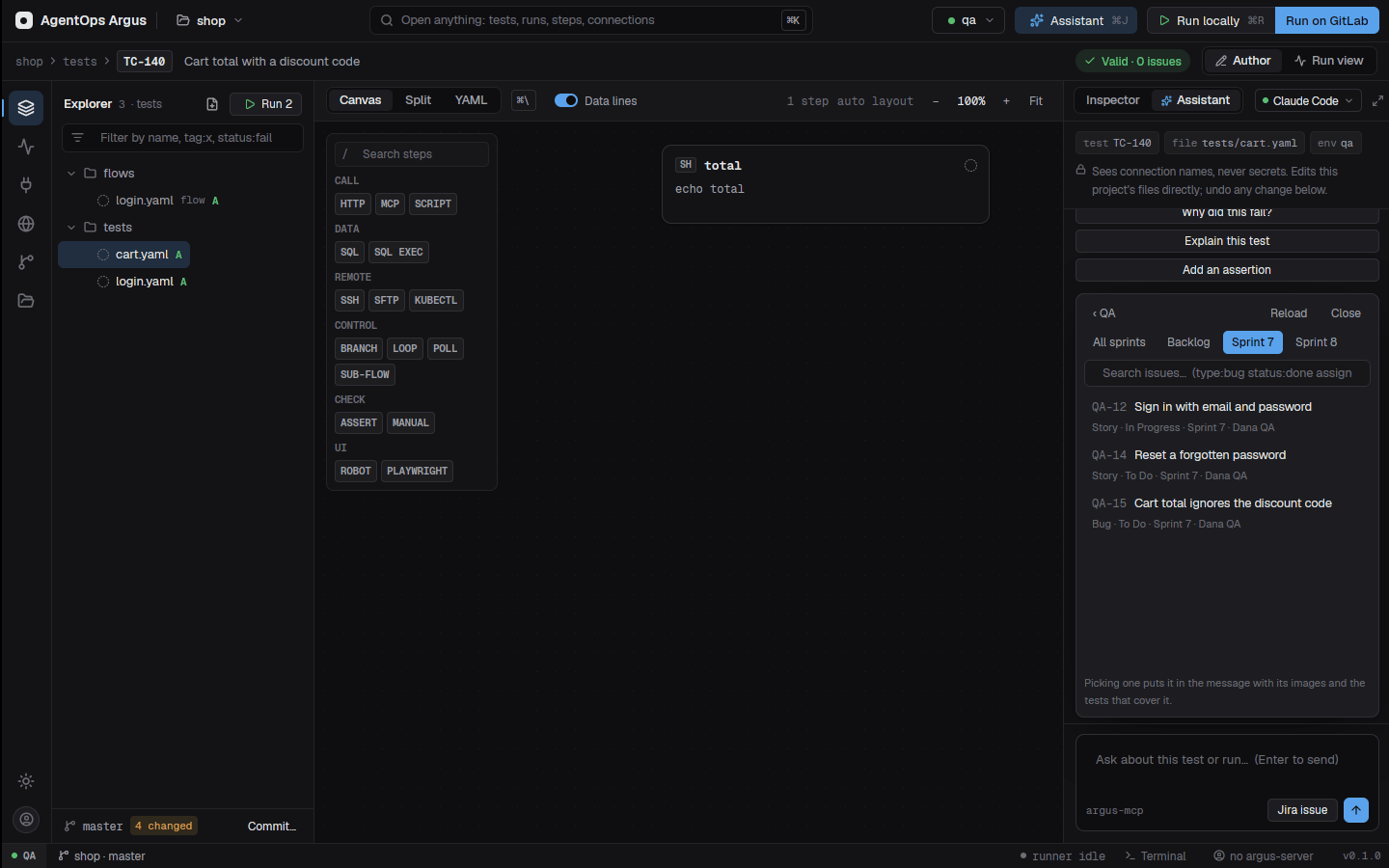
Releases, gates and deployments
A release in argus-server is a version you ship
(26.5). Cycles, requirements, test plans and deployments
name it, and its page answers one question: can we ship?
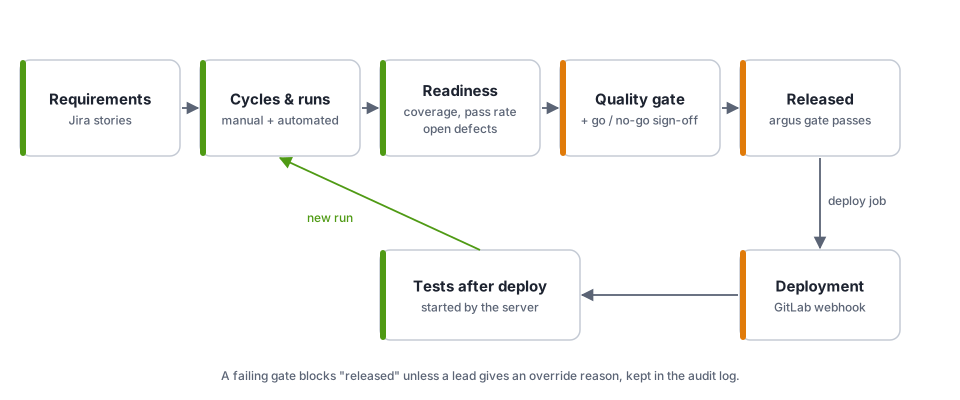
20.1 Releases
Cycles → Releases lists releases as planned, active or released, including names only used on cycles or requirements. Create one by hand or import Jira versions (19.5). Renaming a release renames it everywhere it is used.
A release's page shows its gate verdict and reasons, readiness, cycles, deployments per environment, open defects and sign-offs.
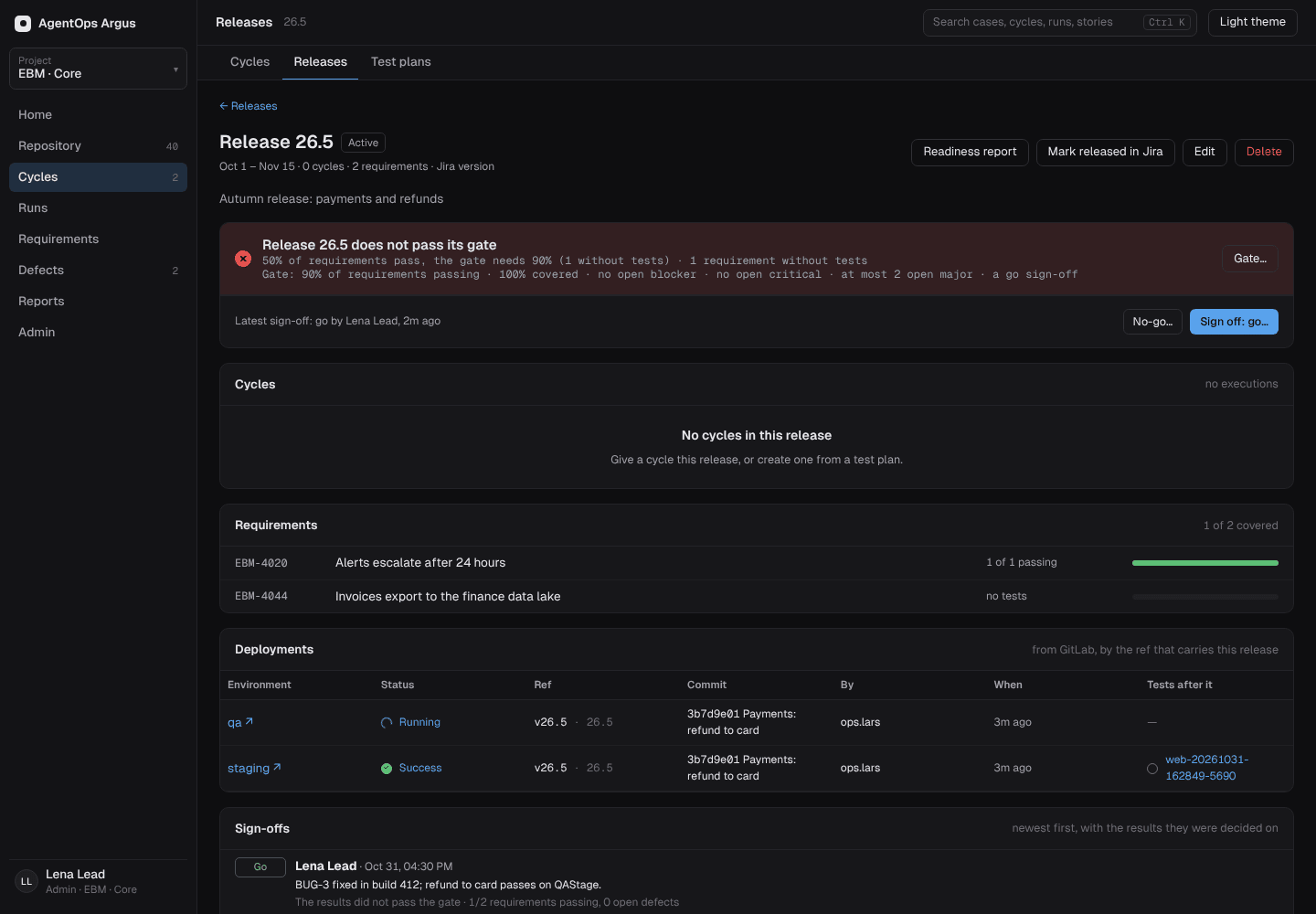
20.2 The quality gate
Each release has a gate (Gate… on the release page, leads):
{ "min_passing_pct": 95, "min_coverage_pct": 90,
  "max_open_defects": { "blocker": 0, "critical": 0, "major": 2 },
"cycles_done": true, "require_signoff": true }| Rule | Passes when |
|---|---|
min_passing_pct |
At least this share of the release's requirements pass |
min_coverage_pct |
At least this share of requirements have tests |
max_open_defects |
Open defects per severity stay within the limits (a severity not named is not limited) |
cycles_done |
Every cycle of the release is finished |
require_signoff |
The newest sign-off is go |
Anything left out keeps the default, and {} is the
default gate: every requirement covered and passing, no open blocker or
critical defect.
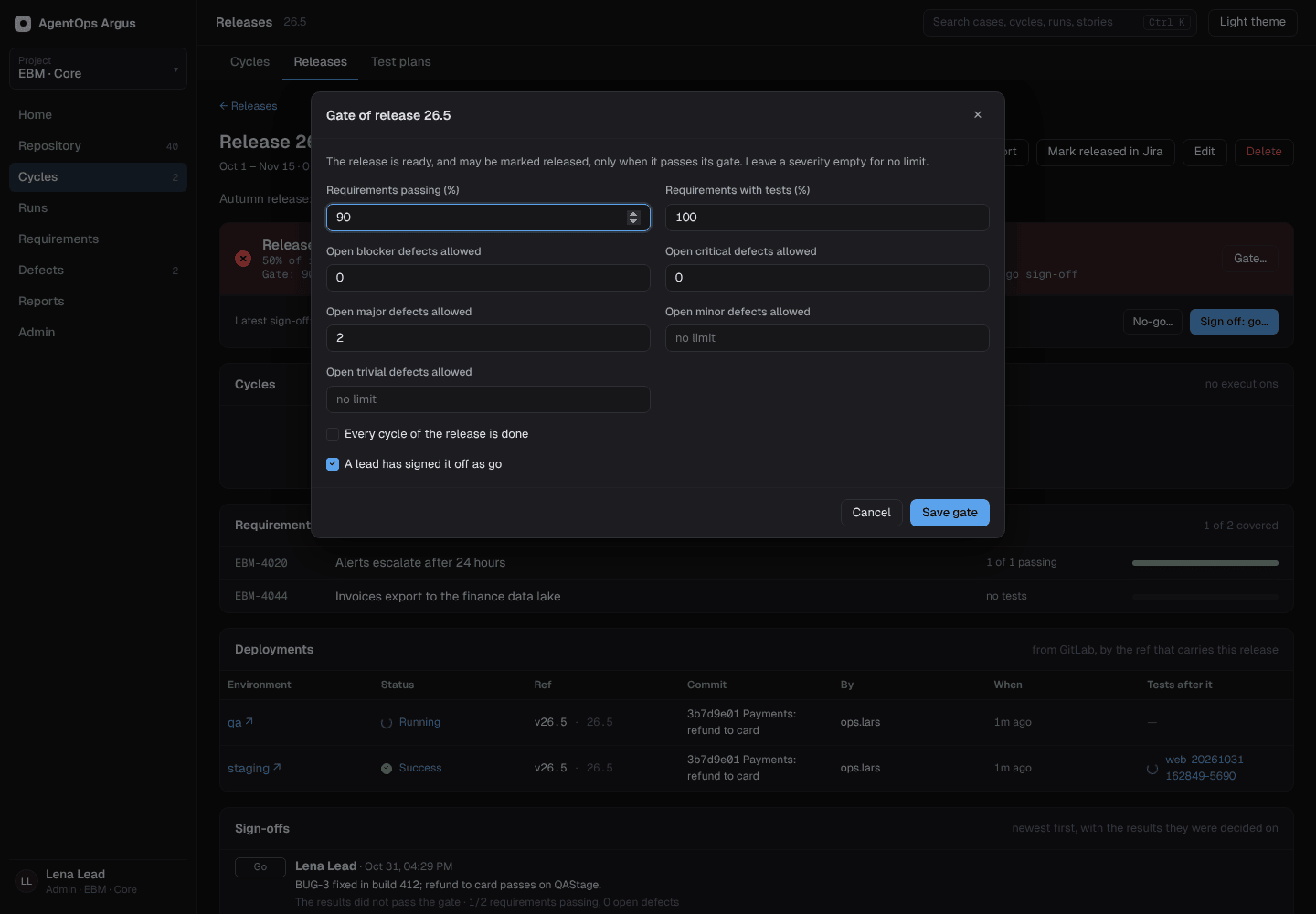
Sign-off. Leads record Sign off: go… or No-go… (a no-go says why), kept with the readiness it was made on.
Releasing. Marking a release released while
it fails its gate is refused with the reasons, unless you give an
override reason, which goes into the audit log with
them. released_at records when it shipped.
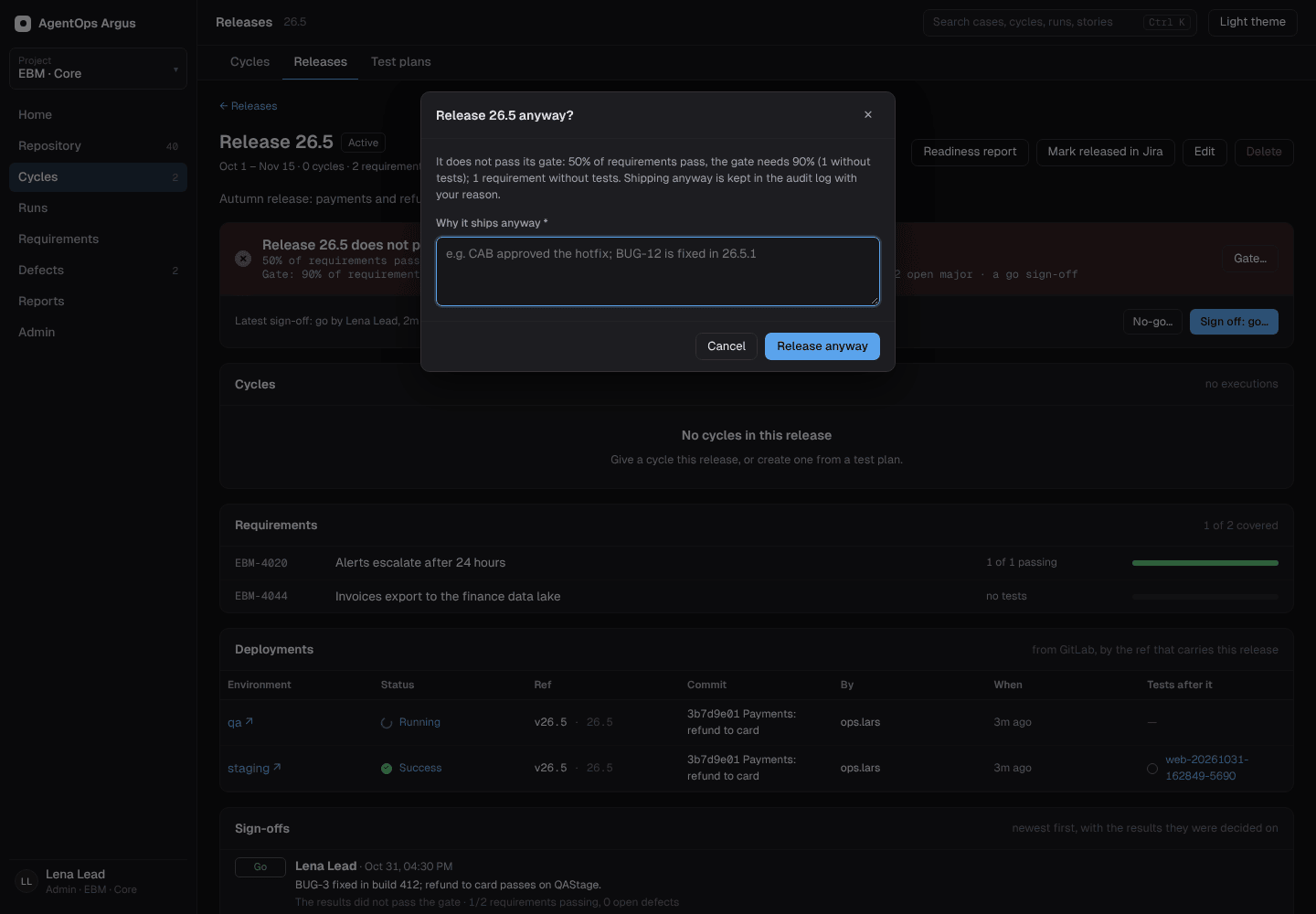
The Release readiness report shows the same judgment with its details, and prints or downloads (18.9).
20.3 Asking the gate from a pipeline
A deploy job can ask before shipping:
export ARGUS_URL=https://argus.example ARGUS_PROJECT=EBM ARGUS_API_KEY=…   # a project API key may ask
argus gate "$RELEASE"          # exit 0 when it passes, 1 when not
argus gate "$RELEASE" --json   # the full answer
or GET /api/projects/{p}/gate?release=26.5, which
answers
{pass, reasons, gate, summary, open_defects, signoff, url}.
# .gitlab-ci.yml of the application
release-gate:
  stage: deploy
  image: acrdeve1.azurecr.io/agentops/argus:core
  script:
    - argus gate "$CI_COMMIT_TAG"
  rules:
    - if: $CI_COMMIT_TAG
20.4 Restricted environments
Admin → Environments can restrict an environment to some
roles, such as {"prod": ["lead", "api_key"]}
(api_key lets CI keys upload). Project and server admins
are always allowed. It is enforced on Run on GitLab, on every
results upload (output.json, JUnit, Robot, events, evidence) and on
recording manual executions and attachments.
20.5 Deployments and tests after a deploy
Add Deployment events to the GitLab webhook of each
application repository whose deployments matter
(/api/hooks/gitlab, with the project's webhook secret; with
the server's secret add ?project=KEY). Each deployment is
recorded with its environment, status, ref, commit, job and who deployed
it, on the Deployments page (Runs →
Deployments). A ref that names a release (26.5,
v26.5, release/26.5) puts the deployment on
that release's page.
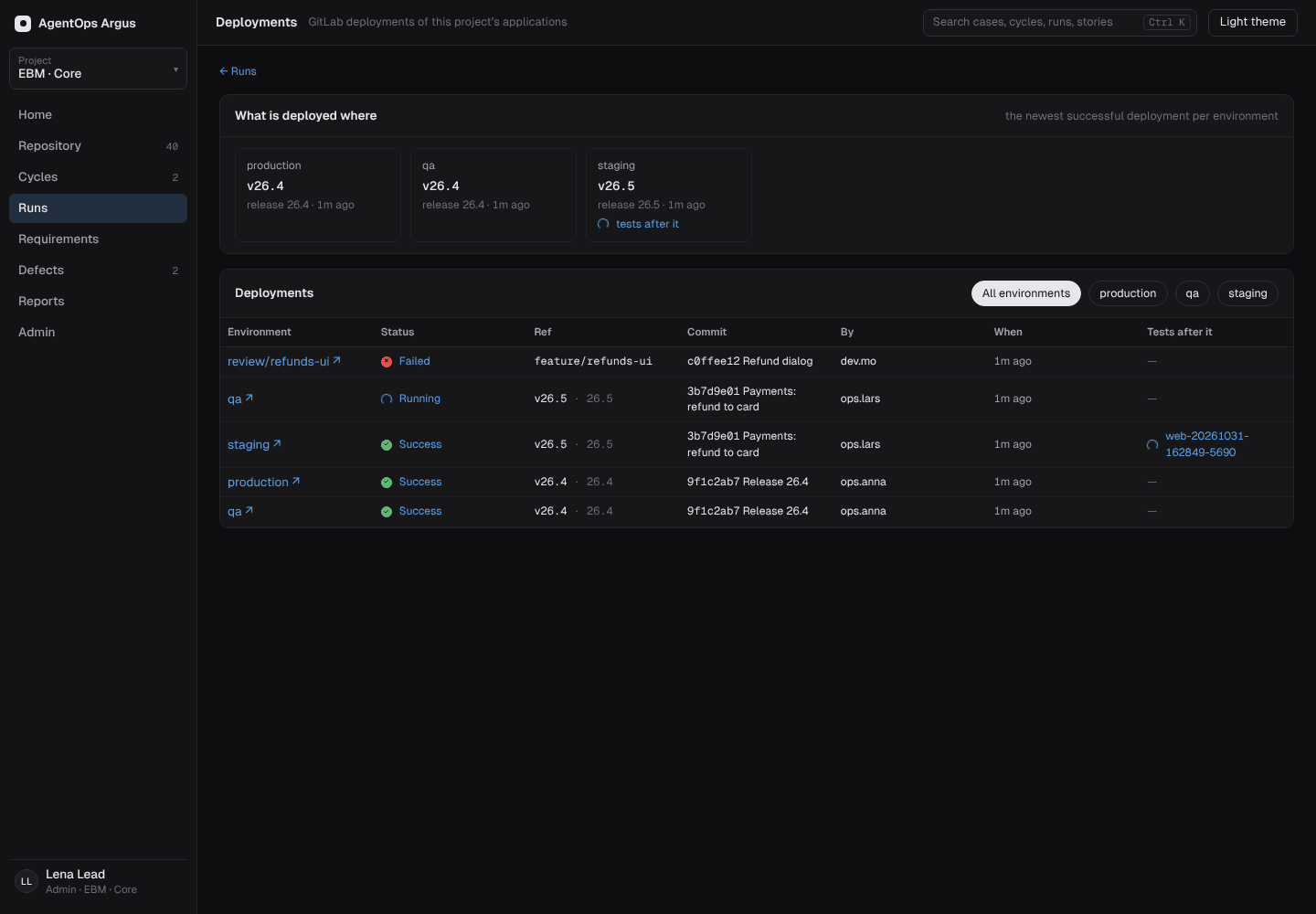
Tests after a deployment (Admin → GitLab) starts the tests pipeline after a successful deployment:
"deploy_runs": [
  { "environment": "staging", "env": "qa2", "tags": "smoke", "paths": ["tests/api"], "cycle": "nightly" },
  { "environment": "review/*", "env": "qa2", "tags": "smoke" }
]
environment is the GitLab environment (a trailing
* matches a prefix), env the Argus environment
the tests run against. The run is named After deploy to
staging, and the deployment links to it. A deployment event GitLab
sends again starts nothing new.
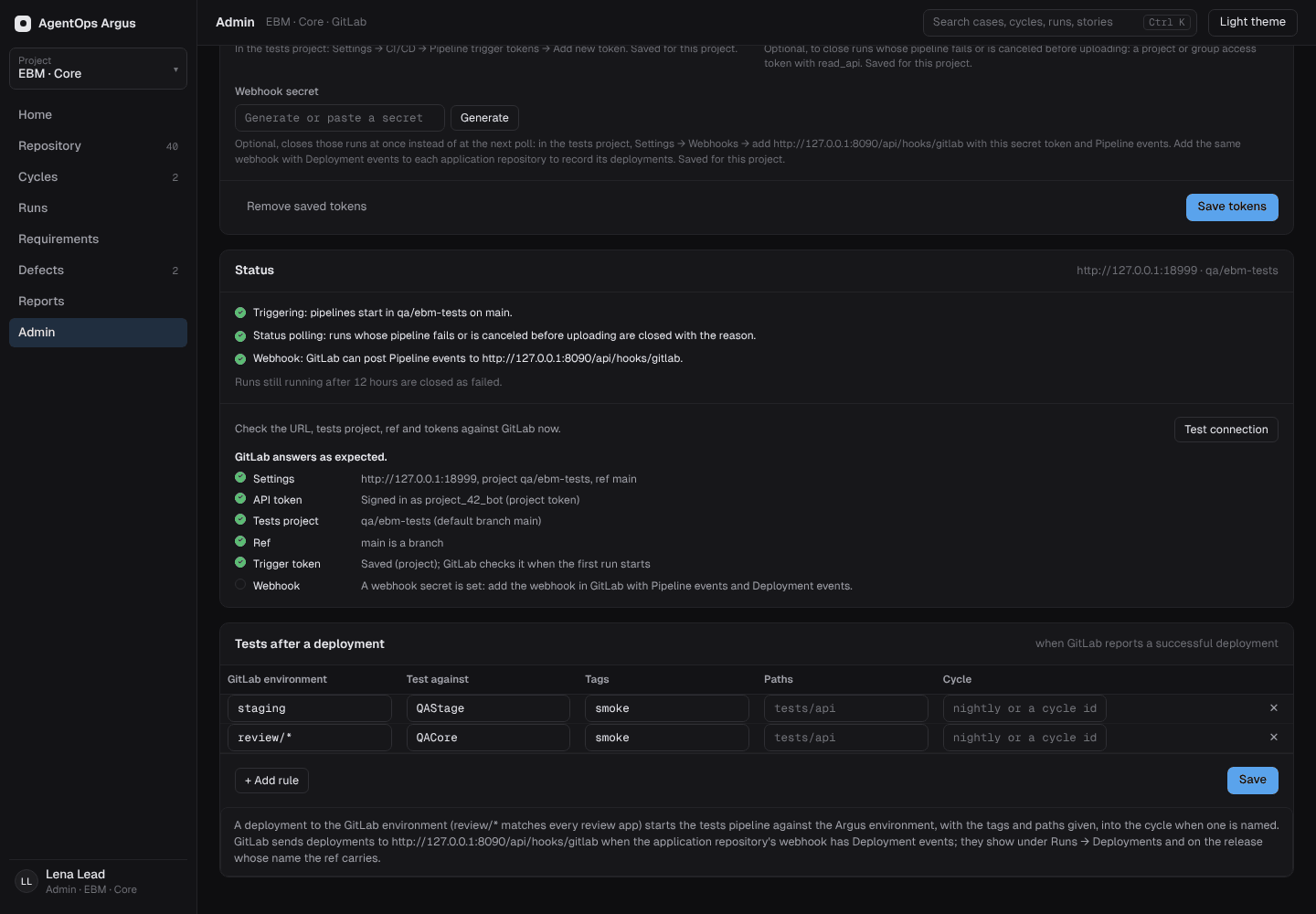
20.6 GitLab set-up for the server
Admin → GitLab (per project): the GitLab URL, the tests
project, the ref (default main), a pipeline trigger
token (from the tests repository's Settings → CI/CD →
Pipeline trigger tokens), an API token
(read_api to follow pipelines, api to cancel
them) and a webhook secret.
- Following pipelines: the server polls GitLab every
ARGUS_GITLAB_POLL_SECONDS(default 60), or takes Pipeline events on/api/hooks/gitlab. A pipeline that fails without results marks the run failed; one that is canceled marks it canceled. Runs still running afterARGUS_RUN_TIMEOUT_HOURS(12) are closed as failed. - Test connection checks the settings, the API token (as whom it signs in), the tests project and the ref, one by one.
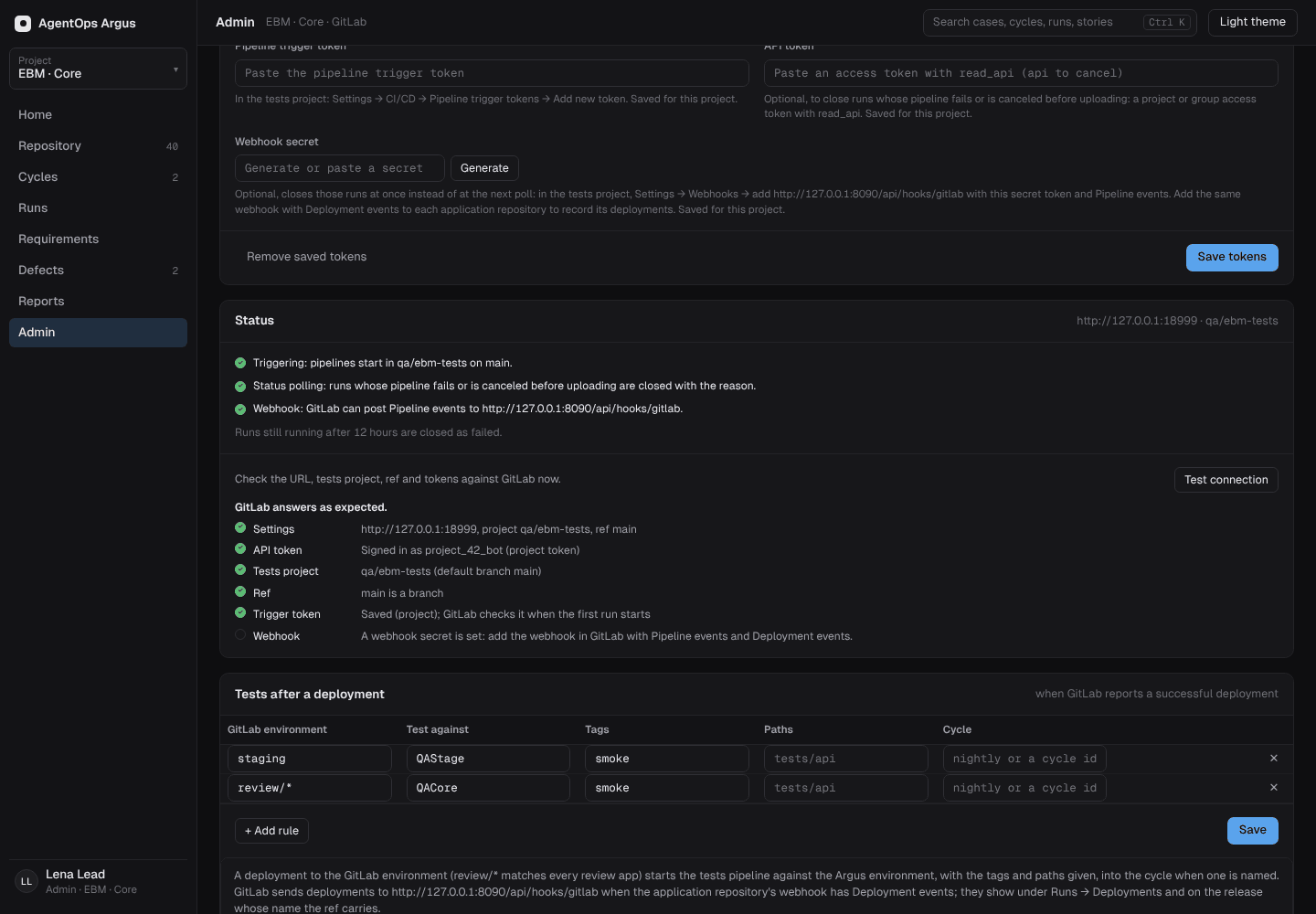
Roles and access
21.1 Project roles
| Role | May |
|---|---|
| viewer | Read everything in the project; change nothing. Everyone who signs in is a viewer of every project. |
| tester | Execute tests, upload results, start runs on GitLab, cancel runs, file defects, triage failures. |
| lead | Everything a tester may, plus author test cases, folders, requirements, plans, cycles and releases, assign work, sign off releases, set gates. |
| admin (project admin) | Everything, plus members, API keys, environments, integrations (Jira, GitLab), custom fields, project settings, QMetry import, deleting runs. |
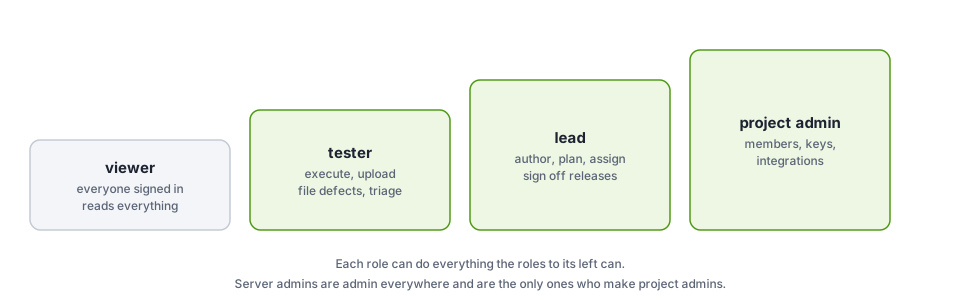
A project's members are the people given more than
viewer. GET /projects lists every project, with
member: false where you hold no role.
21.2 Who gives which role
- Server admins are admin everywhere. Only they make, change or remove a project admin: in Admin → Project admins (every project with its admins) or in the project's Members tab.
- Project admins give people tester or lead in Admin → Members, picking from everyone Argus knows or adding a new email; taking it back leaves them a viewer.
- Server admins make or remove other server admins in Admin → Server admins, for people who have signed in at least once. Nobody removes their own, and the last one stays.
- The first user is a server admin. With single
sign-on, the role map
(
ARGUS_OIDC_ROLE_MAP) can grant roles and server admin from the provider's groups or roles; mapped roles only ever raise a role (17.4).
Every change is in the project's audit log.
21.3 Tokens and keys
| Credential | Acts as | Use it for |
|---|---|---|
| Personal token (My tokens) | You, with your roles | The CLI (ARGUS_TOKEN), scripts, signing in to the web
app without SSO |
Single sign-on (argus login, the
desktop's Sign in) |
You | The CLI, argus mcp and the desktop; refresh token kept
in the OS keychain |
| Project API key (Admin → API keys, shown once) | The project's CI | Uploading results and evidence, reading runs, reports, history and
manual results (for argus report diff,
--history-from, argus gate). Nothing
else. |
Send them as Authorization: Bearer <token>.
21.4 Restricted environments
An environment can be limited to some roles
({"prod": ["lead", "api_key"]}); see 20.4.
21.5 Audits
- Project audit log (Admin → Audit log, everyone in the project): every change, including retention deletions and gate overrides.
- Sign-in audit (Admin → Sign-in audit,
server admins): sign-ins (OIDC, first use of an API access token,
personal-token sign-ins), sign-outs, and failed sign-ins with a reason
(
expired,state_mismatch,token_rejected,revoked_token…). Tokens, codes and secrets are never recorded.
21.6 What the desktop and CLI can see
The desktop app and the CLI run on your machine with your files; they need no role.
Reference
Variables, files, shortcuts and what to do when something goes wrong.
Reference
22.1 Environment variables
Running tests (CLI, desktop, CI)
| Variable | Effect |
|---|---|
ARGUS_TIMEOUT |
Default step timeout for the run (2m,
none) |
ARGUS_TEST_TIMEOUT |
Each test's time limit (30m, none) |
ARGUS_RUN_TIMEOUT |
The whole run's time limit (2h, none) |
ARGUS_HEADED=1 |
Headed browsers for Playwright and Robot |
ARGUS_WORKERS |
Tests at once (4, auto) |
ARGUS_RUN_NOTE |
Why the run happened |
ARGUS_TRIGGER |
What started it (local, pipeline,
schedule, merge_request, web,
ai) |
ARGUS_REQUIREMENTS |
Requirement keys the run covers (EBM-412,EBM-415) |
ARGUS_VERBOSE |
More output |
ARGUS_EMAIL_REDIRECT |
Send every email step's message to this one
address |
ARGUS_MCP_CONFIG |
An mcpServers file to use instead of
mcp.config |
ARGUS_SECRET_<ITEM> |
The value of ${keychain:<item>} where there is no
keychain (CI) |
ARGUS_KEYCHAIN_SERVICE |
Keychain service name (default argus) |
ARGUS_SECRET_TOOL |
Another program instead of secret-tool on Linux |
AZURE_KEYVAULT_URL / AZURE_KEYVAULT_NAME,
AZURE_TENANT_ID, AZURE_CLIENT_ID,
AZURE_CLIENT_SECRET, AZURE_AUTHORITY_HOST |
${keyvault:…} |
ARGUS_EVIDENCE_DIR |
Set for script steps: files written
there become evidence |
Programs Argus runs
| Variable | Overrides |
|---|---|
ARGUS_PYTHON, ARGUS_NODE,
ARGUS_NPX |
Interpreters for script steps and MCP servers |
ARGUS_PLAYWRIGHT |
Playwright command (default npx playwright test) |
ARGUS_PYTEST |
pytest command for Python Playwright specs |
ARGUS_ROBOT |
Robot Framework command |
ARGUS_SSH, ARGUS_SFTP |
OpenSSH programs |
ARGUS_KUBECTL, ARGUS_AZ,
ARGUS_KUBELOGIN |
Kubernetes tools |
ARGUS_PATH |
Extra folders to look for programs in |
ORACLE_CLIENT_LIB |
Oracle Instant Client folder |
ARGUS_BROWSER,
ARGUS_BROWSER_HEADLESS=1 |
Browser for the recorder and browser tools; hide it |
ARGUS_HEAL=off, ARGUS_HEAL_GRACE_MS,
ARGUS_HEAL_WAIT_MS, ARGUS_HEAL_MIN_SCORE |
Self-healing locators in recorded specs (see 9.13) |
ARGUS_ADB (else ANDROID_HOME,
ANDROID_SDK_ROOT, PATH) |
adb for mobile-app steps and the mobile
tools (6.22) |
ARGUS_IDB |
idb for iOS simulators (macOS) |
argus-server from clients
| Variable | |
|---|---|
ARGUS_URL |
The server's address (with its path when served under one) |
ARGUS_PROJECT |
The project key (EBM) |
ARGUS_TOKEN |
A personal token |
ARGUS_API_KEY |
A project API key (CI) |
ARGUS_ENV |
Environment name (Robot listener, CI jobs) |
ARGUS_RUN_ID, ARGUS_TAGS,
ARGUS_PATHS, ARGUS_TESTS,
ARGUS_CYCLE |
Passed to pipelines by Run on GitLab |
ARGUS_MASK_VARS, ARGUS_MASK_PATTERNS |
More masking for the Robot listener |
GitLab from clients
| Variable | |
|---|---|
GITLAB_URL, GITLAB_PROJECT_ID,
GITLAB_TRIGGER_TOKEN |
Start the tests pipeline (desktop Run on GitLab,
argus run --remote,
run_test where: gitlab) |
GITLAB_TOKEN |
Follow and cancel pipelines; Commit… merge requests
(api scope) |
GITLAB_REF, GITLAB_TARGET_BRANCH |
Branch to run on; merge request target |
ARGUS_IMAGE_CORE, ARGUS_IMAGE_FULL,
ARGUS_IMAGE |
Runner images in generated pipelines |
ARGUS_SKIP=1 |
Leave the Argus jobs out of a pipeline |
Desktop app
| Variable | |
|---|---|
ARGUS_DESKTOP_SETTINGS |
Path of desktop.json |
ARGUS_DESKTOP_DATA |
The app's data folder |
ARGUS_THEME=light |
Start in the light theme |
ARGUS_LOW_POWER=1 / 0 |
Force low-power drawing on / off |
ARGUS_KEEP_RUNNING=0 / 1 |
Closing the window quits / keeps Argus running in the tray (default
on; keep_running in desktop.json) |
ARGUS_UPDATE_URL |
Update feed; off disables update checks |
ARGUS_UPDATE_TRACE=1 |
Explain quiet update checks |
ARGUS_CA_CERTS |
Extra PEM CA files (;-separated) |
ARGUS_PROXY |
direct, system, or the proxy URL for every
connection; else HTTPS_PROXY/NO_PROXY, then
the Windows proxy (PAC/WPAD) |
ARGUS_ASSISTANT |
Which CLI the assistant drives |
ARGUS_CLAUDE, ARGUS_CODEX,
ARGUS_GEMINI |
Paths of the CLIs |
ARGUS_BIN |
The argus program the assistant runs as its MCP
server |
ARGUS_JIRA_URL, ARGUS_JIRA_EMAIL,
ARGUS_JIRA_TOKEN, ARGUS_JIRA_PROJECT,
ARGUS_JIRA_ISSUE_TYPE |
Jira for the desktop and argus mcp |
ARGUS_PERF, ARGUS_PERF_FRAMES,
ARGUS_PERF_IDLE |
Performance measurement of the app itself |
Installer
ARGUS_INSTALL_SILENT,
ARGUS_INSTALL_VERSION, ARGUS_INSTALL_BASE_URL,
ARGUS_INSTALL_ROOT, ARGUS_INSTALL_NO_LAUNCH
(2.1).
argus-server
The server's settings (DATABASE_URL,
ARGUS_LISTEN, ARGUS_DATA_DIR,
ARGUS_PUBLIC_URL, ARGUS_OIDC_*,
ARGUS_STORAGE, ARGUS_AZURE_STORAGE_*,
ARGUS_GITLAB_*, ARGUS_JIRA_*,
ARGUS_QMETRY_*, ARGUS_ASSISTANT_* …) are in chapter 17 and docs/server.md.
22.2 Files and folders
| Path | What |
|---|---|
argus.yaml |
Project configuration (3.3) |
*.yaml with id + steps |
Tests, flows (kind: flow), automations
(kind: automation) |
<test>.layout.json |
Canvas positions, beside its test (commit it) |
payloads/ |
The payload library |
data/ |
Data sets (any folder works) |
.argusignore |
Skip this folder when looking for tests |
argus-results/ |
Run output: output.json, junit.xml,
report.html, events.ndjson,
evidence/, history/ (don't commit) |
argus-results/automations/<id>/ |
Automation runs |
argus-results/browser/,
argus-results/checks/,
argus-results/suites/ |
Assistant browser sessions, ad-hoc check reports,
run_suite reports |
argus-results/apps/ |
What the assistant did in desktop and mobile apps, with screenshots
(computer_save_test reads it) |
argus-results/review/review.json |
Healed locators and visual changes waiting for review (9.13) |
visual-baselines/ |
Approved screenshots for visual checks (commit it) |
.gitlab/argus.gitlab-ci.yml |
Generated CI jobs |
IMPORT.md, MIGRATION.md,
UPGRADE.md, legacy/ |
Written by imports, migrations and upgrades |
desktop.json |
Desktop settings (2.7) |
local-env.json |
Local variables (plain values) in the desktop's data folder |
22.3 Exit codes
| Code | Meaning |
|---|---|
0 |
Success: every test passed, the gate passes, the comparison agrees |
1 |
A test failed; the gate fails; the runs disagree |
2 |
Configuration or infrastructure error: invalid YAML, unknown environment or connection, unreachable system, missing program |
22.4 Keyboard shortcuts
⌘ is Ctrl on Windows and Linux.
Anywhere
| Keys | |
|---|---|
F1 |
This manual, in your browser (works offline) |
⌘K |
Command palette |
⌘O |
Open a folder |
⌘1 … ⌘8 |
Explorer · Run view · Connections · API explorer · Repository · Files · Project settings · Payloads |
⌘J |
Toggle the assistant |
⇧⌘J |
New assistant conversation |
⌥⌘B |
Collapse or open the side panel |
⇧⌘L |
Light / dark theme |
⌘R |
Run the open test locally |
⇧⌘↵ |
Run the selected folder |
⇧⌘R |
Run on GitLab |
Ctrl+` / Ctrl+Shift+` |
Terminal / new terminal |
Esc |
Close a menu or dialog, clear the selection |
Canvas and inspector
| Keys | |
|---|---|
/ |
Step palette |
⌘↵ |
Run the selected step |
⌘\ |
Canvas / Split / YAML |
⌘Z, ⇧⌘Z / ⌘Y |
Undo, redo |
⌘A |
Select all steps |
⌘C, ⌘V |
Copy, paste steps |
⌘D |
Duplicate steps |
Delete, ⌘⌫ |
Delete steps |
⌥↑, ⌥↓ |
Move the step up, down |
Shift+arrows |
Nudge the selection |
⌘+, ⌘-, ⌘0,
⌘9 |
Zoom in, out, 100 %, fit |
Shift+Alt+F |
Format JSON in a field |
Run view: J / K next /
previous failure.
Explorer: Delete / ⌘⌫
deletes the selected test or folder.
Files and editors: Ctrl+F find,
Ctrl+H replace, Ctrl+G go to line,
Alt+Z wrap, Ctrl+S save, Ctrl+W
close, Ctrl+Shift+T reopen, Ctrl+Space
complete, Shift+Alt+F format, F2 rename,
⌘C / ⌘X / ⌘V / ⌘D on
tree rows, ⇧⌘F search in files.
Assistant composer: Enter send (steer
while running), Ctrl+Enter queue, ↑ history,
@ files, / commands.
Terminal: Ctrl+Shift+C /
Ctrl+Shift+V copy / paste.
22.5 Statuses
| Where | Statuses |
|---|---|
| Test and step results | PASS, FAIL, FLAKY,
SKIP, PENDING_MANUAL, BLOCKED,
NOT_RUN, RUNNING |
| Runs on the server | as above, plus CANCELED |
| Executions | NOT_RUN, IN_PROGRESS, PASS,
FAIL, BLOCKED, SKIP,
PENDING_MANUAL |
| Automations | Succeeded, Failed |
| Failure categories | Product bug, Test bug, Environment, Flaky, Needs triage |
Troubleshooting
| Symptom | Cause and fix |
|---|---|
environment variable QA2_PASSWORD is not set |
argus.yaml reads ${QA2_PASSWORD} and
nothing sets it. On the desktop set it on Connections →
Variables (the tab lists every missing name); on the
command line export it; in CI add it as a masked CI/CD variable.
argus connections env --env qa2 tests/ lists them all. |
{{env.dev_password}} is undefined |
No environment defines dev_password and no variable of
that name is set. Set a local variable dev_password, or add
it to the environment's vars. |
A ${keychain:…} secret is missing in CI |
CI has no keychain: add ARGUS_SECRET_<ITEM>
(upper case, other characters _). The error names it. |
Robot Framework is not installed |
Click Install Robot Framework under the step, or
Connections → Tools on this computer, or
python -m pip install robotframework.
ARGUS_ROBOT points at a specific robot. |
A Playwright step says npx /
@playwright/test is missing |
Run npm install and
npx playwright install chromium in the tests folder (the
recorder writes the package.json). |
Test timeout of 30000ms exceeded in Playwright |
The step's limit is Playwright's test timeout. Raise it on the step,
the test, its folder, argus.yaml
timeouts.playwright, or the run (Step timeout,
--timeout); none turns it off (9.3). |
| Headed run shows no browser | Turn on Show the browser (or --headed). For
Robot, Robot Framework 7+ is needed to force browsers visible; Robot 6
only gets ${HEADLESS}. |
| A step "ran past its timeout" / Stop did nothing | SQL statements are cancelled on the server, and HTTP, Kafka and
Redis steps stop waiting on Stop. Robot and pytest steps are only ended
by a limit set for them (step, test, folder or
timeouts.robot). |
A step failed with [time limit …, from …] |
It ran into its limit; the message says where that limit was set. Change it there, or closer to the step (9.3). |
desktop-app: "No running app with a window matches …" /
"The app is not running" |
Give the step a launch: command, or use the name the
system shows (on Linux often the process name, such as
Shop.py) or the window's title.
computer_list_apps in the assistant lists what it can
see. |
desktop-app on macOS: "Allow Argus in System Settings →
Privacy & Security → Accessibility" |
Allow Argus (or the terminal that runs argus) under
Accessibility and Screen Recording, then run
again. |
desktop-app on Linux: "The accessibility bus is not
running" |
Run in a desktop session with AT-SPI (at-spi2-core);
native Wayland windows can't be driven, XWayland and X11 ones can. |
mobile-app: "No emulator or device is running" /
adb not found |
Start the emulator first (Android Studio → Device Manager, or
emulator -avd <name>). Install the SDK
platform-tools, or set ARGUS_ADB /
ANDROID_HOME. |
| SSH step fails with a host key error in CI | CI uses host-key-checking: yes. Give
known_hosts (from ssh-keyscan you checked), or
insecure_ignore_host_key: true for lab hosts. |
An mcp step's server doesn't start |
The message names the server, the command line and its last stderr
lines. argus check --env qa2 shows whether each server
starts. In CI, stdio servers needing Node.js or Python need
argus:full. |
{{payload.x}} not found |
The library is payloads/ beside
argus.yaml. The error lists the closest names. Names have
no extension unless two files share one. |
| Closed the window but schedules still run, or Argus "won't start" | Closing the window keeps Argus running in the tray, and starting it
again shows that window. Quit from the tray icon's menu (or
argus-desktop --quit), or turn Keep running in the tray
when the window is closed off in the palette (4.13). |
| No Argus icon in the tray | On Windows look under the ^ arrow in the notification
area. On GNOME install the AppIndicator extension. Starting Argus again
still brings the window back. |
| Tests changed on disk don't show | The app watches the folder; click Refresh in the explorer or Reload tests from disk. |
| The app is slow over Remote Desktop or in a VM | Low-power drawing should switch on by itself there;
ARGUS_LOW_POWER=1 forces it. |
| Sign-in, updates, Jira or GitLab: "TLS certificate not trusted" | Put your proxy's CA (Netskope) PEM in
~/.argus/certificates/ or
~/.agentops/certificates/netskope.pem, or set
ARGUS_CA_CERTS (2.2). |
| "could not connect … going direct" while the browser works | The browser probably uses a proxy Argus didn't find: set
ARGUS_PROXY (or HTTPS_PROXY) to it (Proxies). Otherwise a firewall or endpoint security
is blocking Argus. |
| "… through proxy X (from HTTPS_PROXY)" fails | An old HTTPS_PROXY may be set; remove it, or set
ARGUS_PROXY=system to use the Windows settings
instead. |
argus login: the provider "has no public client
argus-cli" |
The device-flow client is missing, needs a secret, or is disabled in IdentityServer (17.4). |
| Web Run on GitLab runs stay "running" | Set the project's API token or the GitLab webhook so the server can follow pipelines (20.6). |
| Results upload is refused (403) for an environment | The environment is restricted (20.4); use a role or API key that is allowed. |
| Exit code 2 in CI | Configuration or infrastructure: read the first error line.
argus validate and argus check in the job
narrow it down. |
Getting more detail
argus run -vprints more as it runs.argus report show --failed argus-results/output.jsonprints failures with their messages.- In the desktop, the drawer's tabs show the full request, response,
output and log of any step; the assistant can read them too
(
get_step_output). - The server logs to stdout
(
docker compose logs -f server); failed sign-ins are in Admin → Sign-in audit.